
Copy to Store lets a multi-location merchant build something once and push it to their other store locations in the same run, instead of logging into each store and recreating identical work. It applies across two areas of the platform:
-
Purchase Orders, build a PO once and copy it to selected locations.
-
Promotions, create a Mix N' Match deal, BOGO deal, Pricing rule, or Coupon once and copy it to selected locations.
Seeing Where a Promotion Was Copied
When you create a BOGO, Mix n Match or Coupon with Copy to all stores, the stores you selected are now saved with the promotion. Open the promotion later — to view it or to edit it — and the list of stores it was copied to is shown with the copy option, so you can tell at a glance which locations are running it.
This matters most when you run store-specific offers alongside chain-wide ones: before you edit a copied promotion, you can see exactly which stores received it the first time and select the same set again, instead of guessing and sending the edit to the wrong locations.
Every Copy to Store flow behaves the same way: pick your destinations, run the copy, and check History to see exactly what landed where.
📝 Note. Copy to Store applies to multi-location accounts only. If your account has a single store, the copy-to-location option is not shown.
⚠️ Important. Copying never changes the original. The source purchase order or promotion is unaffected by the copy.
The two copy behaviors
How a copy behaves depends on whether what you're copying is tied to specific products.
Product-scoped copies, matched by UPC
Purchase orders, item-level coupons, BOGO, Mix N' Match, and Pricing all reference specific products, so copies are matched at each destination by UPC.
-
Items whose UPC exists at a destination copy over to that store.
-
Items whose UPC doesn't exist there are skipped for that store only, the rest of the copy still lands.
-
A UPC missing in one store but present in another still copies to the store where it exists.
For example, a PO with ten line items copied to three stores may land complete in two of them and land with eight items in the third, where two UPCs aren't stocked. The eight still copy; the two are reported as skipped.
Full-definition copies, no product matching
Order-level coupons apply to the whole transaction rather than to specific products, so there's nothing to match. The entire coupon definition copies to every selected store: code, discount type and value, minimum order, redemption limits, validity dates, online visibility, and the rest.
Copying a purchase order
-
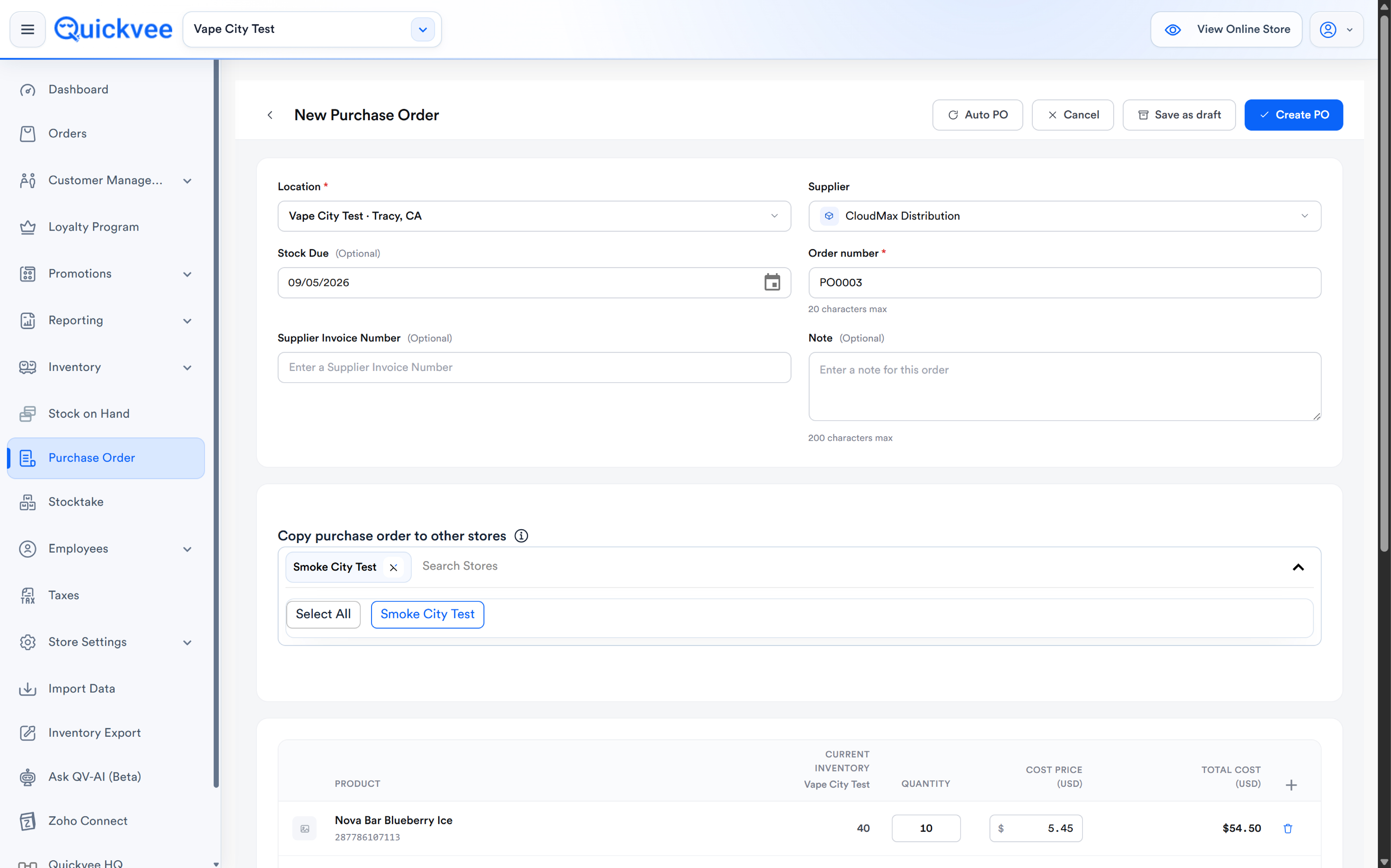
Create the purchase order as usual: vendor, line items, quantities, costs.
-
Select the destination location(s) to copy it to. You can pick any subset of your other stores.
-20260901-063905.jpg?cb=31a1165ff508355882296bf6e65a70f1)
-
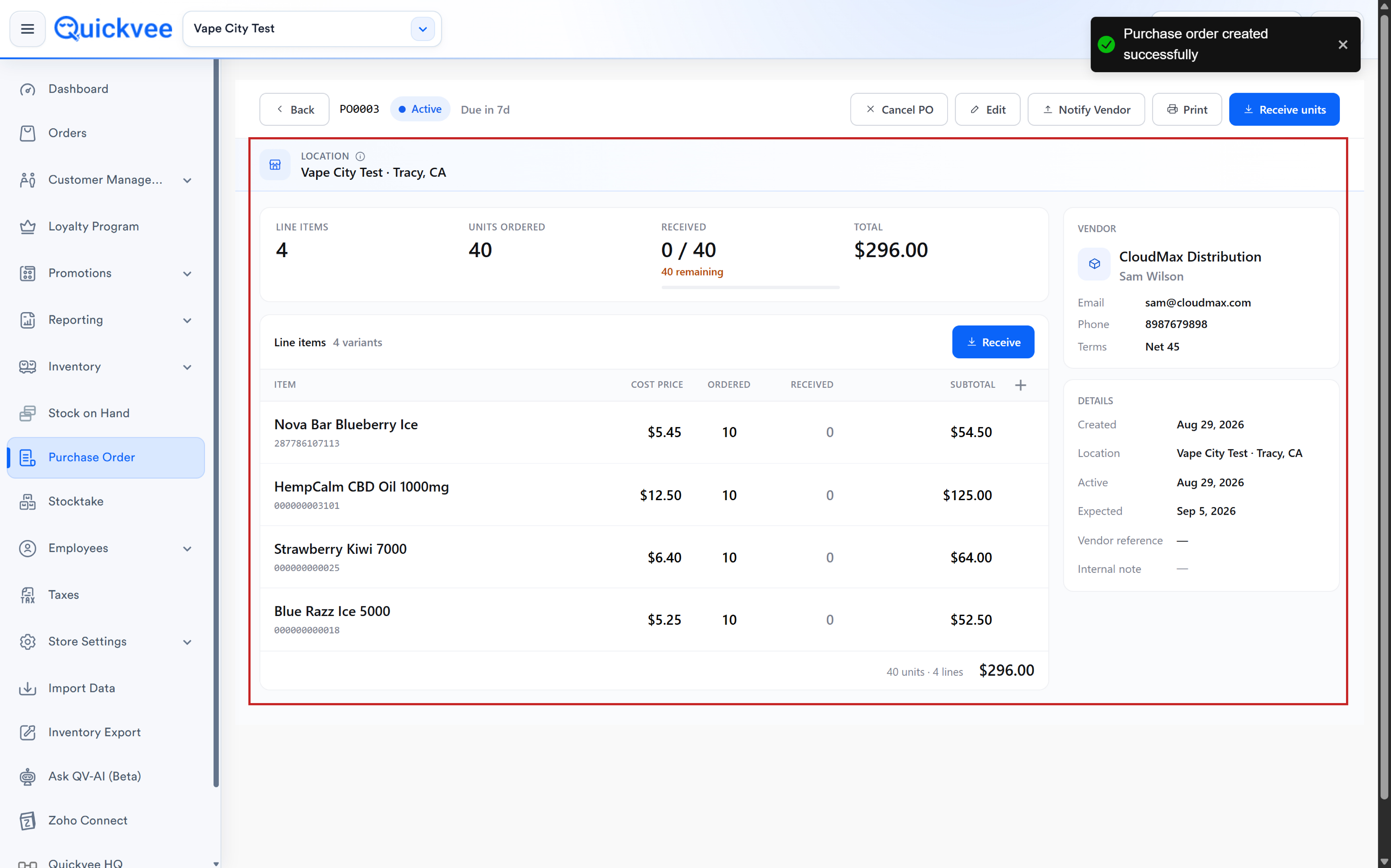
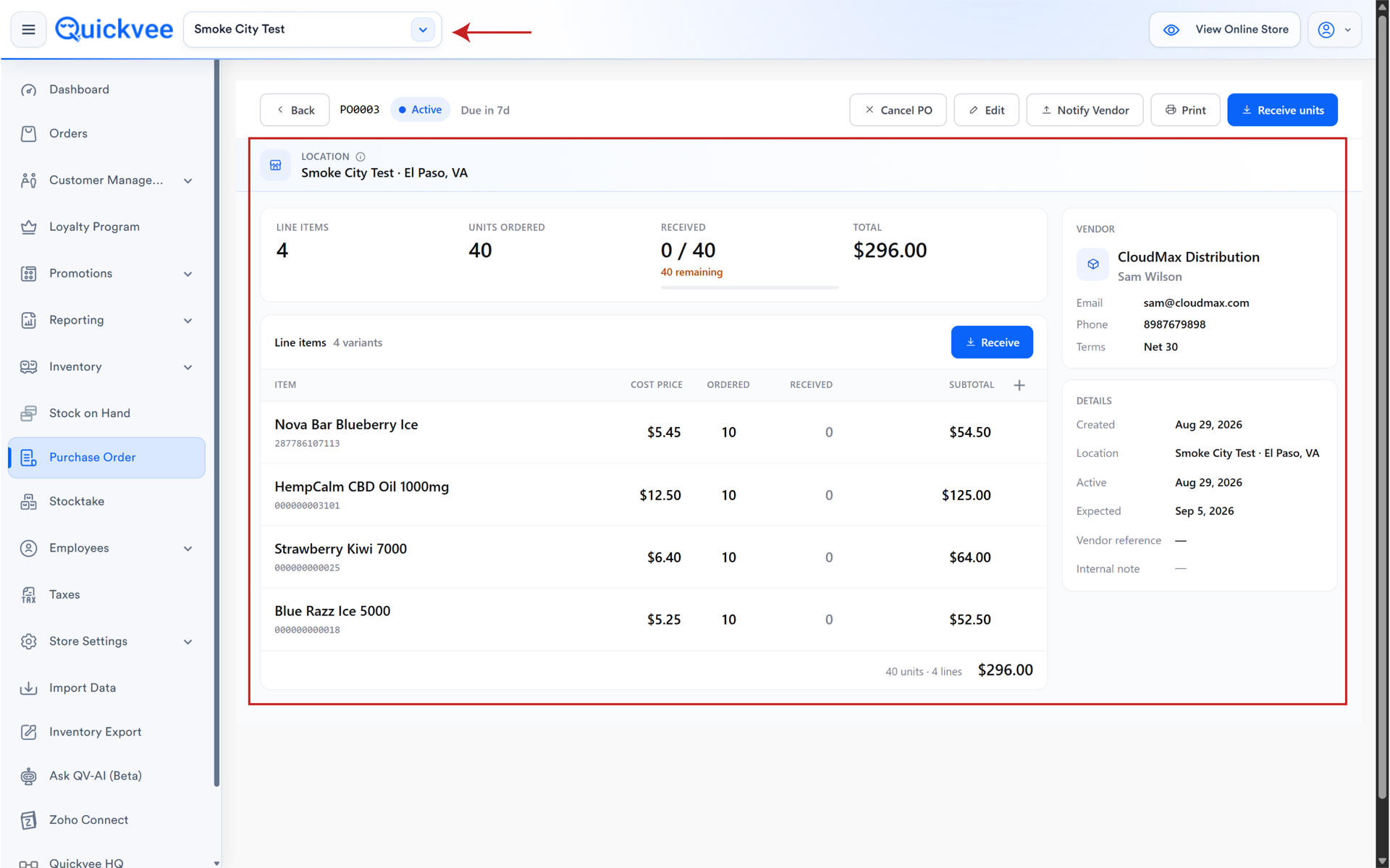
Complete the PO. Each selected location receives its own copy, with quantities, costs, and vendor matching the source for every item that copies over.
-
Open History to review what copied and what was skipped, per destination store.
✅ Best practice. Before a large multi-store PO, confirm the UPCs you're ordering exist at each destination. Anything missing simply won't copy there, the store will be short on the order unless you notice the skip and add it.
Copying a promotion
-
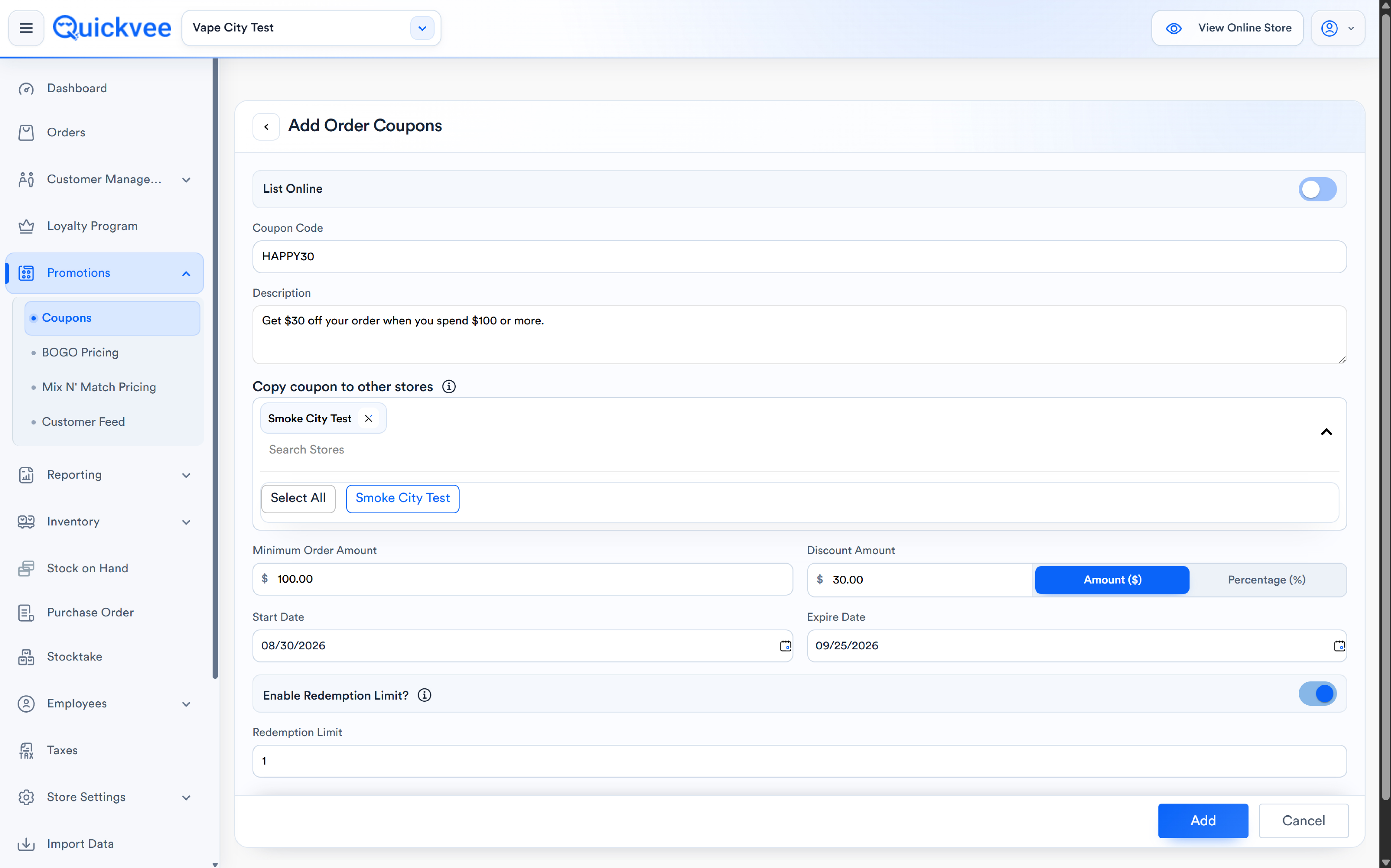
Create the promotion: Mix N' Match, BOGO, Pricing, or a Coupon (order-level or item-level).
-
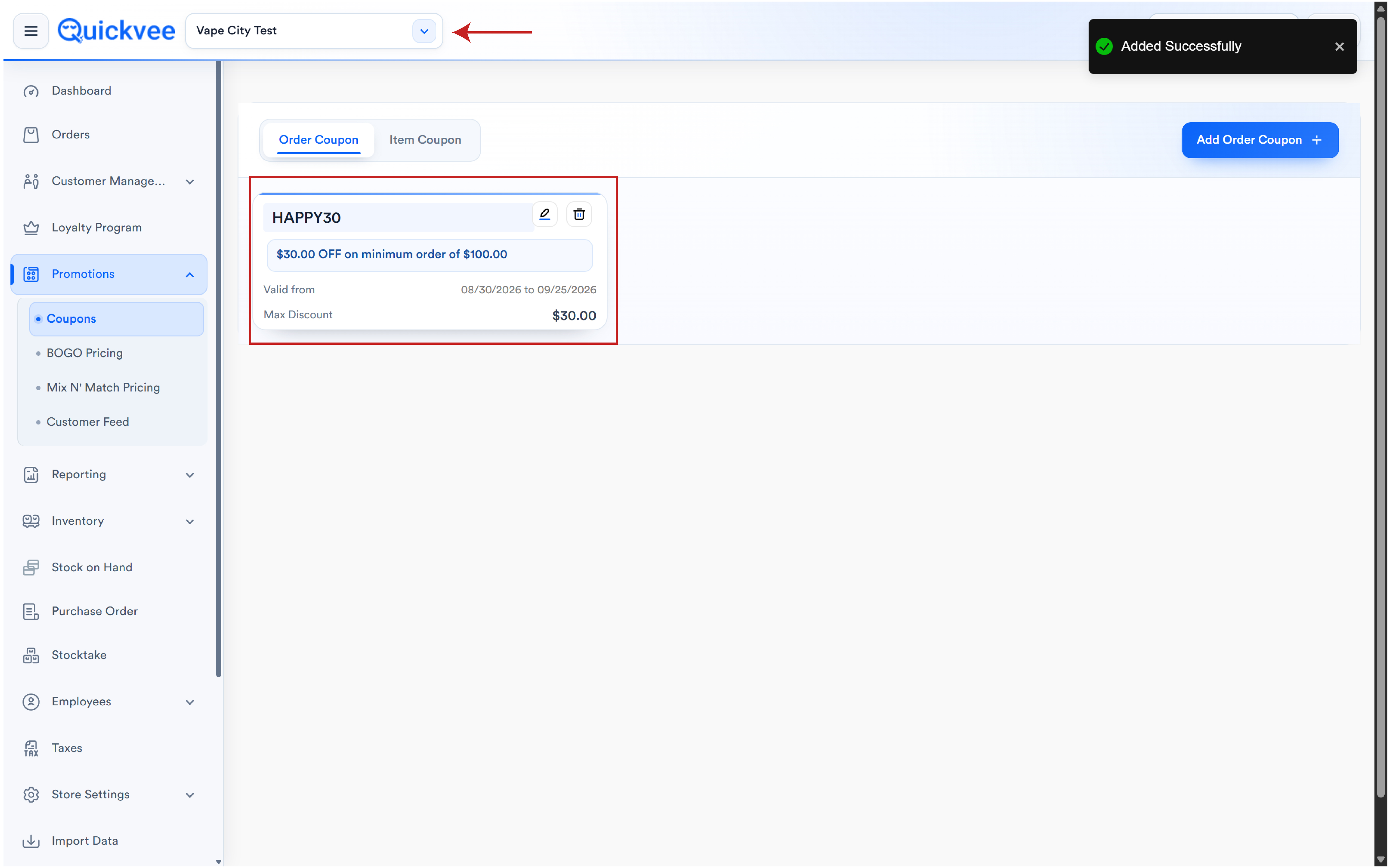
Select the destination location(s). Use Select All to copy to every store at once.
-
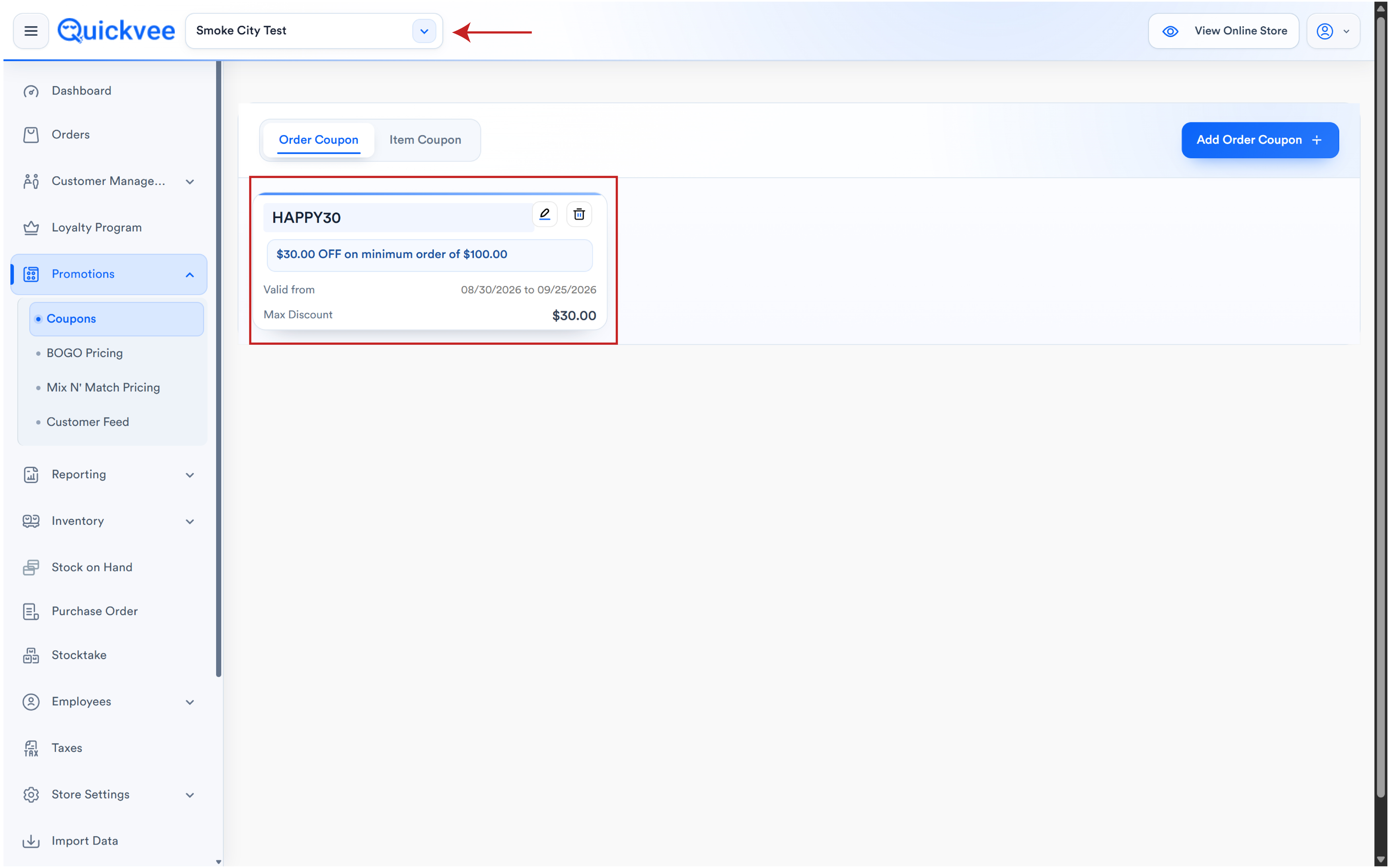
Save. Each selected location receives its own copy.
-
Open History to review the per-store result.
|
Promotion type |
Copy behavior |
|---|---|
|
Order-level coupon |
Full definition copies to every selected store; no per-item skipping |
|
Item-level coupon |
UPC-matched; items missing at a destination are skipped there only |
|
BOGO |
UPC-matched; missing UPCs skipped per location |
|
Mix N' Match |
UPC-matched; missing UPCs skipped per location |
|
Pricing |
UPC-matched; missing UPCs skipped per location |
Seeing Where a Promotion Was Copied
When you create a BOGO, Mix n Match or Coupon with Copy to all stores, the stores you selected are now saved with the promotion. Open the promotion later — to view it or to edit it — and the list of stores it was copied to is shown with the copy option, so you can tell at a glance which locations are running it.
This matters most when you run store-specific offers alongside chain-wide ones: before you edit a copied promotion, you can see exactly which stores received it the first time and select the same set again, instead of guessing and sending the edit to the wrong locations.
TIP: Keep a naming convention for chain-wide versus store-specific offers — "ALL – 2 for $15" versus "Store 3 – 2 for $15". With the saved store list, the name and the list together make the scope obvious to the warehouse team.
IMPORTANT: The saved list shows where the promotion was copied when it was created or last copied. If a store was added to your account afterwards, it is not on the list until you copy the promotion again.
Reviewing results in History
The History tab is where you confirm a copy did what you expected. For each destination store it shows what copied and what was skipped, with the skip reason stated plainly: the UPC did not exist in that location.
💡 Tip. A skipped UPC isn't an error. It means that product simply isn't set up in that store. If it should be, create the product there with the same UPC and run the copy again, only then will it be included.
Frequently Asked Questions (add to the existing FAQ)
How do I know which stores a promotion was copied to? Open the promotion. The stores selected during Copy to all stores are saved on it and shown with the copy option.
I'm editing a copied promotion — will the edit go to the same stores? Reselect the stores shown in the saved list when you copy the edit. The list is there so you pick the same set.
Related
See Bulk Update (web backend) for editing product fields across locations, and Customer Groups & Group Loyalty for sharing customers and loyalty across stores.