
Tags are free-form labels you attach to products for filtering and promotion, "new arrivals," "clearance," "staff picks," "420 sale," anything that groups products across categories and brands. Unlike categories, a product can carry as many tags as you like, and unlike attributes, tags don't create variants. They're the lightest, most flexible way to slice your catalog.
Where to find it
From the web backend, open the left menu and expand Inventory, then select Tags. The page opens with your full tag list and a count of how many tags your store has.
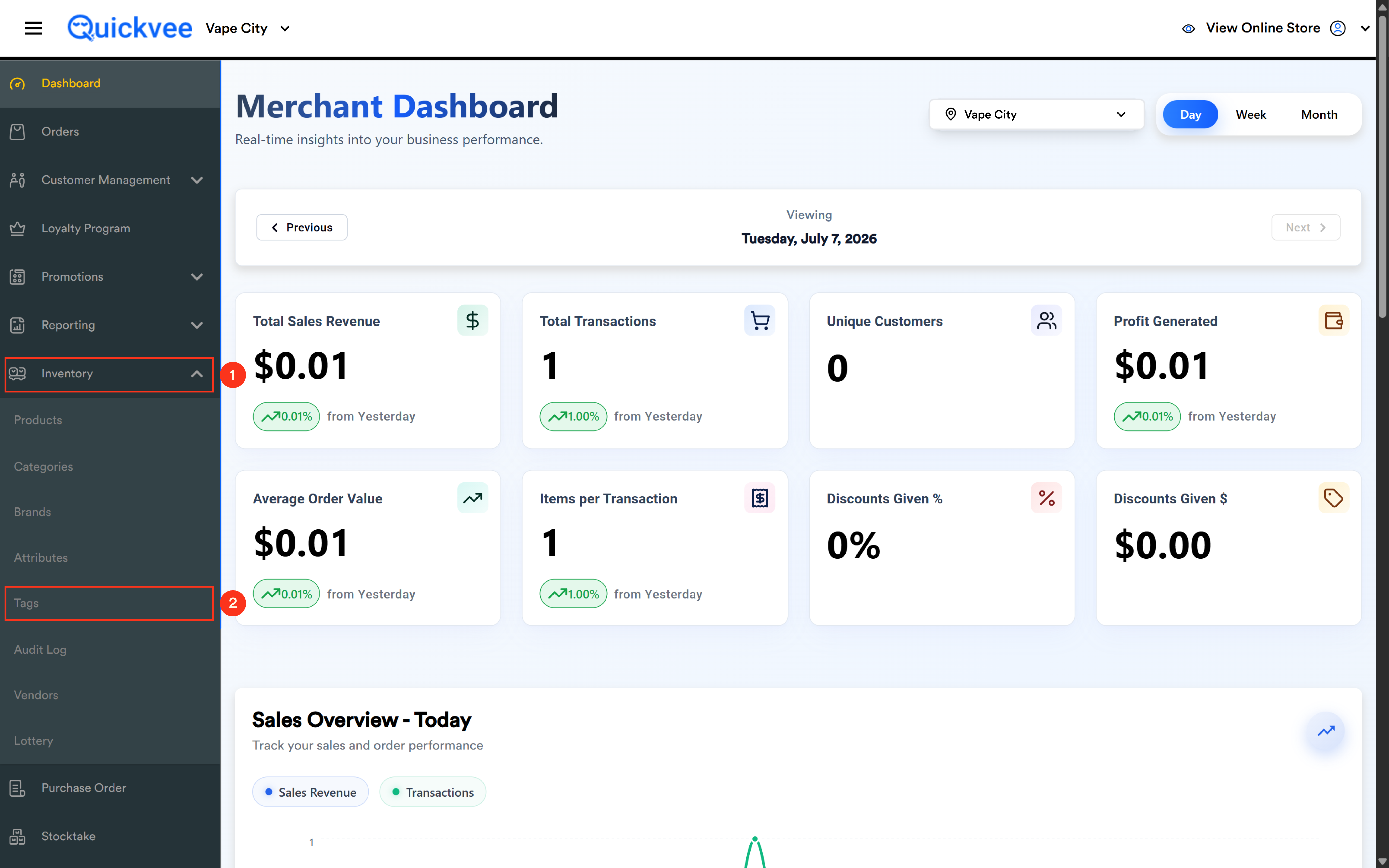
Page overview
|
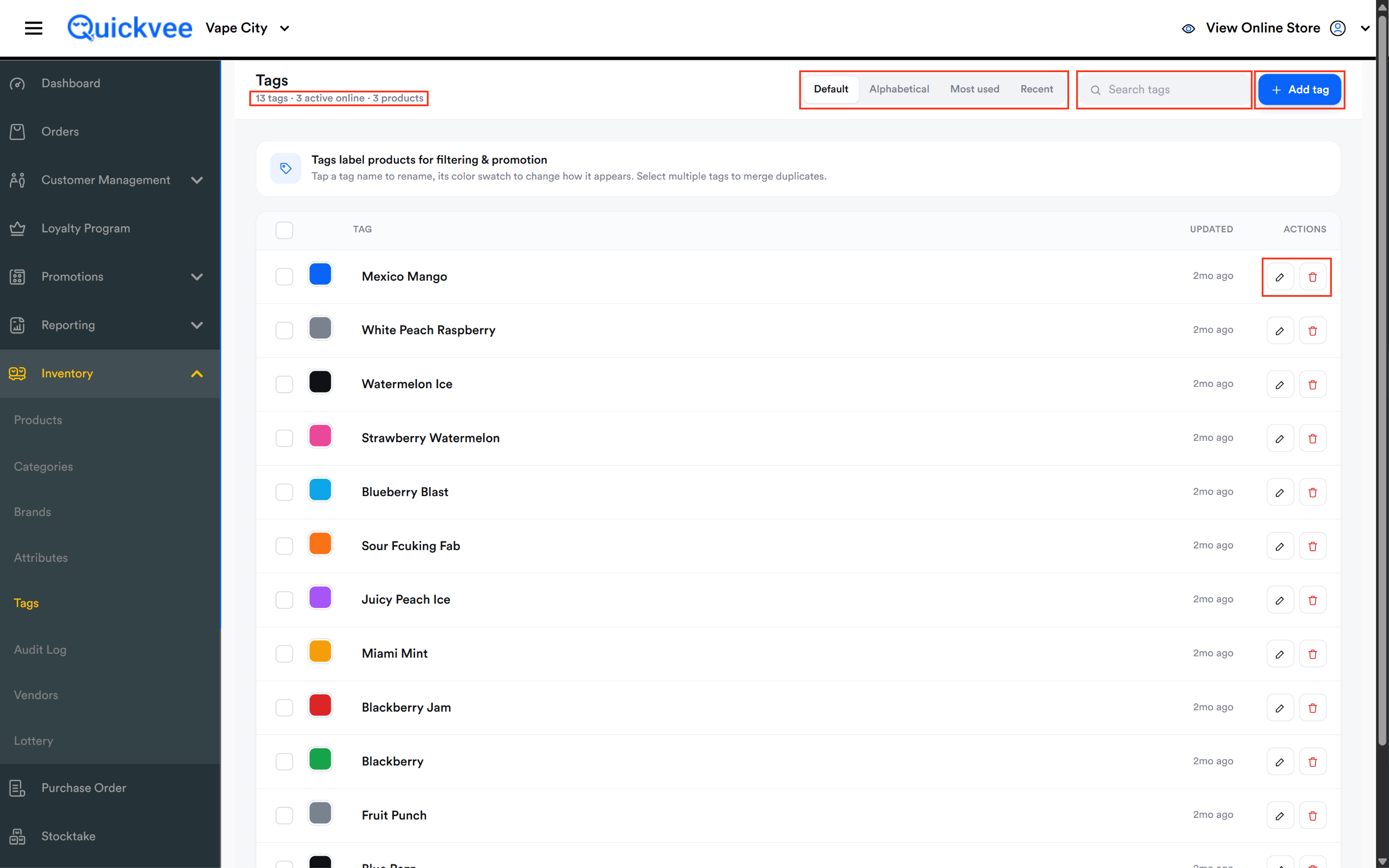
Element |
What it does |
|---|---|
|
Tag count |
Shown under the page title, the total number of tags in your store. |
|
Sort options |
Switch the list between Default, Alphabetical, Most used, and Recent ordering. |
|
Search tags |
Type any part of a tag name to filter the list instantly. |
|
+ Add tag |
Opens an inline entry row at the top of the list to create a new tag. |
|
Select checkbox |
Appears on each row and in the header. Select multiple tags to merge duplicates. |
|
Color swatch |
The colored square beside each tag name. Tap it to change how the tag appears. |
|
Edit (pencil) |
Renames the tag, or simply tap the tag name itself to rename in place. |
|
Delete (trash) |
Removes the tag from your store. |
Adding a tag
-
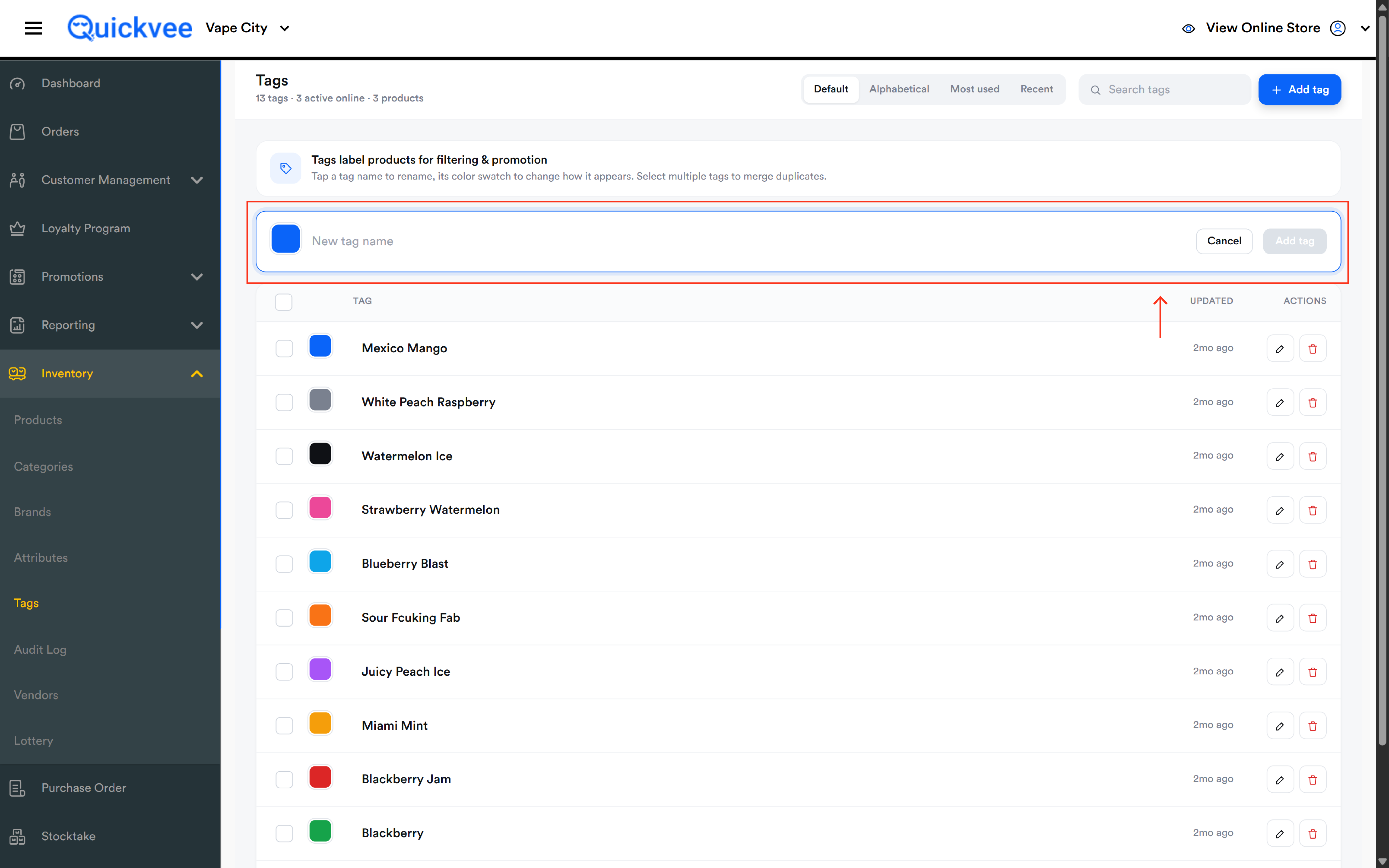
Click + Add tag in the top-right corner of the page.
-
An entry row appears at the top of the list with a New tag name field and a color swatch.
-
Type the tag name.
-
Click Add tag to save, or Cancel to discard. The Add tag button stays inactive until you've typed a name.
-
The new tag is immediately available to assign in the product form.
💡 Tip. Tags work best as short, action-oriented labels, think "clearance" or "new drop," not full sentences. Decide on a naming style once (all lowercase, or Title Case) and stick to it so your list stays scannable.
Renaming a tag
-
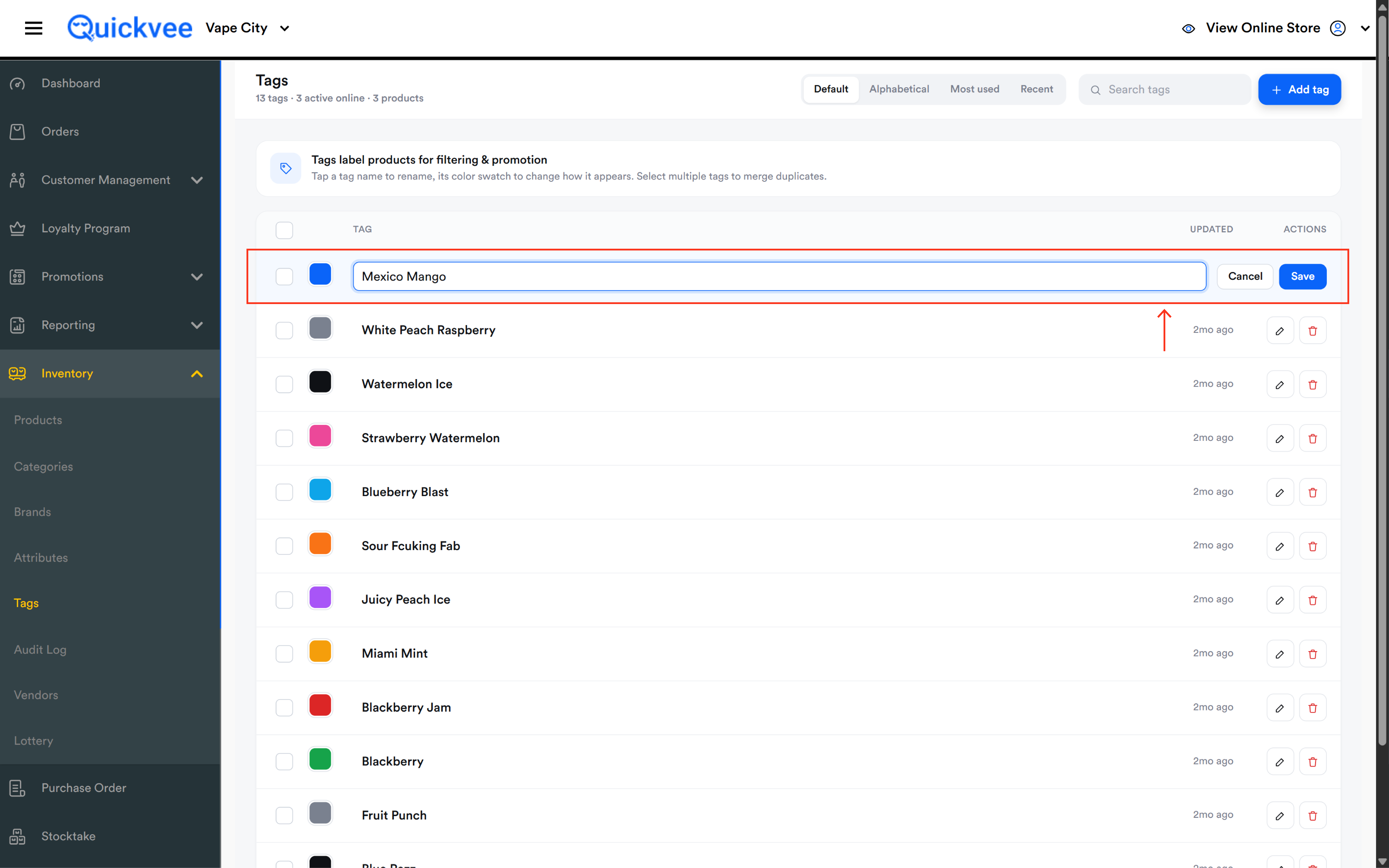
Tap the tag name directly in the list, or click the pencil icon on its row.
-
The name becomes an editable field right in the row.
-
Type the new name and click Save, or Cancel to keep the original.
The Updated column refreshes so you can see which tags were changed most recently, pair it with the Recent sort to review the latest edits.
Changing a tag's color
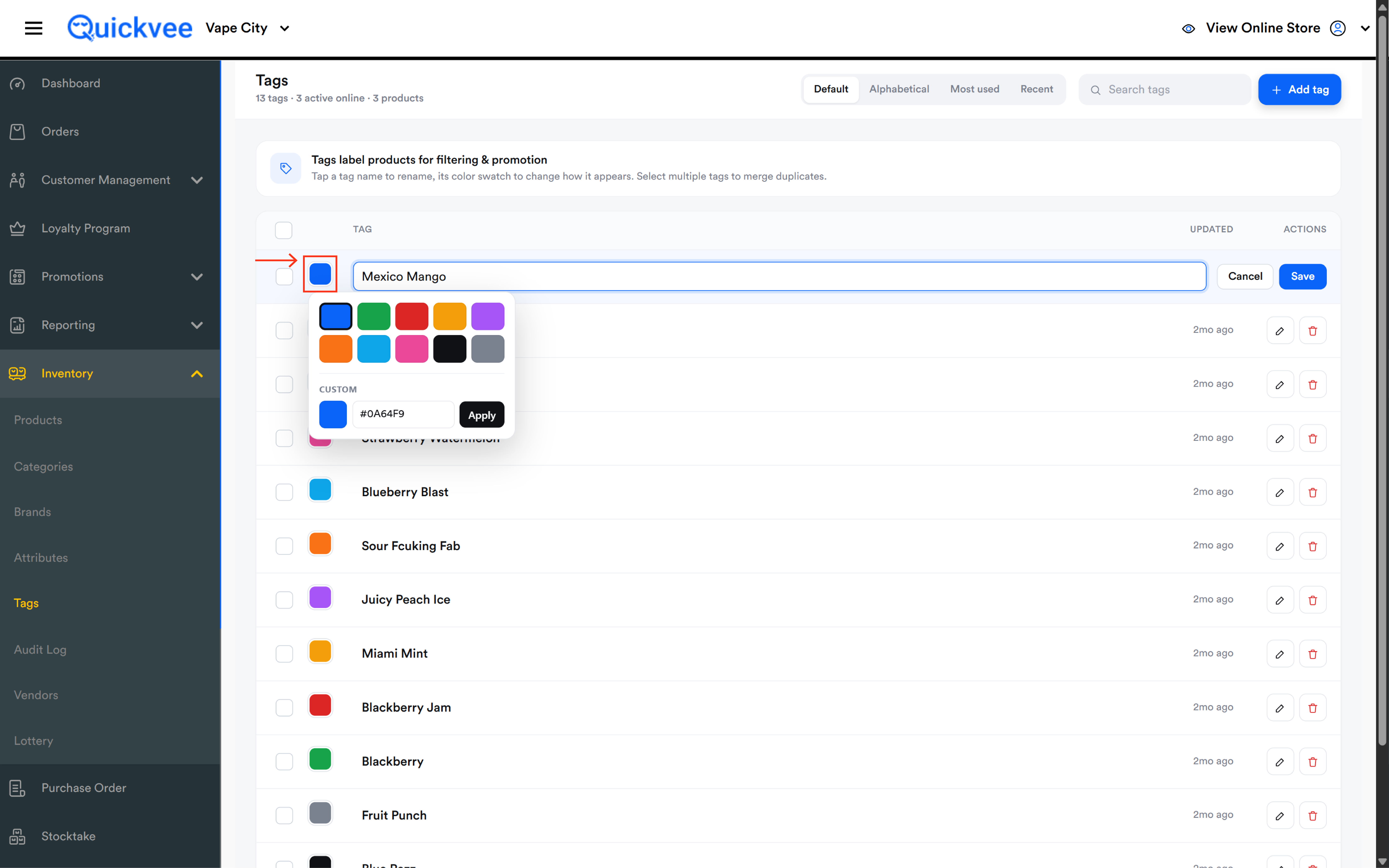
Each tag has a color swatch that controls how it appears. Tap the swatch beside the tag name and pick a new color. Use color to give visually distinct identities to your most important tags, promotional tags in one color, operational tags like "do not reorder" in another.
Merging duplicate tags
Over time, near-duplicates creep in, "clearance," "Clearance," and "clearence" all doing the same job. The Tags page fixes this without touching every product:
-
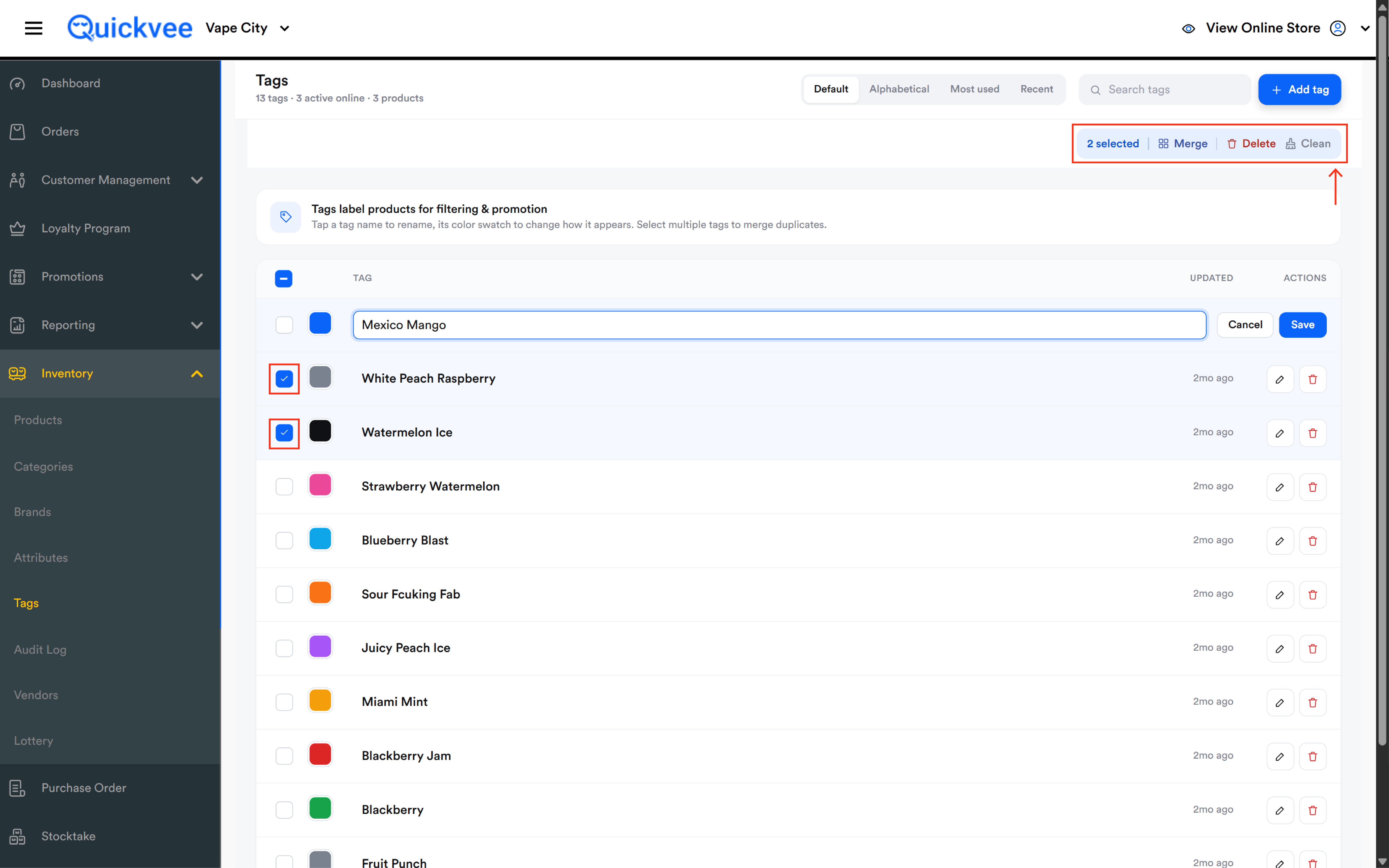
Tick the checkbox on each duplicate tag you want to combine. Use the header checkbox to select everything currently listed.
-
Choose the merge action that appears for your selection.
-
The selected tags collapse into one, and every product carrying any of the duplicates now carries the surviving tag.
✅ Best practice. Sort by Most used before merging. Keep the highest-use spelling as the survivor so the merge touches the fewest shopper-facing surfaces, then fold the low-use duplicates into it.
Deleting a tag
-
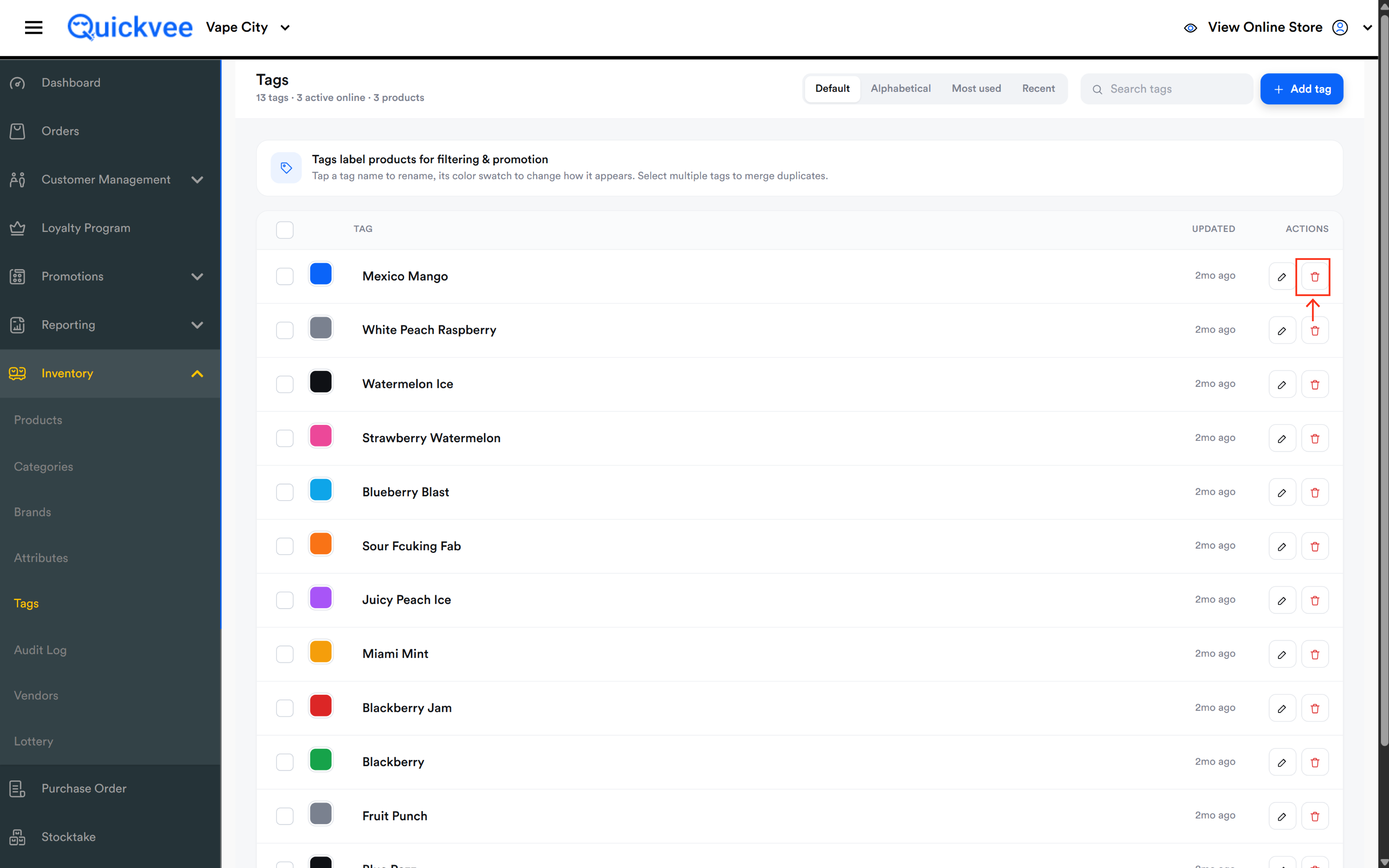
Click the trash icon on the tag's row.
-
Confirm the deletion.
Products previously carrying the tag remain untouched, they simply lose that label. Deleted tags also stop appearing in online store tag searches.
⚠️ Important. Deletion is permanent. If duplicates are the problem, merge instead of deleting, merging preserves the product associations, while deleting discards them.
How tags are used across Quickvee
|
Surface |
How tags help |
|---|---|
|
Product form |
Assign one or more tags when creating or editing a product. |
|
Online store search |
Shoppers searching by a tag term find the products carrying it. |
|
Filtering |
Tags act as a filter dimension when browsing and managing products. |
|
Promotions |
Group promo-eligible products under a tag so a sale set is easy to assemble and dismantle. |
Common questions
Q. What's the difference between tags, categories, and brands?
A. Categories are your store's structural shelves, a product usually lives in one. Brands identify the manufacturer. Tags are freeform, unlimited labels that cut across both, a Grape Elf Bar can sit in Nicotine Disposables, carry the Elf Bar brand, and wear "new arrivals" and "summer sale" tags at once.
Q. How many tags can a product have?
A. There's no practical limit, but restraint pays off. A handful of purposeful tags beats twenty vague ones.
Q. Do the sort options change what shoppers see?
A. No, the Default/Alphabetical/Most used/Recent sorting is a management view for you. It doesn't affect the online store.
Q. I typed a lowercase tag and it saved capitalized. Why?
A. The first letter of a tag name is capitalized automatically on save for consistent labeling.
Q. Can I control which employees manage tags?
A. Yes, tag management is governed by the Manage Tag employee permission, alongside Manage Brand. Employees without it can't alter your tag list.
Q. I renamed a tag but a product still shows the old value. What do I do?
A. In most cases updates flow through automatically. If an updated tag isn't reflecting on the online store or in the product editor, re-save the affected product, this is a known behavior under review.