
Attributes are the option types your products come in, Size, Color, Flavor, Nicotine Strength, and so on. You define each attribute name once on this page, then pick its actual values when you build a variant product. The same attribute stays flexible across your whole catalog: Size can mean S/M/L on apparel and 8oz/12oz/16oz on a candle, because values live on the product, not on the attribute.
📝 This page manages attribute names only. The values under each attribute (Small, Grape Ice, 5%, etc.) are entered per product when you create or edit a variant product. That's what keeps one attribute reusable across very different product lines.
Where to find it
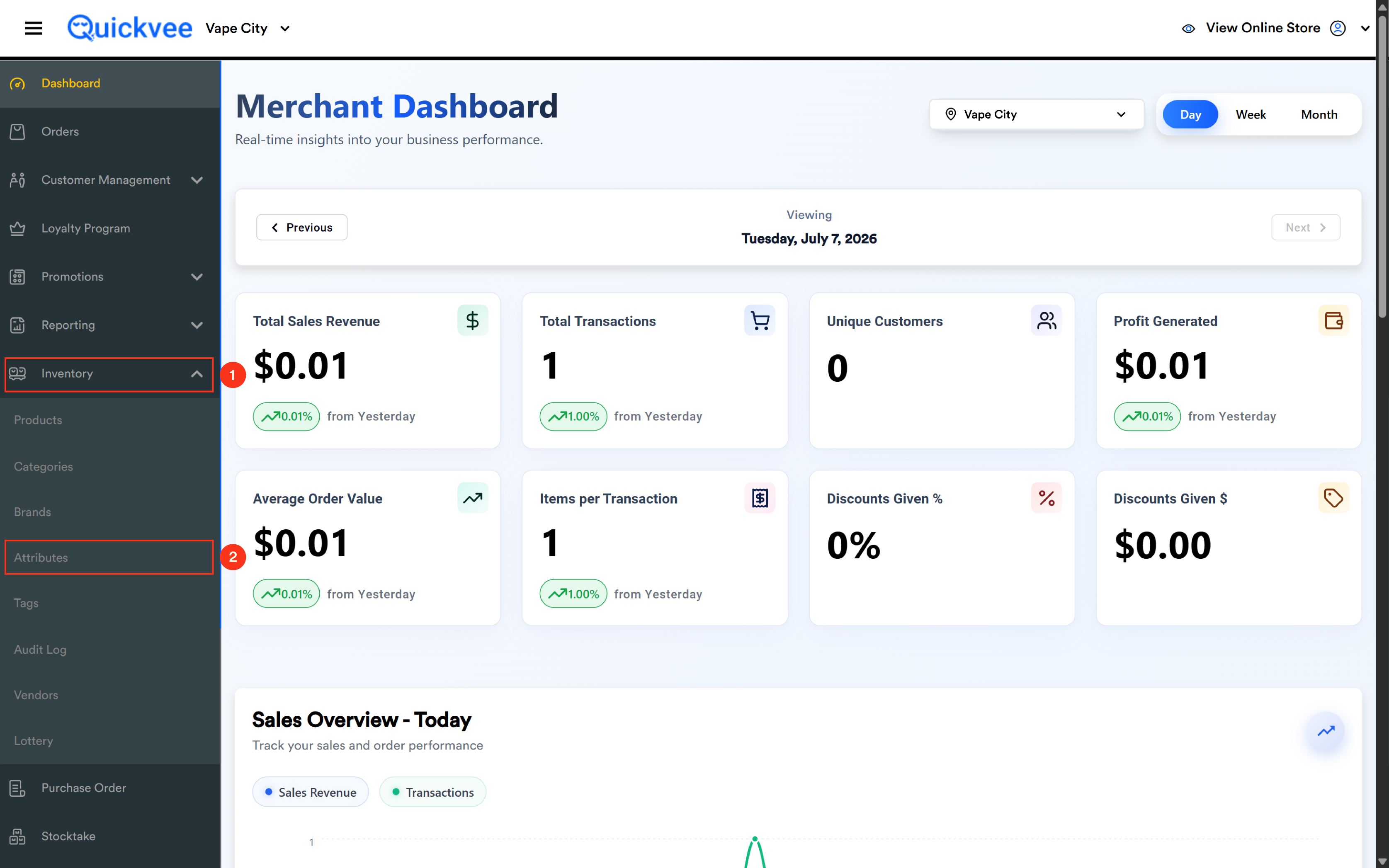
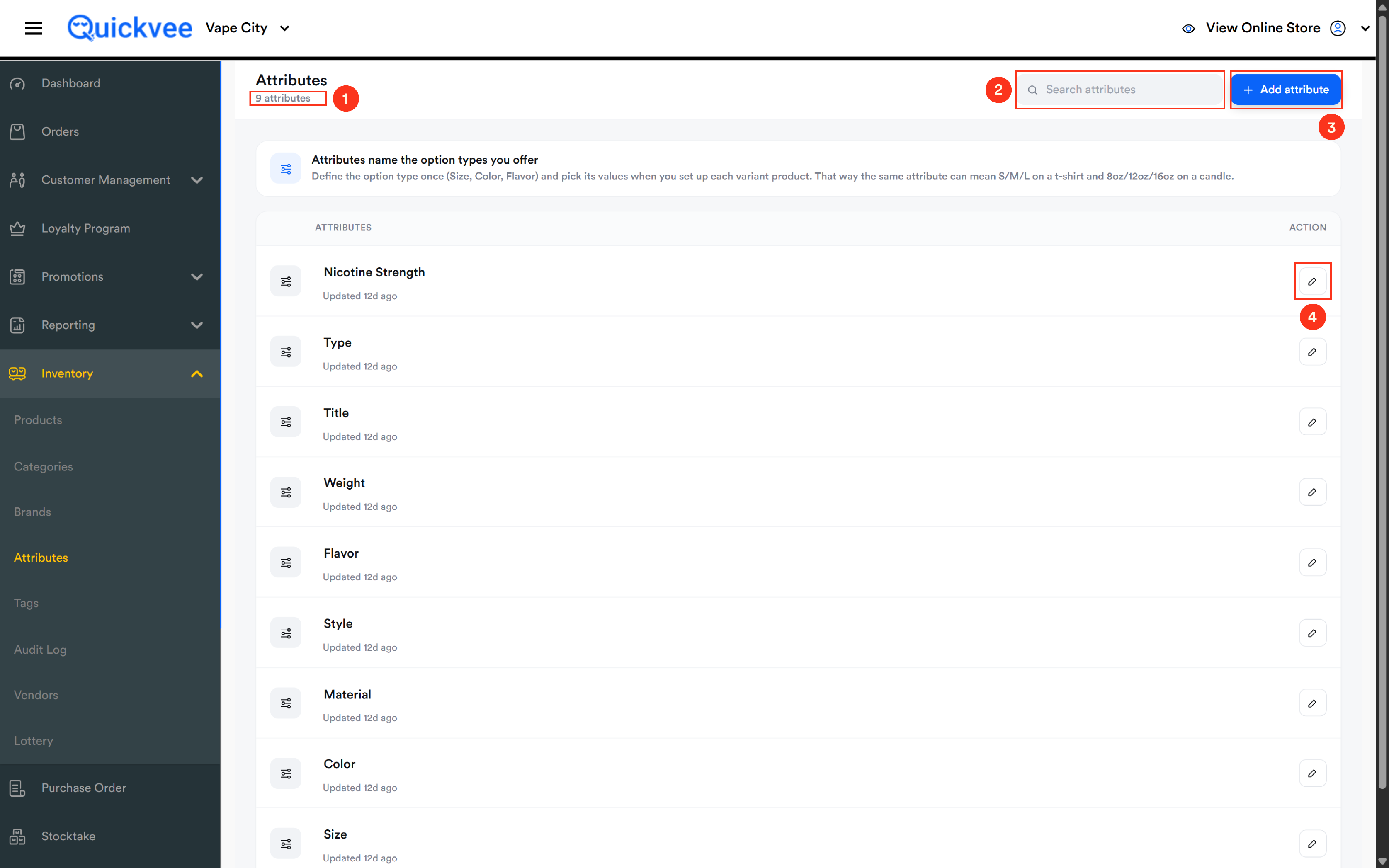
From the web backend, open the left menu and expand Inventory, then select Attributes. The page opens with your full attribute list and a count of how many attributes your store has defined.
Page overview
|
Element |
What it does |
|---|---|
|
Attribute count |
Shown under the page title, the total number of attributes defined for your store. |
|
Search attributes |
Type any part of an attribute name to filter the list instantly. |
|
+ Add attribute |
Opens an inline entry row at the top of the list to create a new attribute. |
|
Attribute row |
Shows the attribute name and when it was last updated. |
|
Edit (pencil) |
Turns the attribute name into an editable field directly in the row. |
Adding an attribute
-
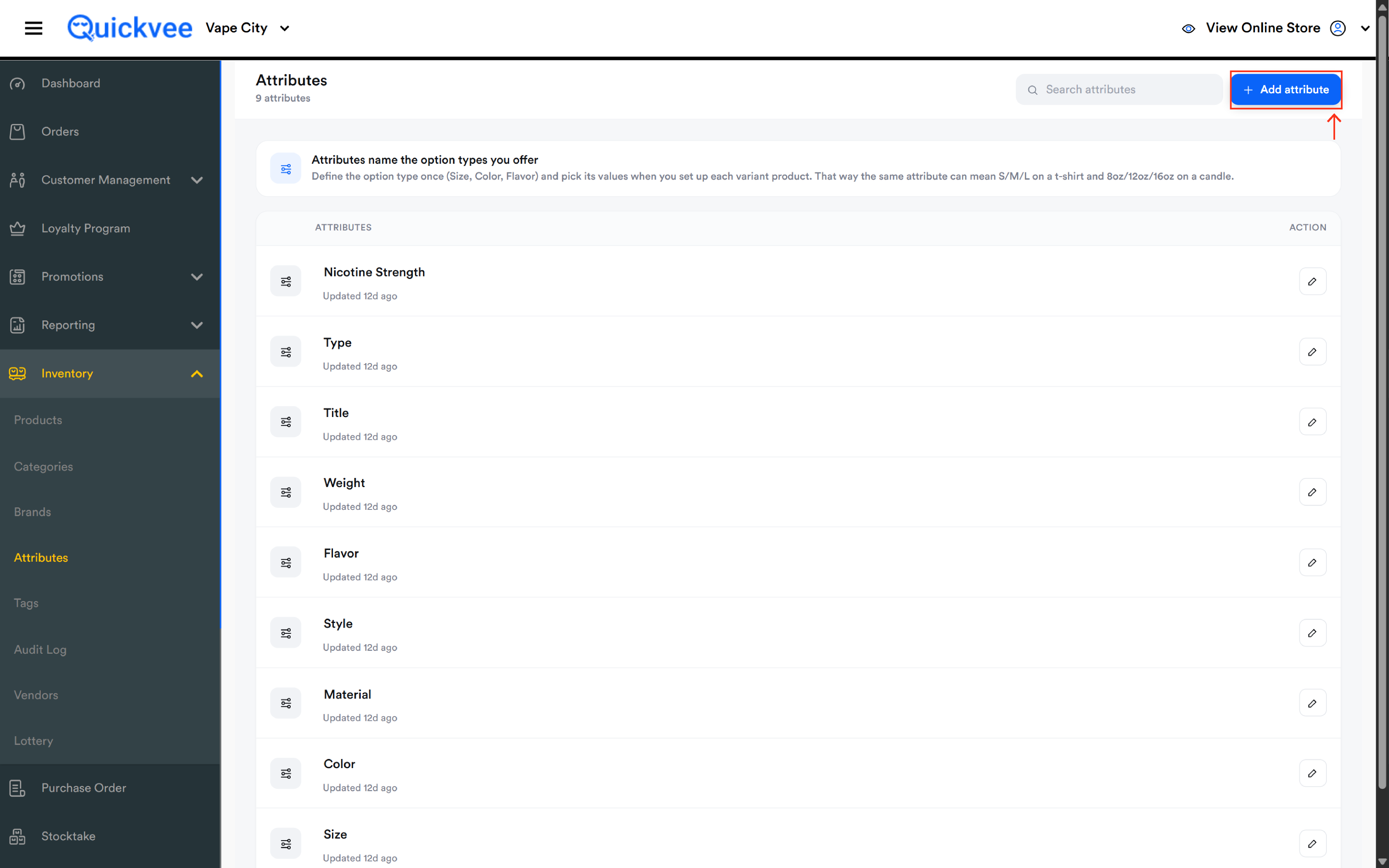
Click + Add attribute in the top-right corner of the page.
-
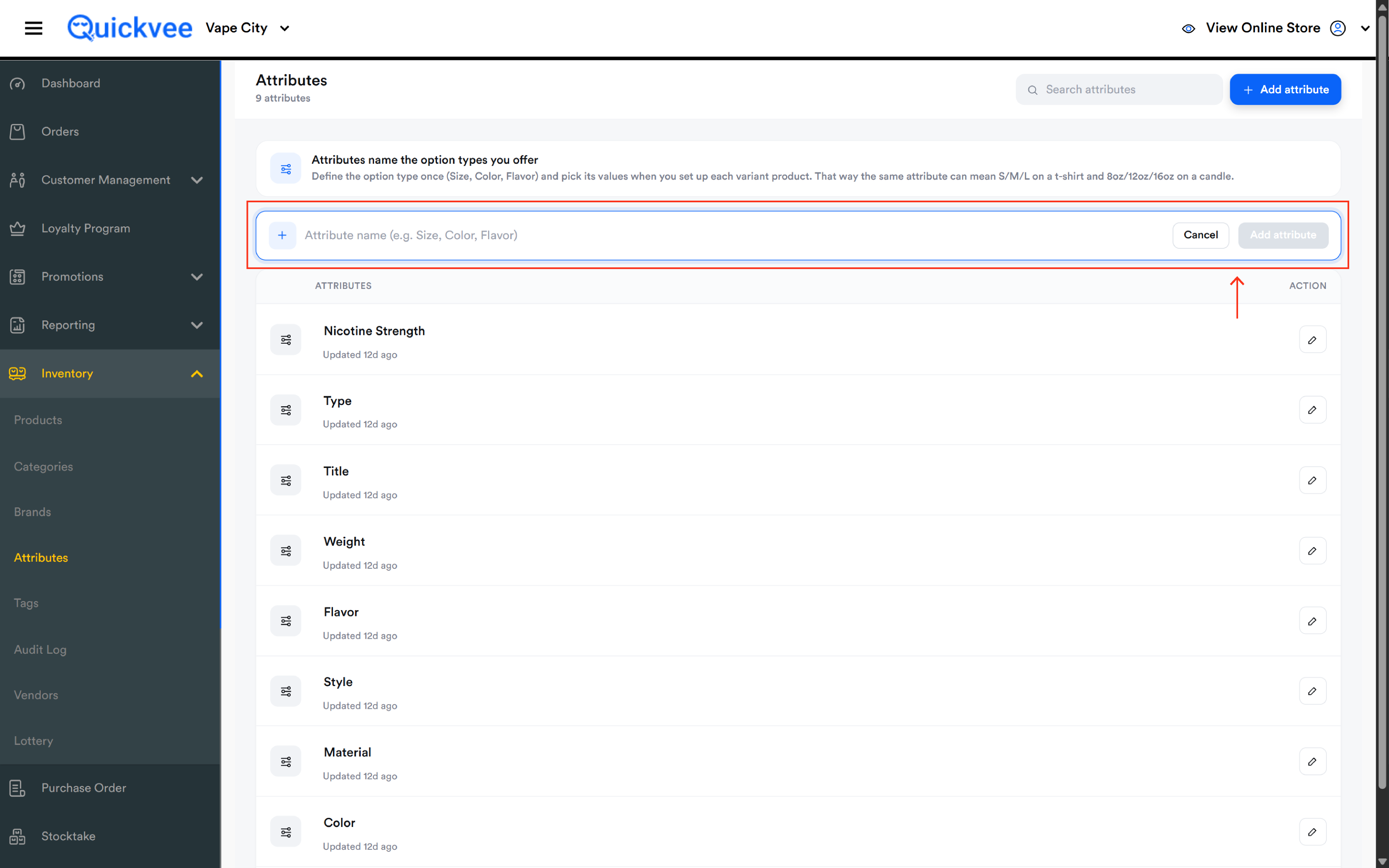
An entry row appears at the top of the list with a placeholder suggesting examples, Size, Color, Flavor.
-
Type the attribute name. Keep it short and generic; the specifics belong in the values you'll add on each product.
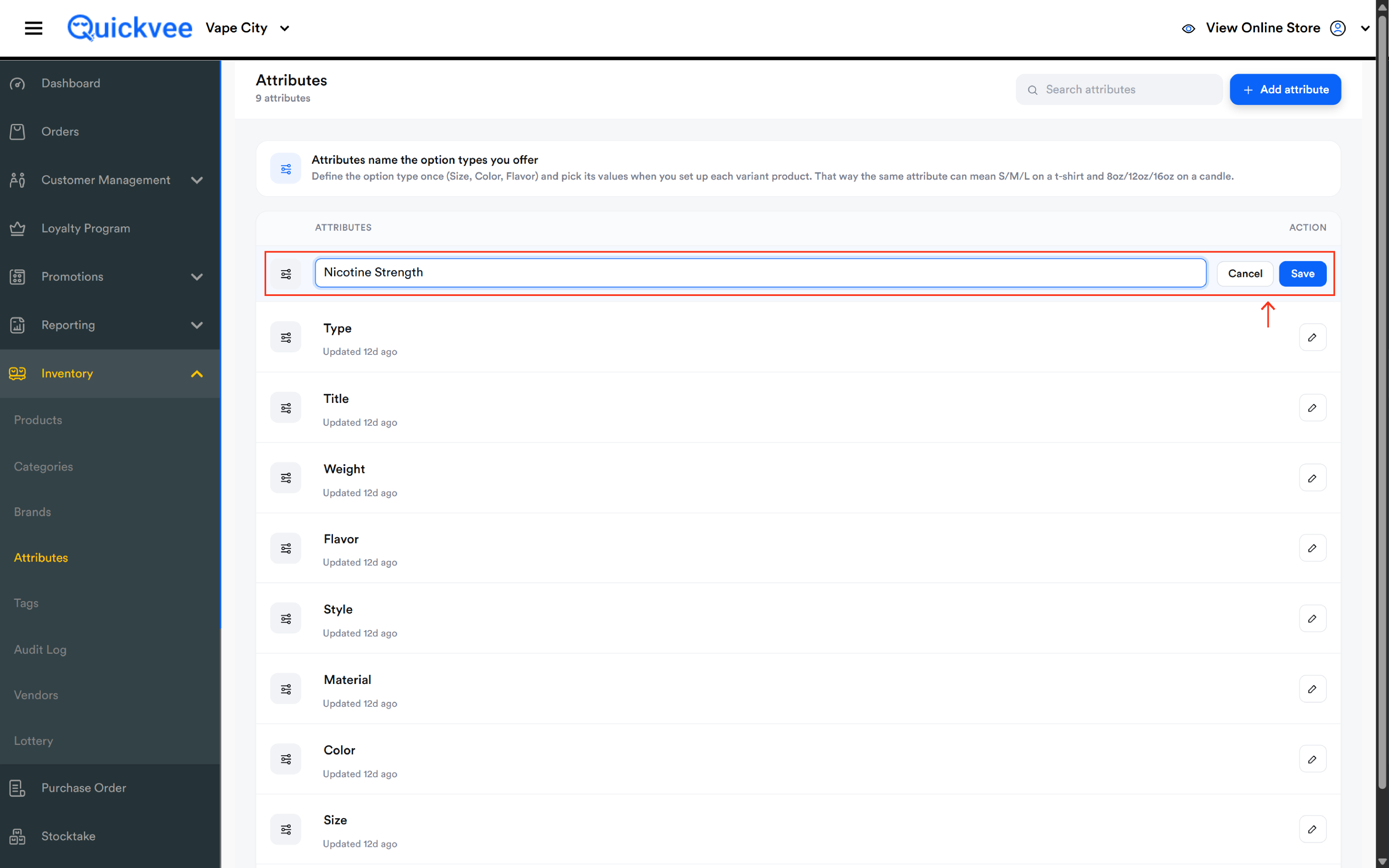
-
Click Add attribute to save, or Cancel to discard. The Add attribute button stays inactive until you've typed a name.
-
The new attribute is now available in the variant setup section of Add Product and Edit Product.
💡 Tip. Name attributes for the type of option, not the option itself. "Nicotine Strength" is a good attribute, "5%" is a value that belongs on the product. A lean list of broad attributes is far easier to manage than dozens of narrow ones.
Renaming an attribute
-
Click the pencil icon on the attribute's row.
-
The name becomes an editable field right in the list, no separate window.
-
Type the new name.
-
Click Save to apply, or Cancel to keep the original name.
The row's "Updated" timestamp refreshes so you can see at a glance which attributes were touched recently.
⚠️ Important. Renaming an attribute changes how that option type is labeled everywhere it's used, in the product editor and on your online store where shoppers pick between variants. Rename with your existing variant products in mind.
How attributes appear to shoppers
When a shopper opens a variant product on your online store, each attribute appears as a labeled option group, exactly as you named it here, with the values you assigned on that product. The name displays as entered, so what you type on this page is what your customers read.
How attributes connect to variant products
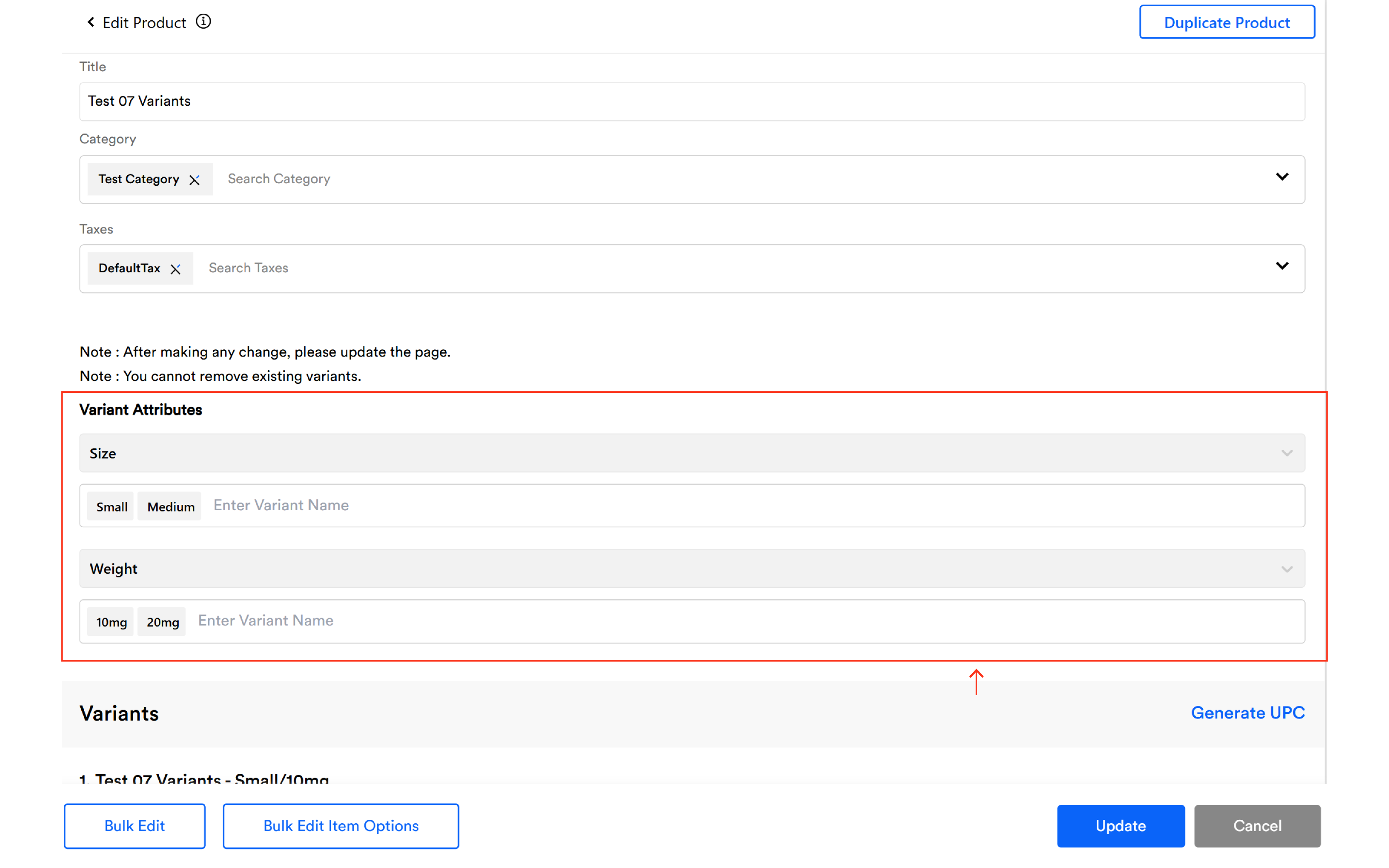
When you create a product and enable attributes and options in the product form, you select which attributes apply and enter the values for that product. Quickvee then generates the variant combinations, for example, Flavor (Grape, Mint) × Nicotine Strength (3%, 5%) produces four sellable variants, each with its own price, barcode, and stock level.
✅ Best practice. Before building a large variant product, check this page first and add any missing attribute. Defining the attribute up front keeps your option types consistent across products instead of accumulating near-duplicates like "Flavour" next to "Flavor."
Common questions
Q. What's the difference between attributes, brands, and tags?
A. Attributes define the options a single product comes in (Size, Flavor). Brands identify who makes the product. Tags are free-form labels for grouping and searching. A disposable vape might carry the brand Elf Bar, the attribute Flavor with value Watermelon Ice, and a tag like "new arrivals."
Q. Why don't I see values listed under each attribute on this page?
A. By design. Values are product-specific, you enter them in the product form when setting up variants. This page only holds the shared attribute names.
Q. Can I delete an attribute?
A. The Attributes page offers rename via the pencil icon; there is no delete action on the list. Attributes are shared building blocks referenced by your variant products, so removal isn't offered from this screen. If an attribute is no longer needed, simply stop using it on new products.
Q. How many attributes can one product use?
A. Products support multiple attributes, for example Size, Color, and Material on a single item, and the system generates the full combination matrix from the values you enter.
Q. I typed a lowercase name and it saved with a capital letter. Why?
A. The first letter of an attribute name is capitalized automatically on save to keep labels consistent across the backend and your online store.