
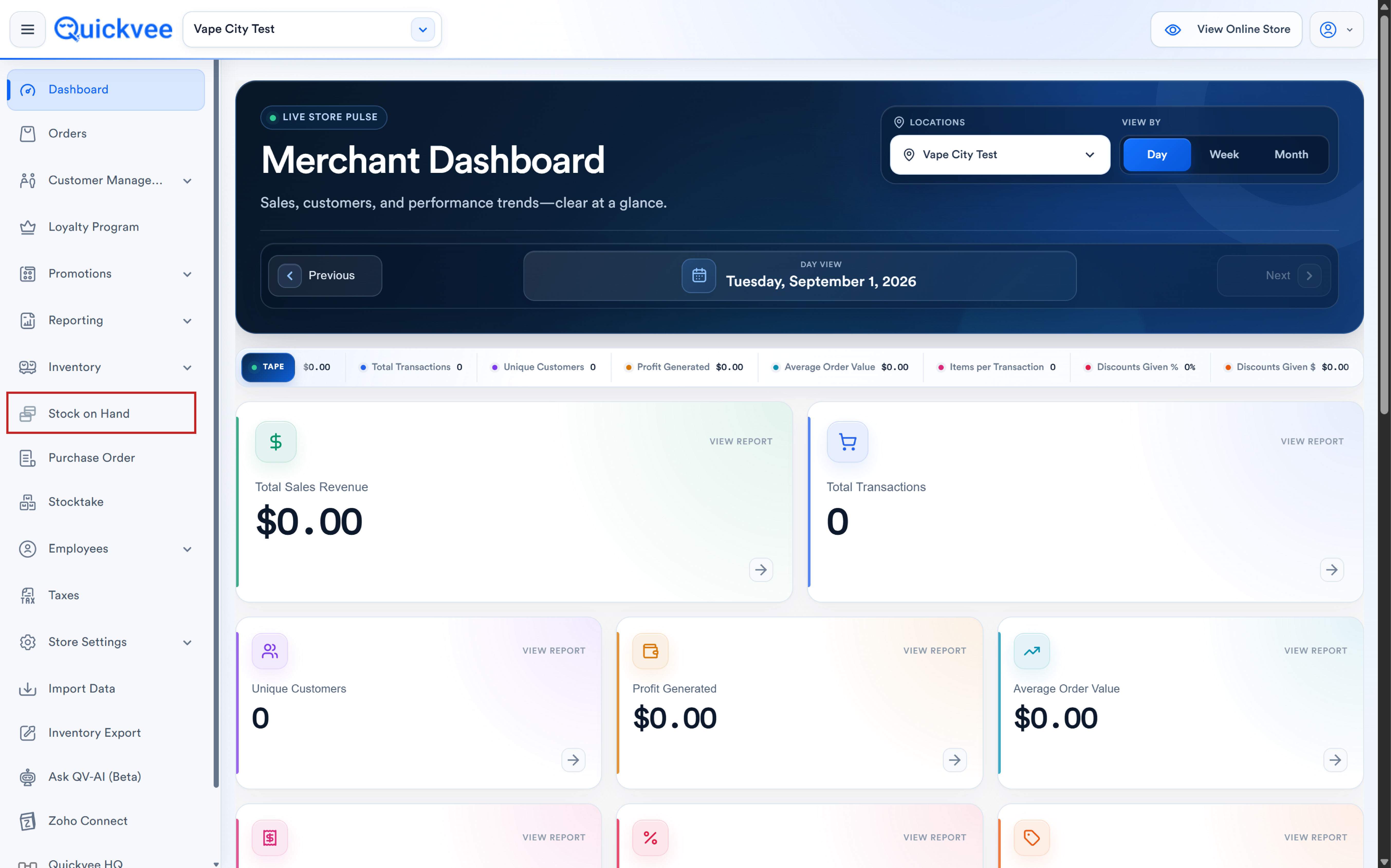
Stock on Hand gives you a single live view of every SKU's inventory position, what is physically on hand, what is committed to orders, and what is genuinely available to sell, plus the ability to correct quantities with a documented reason without running a full stocktake.
Find it under Inventory → Stock on Hand (available in the web backend and on the POS). The header shows Stock on hand with your store name, total SKUs, total units, and a count of items needing attention.
Summary cards
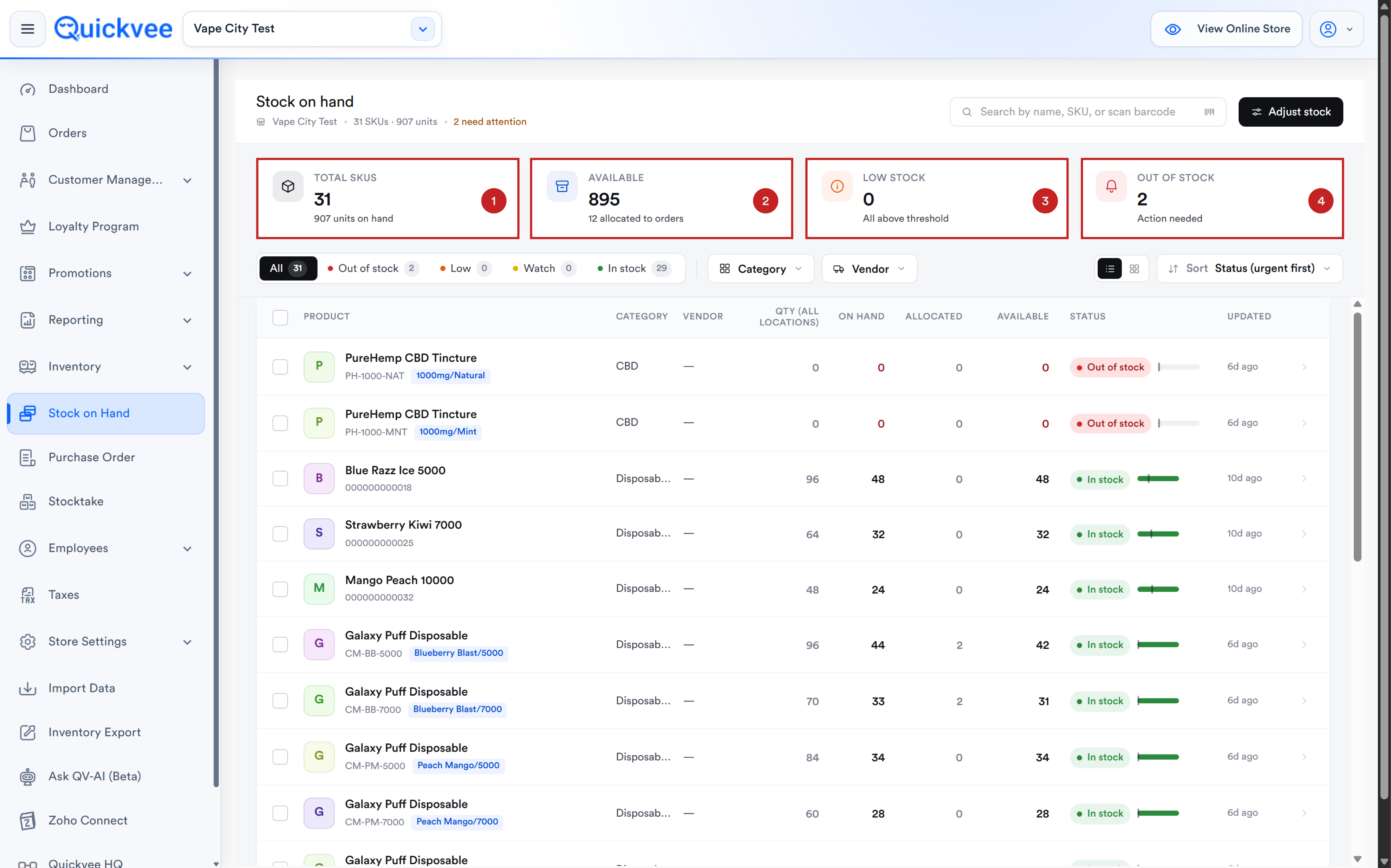
Four KPI tiles across the top give you the shape of your inventory at a glance:
|
Card |
What it shows |
|---|---|
|
Total SKUs |
Your SKU count, with total units on hand beneath. This tile is clickable as a filter shortcut. |
|
Available |
Units available to sell, with the units allocated to orders noted beneath. |
|
Low stock |
Items at or below their reorder threshold, labelled Reorder soon. |
|
Out of stock |
Count of items at zero, labelled Action needed and highlighted in red. |
The three-quantity model
Stock on Hand tracks three different numbers for every item, and understanding the difference is the key to using it well:
|
Quantity |
Meaning |
|---|---|
|
On hand |
Physical stock actually sitting in the store. |
|
Allocated |
Units committed to open orders, spoken for but not yet out the door. |
|
Available |
What you can still sell. Available = On hand − Allocated. |
💡 Tip. Available is the number that matters for selling. On hand alone can mislead: a product can show 12 on hand but 0 available if all 12 are allocated to open orders.
Filters and views
Above the table you can narrow and reorder the list:
-
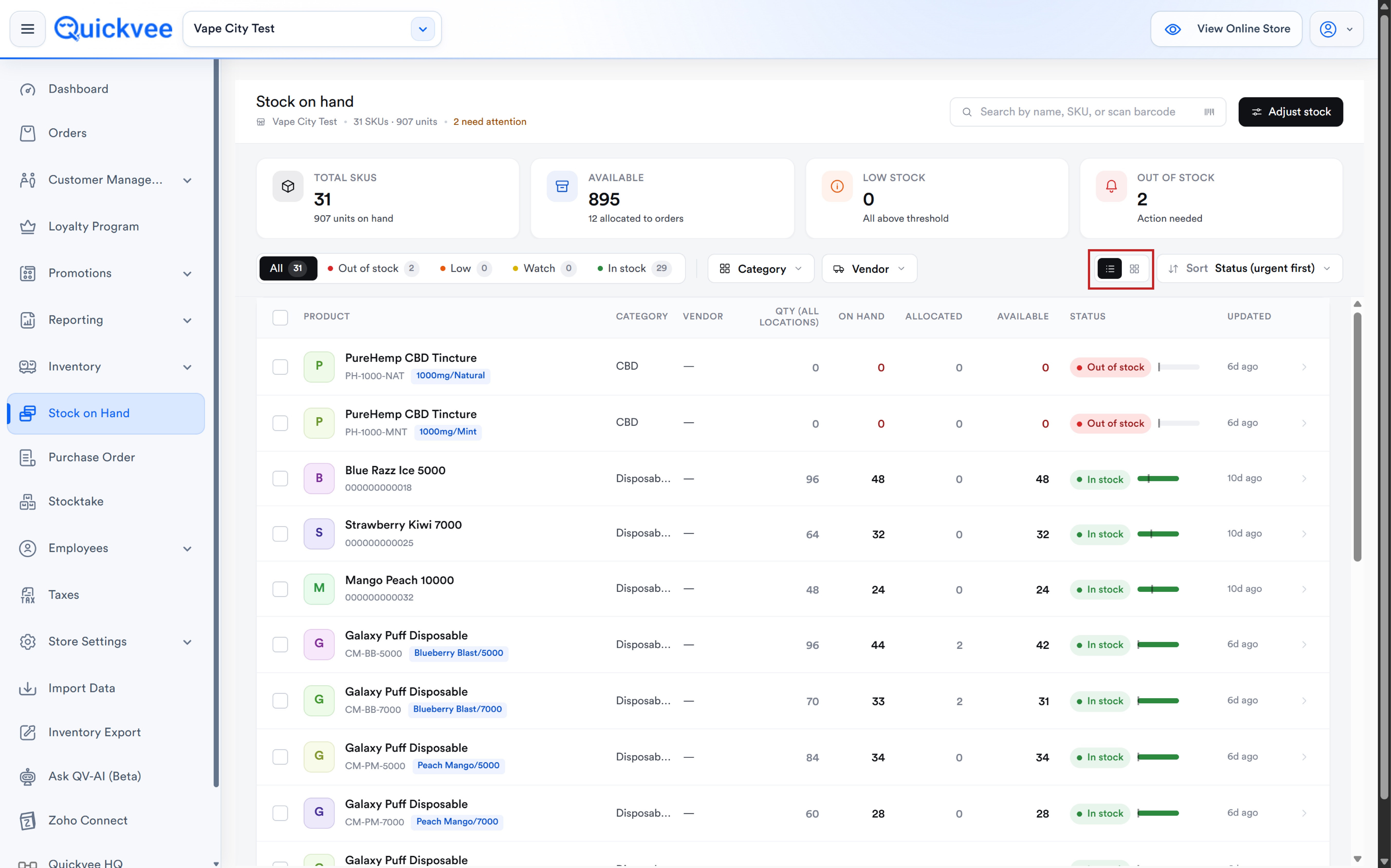
Status chips with live counts: All, Out of stock, Low, Watch, In stock.
-
Category and Vendor dropdown filters.
-
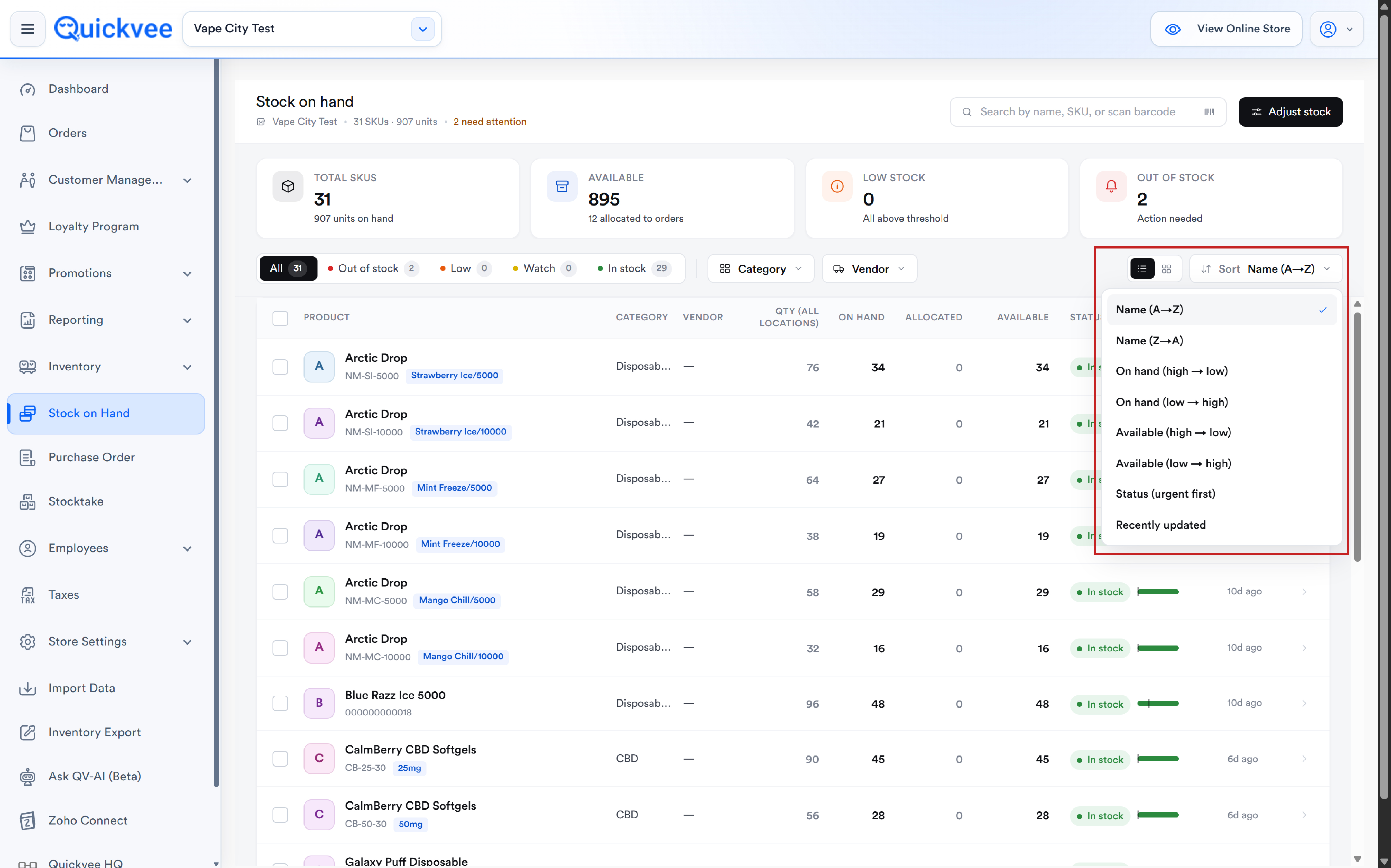
Sort, defaulting to Status (urgent first) so the items needing attention rise to the top.
-
Search by name or SKU, or scan a barcode.
-
List / grid view toggle.
The stock table
Each row shows the full inventory picture for a product:
|
Column |
What it shows |
|---|---|
|
Product |
Name, UPC, and a variant chip where applicable. |
|
Category / Vendor |
The item's category and supplier. |
|
Qty |
Quantity across all locations. |
|
On hand / Allocated / Available |
The three-quantity model above, for this store. |
|
Status |
In stock, Low, Watch, or Out of stock. |
|
Updated |
When the item's stock last changed. |
Product detail panel
Click any row to open its detail panel:
-
Tiles for On hand, Allocated, Available, and Reorder at.
-
A status banner summarising the situation, for example Out of stock, no units left to sell at this store. Restock urgently.
-
A Watch toggle to flag the item for monitoring.
-
A By location table (with a location search) showing On hand, Allocated, and Available per store, with your current store marked.
-
An inline Adjust stock form (see below).
💡 Tip. Use Watch on items worth keeping an eye on between counts, fast movers, high-shrink categories, or anything you're actively reordering.
Adjusting stock for a single item
The inline Adjust stock form in the detail panel lets you correct one item's quantity:
-
Choose a Reason from the dropdown (for example, Cycle count).
-
Set the Change with the − / + stepper or type a value.
-
Add an optional Note.
-
Check the live preview, New on-hand will be X (+N).
-
Click Save adjustment.
-20260902-145940.jpg?cb=50811f7052e94995ac8205a4d6abba01)
Adjusting stock in bulk
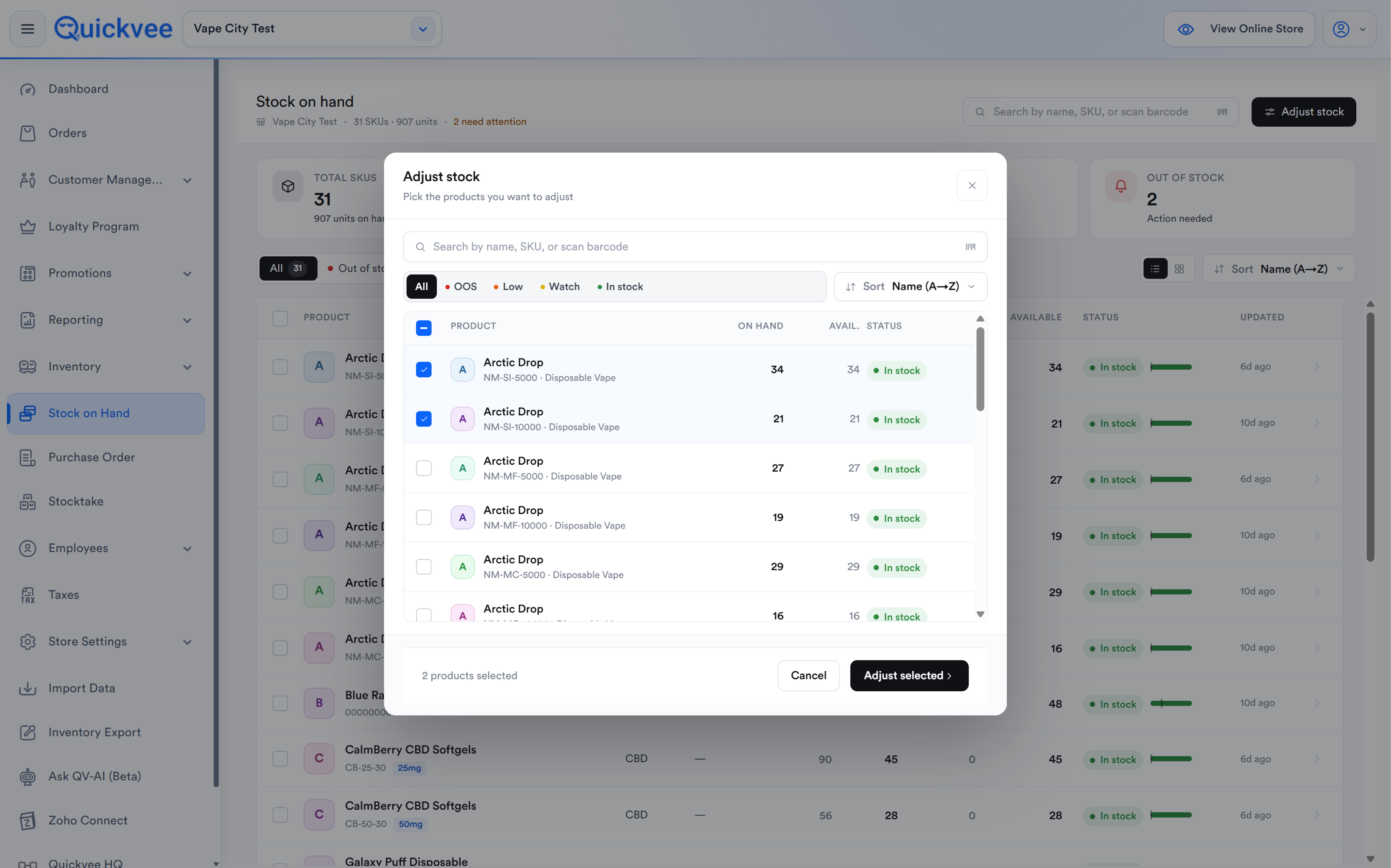
The Adjust stock button (top of the page) opens a two-step bulk flow.
Step 1, pick the products
Search by name or SKU, or scan a barcode. Filter with the chips (All, OOS, Low, Watch, In stock) and sort by name. Each row has a checkbox and shows On hand, Available, and Status. The footer shows your selection count with Adjust selected.
Step 2, set the adjustments
The second screen shows N products · N SKUs with an Adjustment mode toggle:
-20260902-150155.jpg?cb=f158ceb92b7c85de762f04e19ed11a30)
|
Mode |
What it does |
|---|---|
|
Per SKU |
Set a different change for each item. |
|
Same change for all |
Apply one change value across every selected item. |
Each row shows Current, Change (− / + or a typed value), a Reason dropdown, and the resulting New quantity. An optional Note applies to the whole adjustment. The footer shows a net-change summary, for example Net change: +15 units across 2, with Apply adjustment.
⚠️ Important. Always pick an accurate reason. The reason plus note become the audit record for the adjustment, and adjustments without context are unexplainable at month end.
Stock on Hand vs. Stocktake
Use the right tool for the job:
-
Stock on Hand, correcting known discrepancies on specific items, quickly, with a reason.
-
Stocktake, counting a section, a category, a vendor, or the whole store systematically.