
The Products page in your web backend is where your catalog lives, every item you sell, its pricing, stock, selling channels, and codes. The new product experience introduces a guided creation flow, a filterable product list, an inline action row on every product, and bulk tools for updating many items at once.
📝 Note. The previous version remains available as Old Products in the left navigation during the transition.
Where to find it
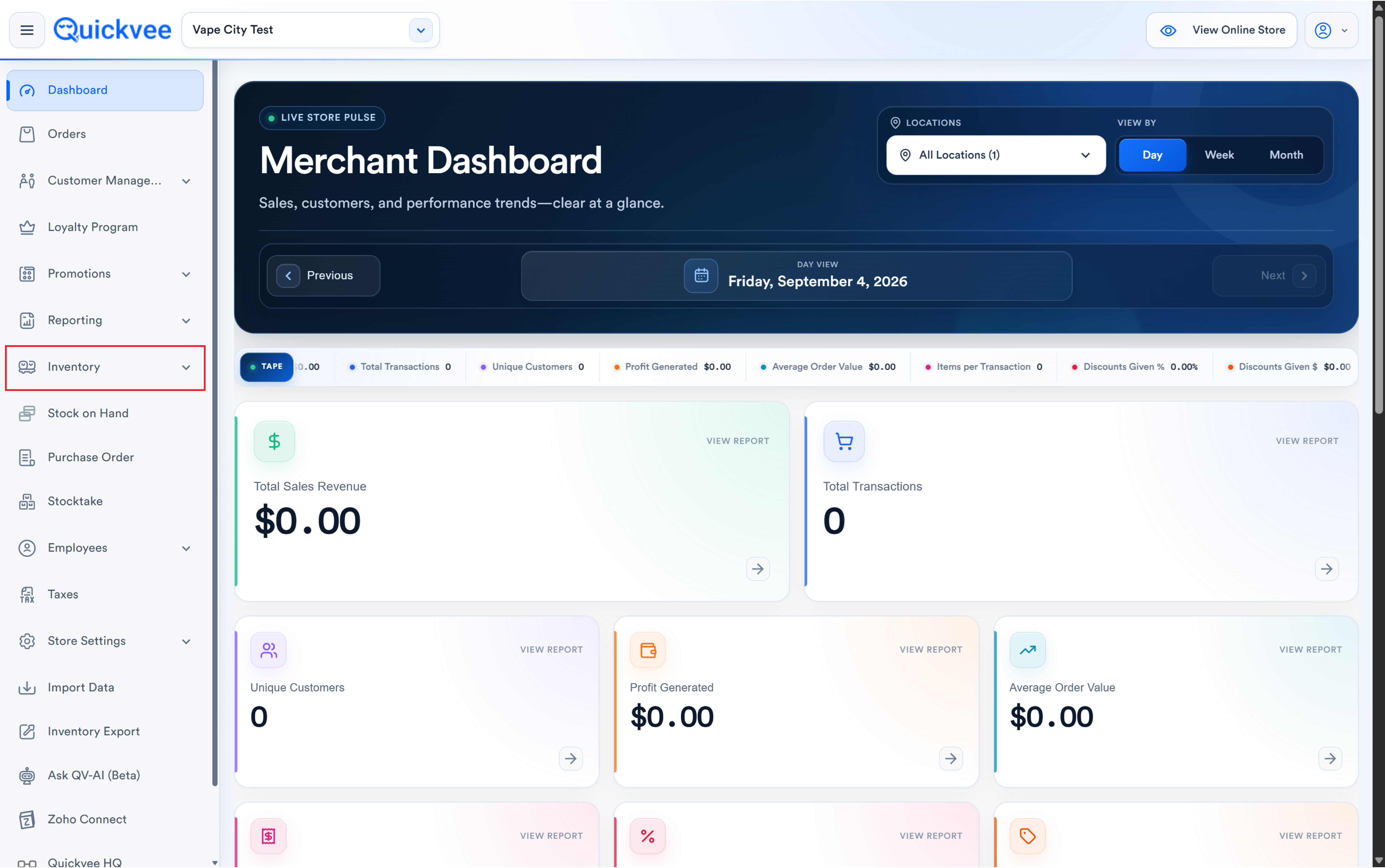
Open Inventory → Products from the left navigation. The header shows how many products are loaded, with Search and + Add product on the right.
The products list
Search by product name, variant name, UPC, SKU, or custom code. Below the search bar sit the filters:
Product List — Expand All and Remembered Search
Next to Collapse All there is now Expand All, which opens the variant rows of every product on the page at once — useful for checking quantities and prices across a long list. Your search text and filters are also kept when you open a product and come back to the list, so you return to the same results instead of starting over.
|
Filter |
What it does |
|---|---|
|
Categories |
Narrow to one or more categories |
|
Brands |
Narrow by brand |
|
Tags |
Narrow by catalog tag |
|
Vendors |
Narrow by assigned vendor |
|
Channels |
Narrow by selling channel |
|
No photo |
Show only products missing images |
|
Status |
Filter by product status |
|
Sync |
Sync catalog data, the chip shows Syncing… then Synced |
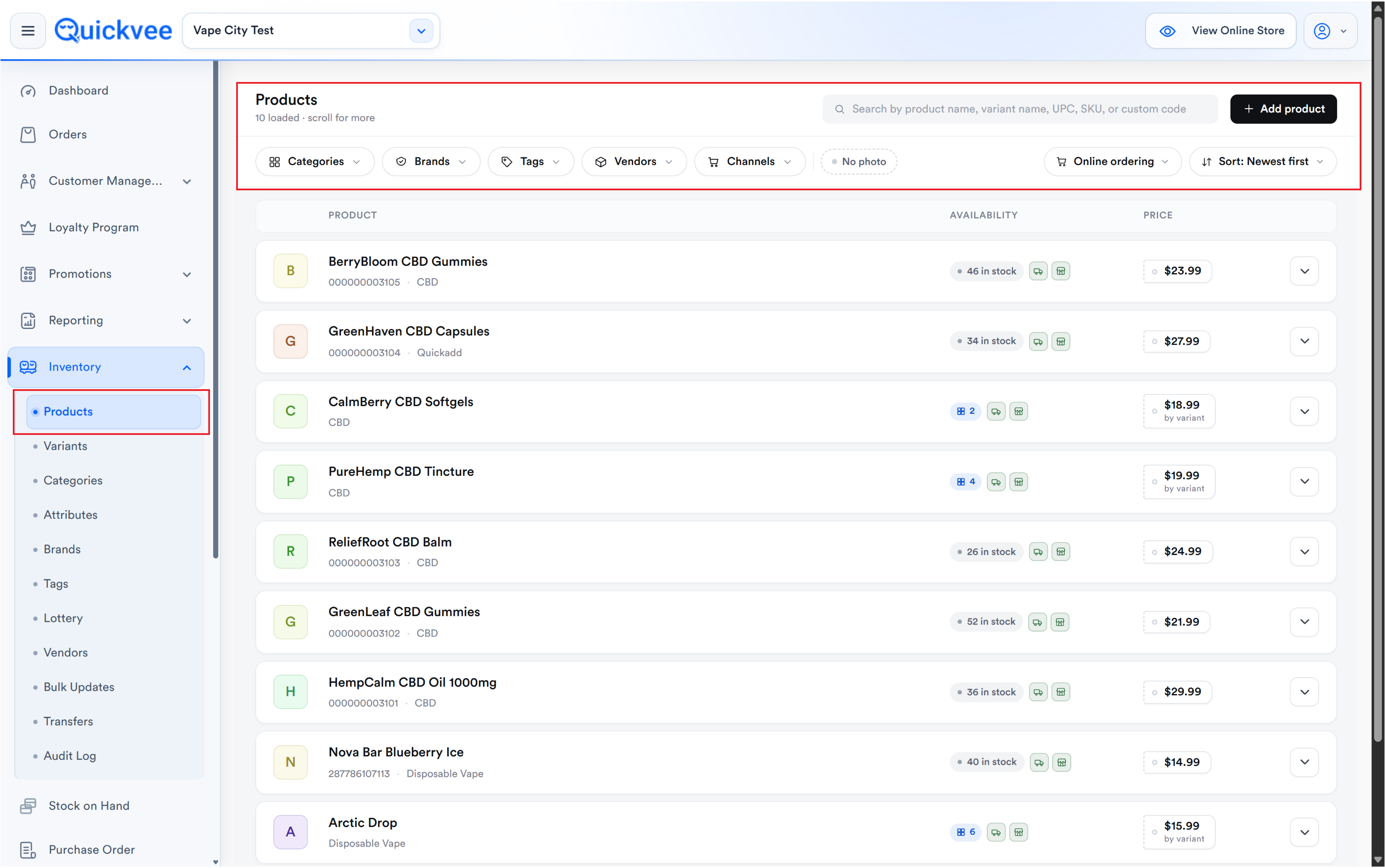
On the right, an Online ordering toggle and a Sort control (default Newest first). Each row shows the product name, UPC, categories, an availability chip (In stock, Low, or a variant count), channel icons, and price. Products priced per variant show by variant beneath the price.
💡 Tip. Use the No photo filter periodically. Products without images look unfinished on your online storefront and convert worse than those with photos.
The product action row
Click the chevron on any product row to expand its action row:
|
Action |
What it does |
|---|---|
|
Edit product |
Opens the full product form |
|
View details |
Quick look at the product without leaving the page |
|
Sales history |
Units sold and revenue for this product |
|
Instant Purchase Order |
Add inventory with a quick PO |
|
Stocktake |
Adjust the on-hand quantity |
|
Delete item |
Remove from catalog |
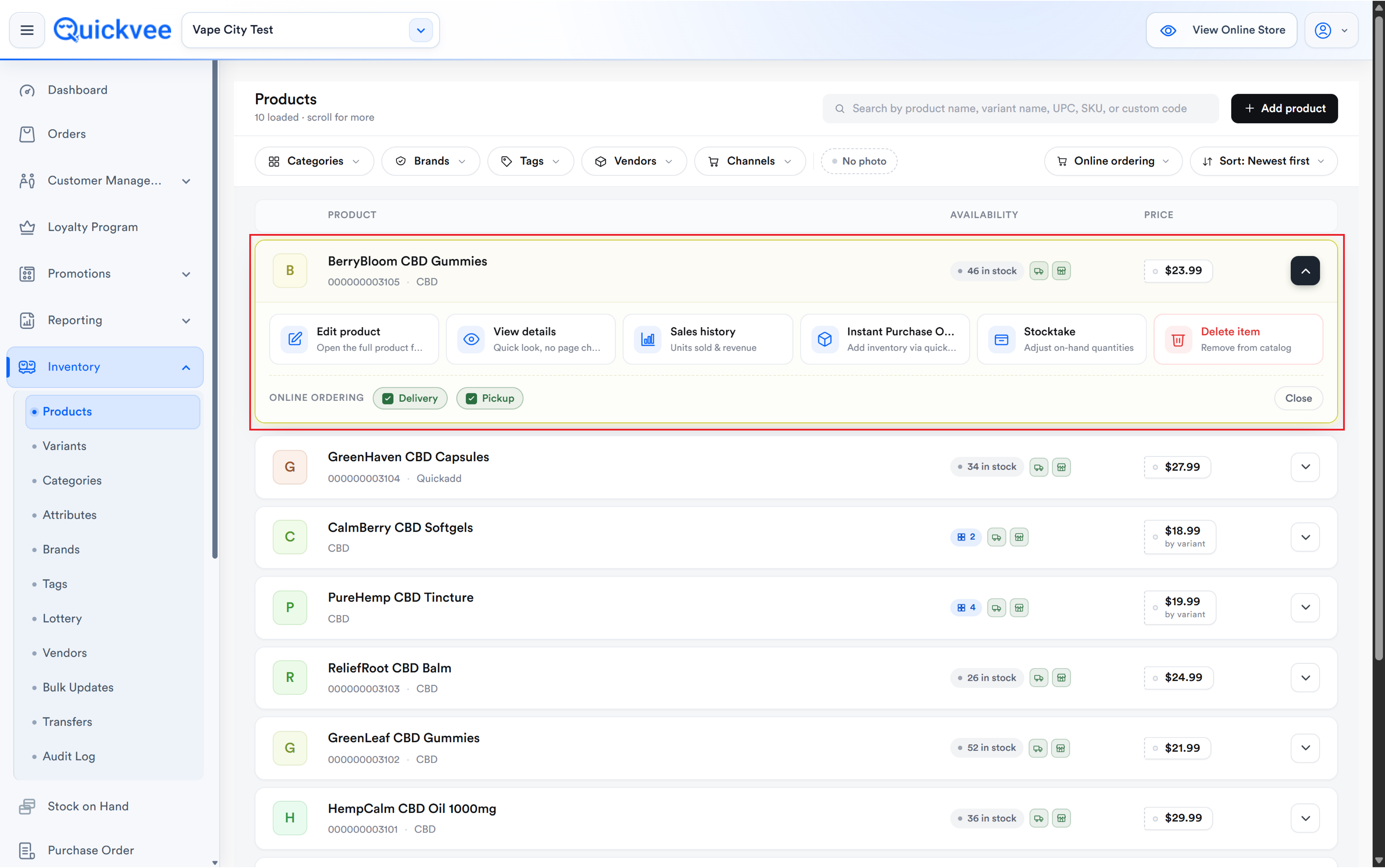
Beneath the actions, Online Ordering shows the product's Delivery and Pickup status.
Sales History for Products with Variants
Sales history in the product action row now works for products with variants as well as single products. Choose it, pick the variant you want, and its sales appear — no need to open the product and expand variants one at a time.
View details
The details panel shows the product image, status, Category, Type (Single or variant), Price, Cost/Margin, In Stock, and UPC, plus capability chips: Online delivery, Online pickup, Track quantity, Sell when out of stock, Food stampable (EBT), Tobacco, Disabled. Sales history and Edit product buttons sit at the bottom.
Instant Purchase Order
Add inventory without building a full PO. Shows the product with its UPC and current stock, then takes Quantity, Cost per unit, and a required Description. The footer totals units and cost. Click Add inventory to apply.
Stocktake
Adjust the on-hand quantity directly. Shows current stock, takes a New quantity and an optional Note, then Update stock.
💡 Tip. Instant Purchase Order is for stock arriving from a supplier, it records cost. Stocktake is for correcting a count. Using the right one keeps your inventory valuation accurate.
Adding a product
Click + Add product. Step 1 asks you to choose the product type:
|
Type |
Use when |
|---|---|
|
Single product |
One UPC and scan codes, one price, one inventory count |
|
Product with variants |
Per-variant UPC, price, and inventory |
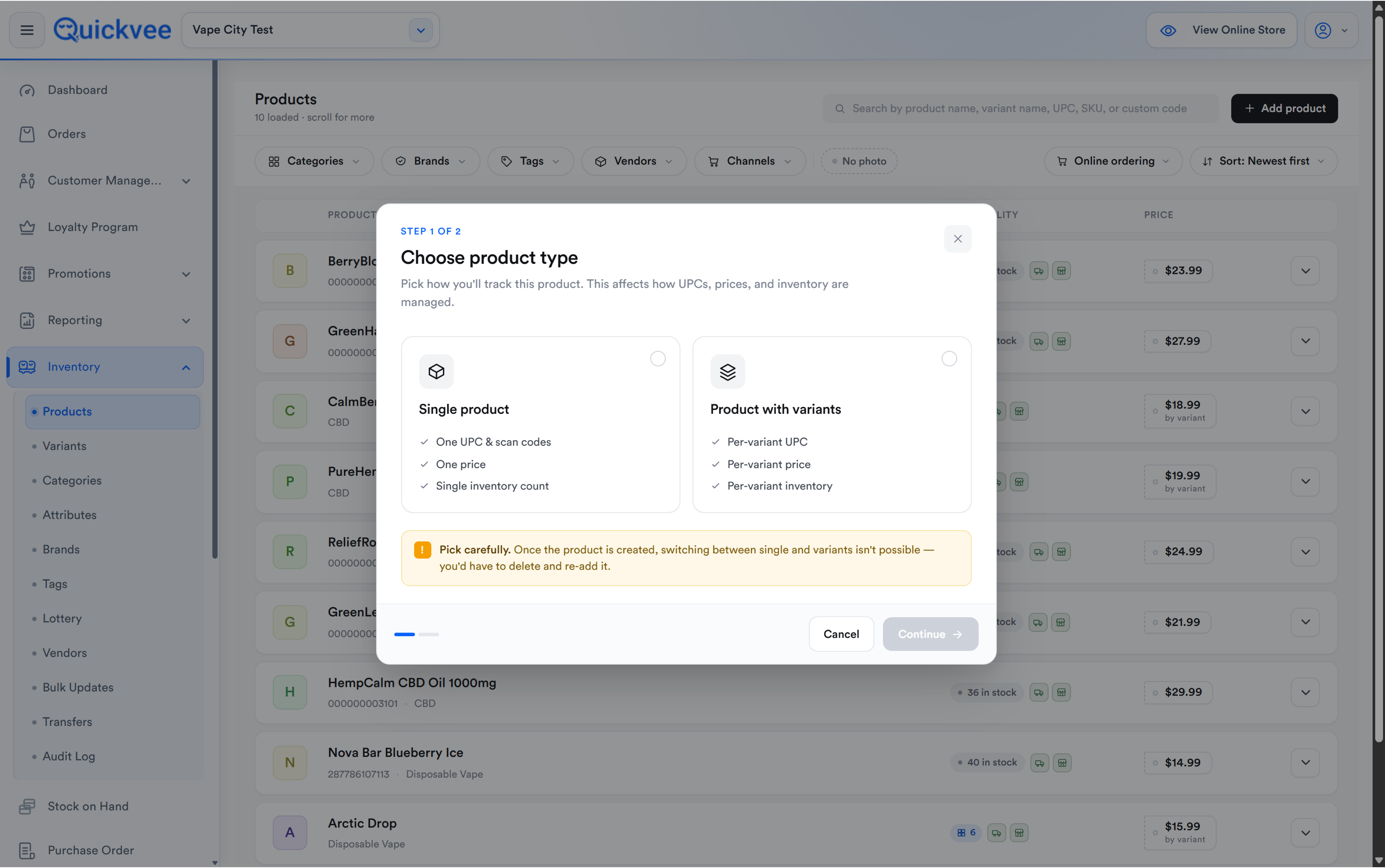
⚠️ Important. Choose carefully. Once the product is created, switching between single and variants isn't possible, you'd have to delete it and re-add it.
Click Continue to open the product form.
Product information
|
Field |
Notes |
|---|---|
|
Name |
Required |
|
Brand |
One brand per product |
|
Tags |
Optional, multiple |
|
Categories |
Required, multiple |
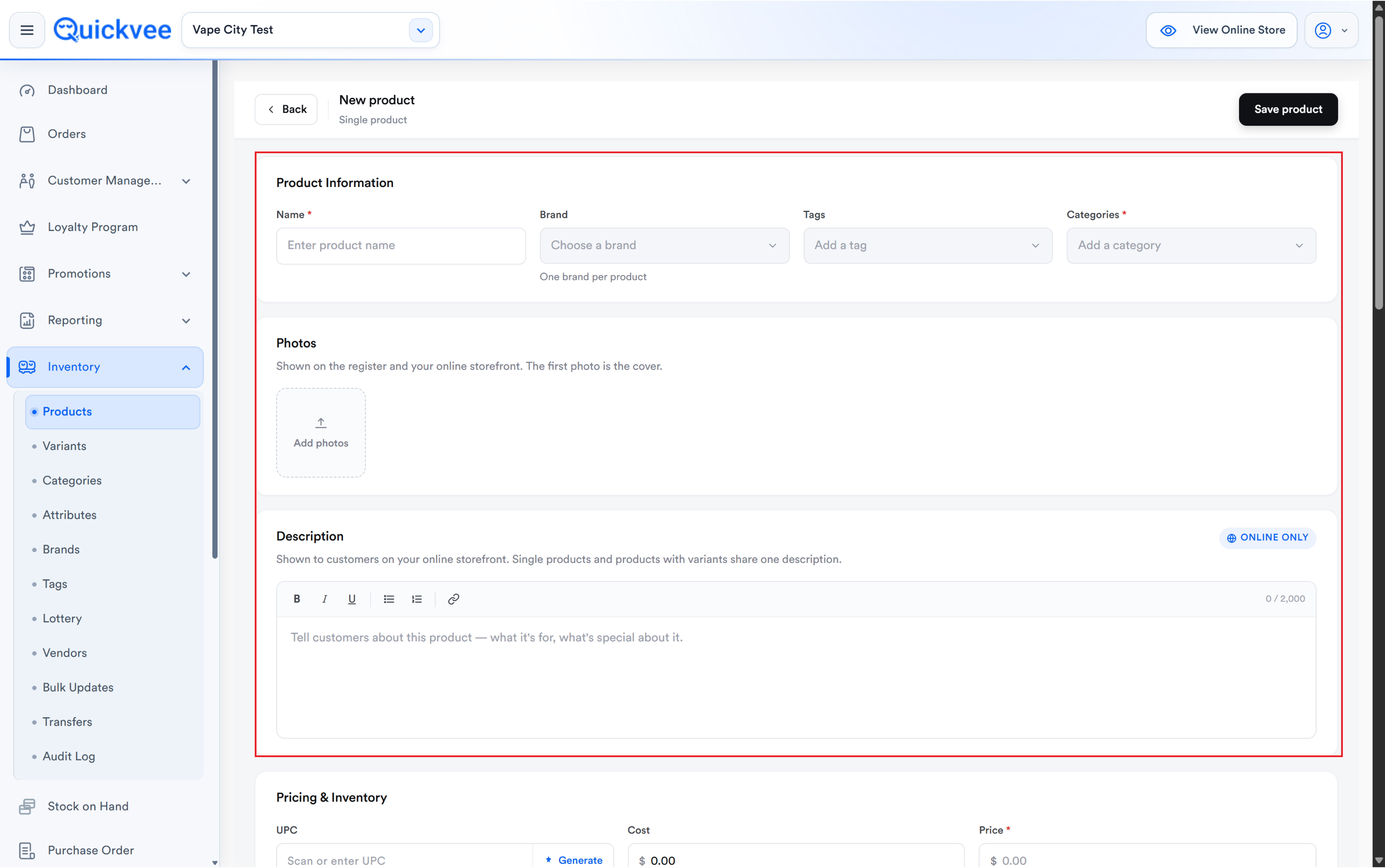
Photos — Drag and Drop
You can add product photos by dragging image files from your computer onto the upload area, as well as by clicking to choose them. Drop several at once; the first photo remains the cover. Reorder after upload as before.
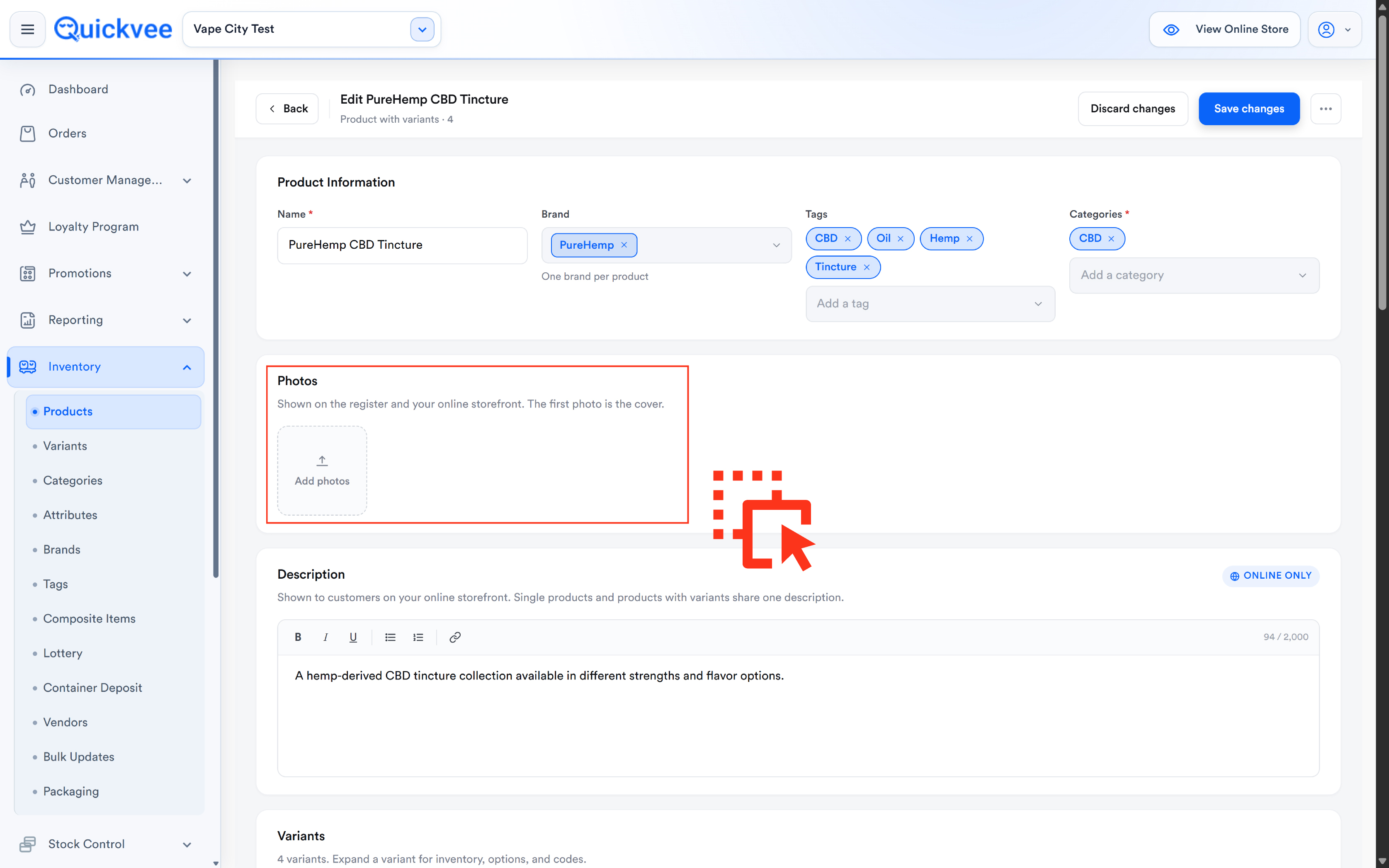
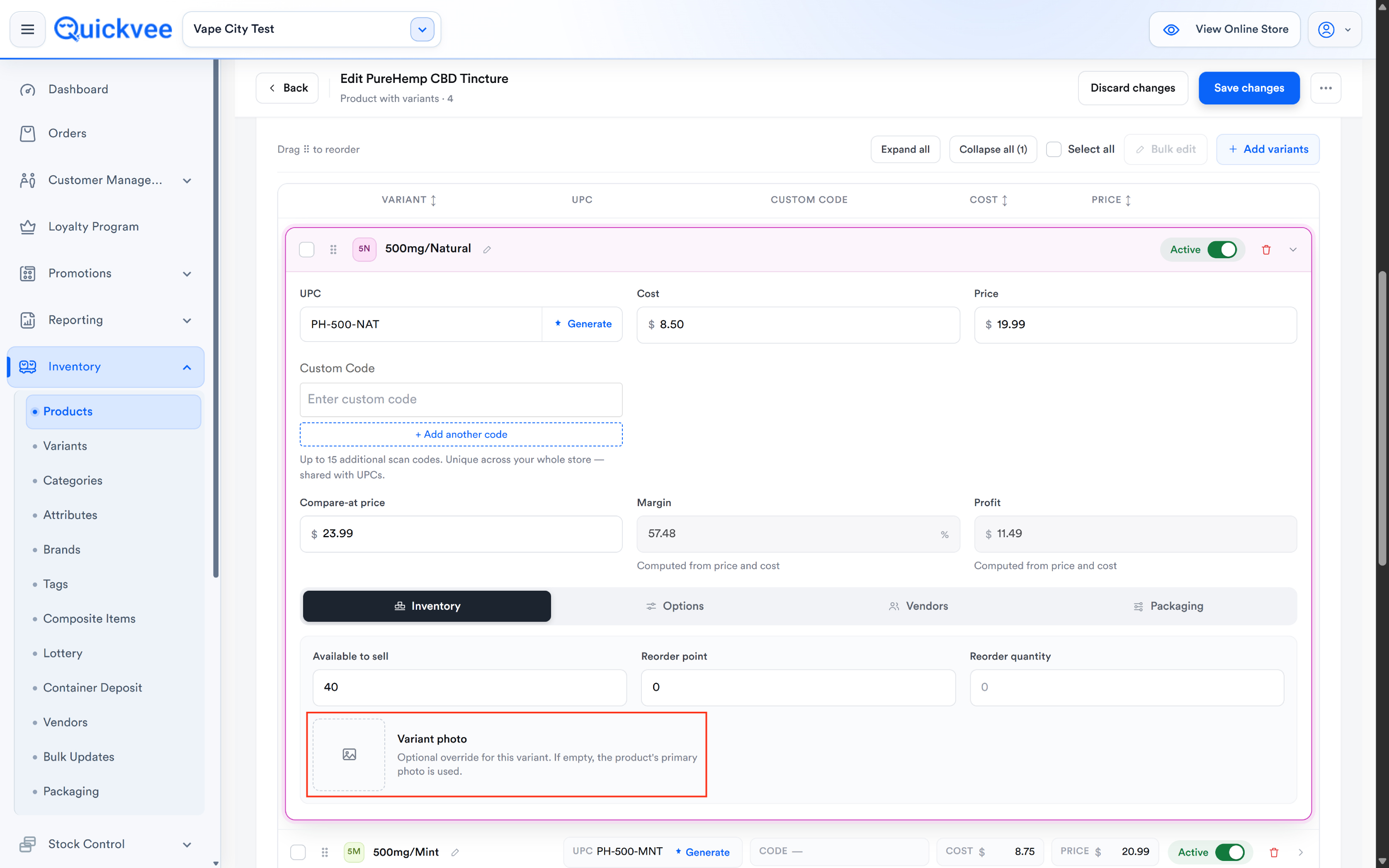
Photos — One Image per Variant
Variants can carry their own image. When you add or edit a variant, use its image upload to give that flavor, size or color its own photo. The variant image shows wherever the variant is displayed — on the register when the cashier picks a variant, and on your online storefront — while the product-level photos stay as the product's gallery.
TIP: Give every variant an image when the variants look different — colors, device finishes, packaging. Skip it when they are identical except for size; the product photo does the job.
Description
Shown to customers on your online storefront, with basic formatting (bold, italic, underline, lists, links) and a 2,000-character limit. Marked ONLINE ONLY, it doesn't appear on the register. Single products and products with variants share one description.
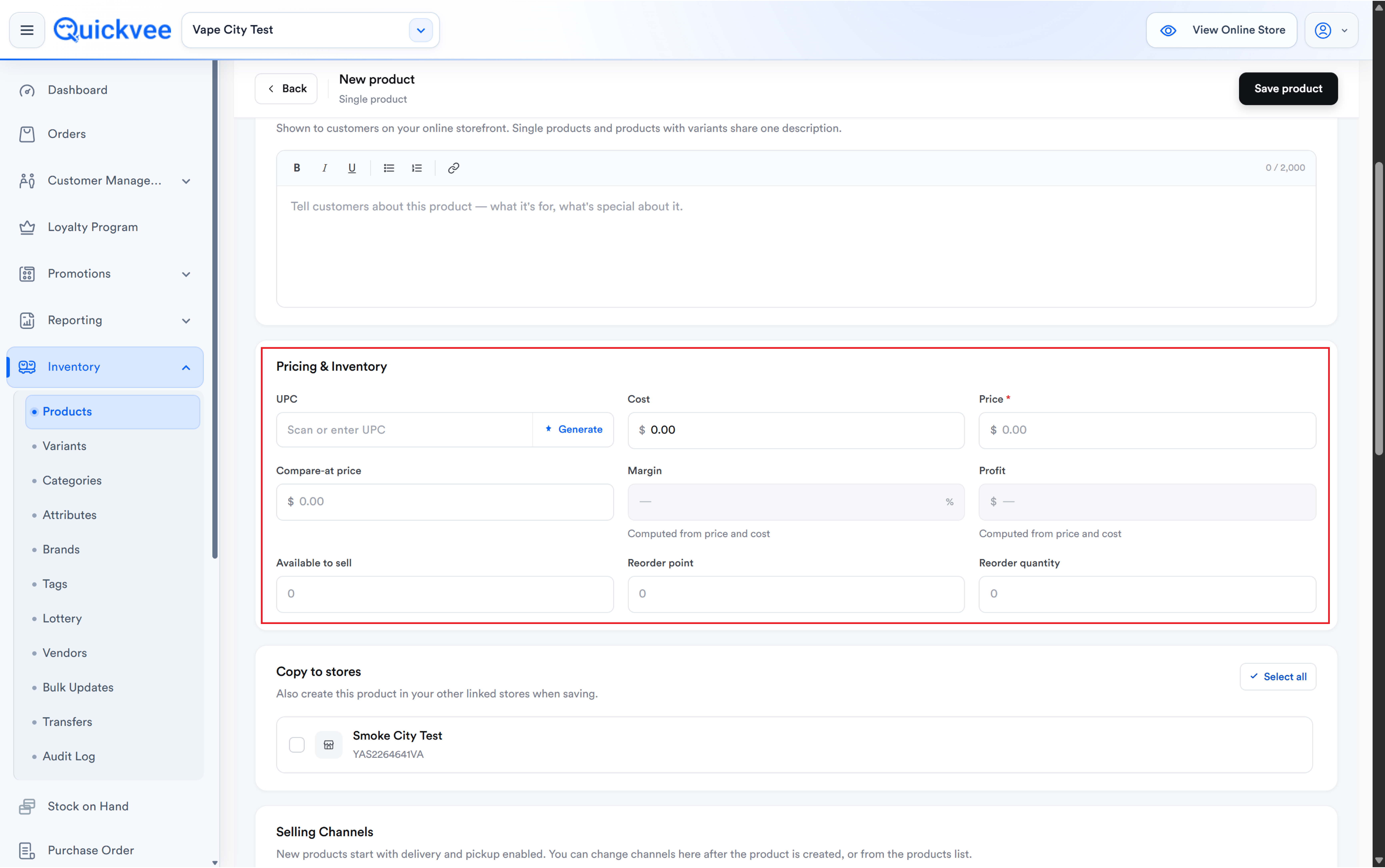
Pricing & inventory (single products)
|
Field |
Notes |
|---|---|
|
UPC |
Scan or enter, or click Generate to create one |
|
Cost |
What you pay |
|
Price |
Required, what the customer pays |
|
Compare-at price |
The "was" price shown alongside the selling price |
|
Margin / Profit |
Computed automatically from price and cost |
|
Available to sell |
Starting stock quantity |
|
Reorder point |
Stock level that triggers a reorder |
|
Reorder quantity |
How much to reorder |
Attributes and variants (products with variants)
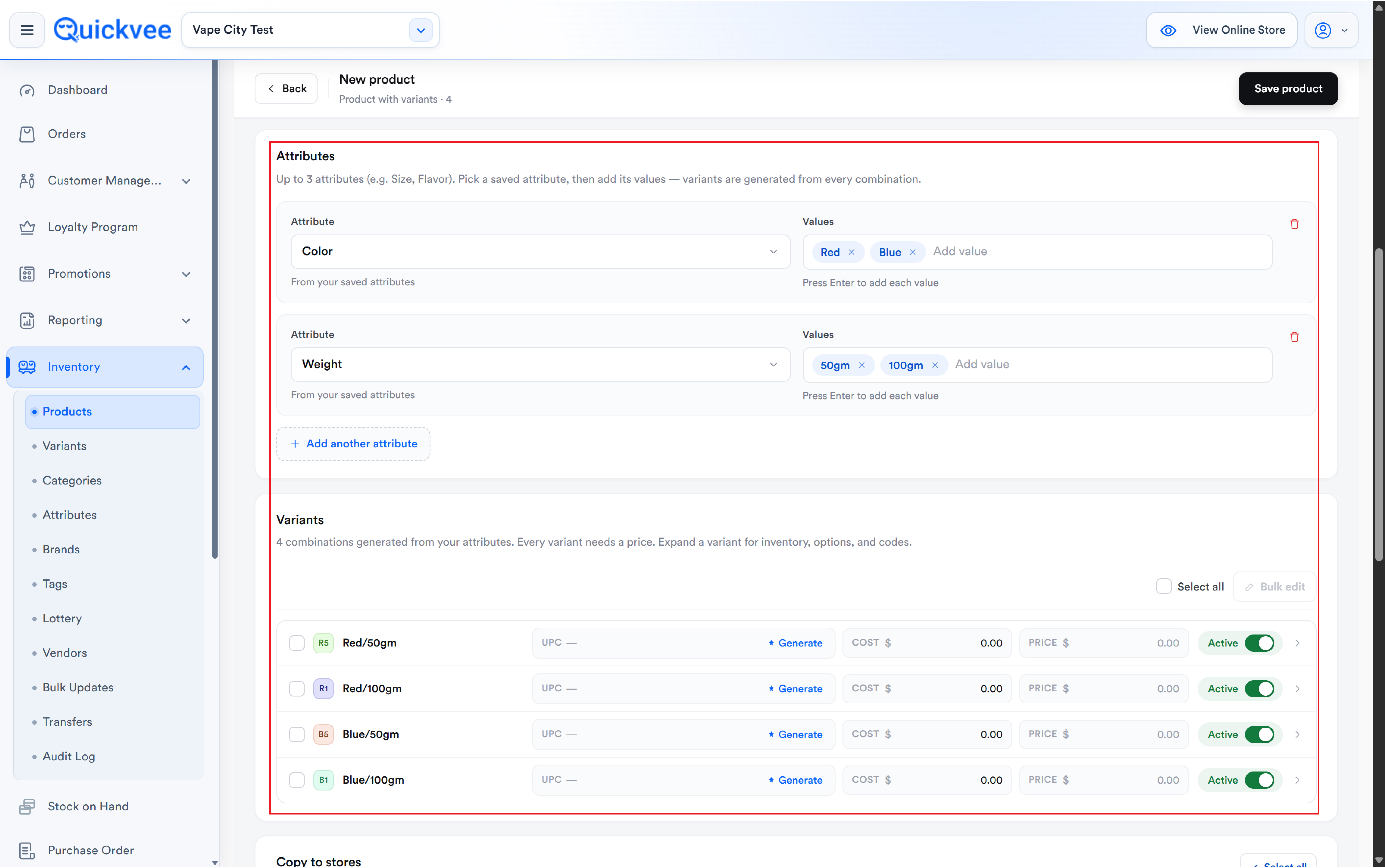
Add up to 3 attributes (e.g. Size, Flavor). Pick a saved attribute, then type its values, pressing Enter after each. Variants are generated from every combination, three sizes and two flavors produce six variants. Every variant needs a price. Expand a variant to set its inventory, options, and codes individually.
Variants — Edit One Variant Without Touching the Others
Open a variant on the product page and choose Edit variant. Change the option values for that variant alone — for example Mango / X to Cool / X — and save. Only that variant changes. The other combinations are left as they are, and the edited variant keeps its UPC, price, cost, stock and sales history.
Variants — Add a Single Custom Variant
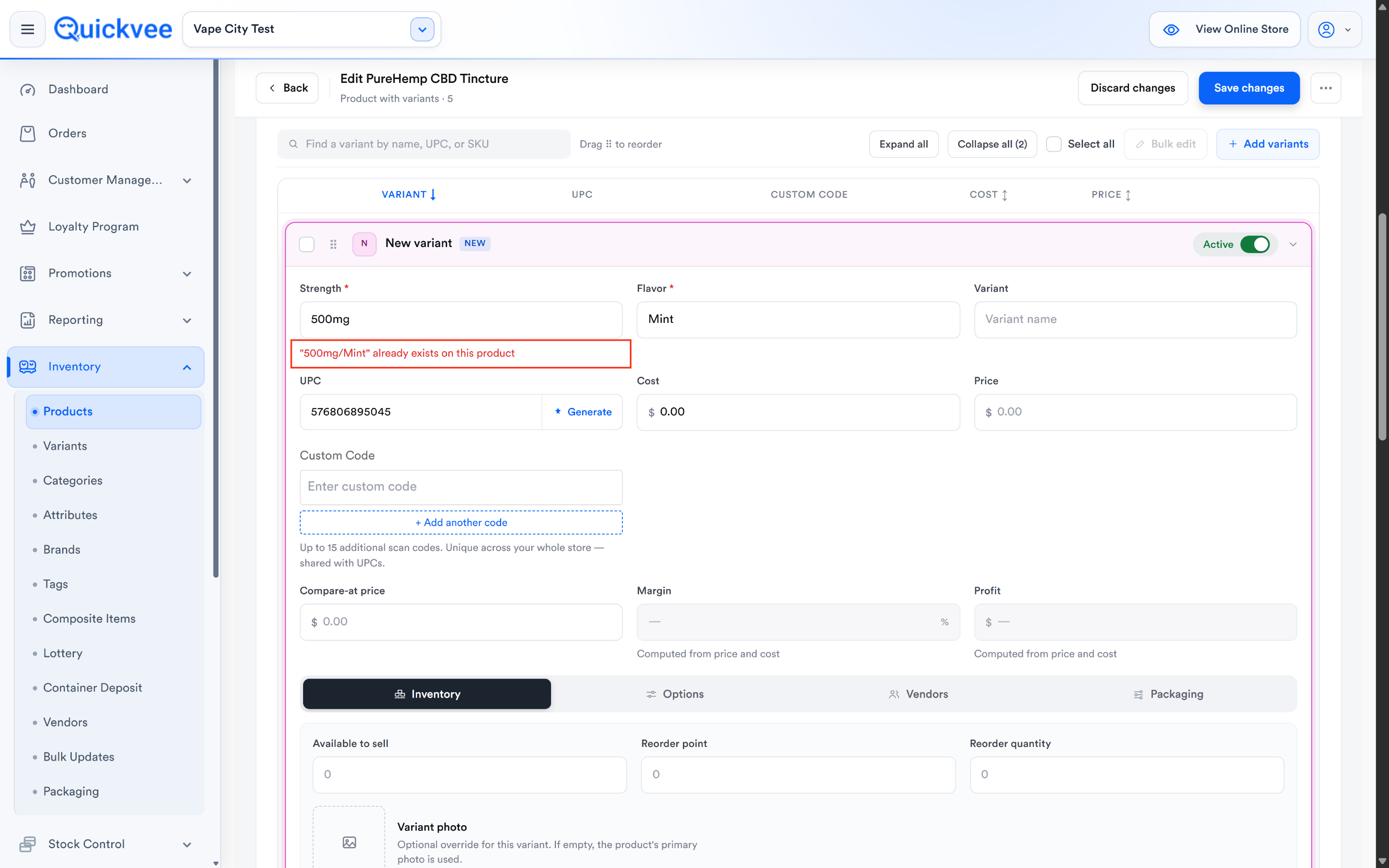
A product with variants normally generates every combination of its attribute values (two flavors × two sizes = four variants). You can now add one specific combination on its own — Orange / XL5 — without the other Orange combinations being created. Each variant is listed as Product name – Variant.
NOTE: A combination can exist only once per product; the form blocks duplicates. On your online storefront, shoppers can select only the combinations that actually exist, so a custom variant never creates an unsellable option.
TIP: Use a custom variant for the odd pack size or limited flavor a supplier sends you once. Use attributes and generated combinations for lines you stock in every size and flavor.
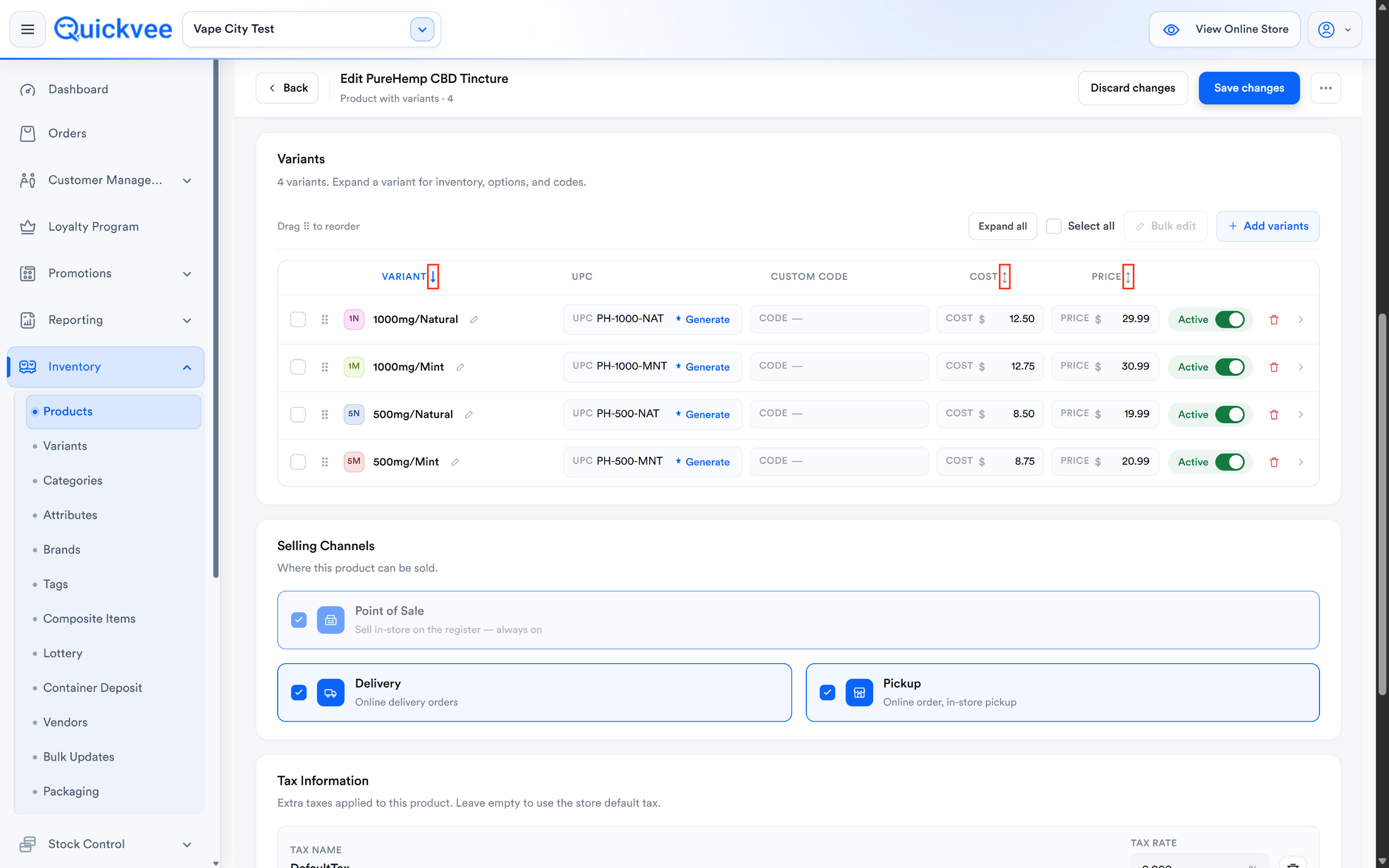
Variants — Sorting
Variants can be sorted on both the Product page (within the product's variant list) and the Variants page. Use the sort control to order by the options shown — name, price, stock or newest — so long variant lists are easier to scan and edit.
Variant Codes — Custom Code Field
Each variant now shows a Custom Code field in its details, next to UPC, so you can enter a supplier or shelf code without opening the variant's SKU codes list. Codes must still be unique across your store.
NOTE: The SKU codes list is still there for variants that need more than one extra code. The Custom Code field is the fast path for the common case of one code.
-20261023-145007.jpg?cb=63b047b66526677fe04fed69ce936386)
POS — Duplicate Variant Names (add to the POS Variant article, MM-559)
The Variant list on the POS flags variants that share the same name under one product, so a duplicate created by mistake is easy to spot and rename.
Selling channels
New products start with delivery and pickup enabled. Channels can be changed here after the product is created, or from the products list.
|
Channel |
Notes |
|---|---|
|
Point of Sale |
Sell in-store on the register, always on |
|
Delivery |
Online delivery orders |
|
Pickup |
Online order, in-store pickup |
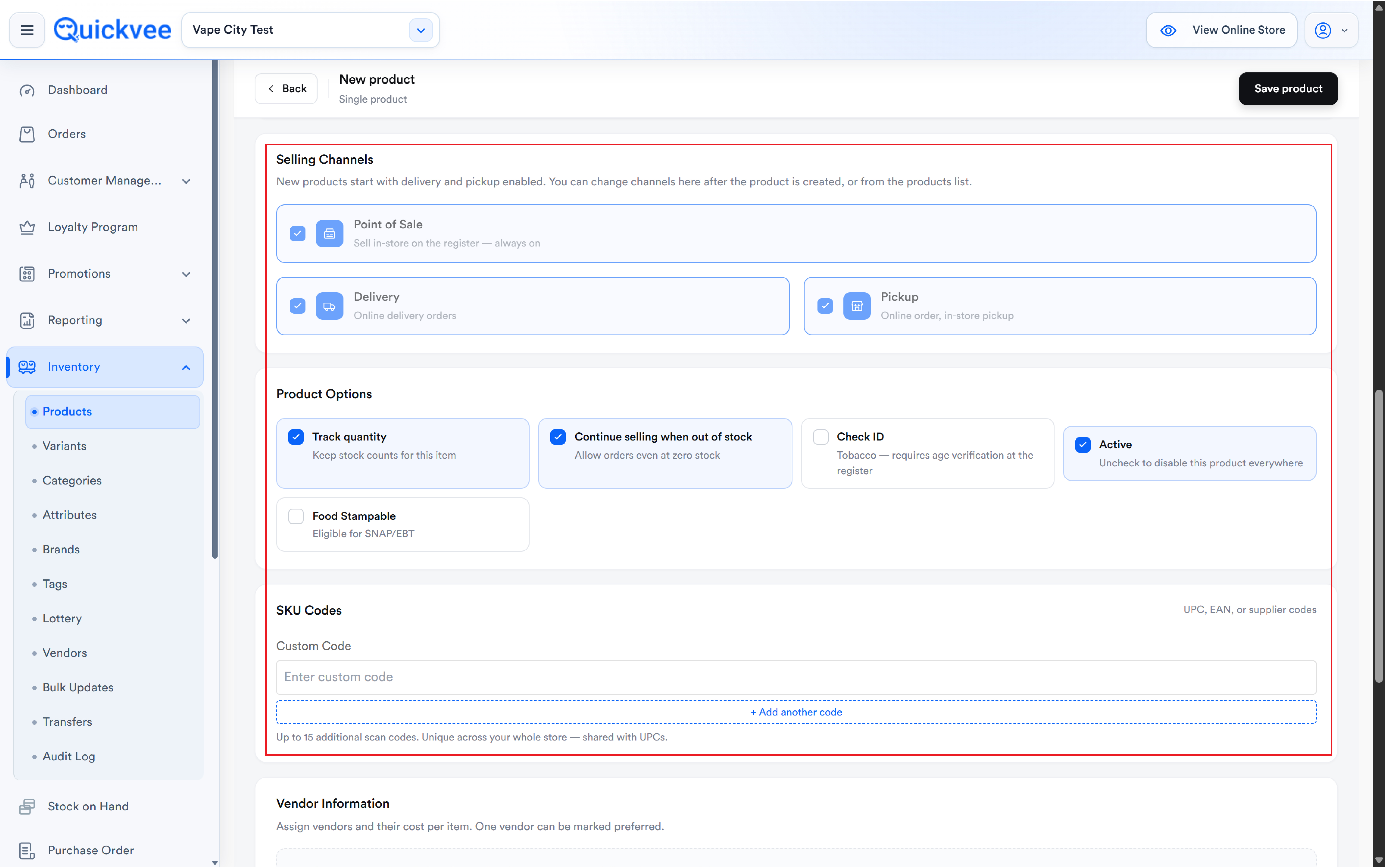
Product options
|
Option |
What it does |
|---|---|
|
Track quantity |
Keep stock counts for this item |
|
Continue selling when out of stock |
Allow orders even at zero stock |
|
Check ID |
Tobacco, requires age verification at the register |
|
Active |
Uncheck to disable this product everywhere |
|
Food Stampable |
Eligible for SNAP/EBT |
⚠️ Important. Turn on Check ID for every tobacco, vape, and age-restricted product. This is what prompts your cashier to verify age at the register.
SKU codes
Add up to 16 additional scan codes per product, UPC, EAN, or supplier codes. Codes must be unique across your whole store and are shared with UPCs. Click + Add another code to add more.
💡 Tip. Add the distributor's code alongside the manufacturer UPC. Either barcode then rings up the same product, whichever label happens to be on the box.
Vendor information
Assign vendors and their cost per item, with one marked preferred.
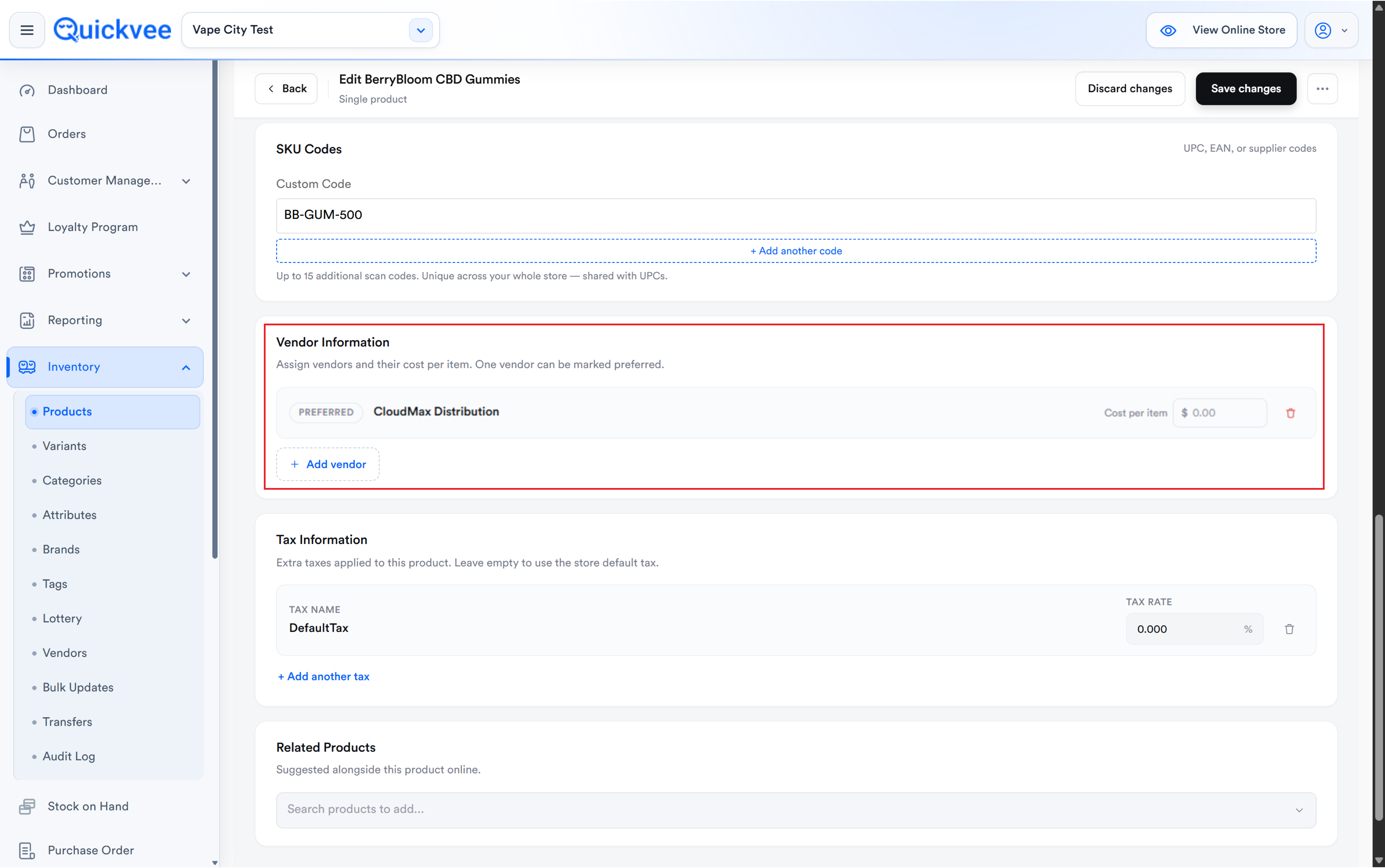
📝 Note. Vendors are assigned after the product is created. Save the product first, then reopen it to add vendor details.
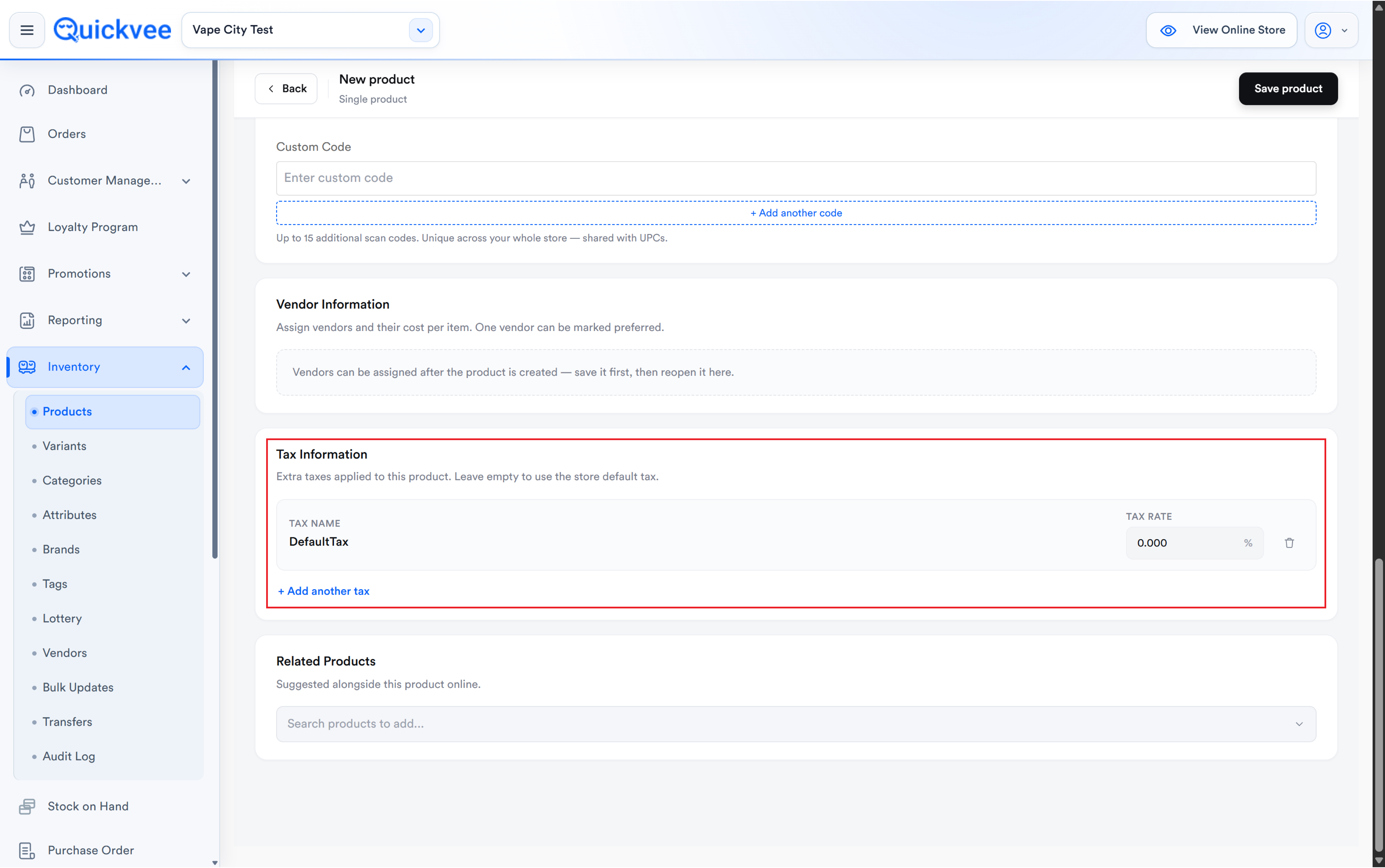
Tax information
Extra taxes applied to this product. Leave empty to use the store default tax. Click + Add another tax for additional rates.
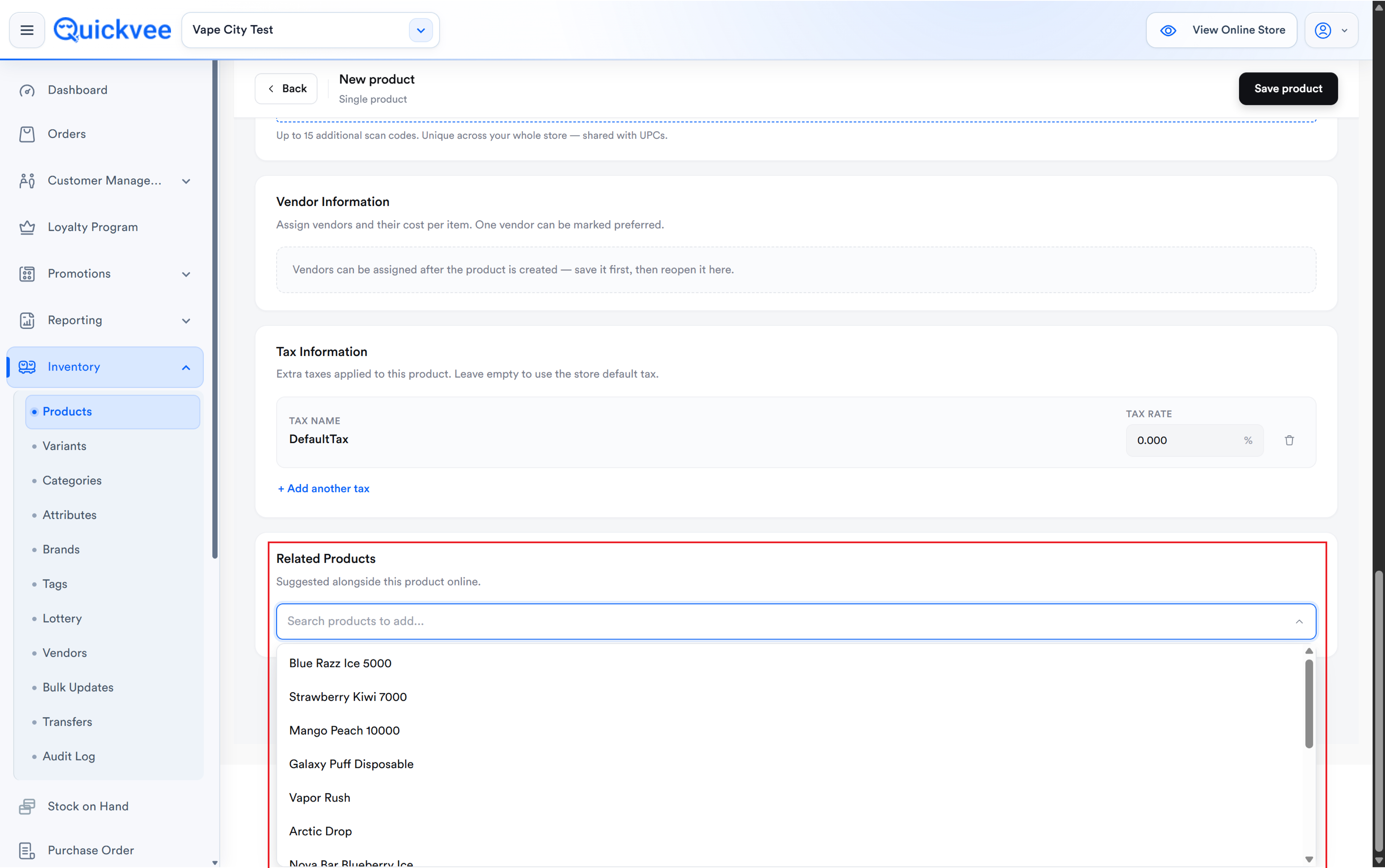
Related products
Products suggested alongside this one on your online storefront.
Click Save product when finished.
Frequently asked questions
Can I convert a single product into a product with variants?
No. The type is fixed at creation, delete and re-add the product to change it.
Why can't I assign a vendor while creating the product?
Vendor assignment becomes available after the product exists. Save first, then reopen the product.
Where does the description appear?
On your online storefront only, not on the register.
How many scan codes can one product have?
Up to 16 additional codes beyond the UPC, unique across your store.
What's the difference between Mass Update and Bulk Updates?
Mass Update toggles product options across a category or your whole catalog. Bulk Updates edits per-product values, price, cost, stock, and applies them across multiple store locations.
Can each variant have its own photo? Yes. Upload it on the variant; it shows where that variant is displayed. The product's photos remain the gallery.
How do I upload several photos quickly? Drag them from your computer onto the upload area. The first becomes the cover; reorder afterwards.
Where do I add a supplier code to a variant? In the variant's Custom Code field next to UPC. Use the SKU codes list if the variant needs more than one extra code.