
The Tags page in the POS app's Inventory section lets you manage product tags right from the tablet. Tags are free-form labels for filtering and promotion, "25k Puffs," "No Ice," "clearance," a hardware line like "COIL," and each carries a color swatch that controls how it appears on product cards. It's the same shared tag list your web backend uses, so anything you do here is live everywhere immediately.
Where to find it
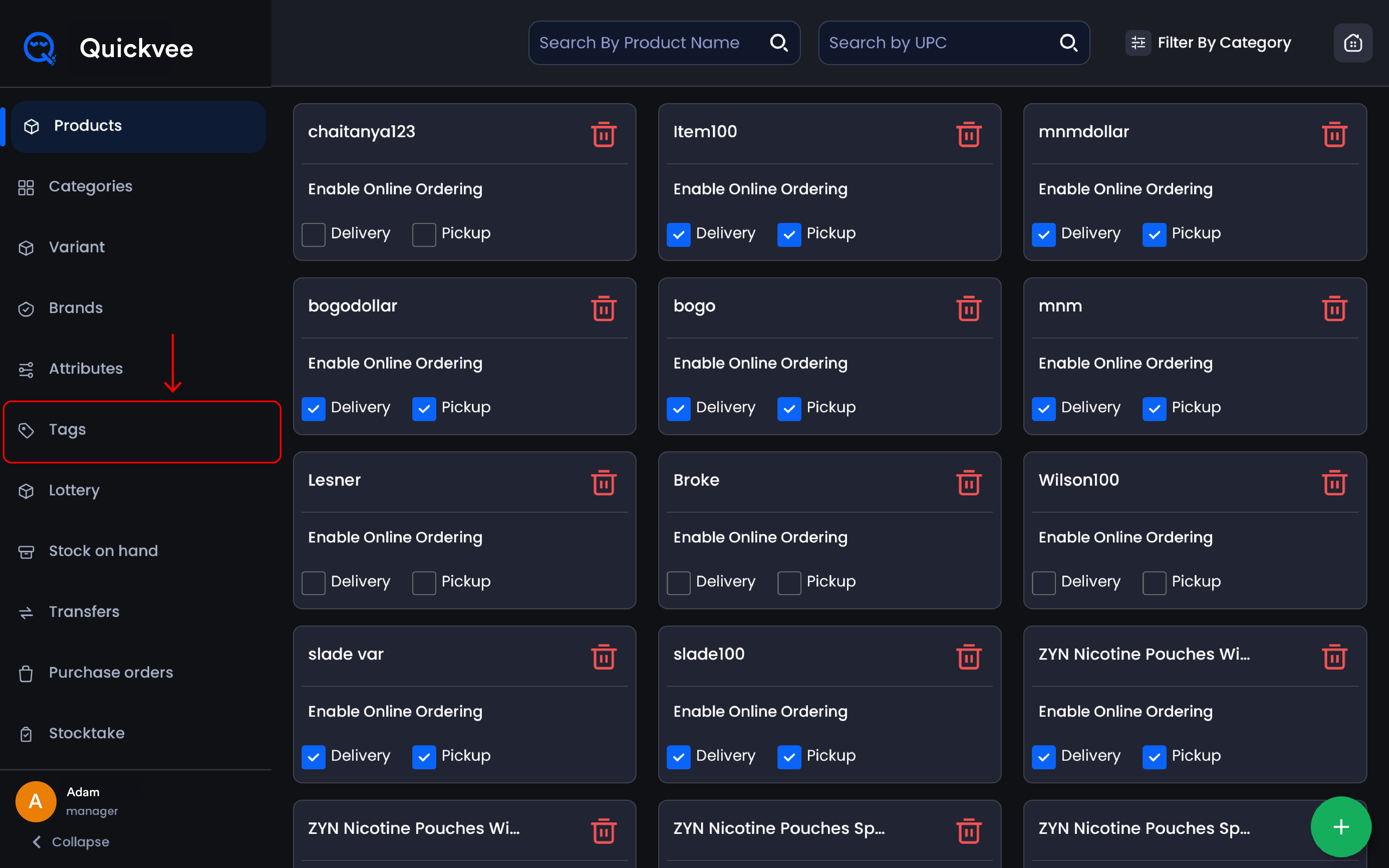
From the POS app, open the Inventory section and select Tags from the menu. The page opens with your full tag list and a count of how many tags your store has.
-20260721-142104.jpg?cb=f7a46f1a81f5bf319b8d129e87f6e3eb)
Page overview
-20260721-142617.jpg?cb=eb8486a271403aad9aed7d24302c979c)
|
Element |
What it does |
|---|---|
|
Tag count |
Shown under the page title, the total number of tags in your store. |
|
Sort options |
Switch the list between A → Z, Most used, and Recent ordering. |
|
Search tags |
Type any part of a tag name to filter the list instantly. |
|
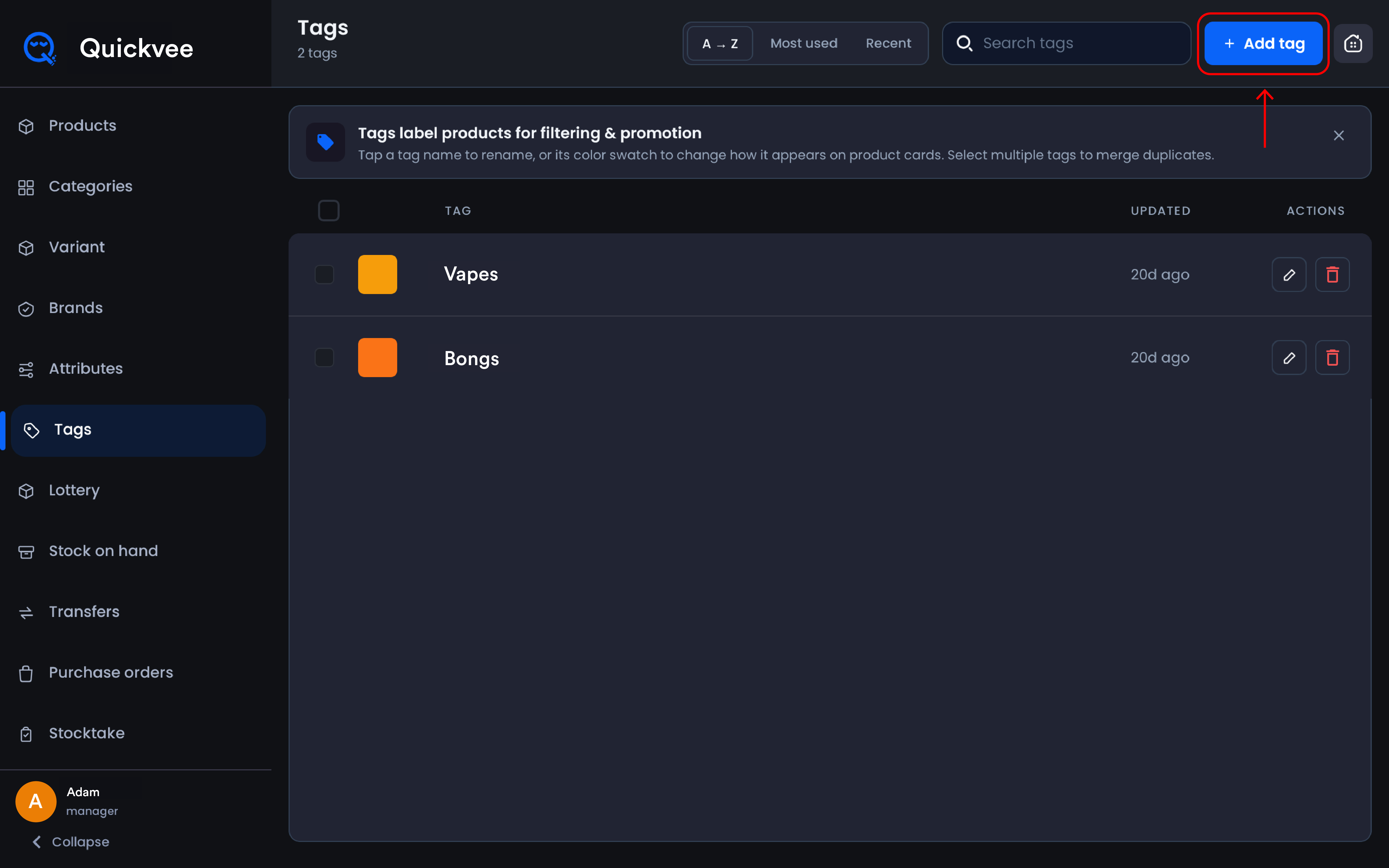
+ Add tag |
Opens an inline entry row at the top of the list to create a new tag. |
|
Info banner |
A one-time explainer of how tags work. Tap the X to dismiss it. |
|
Select checkbox |
On each row and in the header. Select multiple tags to merge duplicates. |
|
Color swatch |
The colored square beside each name. Tap it to change how the tag appears on product cards. |
|
Updated |
How long ago each tag was last changed. |
|
Edit (pencil) |
Renames the tag, or simply tap the tag name to rename in place. |
|
Delete (trash) |
Removes the tag, with a confirmation that shows the product impact first. |
Adding a tag
-
Tap + Add tag in the top-right corner.
-
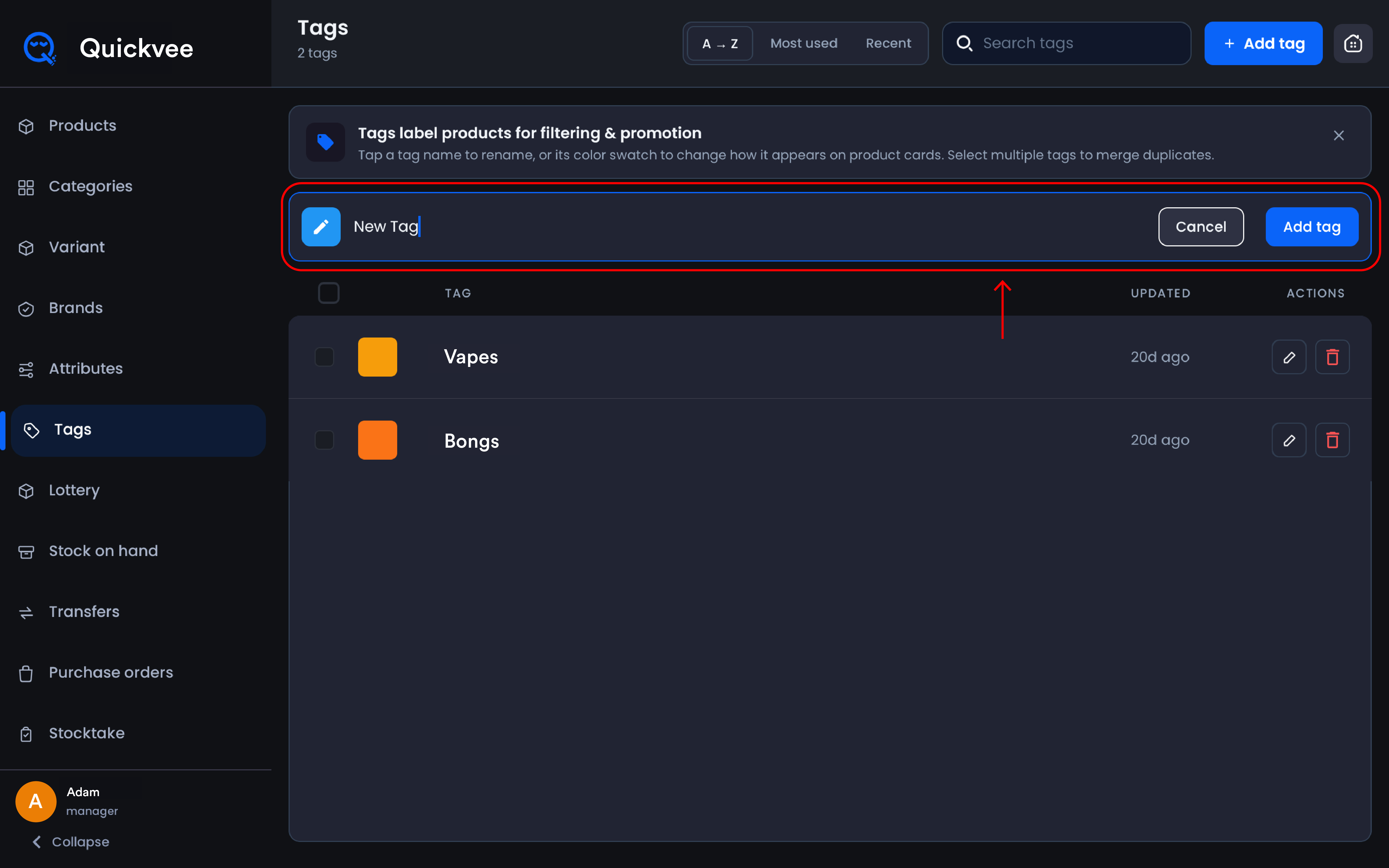
An entry row appears at the top of the list with a New tag name field.
-
Type the tag name.
-
Tap Add tag to save, or Cancel to discard.
-
The tag is immediately available to assign on products, on the POS and the web backend alike.
💡 Tip. Keep tags short and purposeful, and settle on one naming style (all caps, Title Case, or lowercase) so the list stays scannable. A list mixing "ASPIRE," "No Ice," and "25k Puffs" works, but only if everyone adding tags follows the same convention.
Renaming a tag
-
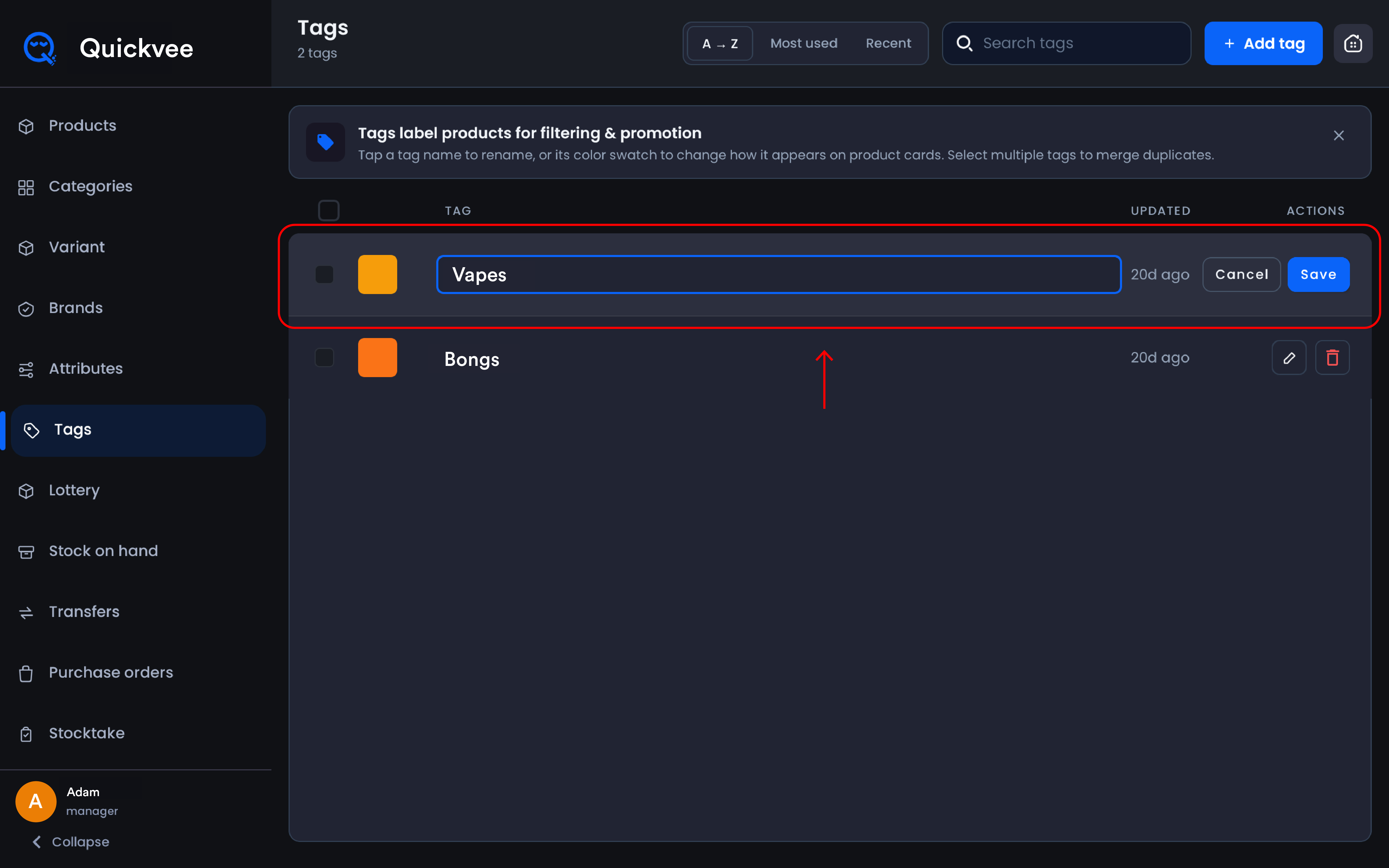
Tap the tag name directly, or tap the pencil icon on its row.
-
The name becomes an editable field right in the row.
-
Type the change, then tap Save, or Cancel to keep the original.
The Updated column refreshes; pair it with the Recent sort to review the latest edits.
Changing a tag's color
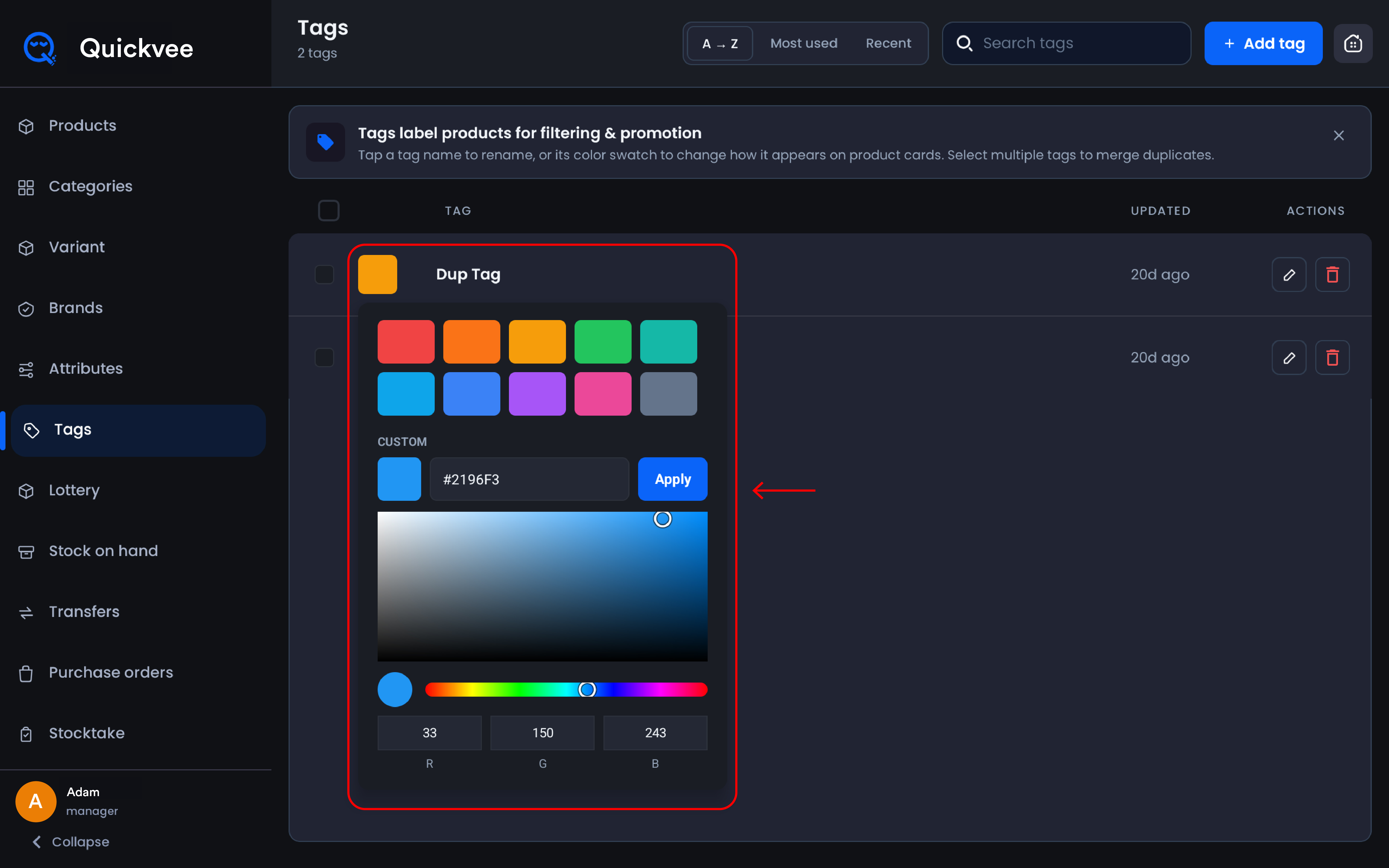
Tap the color swatch beside the tag name and pick a new color. The swatch controls how the tag appears on product cards, so use color deliberately: one color for promo tags, another for product-line tags like "COIL," a third for operational labels.
Merging duplicate tags
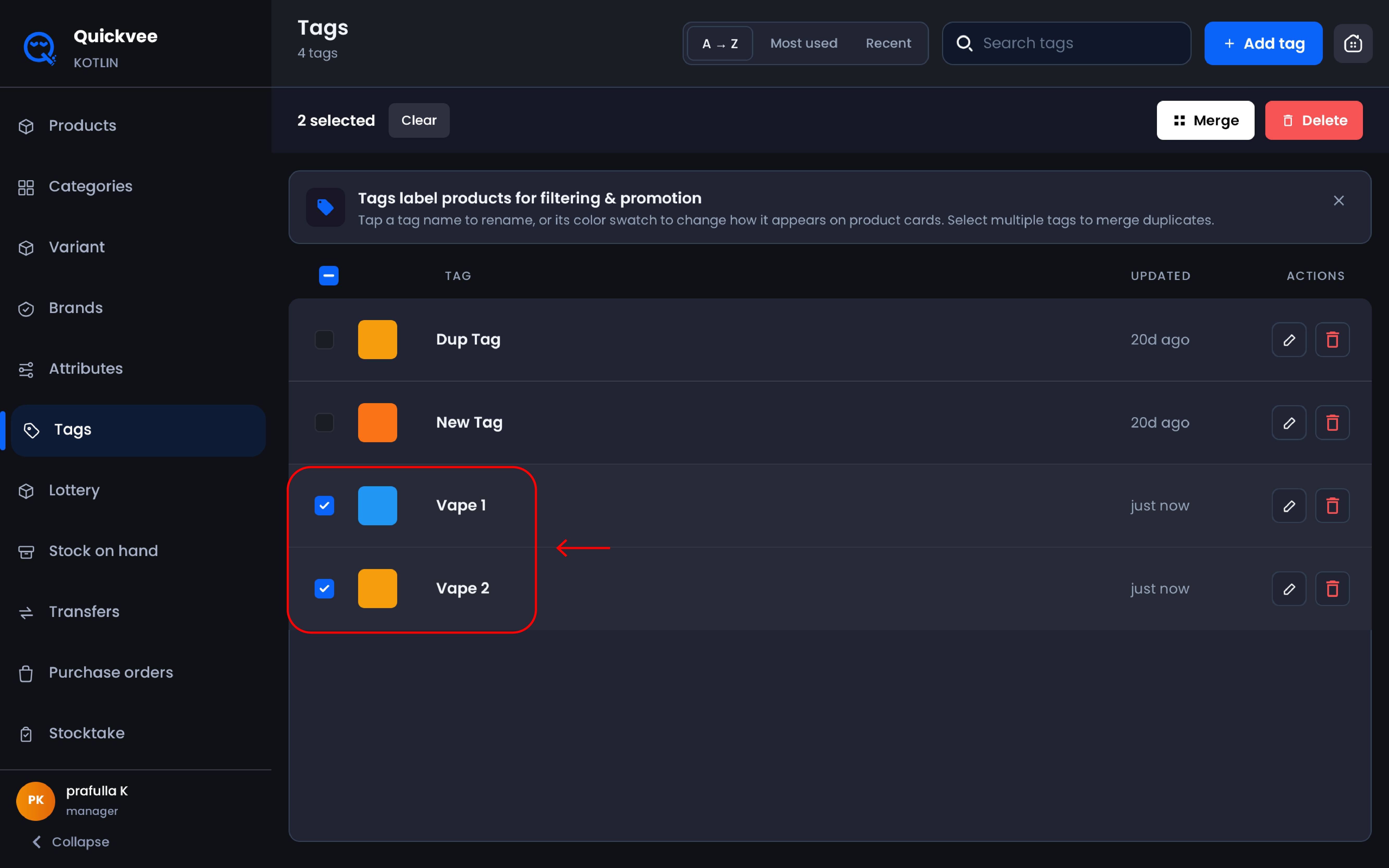
When near-duplicates creep in, "USBC," "USB-C," "usbc," merge them instead of cleaning up product by product:
-
Tick the checkbox on each duplicate you want to combine. The header checkbox selects everything listed.
-
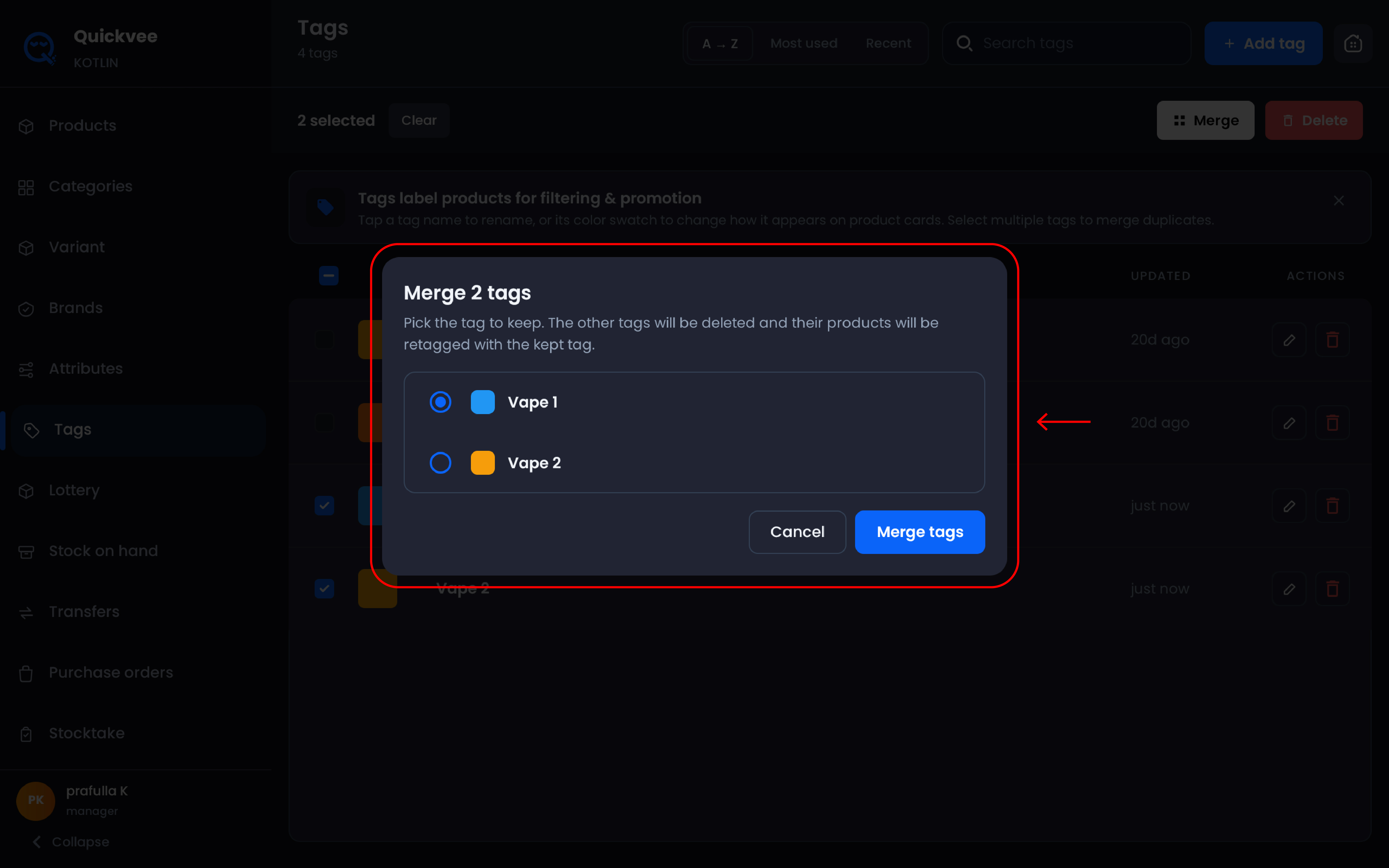
Choose the merge action for your selection.
-
The duplicates collapse into one tag, and every product that carried any of them now carries the survivor.
✅ Best practice. Sort by Most used first and keep the highest-use spelling as the survivor. The merge then disturbs the fewest product cards and online store listings.
Deleting a tag
-
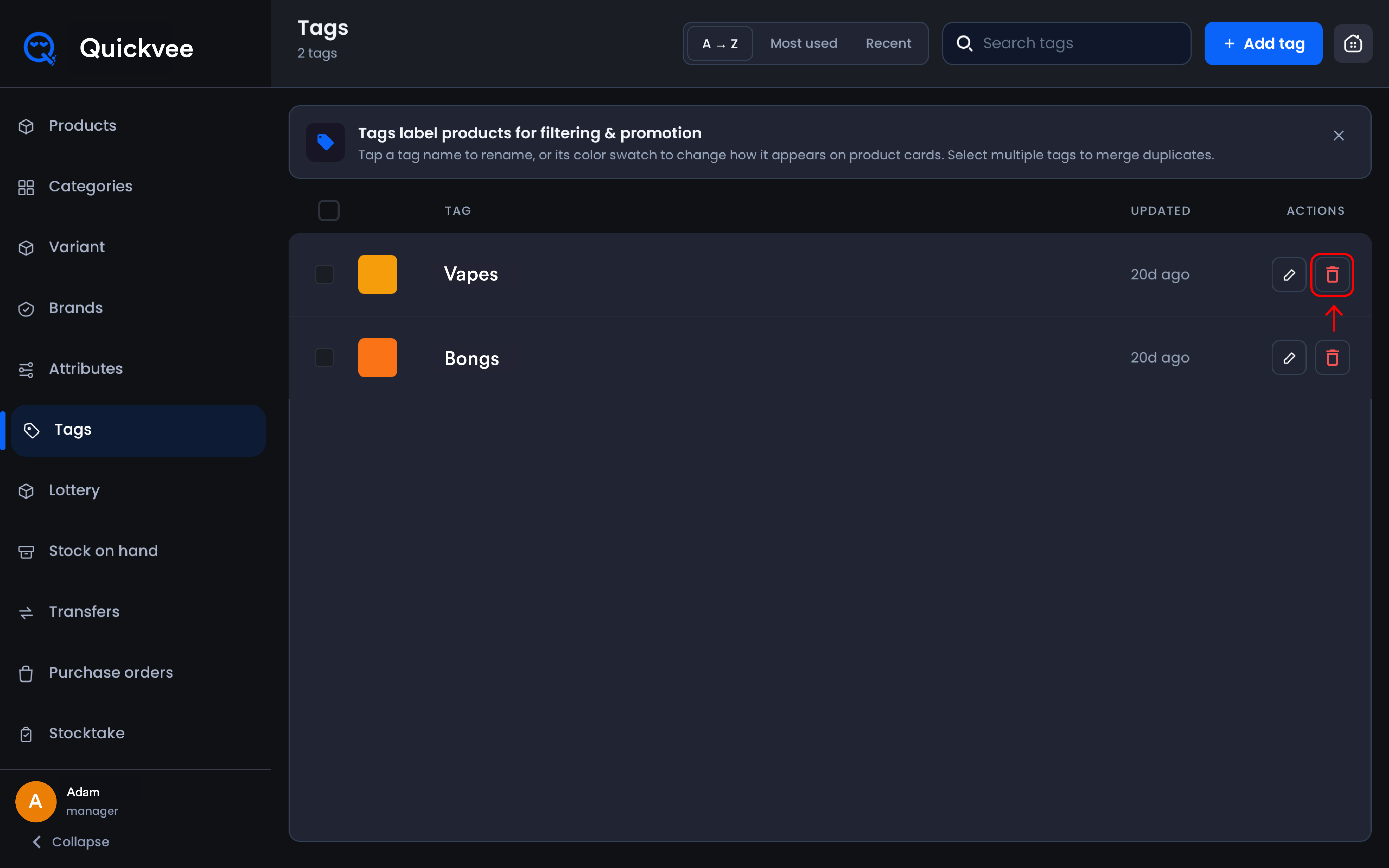
Tap the trash icon on the tag's row.
-
The confirmation dialog tells you exactly what you're affecting, for example: this tag is on 3 products, and removing it won't delete the products, just untag them.
-
Tap Delete tag to confirm, or Cancel to back out.
⚠️ Important. Read the product count before confirming. Deletion is permanent. If duplicates are the real problem, merge instead, since merging preserves the product associations while deleting discards them.
POS and web, one tag list
There's only one tag list per store. The POS Inventory section and the web backend's Inventory → Tags page manage the same records:
|
Action taken on POS |
Effect |
|---|---|
|
Add a tag |
Available instantly in the web backend and product forms. |
|
Rename or recolor a tag |
Updates on product cards and everywhere the tag is shown. |
|
Merge tags |
Product associations consolidate under the surviving tag across both platforms. |
|
Delete a tag |
Removed everywhere; affected products are simply untagged. |
Common questions
Q. What's the difference between tags, categories, and brands?
A. Categories are your store's structural shelves. Brands identify the manufacturer. Tags are unlimited, freeform labels that cut across both, one disposable can sit in its category, carry its brand, and wear "25k Puffs" and "clearance" tags at the same time.
Q. Will deleting a tag delete the products carrying it?
A. No. The confirmation dialog says it plainly: products are just untagged. Nothing leaves your inventory.
Q. Do the sort options change what shoppers see?
A. No. A → Z, Most used, and Recent are management views for you; they don't affect the online store.
Q. What does the color actually change?
A. How the tag renders on product cards. It's a visual identity for the label, helpful when staff scan a product grid and need to spot promo items or product lines at a glance.
Q. I typed a lowercase tag and it saved capitalized. Why?
A. The first letter of a tag name is capitalized automatically on save for consistent labeling.
Q. Who can manage tags on the POS?
A. Tag management is governed by the Manage Tag employee permission. Employees signed in without it can't alter the list.
Related
See Manage tags in the web backend for the same list managed from the web back office.
See also Manage brands on the POS and Manage product attributes on the POS.