
The Audit Log is your store's immutable record of changes, a permanent, tamper-proof history of who changed what, and when. Every tracked action in your backend is captured automatically with the exact before-and-after values, giving you a single place to resolve disputes, investigate discrepancies, and keep oversight of your team's activity. Entries can't be edited or deleted, by anyone, that's what makes it trustworthy.
Where to find it
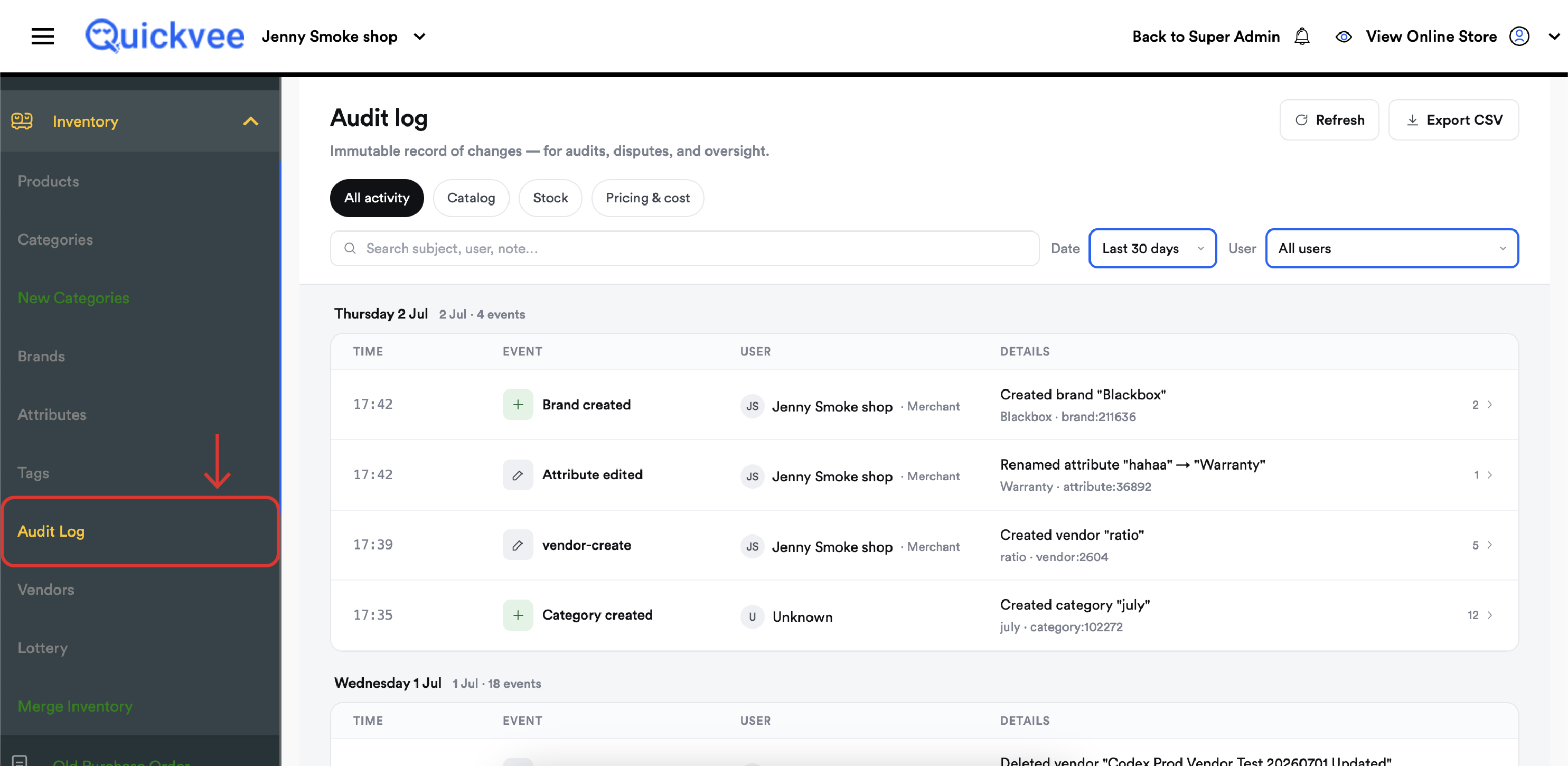
From the web backend, open the left menu and expand Inventory, then select Audit Log. The log opens showing your most recent activity, grouped by day.
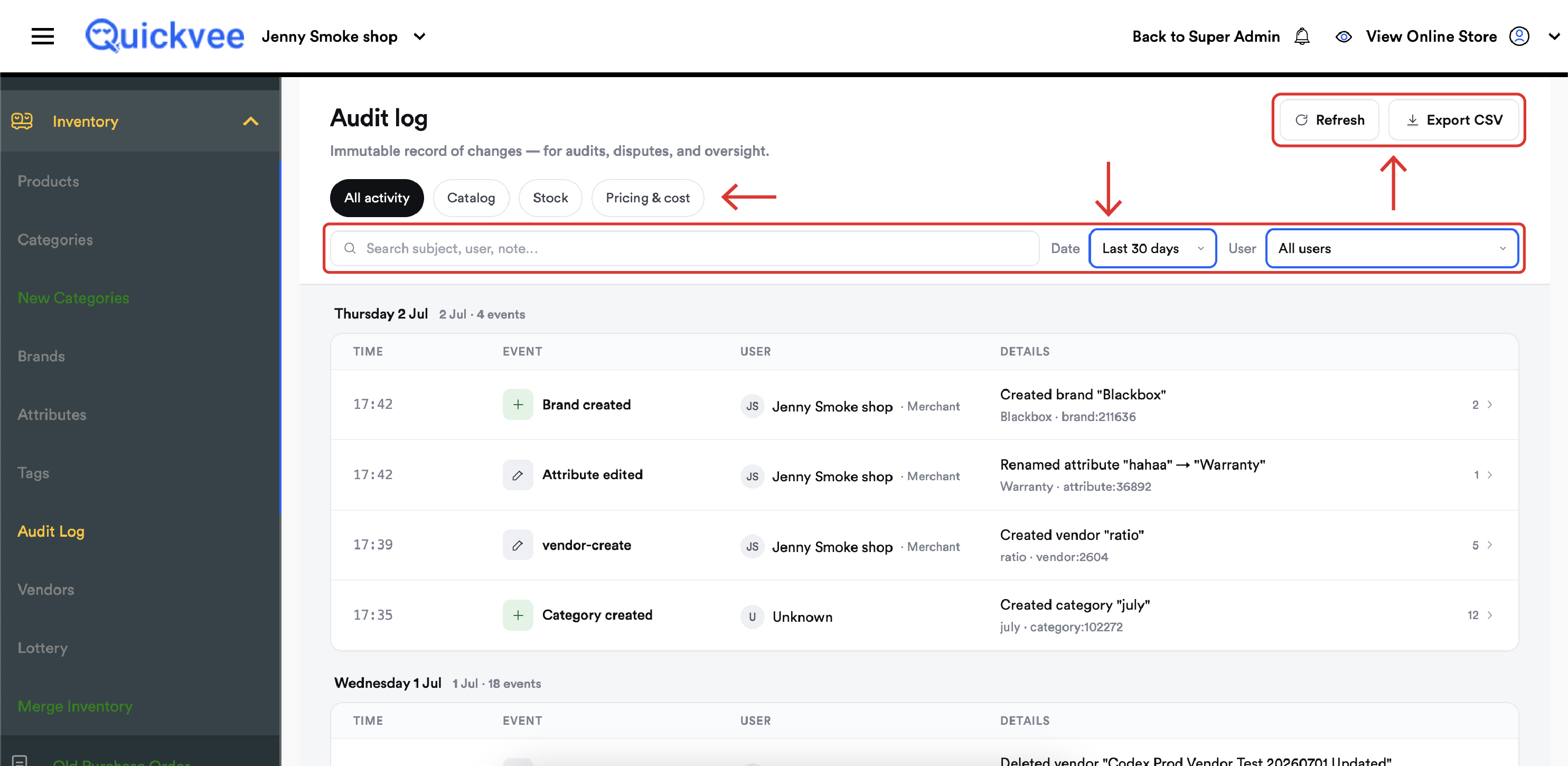
Page overview
|
Element |
What it does |
|---|---|
|
Refresh |
Pulls in the latest events without reloading the page. |
|
Export CSV |
Downloads the current view as a spreadsheet for offline review, accountants, or dispute evidence. |
|
Activity tabs |
Switch between All activity, Catalog, Stock, and Pricing & cost to focus on one kind of change. |
|
Search |
Find events by subject, user, or note, type a tag name, a PO number, or an employee's name. |
|
Date filter |
Narrow the log to a time window, such as the last 30 days. |
|
User filter |
Show only the actions of a specific person, or all users. |
|
Pagination |
Page through history; the footer shows the total event count for your current filters. |
Reading the log
Events are grouped by day, Today, Yesterday, then dated sections, with an event count per day so you can spot unusually busy periods at a glance.
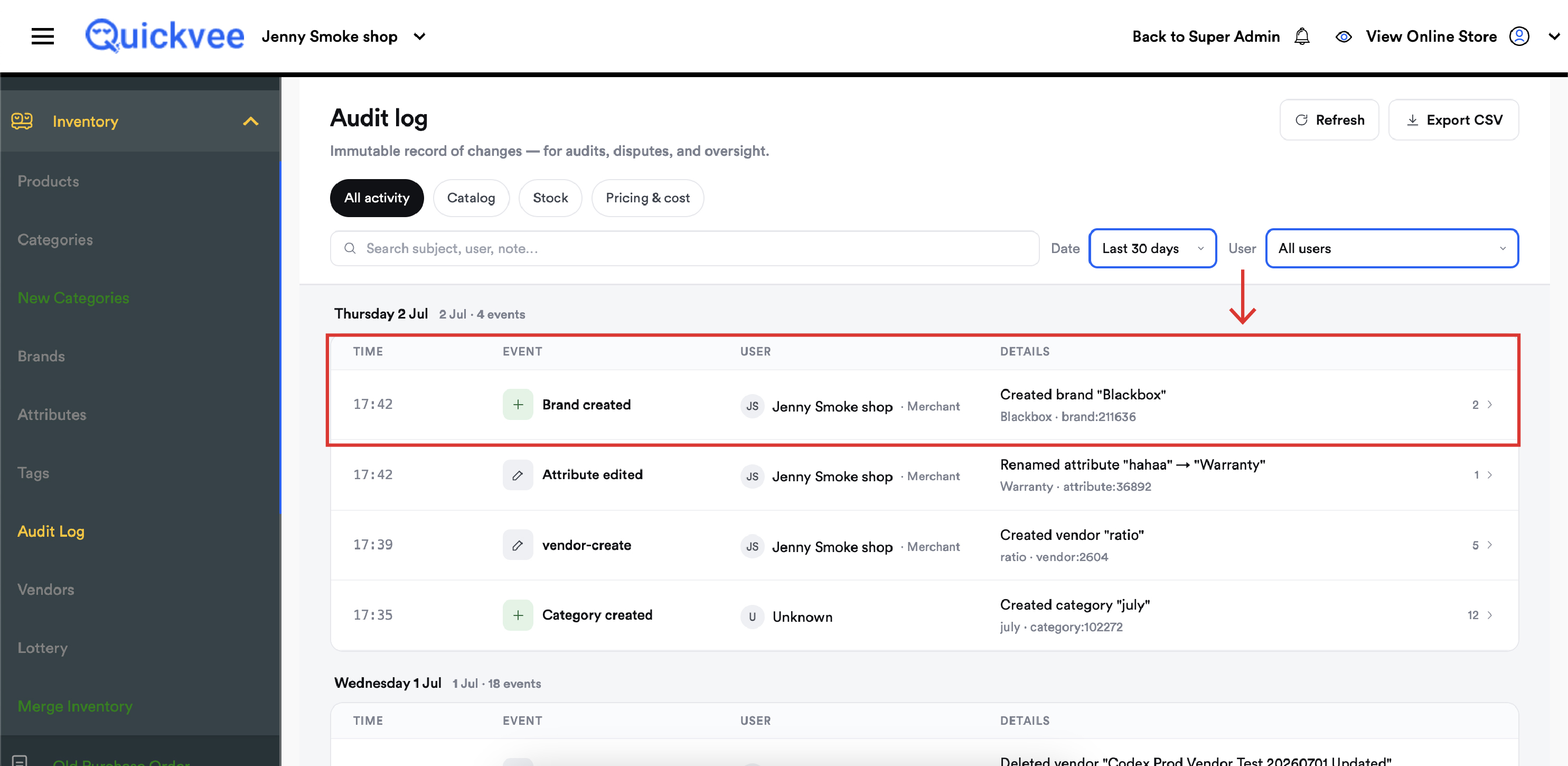
Each event row shows:
|
Column |
What it shows |
|---|---|
|
Time |
When the change happened. |
|
Event |
The action taken, with a color-coded icon, green for created, red for deleted, pencil for edits and updates. |
|
User |
Who made the change, with their initials and role (for example Super Admin or manager). |
|
Details |
A plain-language summary, "Created tag Raymond," "Received stock for purchase order PO112225 (4 lines, 4 units)", plus the subject's record reference. |
|
Change count |
How many fields changed in this event, with an arrow to expand the full detail. |
Drilling into an event
Click any event row to expand its field-level breakdown:
-
Each changed field is listed by name, Title, Color, Email, Lines Received, and so on.
-
For every field you see the before → after values. A dash on the left means the value was newly set; a dash on the right means it was removed.
-
Below the fields, the event's technical footprint is recorded: a unique Event ID, the exact timestamp, and a request reference, the fingerprint that ties the entry to the system action that produced it.
💡 Tip. The expanded view is your dispute-settler. "Who changed the vendor's email?" stops being a conversation and becomes one click: the event shows the user, the minute it happened, and the old and new address side by side.
What gets logged
The Audit Log captures create, edit, and delete activity across your inventory operations, including:
|
Area |
Examples of logged events |
|---|---|
|
Tags |
Tag created, edited (with old and new name), deleted, including how many products were affected. |
|
Categories |
Category created and changed. |
|
Vendors |
Vendor detail edits, field by field. |
|
Purchase Orders |
Draft created, created, edited, received (lines and units), voided, and deleted, with the PO number and record reference on every entry. |
Use the activity tabs to slice this: Catalog for product-structure changes, Stock for quantity movements like PO receiving, and Pricing & cost for anything touching money.
Filtering for an investigation
A practical sequence when something looks wrong:
-
Set the Date filter to the window when the issue could have occurred.
-
Pick the relevant activity tab, Stock for a quantity discrepancy, Pricing & cost for a margin surprise.
-
Search the subject, the product, tag, or PO number in question.
-
Optionally narrow to one User if you already know whose shift it was.
-
Expand the matching events to read the before-and-after values.
-
Export CSV if you need to share the evidence outside Quickvee.
✅ Best practice. Make a weekly five-minute scan of the Audit Log part of your management routine, filter to the past week, skim the deleted and voided events, and confirm each one has a legitimate story. Deletions and voids are where problems hide.
Common questions
Q. Can an entry be edited or removed?
A. No, by anyone, at any permission level. The log is immutable by design. If a change was made in error, the correction is a new logged event, so the full story stays visible.
Q. Why does a user show as "Unknown"?
A. Some events are recorded without an attributable backend user, for example actions originating from system processes. The event itself is still fully logged.
Q. What's the difference between the Audit Log and reports?
A. Reports tell you what your business did, sales, margins, stock levels. The Audit Log tells you what your people changed in the system. When a report number looks wrong, the Audit Log is where you find out why.
Q. How far back does the log go?
A. Events accumulate from the point the feature became active on your store. Use the date filter to reach older entries and pagination to walk through large result sets.
Q. What is the Event ID and request reference for?
A. They uniquely identify each entry. If you ever raise an issue with Quickvee support about a specific change, quoting the Event ID lets support locate the exact event instantly.
Q. Does exporting remove anything from the log?
A. No, Export CSV is a copy. The log itself is untouched.
Related
See Manage purchase orders in the web backend, Manage vendors in the web backend, Manage tags in the web backend, and Manage categories in the web backend for the source pages whose events land here.