
Stocktake lets you count your physical inventory, compare it against what the system expects, and post adjustments so your stock levels match reality. The new Stocktake is built around smaller, frequent counts: a quick walkaround or a single-category count catches shrink far earlier than one giant annual count. The lifecycle is simple: start a count → count items → review variance → post adjustments, or save as a draft and finish later.
⚠️ Important. Items not added to a count are not changed. Stock for unaccounted items stays as-is, so a partial count never wipes out quantities for products you didn't touch.
Where to find it
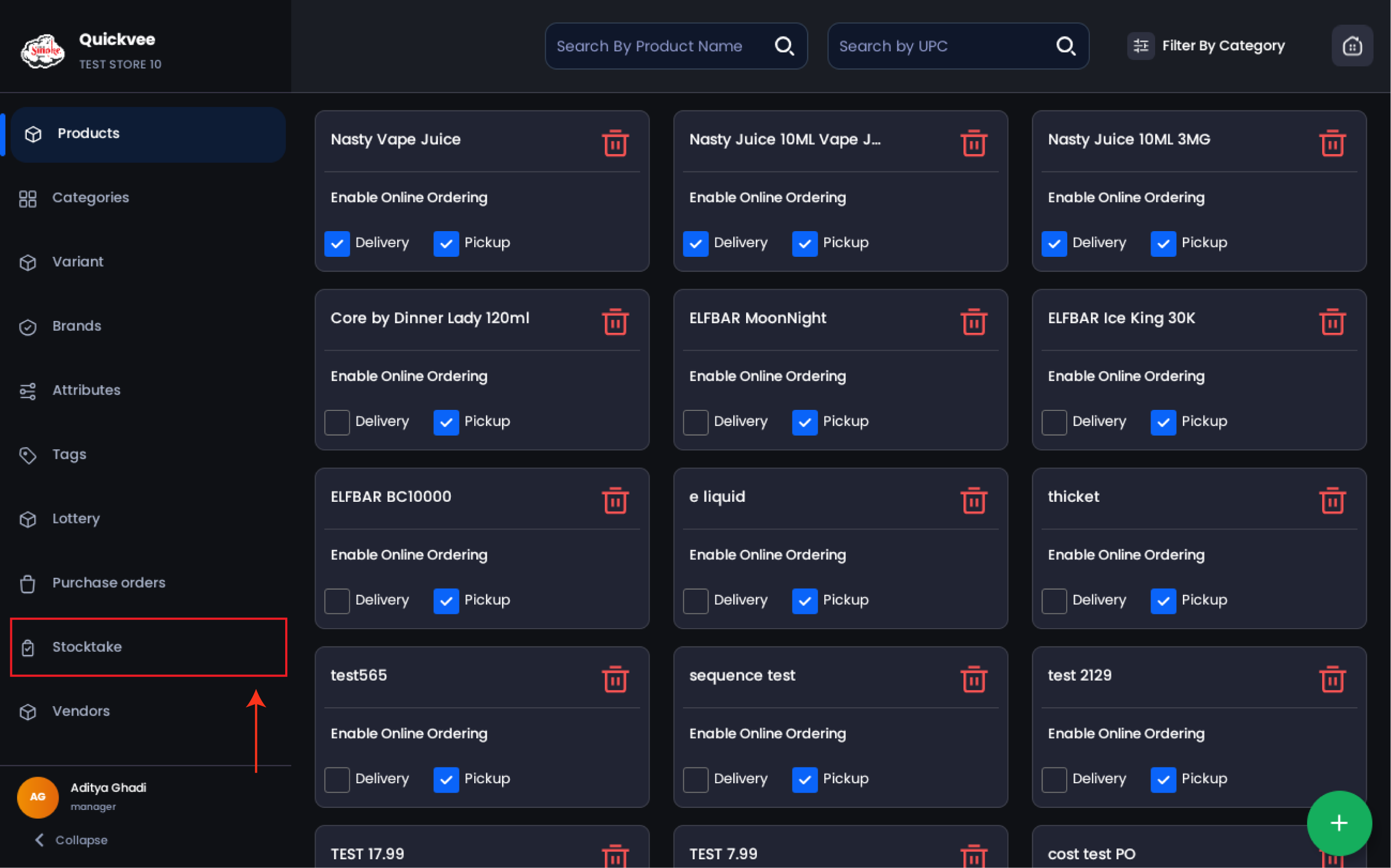
Open Stocktake from the left navigation of your store backend. The header reads Count physical inventory, review variance, post adjustments, with a + New count button in the top-right.
The Stocktake dashboard
The landing screen gives you a live picture of counting activity.
|
Card |
What it shows |
|---|---|
|
Active Counts |
Number of counts currently in progress |
|
Pending Review |
Counts that are ready to post |
|
Shrink (30d) |
Dollar value of loss adjustments over the last 30 days |
|
Overage (30d) |
Dollar value of gain adjustments over the last 30 days |
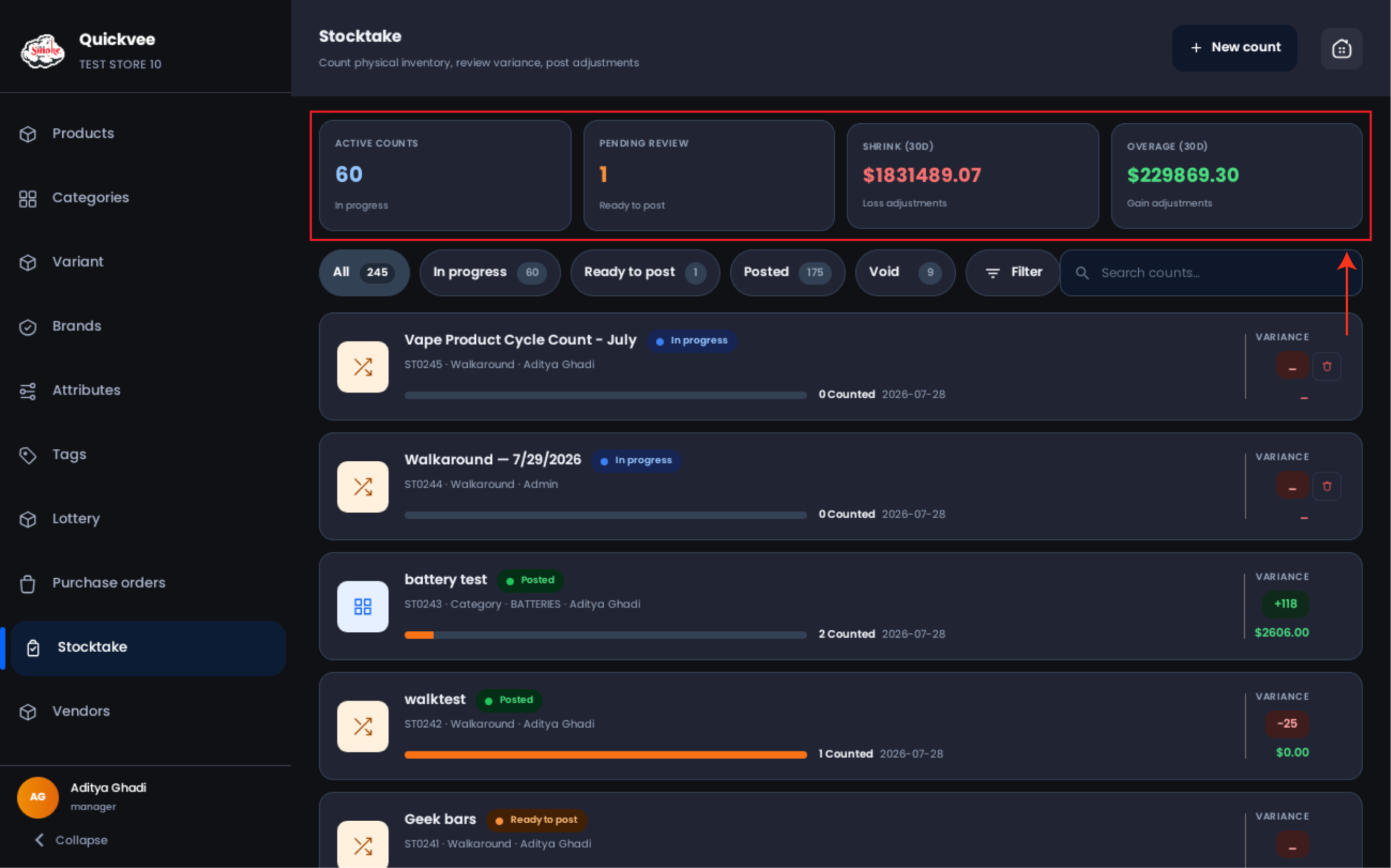
Below the cards, filter tabs (All, In progress, Ready to post, Posted, Void) each show their count, alongside a scope filter and a Search counts box. Every count appears as a card with its name and date, status chip, count ID and scope (for example ST0434 · Walkaround), the counter's name, a progress bar with items counted, and its variance. In-progress counts with no activity can be deleted from the card.
Starting a new count
-
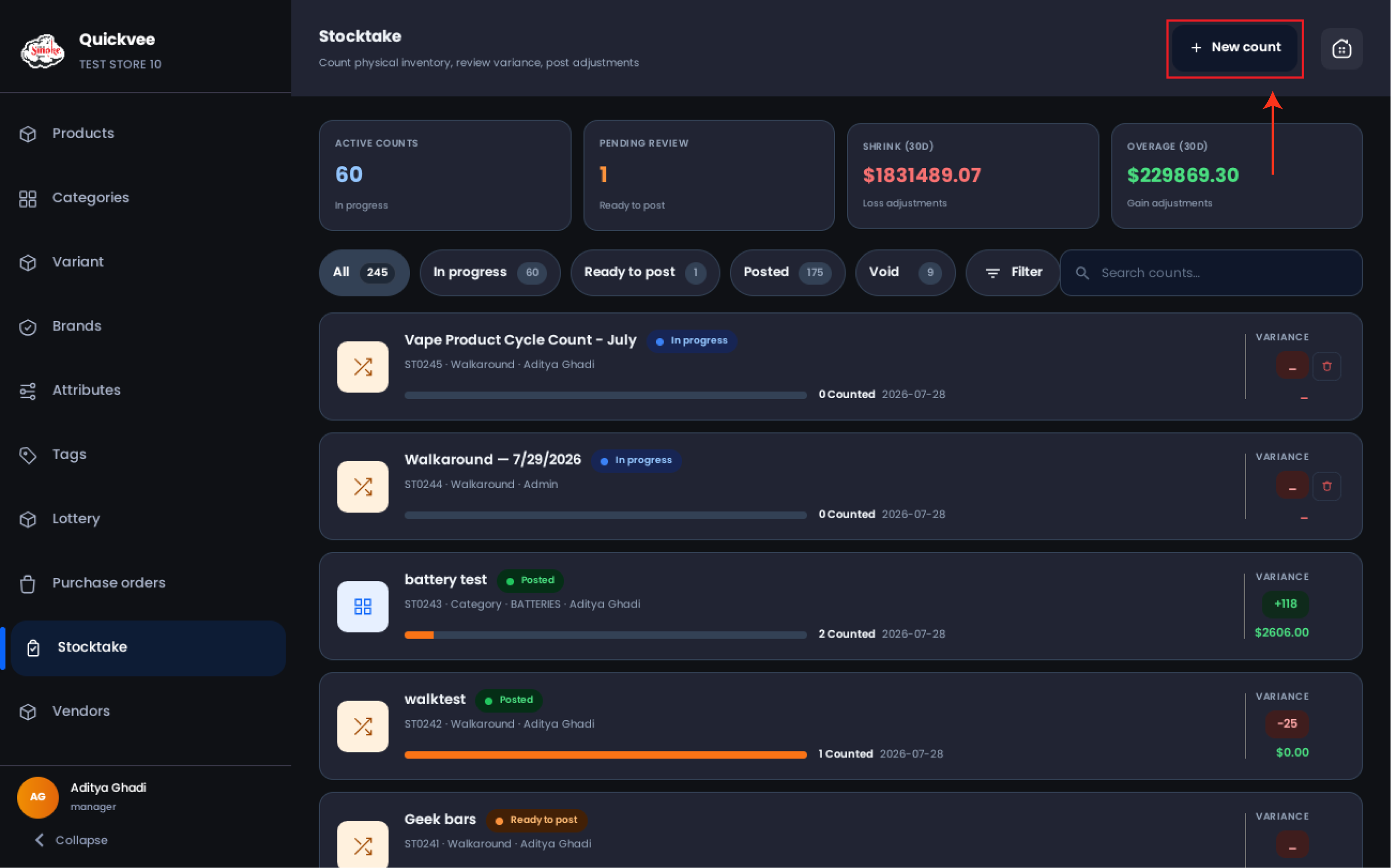
Tap + New count.
-
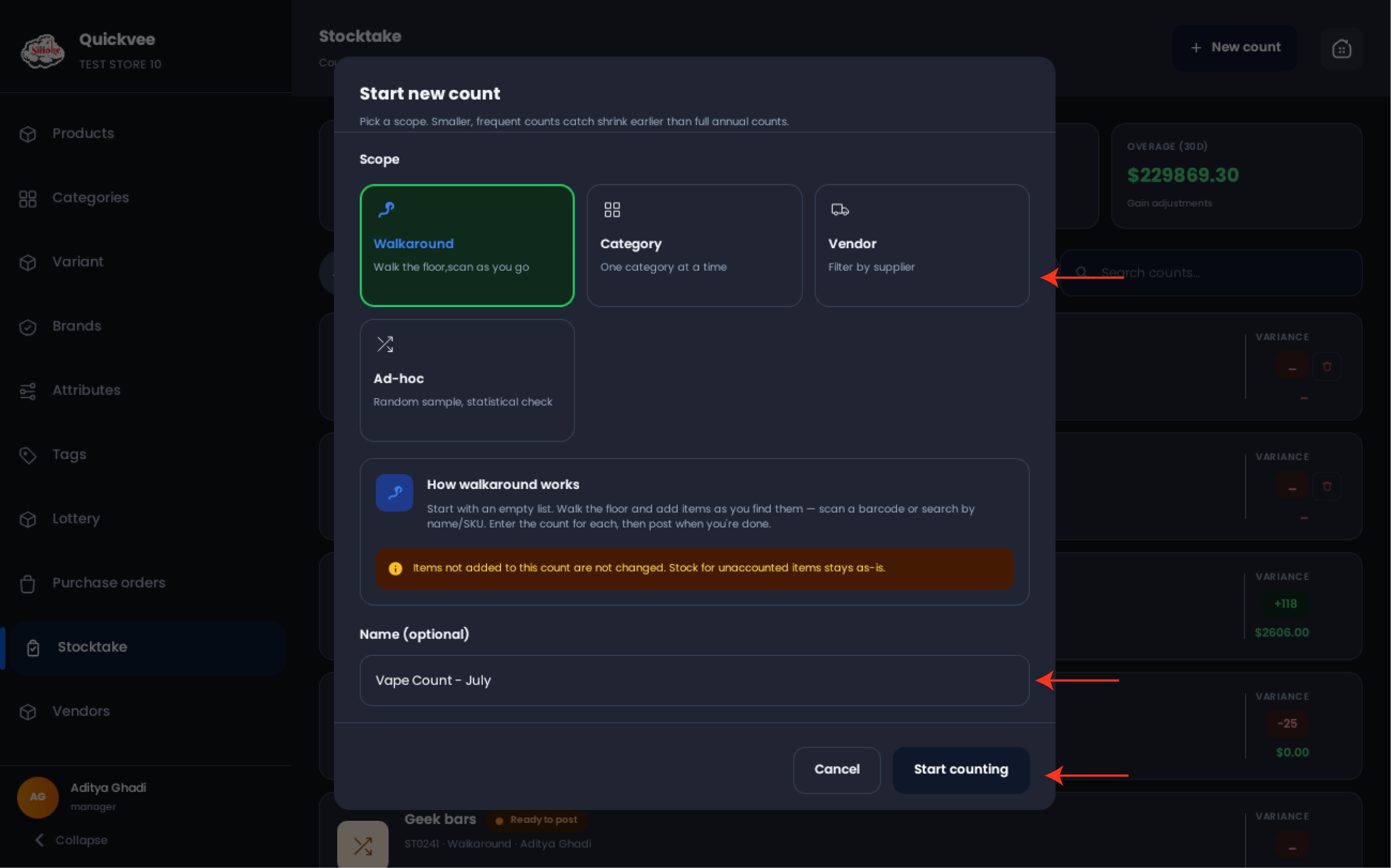
In the Start new count dialog, pick a Scope.
|
Scope |
Description |
Extra options |
|---|---|---|
|
Walkaround |
Walk the floor, scan as you go. Start with an empty list, add items as you find them (scan a barcode or search by name/SKU), enter the count for each, then post when done. |
None |
|
Category |
One category at a time. |
Choose the category from a dropdown. |
|
Vendor |
Filter by supplier. |
Choose the vendor from a dropdown. |
|
Ad-hoc |
Random sample or statistical check. The system picks random products for you to count. |
Set the Sample size with quick picks (5 / 10 / 15 / 25 / 50) or the stepper. You can also scan items not in the list, they'll be added on the fly. |
-
Optionally give the count a Name (for example, Footwear cycle count, May).
-
Tap Start counting.
✅ Best practice. Rotate small scoped counts through the week, a vendor count on delivery day, a category count on slow afternoons, instead of saving everything for one exhausting full count.
Counting items
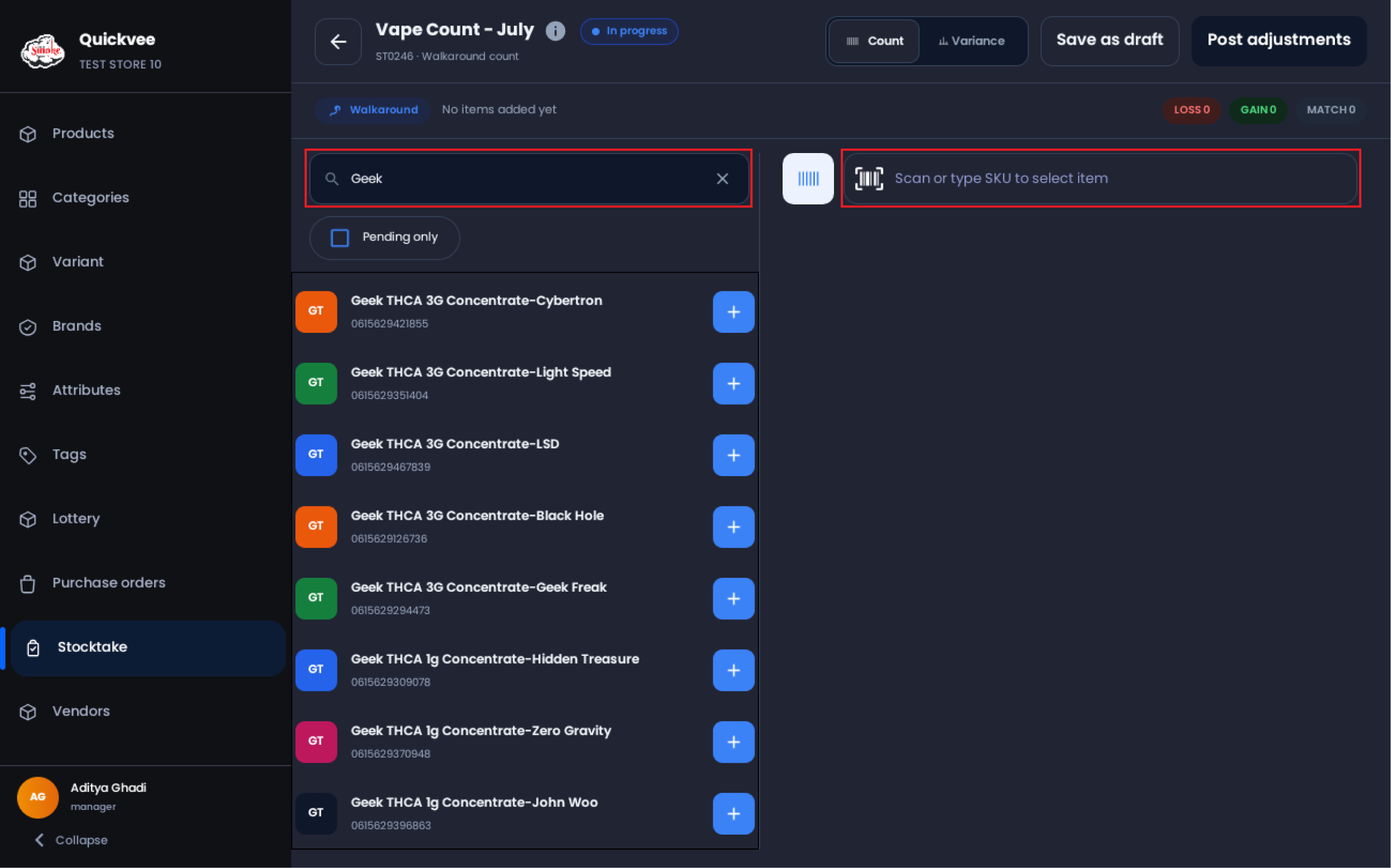
The counting screen shows the count's name, ID, and status chip at the top, with Count and Variance tabs, Save as draft, and Post adjustments. A summary strip tracks X items added · Y counted along with running LOSS, GAIN, and MATCH badges.
-
Add items by scanning a barcode or using the Scan or type SKU to select item field. You can also search the product list by name and tap + to add an item. Use the Pending only checkbox to filter the list to items you haven't counted yet.
-
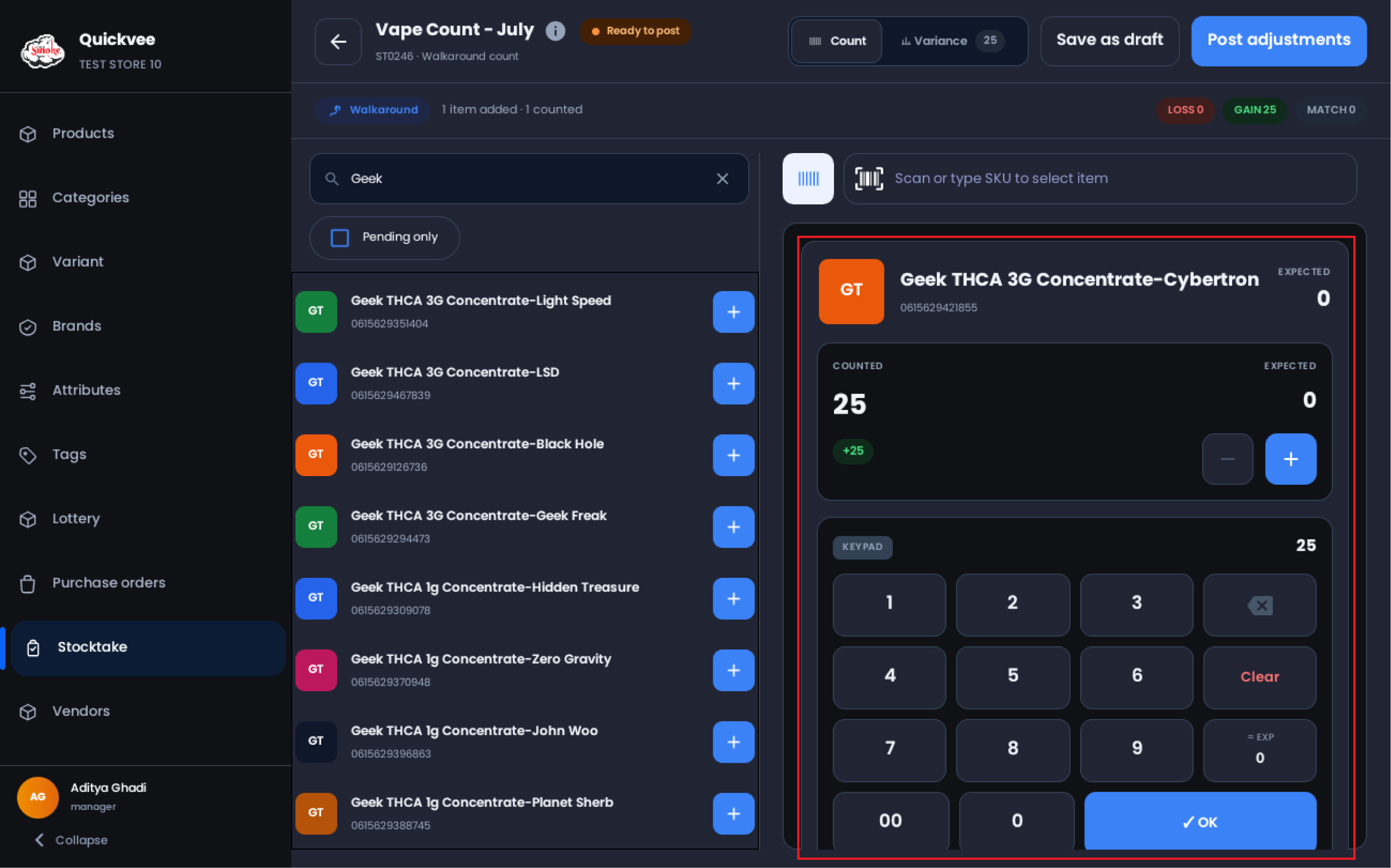
Select an item and enter its counted quantity using the on-screen keypad (with 00, Clear, and backspace keys) or the + / − stepper. The keypad shows the item's expected quantity, and each row displays counted / expected with a live variance chip.
-
Tap ✓ OK to confirm the entry. If the shelf matches the system, Set counted to expected fills the expected value in one tap.
-
Added an item by mistake? Tap Remove on its row. Items left Pending (added but not counted) are not adjusted.
📝 Note. If you try to leave with unsaved counted quantities, the Leave without saving? prompt offers Stay and keep editing or Save as draft. Drafts keep your entries so another session can pick up where you left off.
Reviewing variance
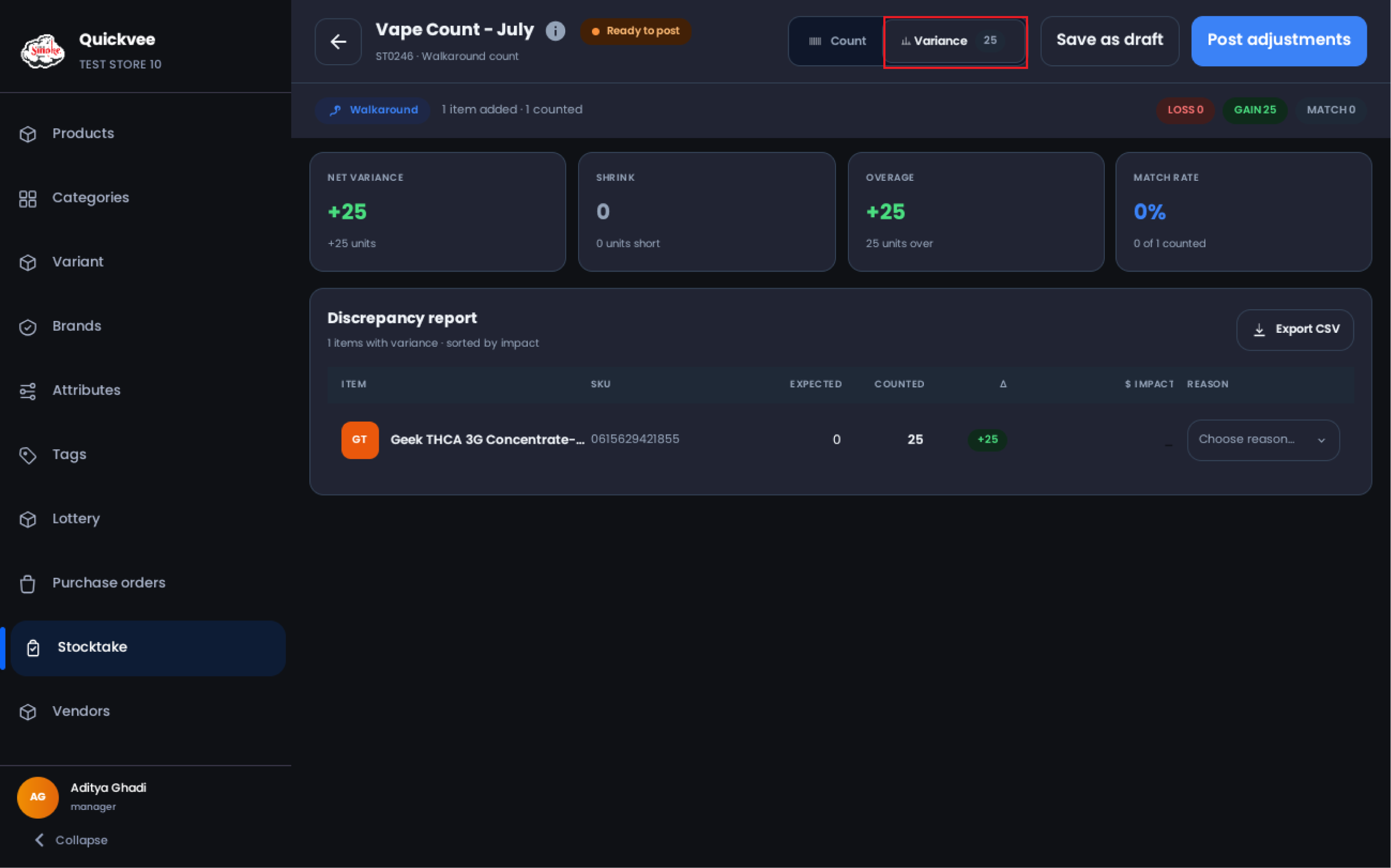
Switch to the Variance tab to see the count's impact before posting.
|
Card |
Meaning |
|---|---|
|
Net Variance |
Overall unit difference (overage minus shrink) |
|
Shrink |
Units short, counted less than expected |
|
Overage |
Units over, counted more than expected |
|
Match Rate |
Percentage of counted items that matched expected exactly |
The Discrepancy report lists every item with variance, sorted by impact, showing Item, SKU, Expected, Counted, the Δ difference, dollar impact, and a Choose reason dropdown for attributing the discrepancy. Use Export CSV to take the report offline.
💡 Tip. Attribute reasons before posting. Reason data is what turns a variance number into an answer (damage vs. theft vs. receiving error) when you review shrink later.
Posting the count
When the count shows Ready to post, tap Post adjustments. Stock levels update to the counted quantities for every counted item, and the count moves to Posted on the dashboard with its final variance. Counts that shouldn't apply can be voided; voided counts appear under the Void filter.
Related
See Run a stocktake in the web backend for the same workflow in the merchant dashboard.