
Configure a barcode label printer on the POS so you can print price and product labels from the Print Labels feature. The POS supports three label printer models — Brother, Zebra, and DYMO — all configured from the same Setup Label Printer tab.
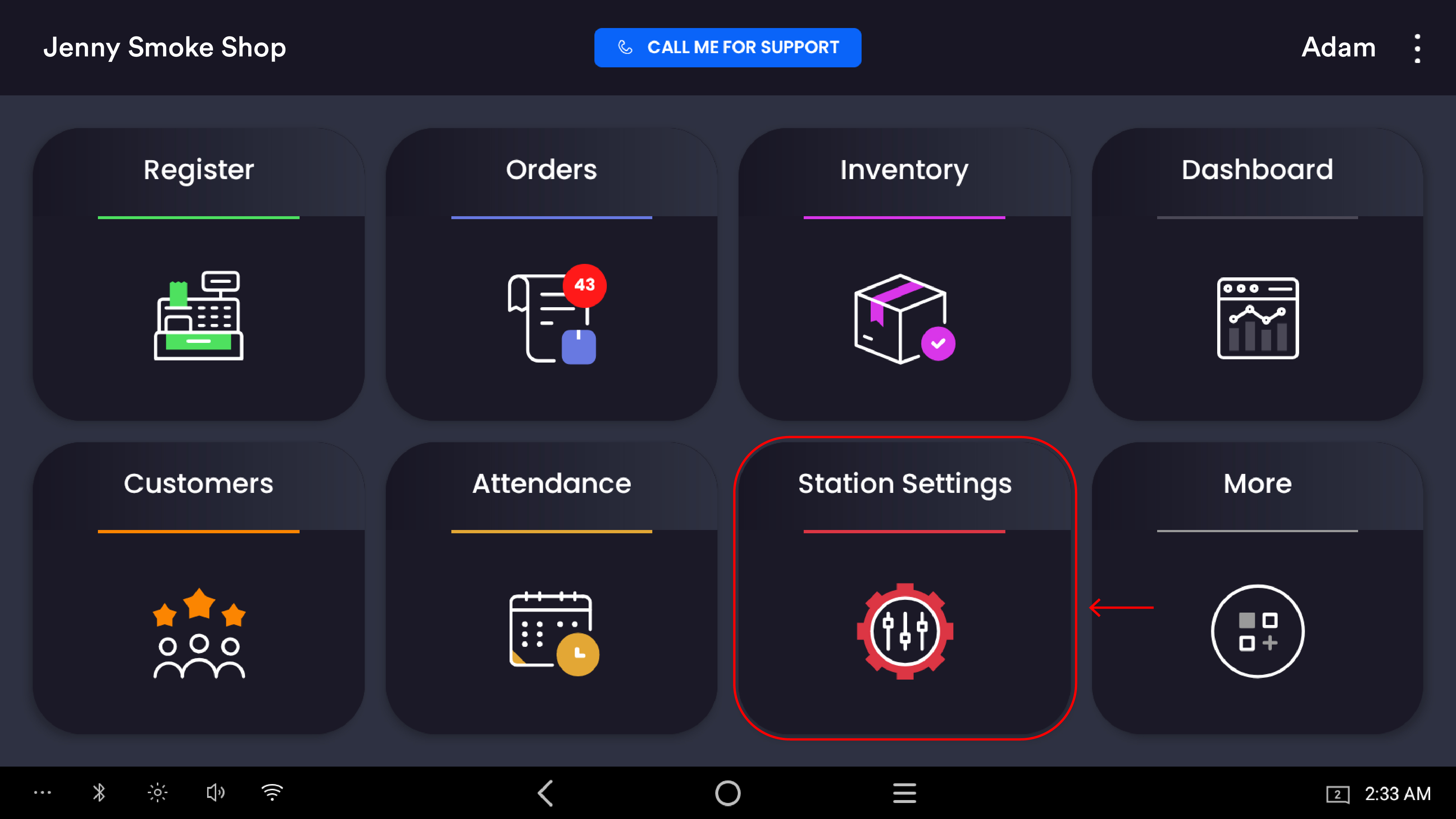
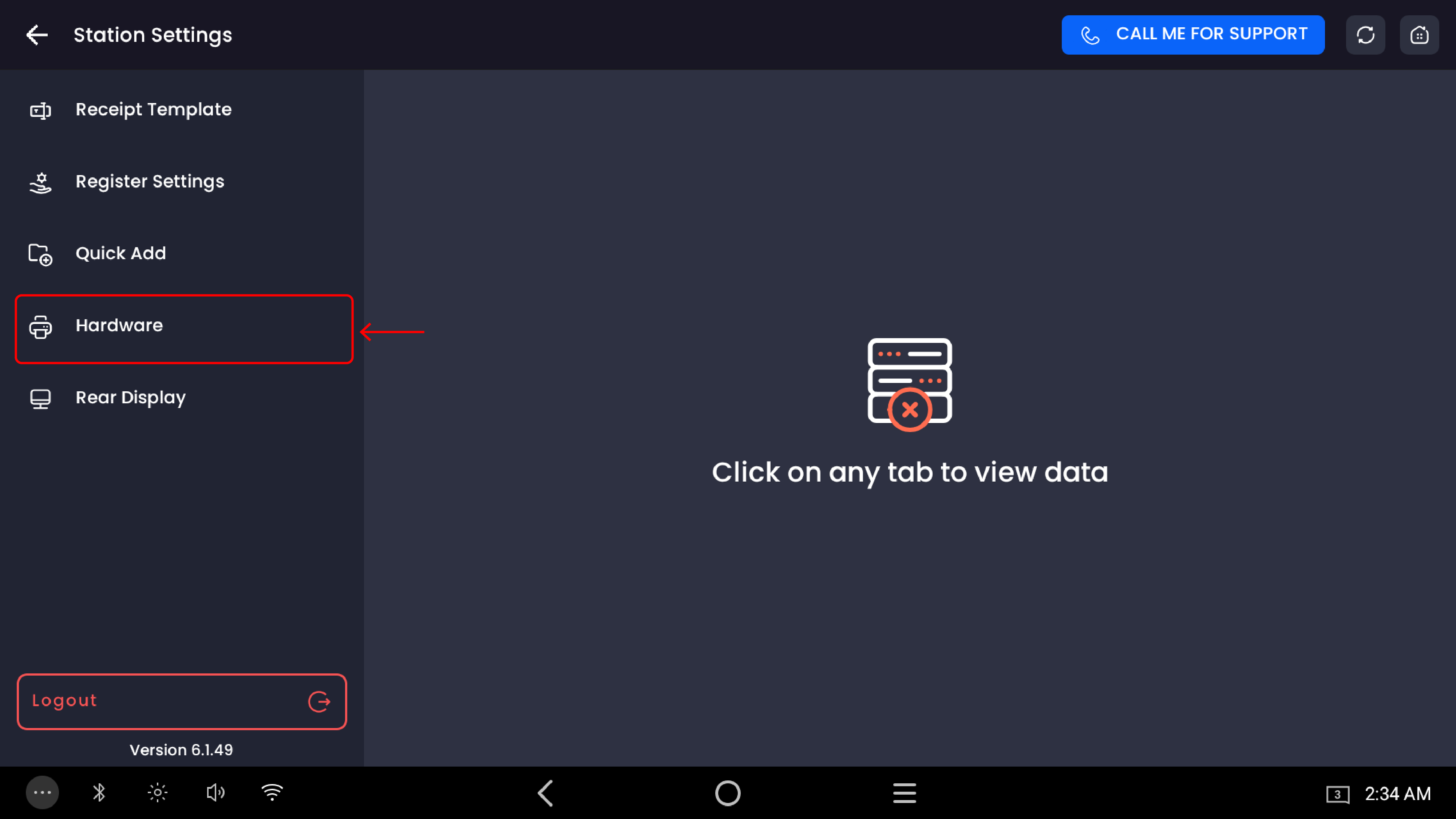
Access path: POS Home → Station Settings → Hardware → Setup Label Printer
Supported label printers
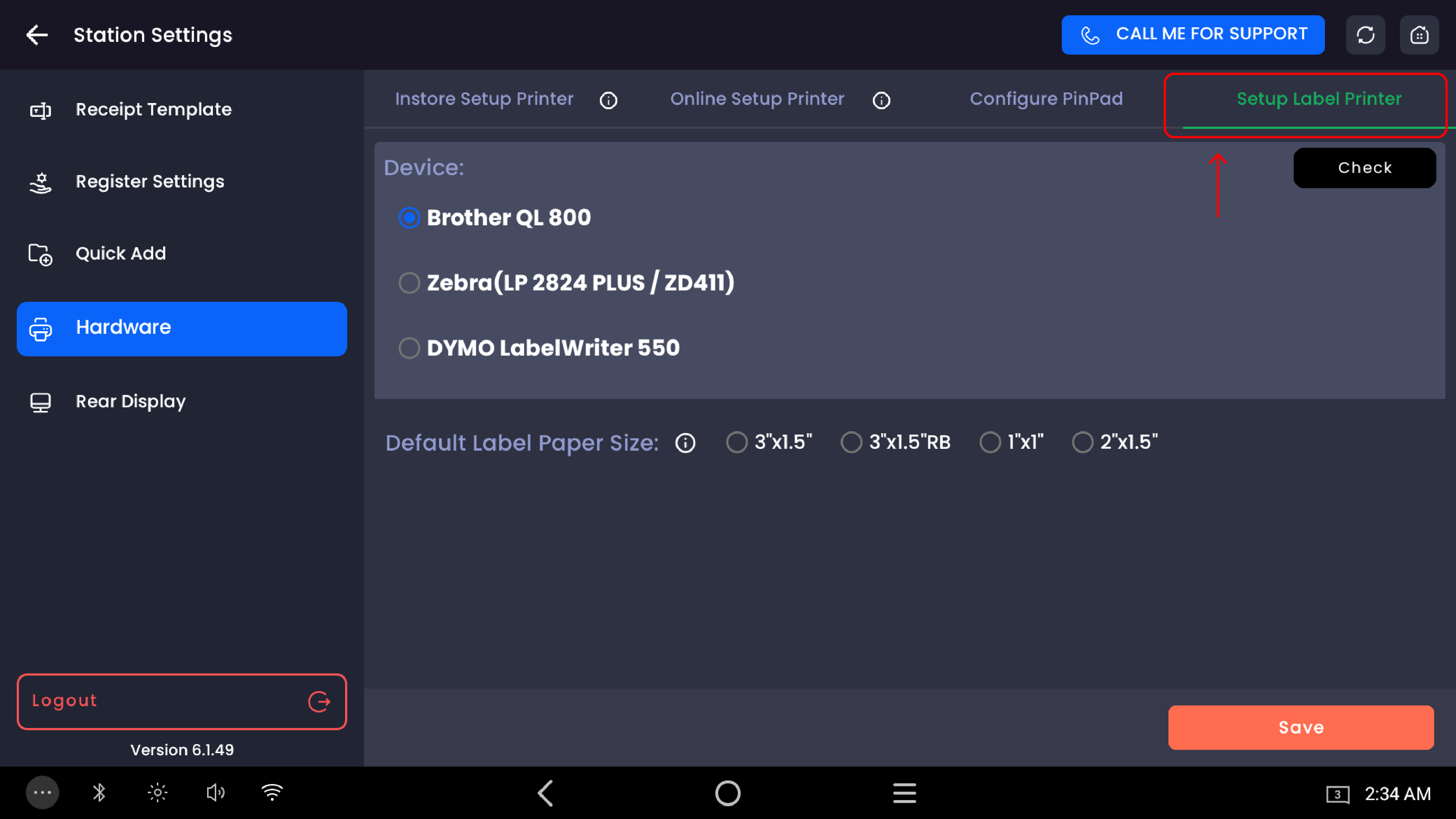
Three label printer models are supported on the POS. The available label sizes differ by model:
|
Device |
Label sizes available |
|---|---|
|
Brother QL 800 |
3"×1.5" · 3"×1.5"RB · 1"×1" · 2"×1.5" |
|
Zebra (LP 2824 PLUS / ZD411) |
25mm×25mm · 25mm×13mm · 32mm×25mm |
|
DYMO LabelWriter 550 |
25mm×25mm · 36mm×89mm |
Set up the printer
Step 1 — Select your printer model
In Station Settings → Hardware → Setup Label Printer, select your printer model by tapping the radio button next to it.
Step 2 — Choose the default label paper size
After selecting a printer, choose the Default Label Paper Size that matches the label roll loaded in the printer. The size options change depending on which printer model is selected (see the table above).
Step 3 — Check the connection
Tap Check at the top-right to verify whether the label printer is currently connected. You'll see one of these messages:
|
Message |
Meaning |
|---|---|
|
Label type changed. |
Printer model or label size selection was changed successfully |
|
Paper type changed, reset printer. |
Label size was changed — reset the printer to apply the new paper size |
|
Printer is not connected. |
No label printer is detected — check the cable or network connection |
Step 4 — Save
Tap Save at the bottom-right to save the label printer configuration.
📷 Add screenshot: Check label printer connection
Printing labels
Once the label printer is set up, print barcode labels from the Print Labels feature. Labels carry the product's barcode so they scan directly at the register and during receiving and stocktake.
Important notes
When you change the label paper size, the message "Paper type changed, reset printer" appears. Reset the label printer to apply the new paper configuration before printing.
"Printer is not connected" means the POS can't detect the label printer. Check the USB cable or network connection, confirm the printer is powered on, and tap Check again.
Label size must match the loaded roll. The Default Label Paper Size tells the printer how to lay out the label; it does not change the physical roll. Make sure they match or barcodes may not scan.
This setup is also one of the four tabs in Set up your POS hardware. Printing labels from the web backend instead? See Set up the Brother QL-800 label printer (Web).