
Variants are the sellable units of a product. If your store sells Marlboro Red in both King and 100s, those are two variants of the same product, each with its own price, UPC, and stock count. The Variant tab is where you see every variant across your entire catalog at once — handy for stock checks, price audits, label printing, and quickly opening a single variant to update its detail.
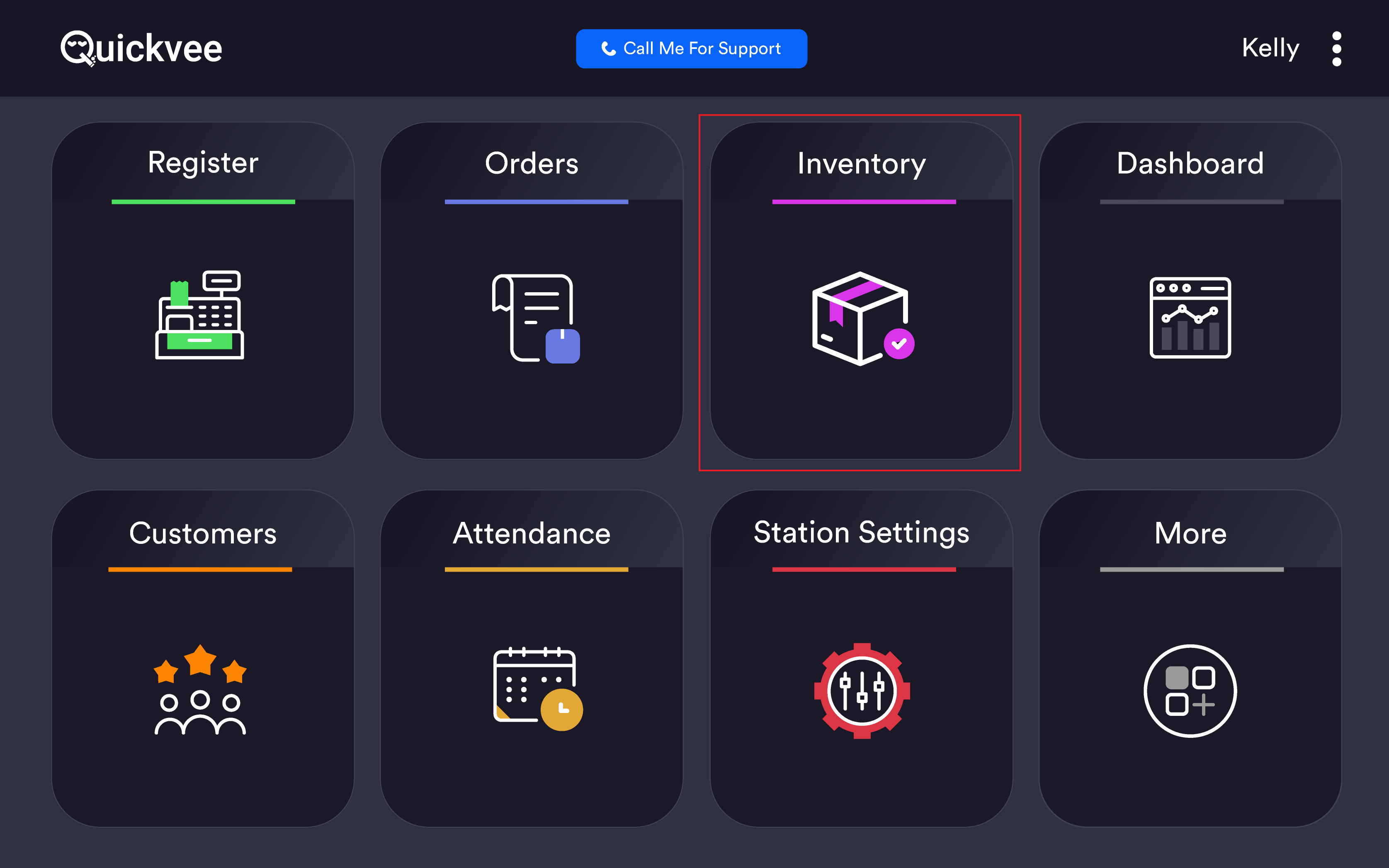
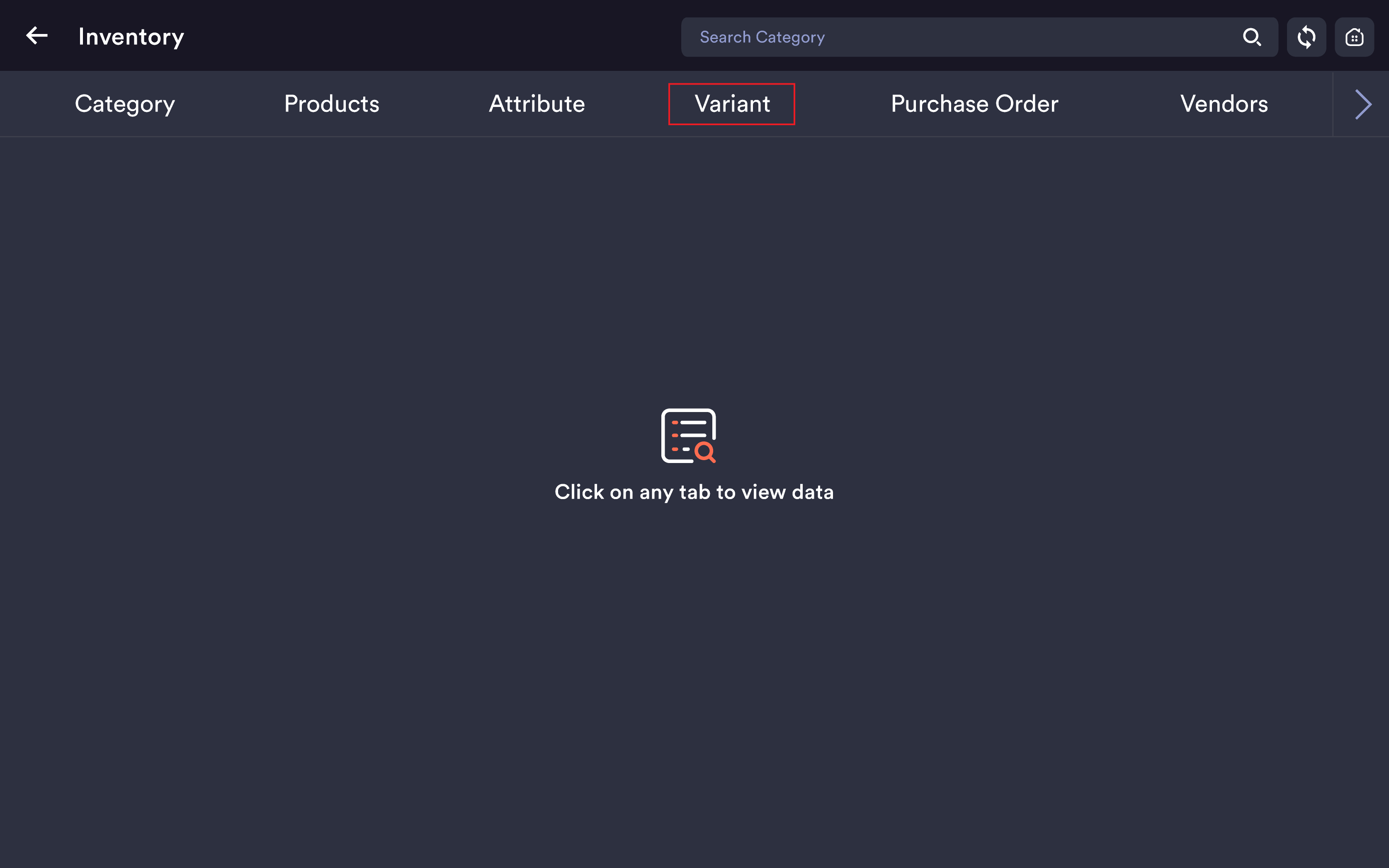
Access path: POS Home → Inventory → Variant tab
The Variant list
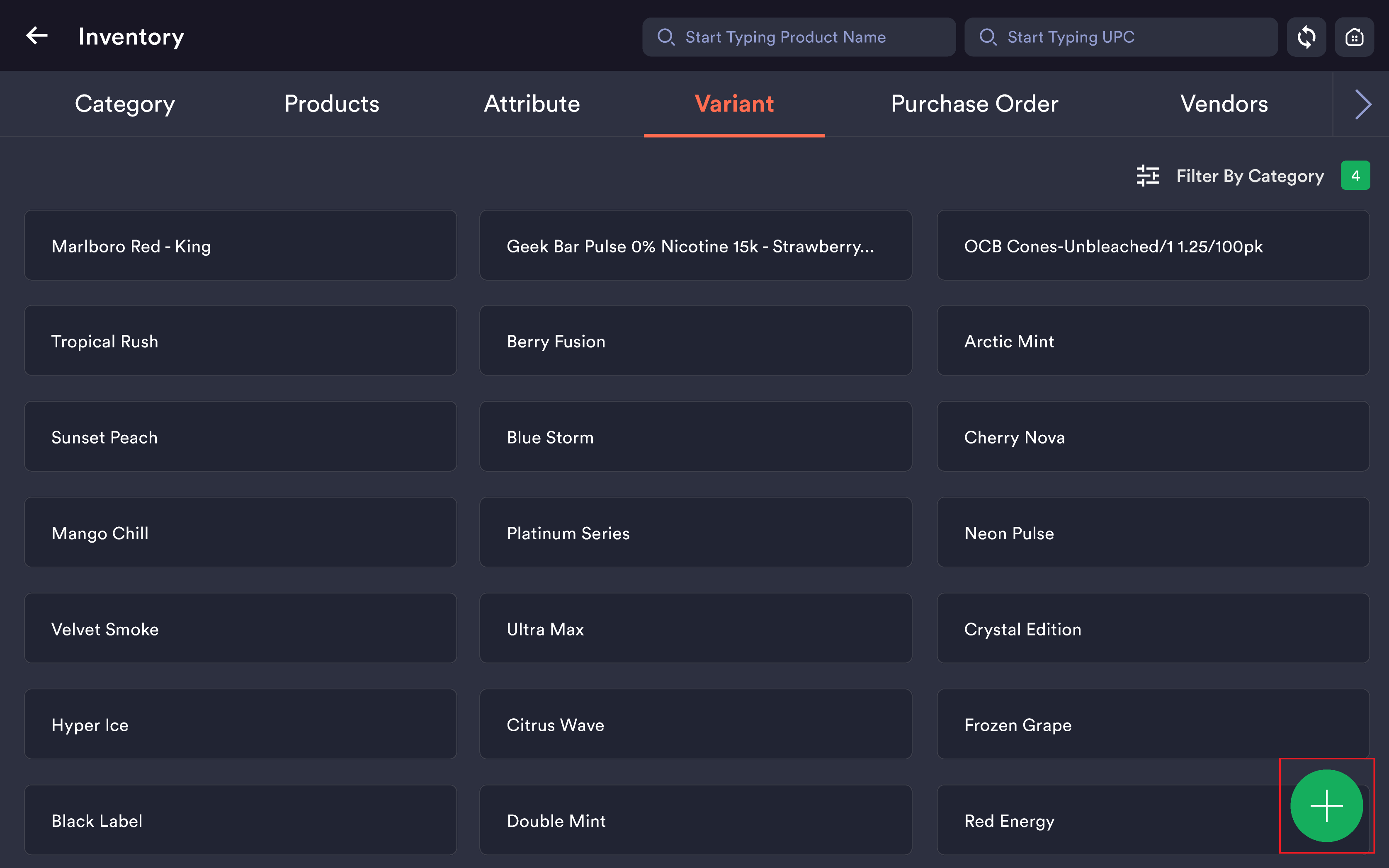
Every variant appears as a card — Marlboro Red - King, Geek Bar Pulse 0% Nicotine 15k - Strawberry B Pop, OCB Cones-Unbleached/1 1.25/100pk, and so on. Each card shows the variant name, current stock, retail price, and a Delivery / Pickup channel toggle, just like the Products tab.
Three lookup tools at the top:
|
Tool |
What it does |
|---|---|
|
Search Variant |
Type any part of the variant name — the grid filters live as you type. |
|
Search by UPC |
Type or scan a variant UPC to pull the exact match. |
|
Scanner icon (top-right) |
Activates the barcode scanner for hands-free UPC lookup. |
Filtering by category
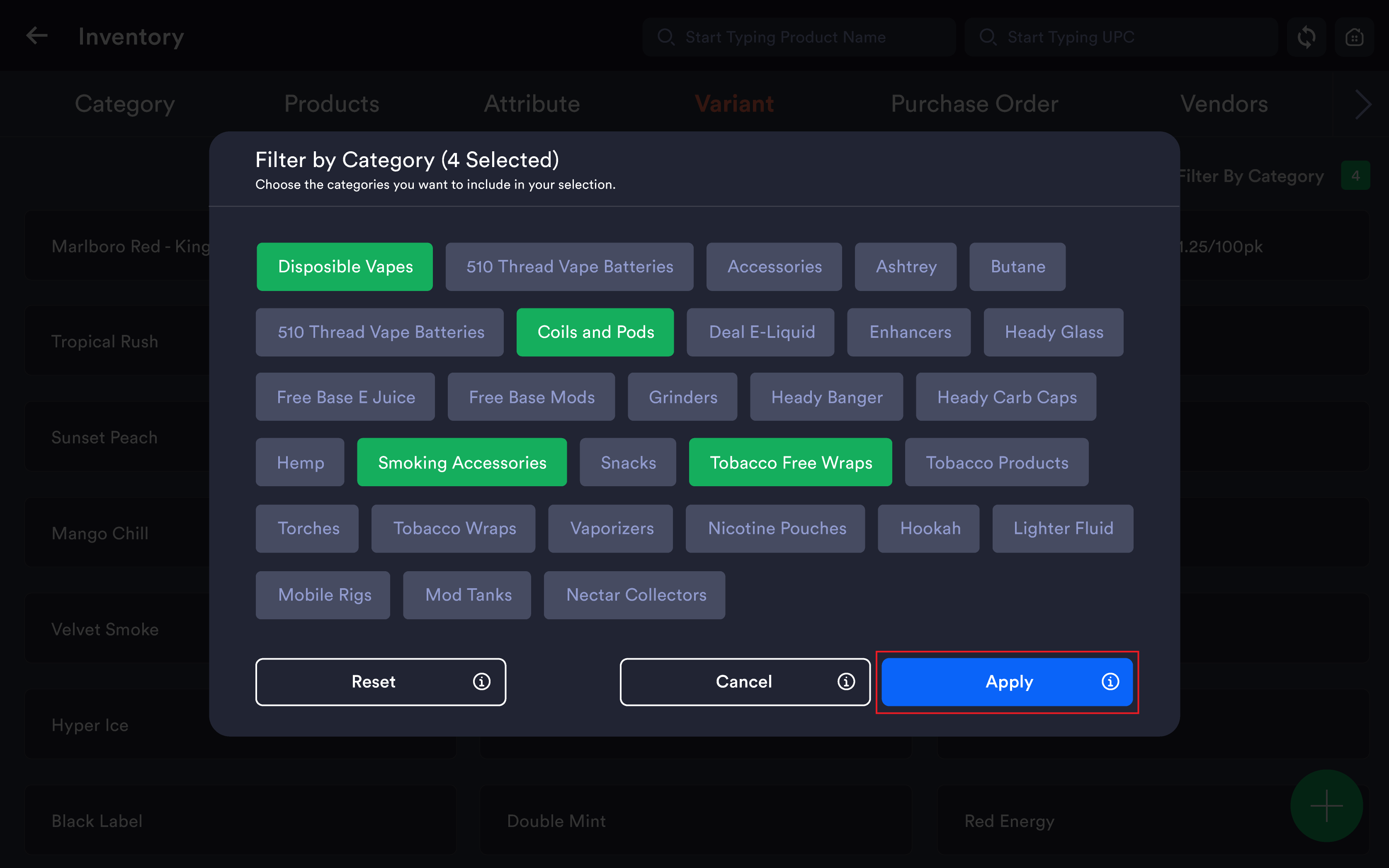
Tap the filter icon above the variant grid to open the Filter by Category modal. The dialog is identical to the one on the Products tab — same chips, same buttons — but here it narrows the list to variants whose parent product belongs to the categories you select. Tap any chip to select; tap again to deselect. Apply confirms; Reset clears; Cancel/× closes without applying.
Use case: Filtering by Disposables here gives you every single flavor and puff-count variant across every disposable vape product in your store — not just one product's lineup. Perfect for end-of-day vape stock audits or printing a fresh batch of labels for an entire category.
Filter + search work together. Apply the Disposables filter, then type Strawberry in the search bar to see every strawberry-flavored disposable variant at once.
Lottery variants don't appear here. Lottery items live on their own tab and aren't part of the regular variant catalog.
Custom codes — multiple codes per variant
The Edit Variant screen and the Variant Preview both include the Custom Code field for any identifier other than the scanned UPC. Each variant can carry multiple custom codes at the same time, independently of its parent product.
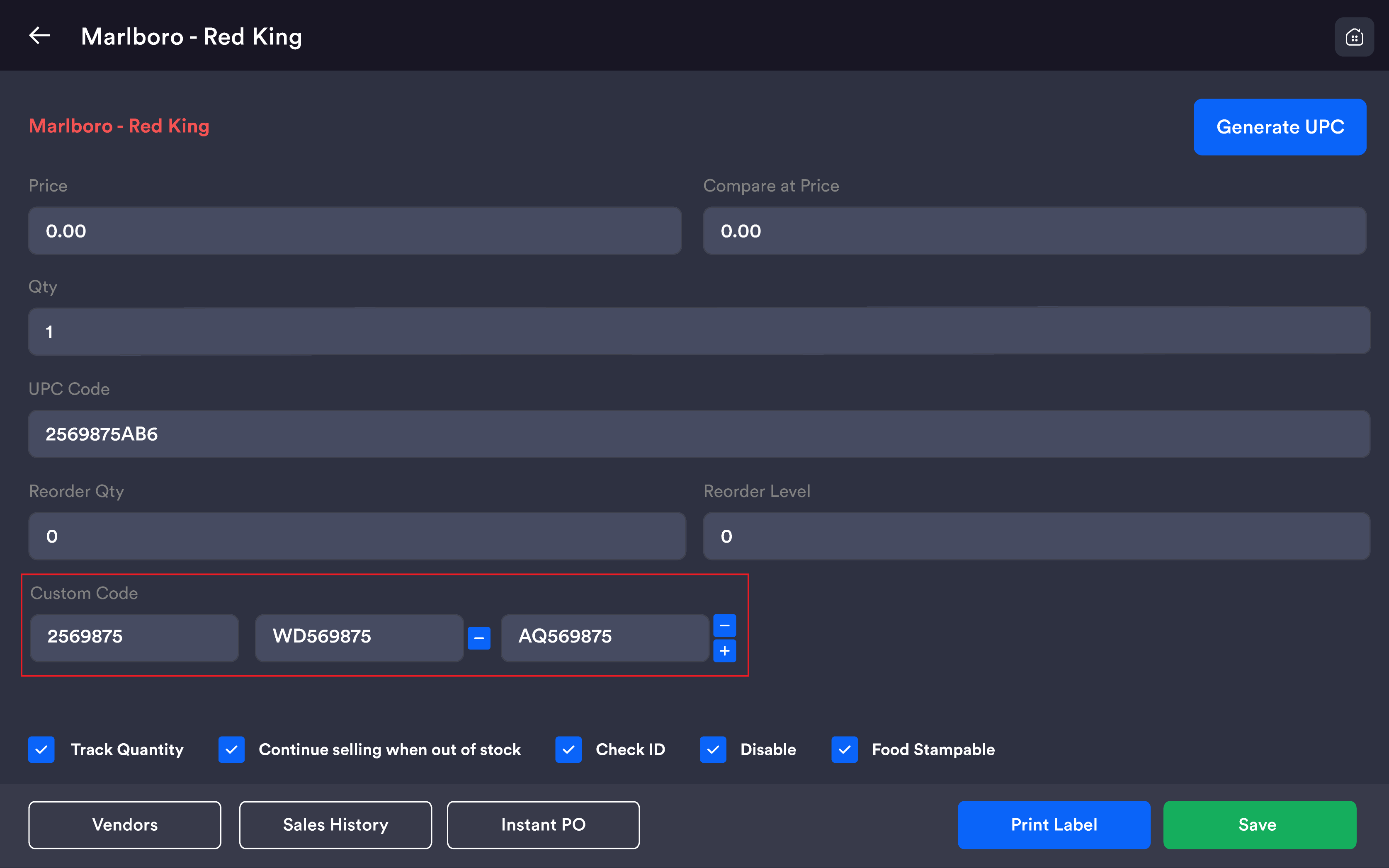
|
Button |
What it does |
|---|---|
|
+ (blue) |
Adds another empty Custom Code field below. |
|
− (blue) |
Removes that specific Custom Code field. The first Custom Code field doesn't have a remove button — it's always present. |
Every custom code on the variant is searchable at the register — cashiers can scan or type any of the codes to pull the variant up.
Variant codes are independent of the parent product's codes. A product can have its own Custom Codes, and each variant under it can have its own Custom Codes too. Searching by any code — product-level or variant-level — finds the right item at the register.
Custom Code is not the same as UPC. UPC is the primary scanned barcode used at checkout. Custom Codes sit alongside it as alternate identifiers. The system blocks UPC duplicates across your catalog, but Custom Codes can be reused if your workflow needs it.
What you can do here
Variants are created on the parent product (Inventory → Products → Edit Product → Variants section). Renaming a variant value and deleting an individual variant are likewise managed at the product level. The Variant tab is for managing each variant's pricing, stock, UPC, codes, and flags.
|
If you need to… |
Do this |
|---|---|
|
Update the price on a single variant |
Variant tab → search by name, scan UPC, or filter by category → open the variant → change Price → Save. |
|
Add an additional custom code to a variant |
Open the variant → tap the blue + next to the Custom Code field → enter the additional code → Save. |
|
Remove a custom code from a variant |
Open the variant → tap the blue − next to the code you want to remove → Save. The first Custom Code field cannot be removed. |
|
Print a missing barcode label |
Variant tab → open the variant → Print Label → pick paper size → Print. |
|
Reorder a variant urgently |
Variant tab → open the variant → Instant PO → confirm quantity → Save. |
|
Add a brand-new variant to an existing product |
Products tab → open the product → scroll to Variants → pick the attribute → Enter Variant with the new value → Save. The new variant appears in the Variant tab. |
|
Take a variant off sale temporarily |
Open the variant card → tick Disable → Save. |
|
Set EBT eligibility on a specific variant |
Open the variant → tick Food Stampable to override the category default. |
Tap Generate UPC at the top-right of the Variant Preview to create a fresh UPC for any variant that doesn't have one — useful when you're adding new variants to an existing product.
Important: Don't change the UPC Code on a variant once products with that UPC are in the wild (printed on receipts, customer-side, label scans). Generate a new variant with a new UPC instead — and disable the old one — to keep the audit trail clean.