
The Brands page is where you create and manage the brand names attached to your products, Elf Bar, RAW, ZYN, Backwoods, and every other label you carry. Brands power two things: they keep your product catalog organized in the backend, and they control how shoppers browse by brand on your Quickvee online store.
📝 Brands are an online store and backend organization tool only. They are not shown to cashiers in the POS register. Anything you change on this page affects your online storefront and product management, not the in-store checkout screen.
Where to find it
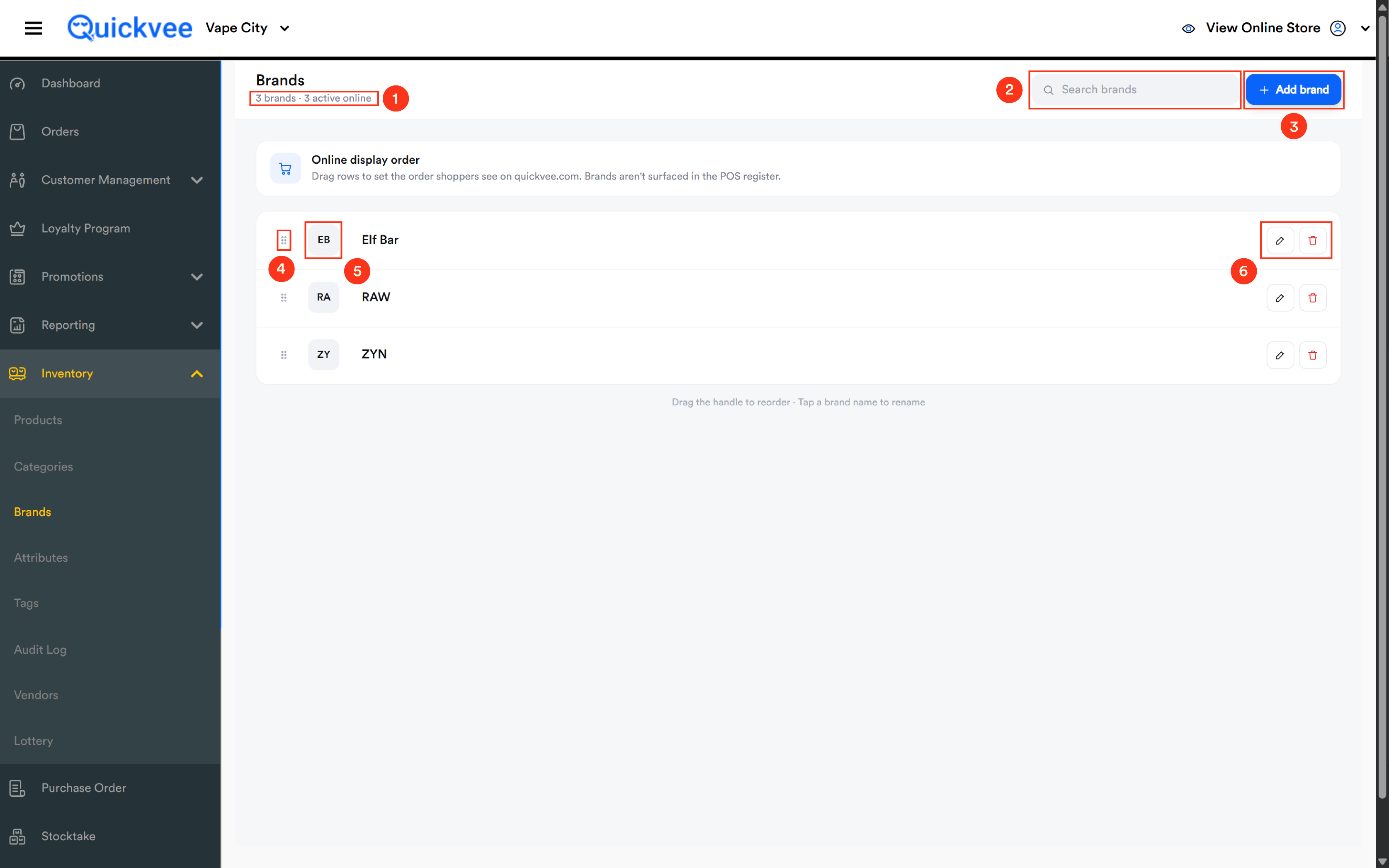
From the web backend, open the left menu and expand Inventory, then select Brands. The page opens with your full brand list and a running count of how many brands are in your store.
-20260716-100914.png?cb=37a942a7b4e66962d7d71b3cccb7de47)
Page overview
|
Element |
What it does |
|---|---|
|
Brand count |
Shown under the page title, the total number of brands in your store. |
|
Search brands |
Type any part of a brand name to filter the list instantly. Useful when your list runs into the hundreds. |
|
+ Add brand |
Opens an inline entry row at the top of the list to create a new brand. |
|
Drag handle |
The dotted grip on the left of each row. Drag rows up or down to set the online display order. |
|
Initial badge |
The two-letter chip beside each name, generated from the brand name for quick visual scanning. |
|
Edit (pencil) |
Opens the brand for renaming, image upload, and visibility settings. |
|
Delete (trash) |
Removes the brand from your store. |
Adding a brand
-
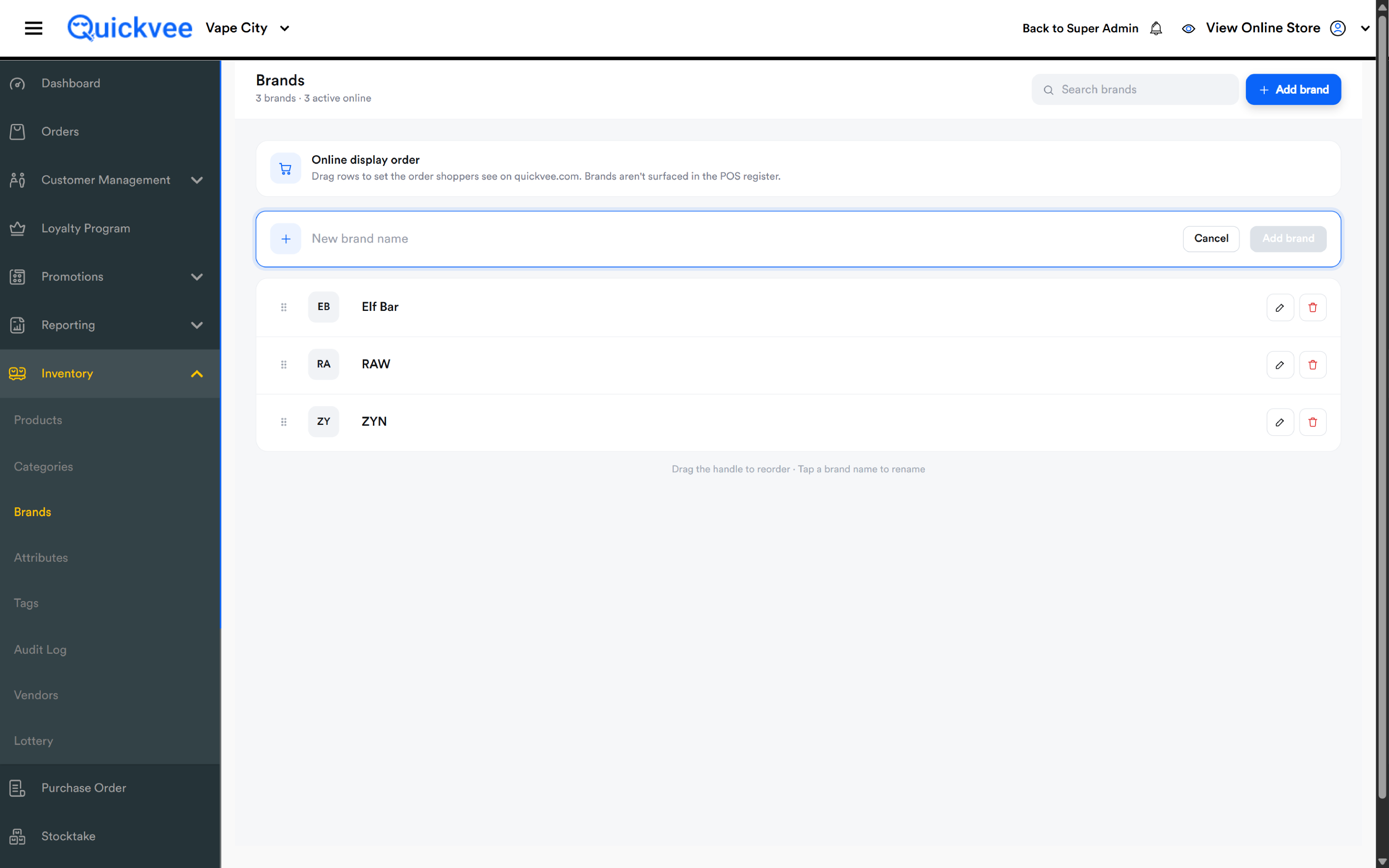
Click + Add brand in the top-right corner of the page.
-
An entry row appears at the top of the list with a New brand name field.
-
Type the brand name exactly as you want shoppers to see it.
-
Click Add brand to save, or Cancel to discard. The Add brand button stays inactive until you've typed a name.
-
The new brand appears in your list and becomes available in the Brand dropdown when you create or edit products.
💡 Tip. Keep brand names clean and consistent, one spelling per brand. Duplicates like "ZEZE" appearing twice split your products across two entries, which makes brand browsing on your online store confusing for shoppers. If you spot duplicates, consolidate the products under one brand and delete the extra entry.
Editing a brand
Click the pencil icon on any row to open the brand for editing. From here you can:
|
Setting |
What it controls |
|---|---|
|
Brand name |
Rename the brand. The change carries through to products already assigned to it. |
|
Brand image |
Upload a logo or image for the brand. This is what shoppers see in brand carousels and the "Shop by Brands Near You" section on the online store. |
|
Show Online |
Controls whether the brand appears to shoppers on your online storefront, including brand browsing sections. |
|
Show Dropdown |
Controls whether the brand appears in dropdown selectors. |
⚠️ Important. Only brands with Show Online enabled appear in your storefront's brand sections. If a brand you want featured isn't showing up online, check this setting first.
Setting the online display order
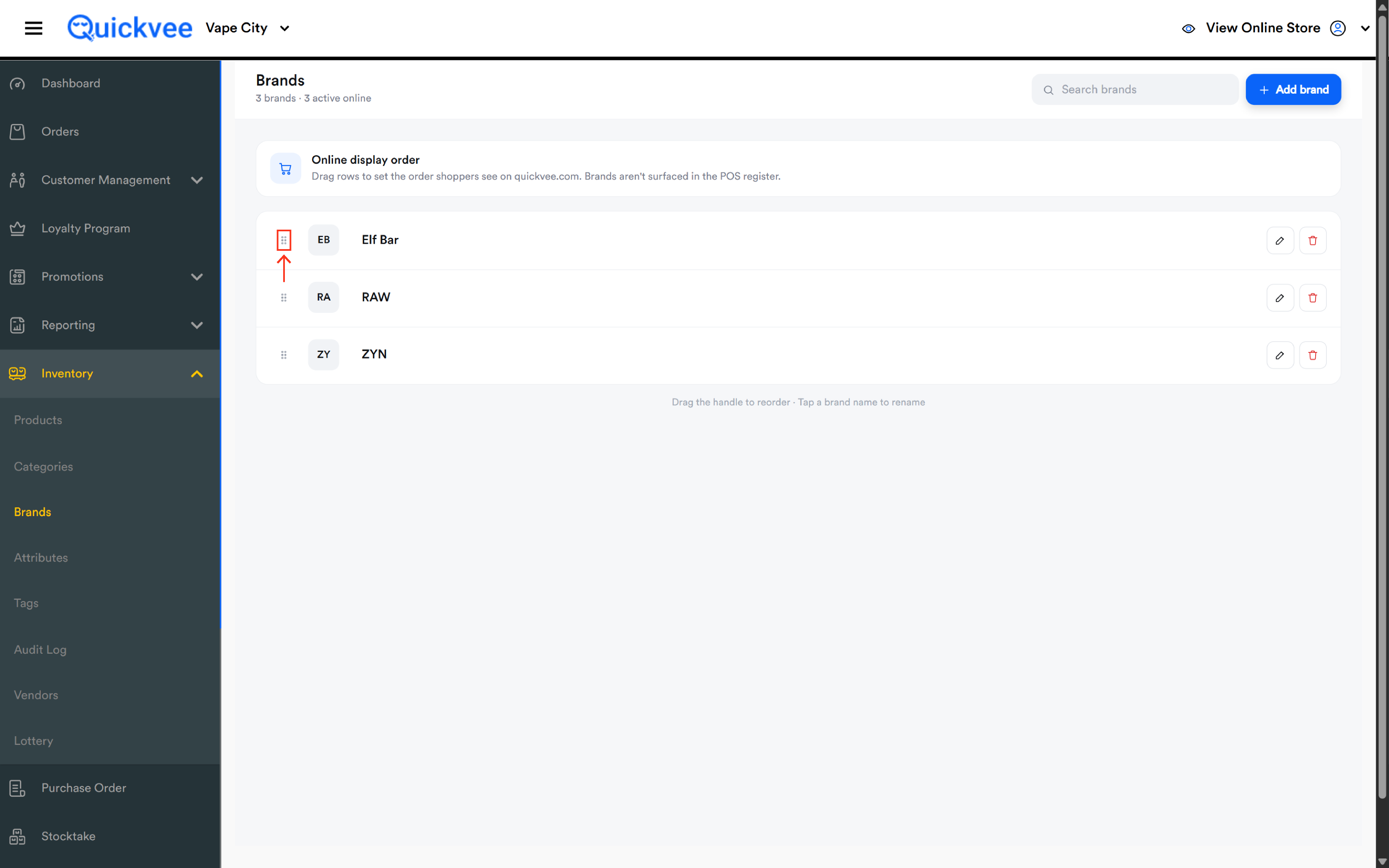
The banner at the top of the page explains the list's most powerful feature: the order of this list is the order shoppers see when browsing brands on your online store.
-
Locate the brand you want to move.
-
Press and hold the drag handle (the dotted grip at the left edge of the row).
-
Drag the row up or down to its new position and release.
Put your best-selling and most-searched brands at the top. Shoppers scrolling your online store see brands in exactly this sequence, so treat the top of the list as prime shelf space.
✅ Best practice. Review your display order seasonally or whenever a new product line takes off. A brand buried at position 900 of 1,599 is effectively invisible to online shoppers browsing by brand.
Deleting a brand
-
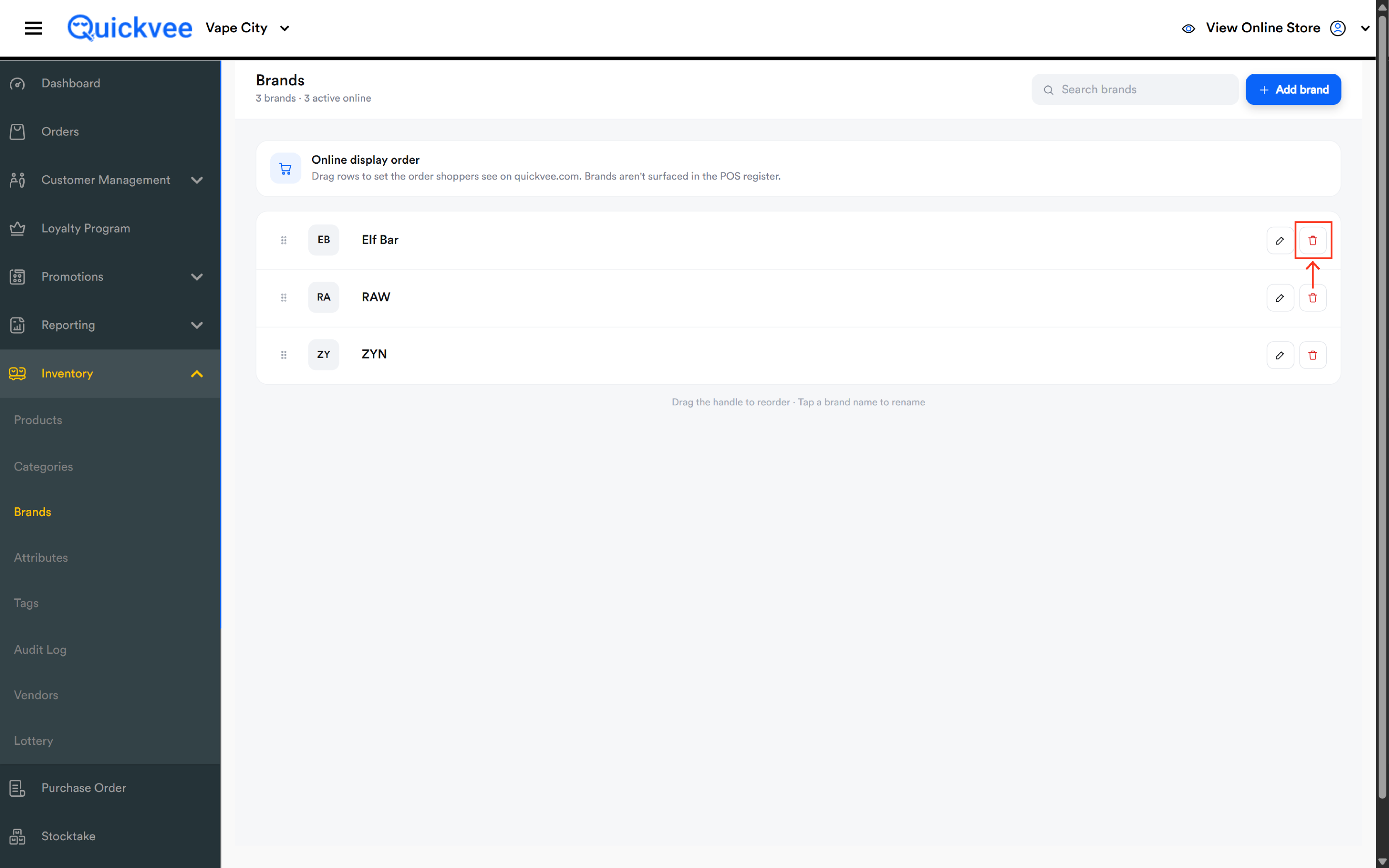
Click the trash icon on the brand's row.
-
Confirm the deletion.
Deleting a brand removes it from your brand list and from online brand browsing. Products previously assigned to that brand remain in your inventory, they simply lose their brand association.
⚠️ Important. Deletion is permanent. If you only want to hide a brand from shoppers temporarily (for example, a discontinued line you may restock), edit the brand and turn off Show Online instead of deleting it.
How brands appear on your online store
Brands with Show Online enabled and products in stock feed your storefront's brand browsing experience, including the Shop by Brands Near You section on the landing page. Shoppers can tap a brand to see every product you carry under it. This is why the display order and brand images matter, together they shape the first impression of your online catalog.
Common questions
Q. Why don't my cashiers see brands on the register?
A. By design, brands aren't surfaced in the POS register. Cashiers find products by scanning, searching, or browsing categories. Brands exist for backend organization and online store browsing.
Q. Can I sort the list alphabetically instead of by display order?
A. Yes, brand sorting is supported so you can quickly locate a specific brand in a long list. Remember that the drag-set display order is what shoppers see online; sorting is a management convenience for you.
Q. I renamed a brand but a product still shows the old name online. Why?
A. In most cases the update flows through automatically. If an updated brand name isn't reflecting on the online store or in the product editor, re-save the affected product. This is a known behavior under review.
Q. Is there a limit to how many brands I can have?
A. No practical limit, stores run smoothly with well over a thousand brands. Search and sorting exist precisely so large lists stay manageable.
Q. Do brands affect reporting?
A. Yes, brand is available as a filter in inventory reporting and exports, so a clean brand list pays off when you analyze sales and stock by brand.