
The Employee Time & Attendance Report is your timeclock ledger. It shows every clock-in and clock-out across your team for the date range you choose, broken down by employee, with total elapsed time and net hours worked on every shift. It's the report you run before payroll, before scheduling reviews, and when you need to verify someone was actually on the floor at the time they said they were.
Where the Sales reports tell you what each cashier rang up, Time & Attendance tells you when they were on the clock — and for how long.
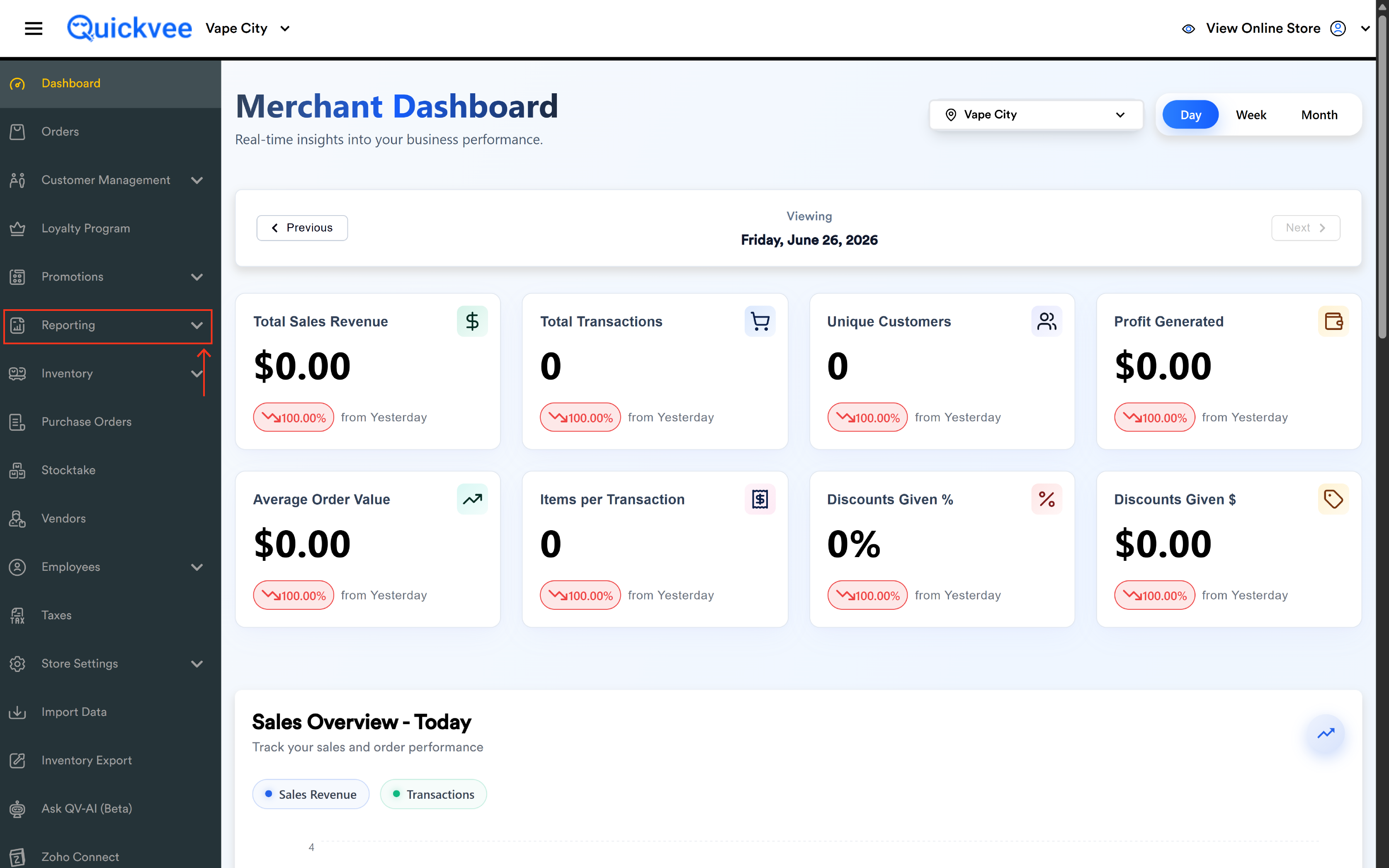
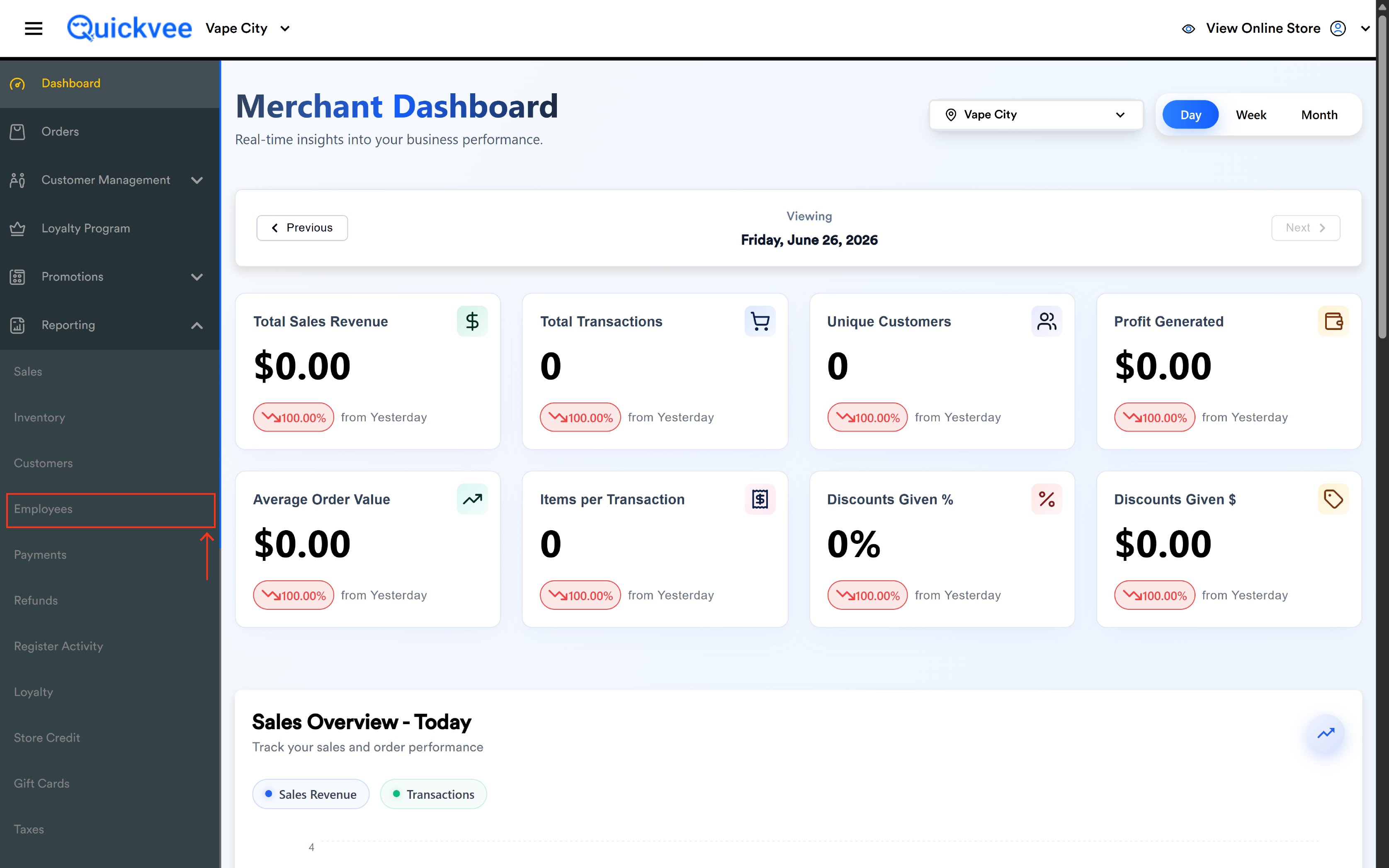
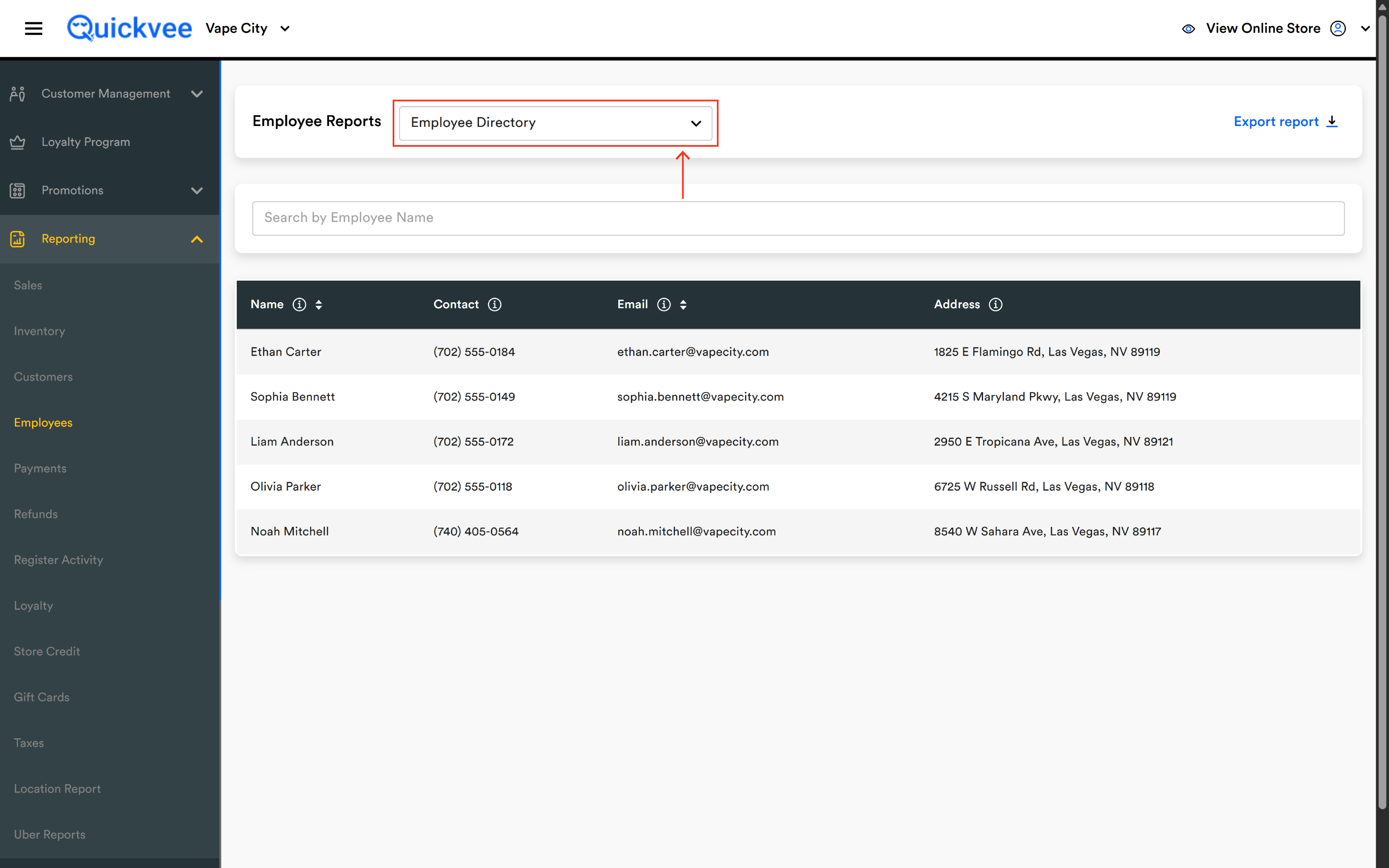
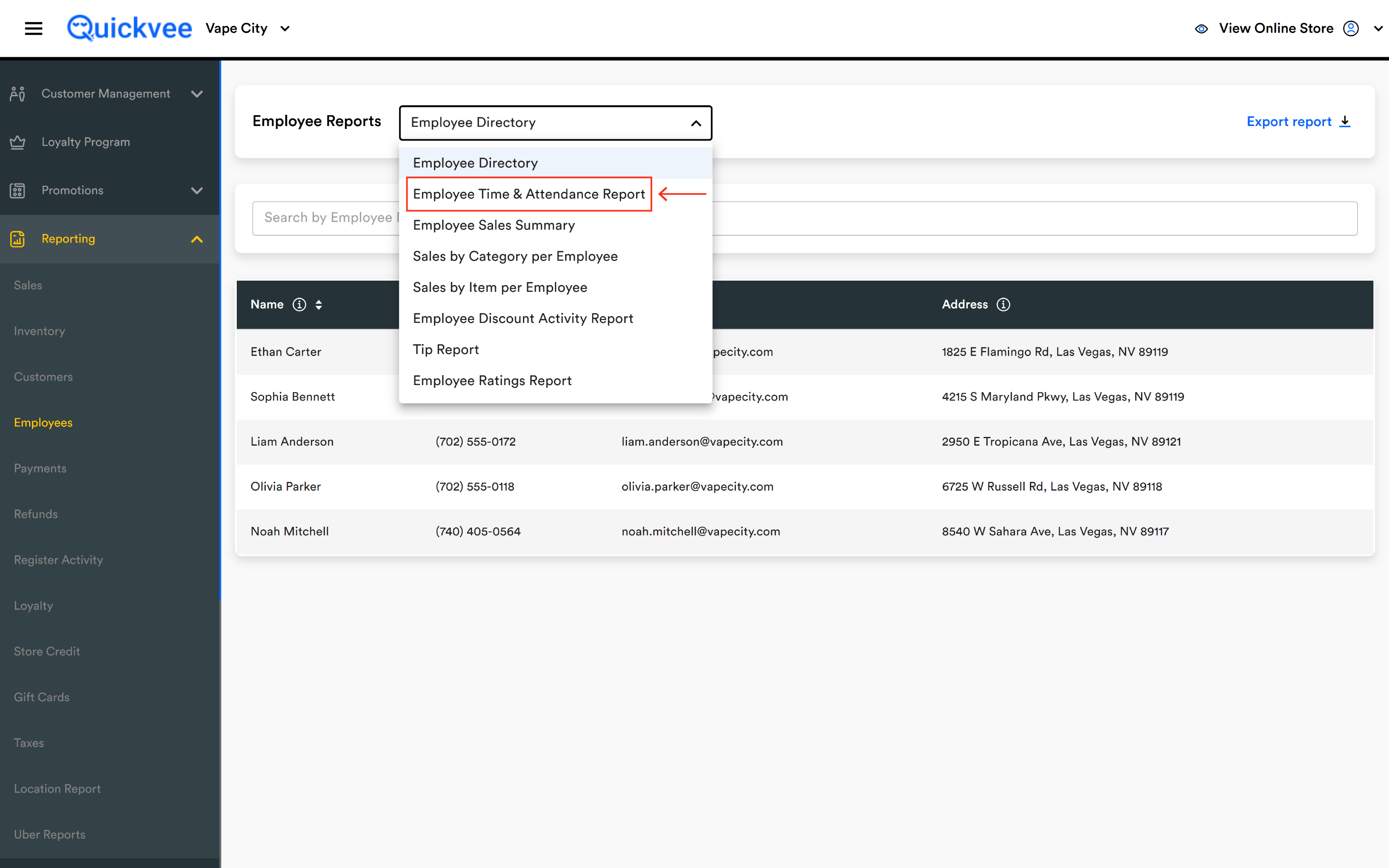
Access path: Sign in to your merchant backend → side menu → Reporting → Employees → and from the Employee Reports dropdown at the top of the page select Employee Time & Attendance Report.
Running the report
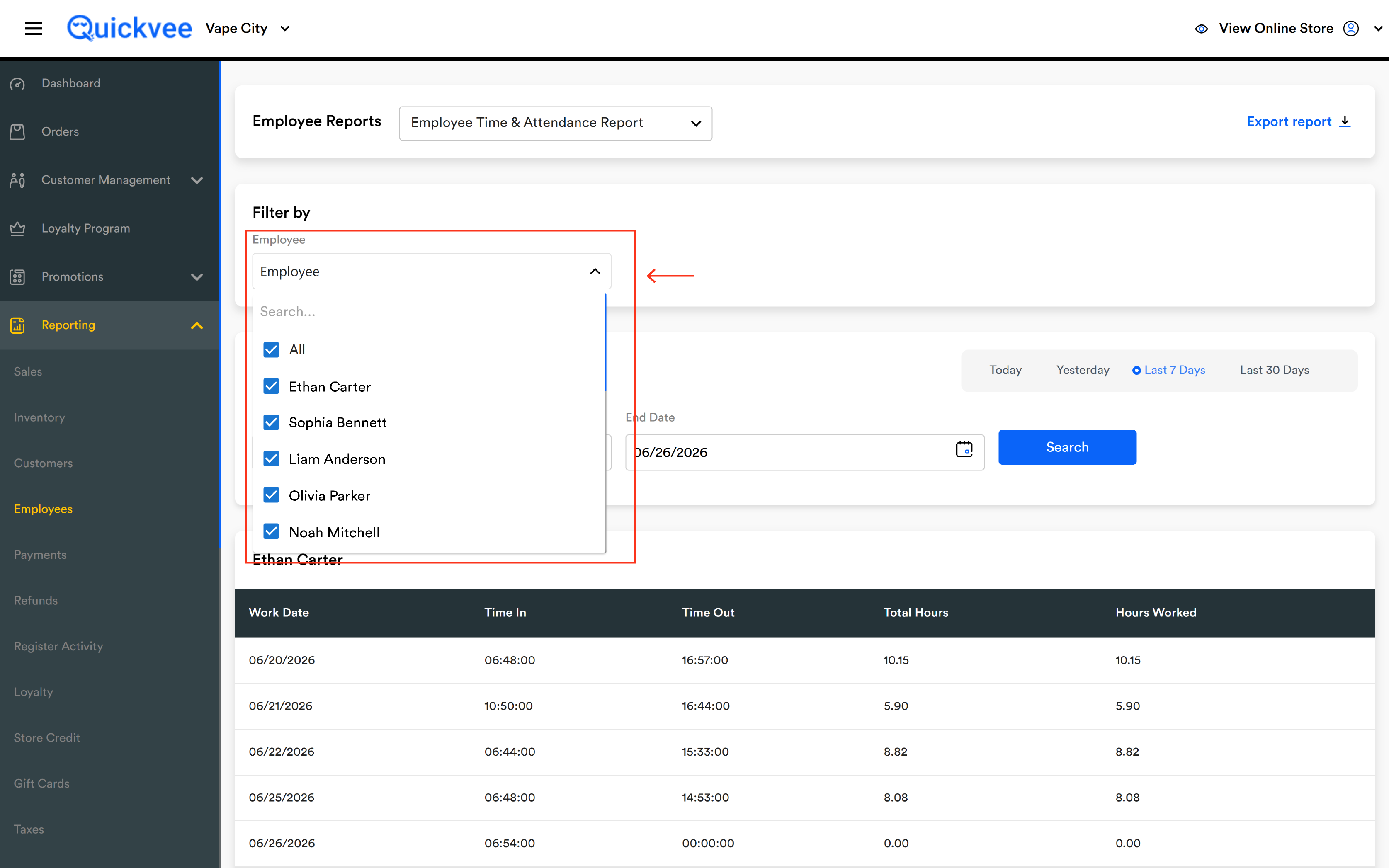
Filter by
|
Filter |
What it does |
|---|---|
|
Employee |
Dropdown to scope the report to a single employee. Leave unset to include every employee who had any clock-in activity in the period. |
Date Range
|
Control |
What it does |
|---|---|
|
Start Date |
The first day of the date range. Calendar picker. |
|
End Date |
The last day of the date range. Calendar picker. |
|
Search (blue) |
Runs the report against the selected filters and date range. |
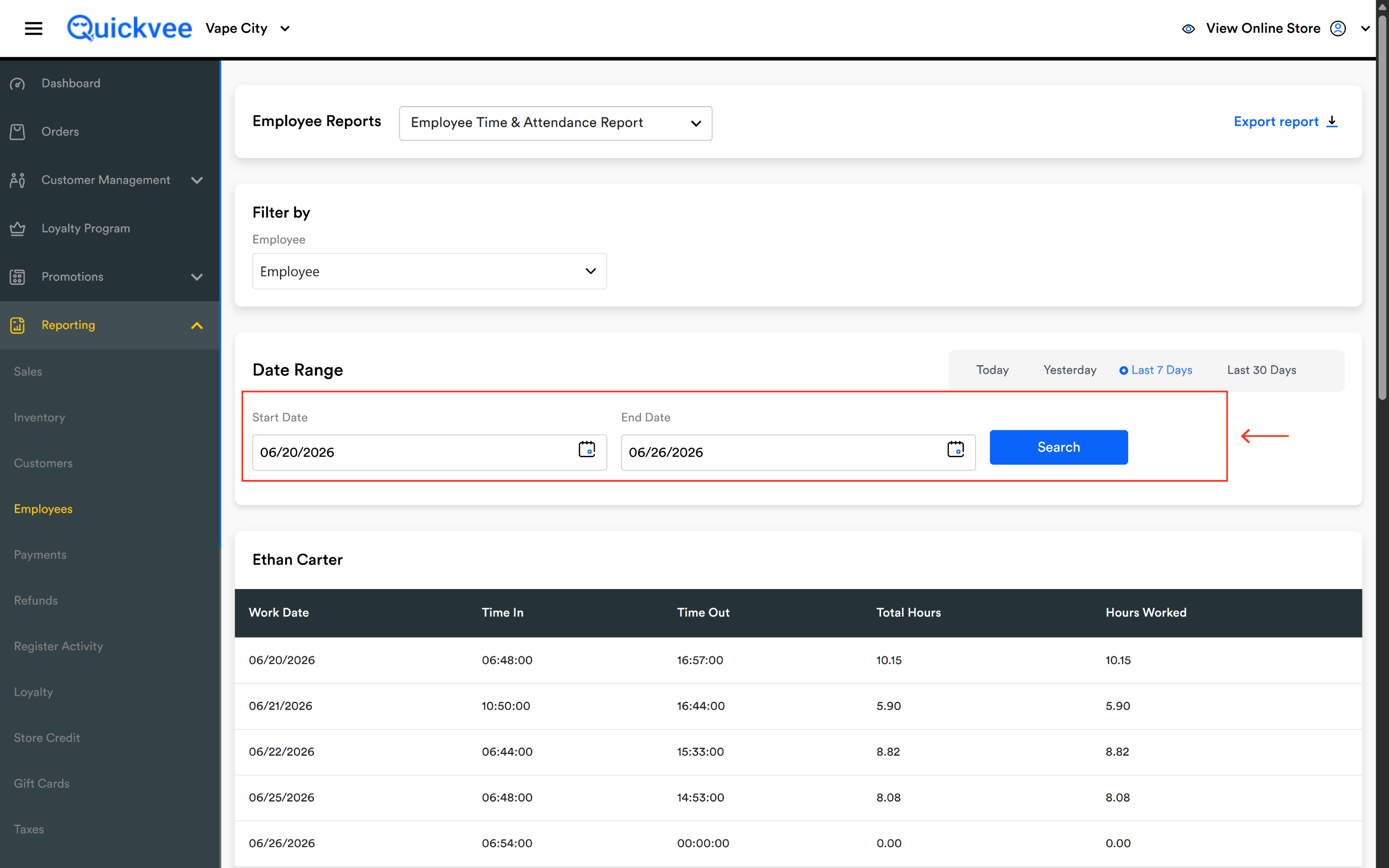
Unlike the sales reports, Time & Attendance does not require an outlet selection at the report level — clock-in records carry their store location internally and the report shows shifts wherever the employee logged time during the period.
Quick range buttons
Four buttons let you skip the calendar picker: Today, Yesterday, Last 7 Days, Last 30 Days.
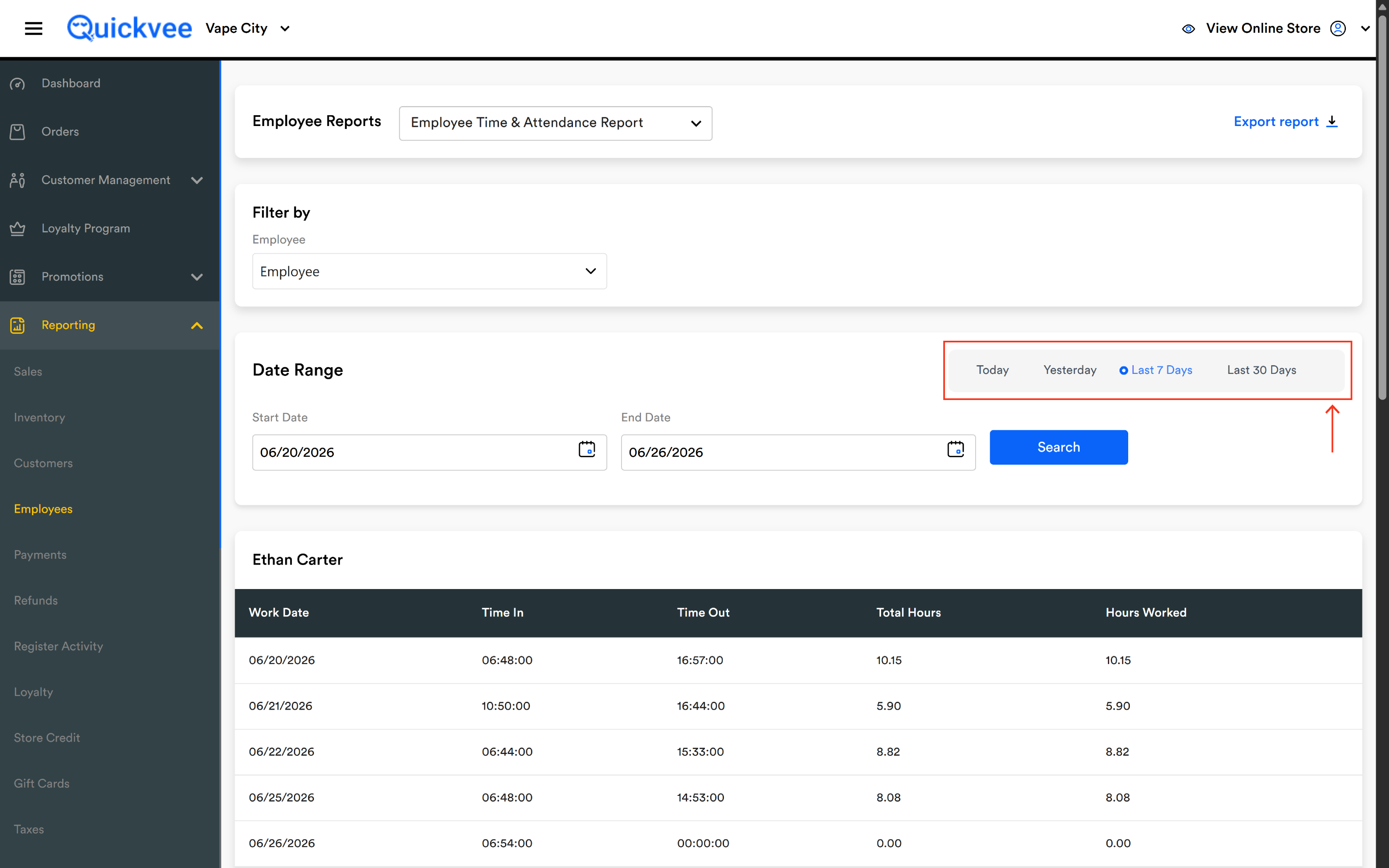
Tip: Last 7 Days is the right pick for weekly payroll reconciliation. Last 30 Days is the right pick for monthly attendance reviews and scheduling pattern analysis.
Export report
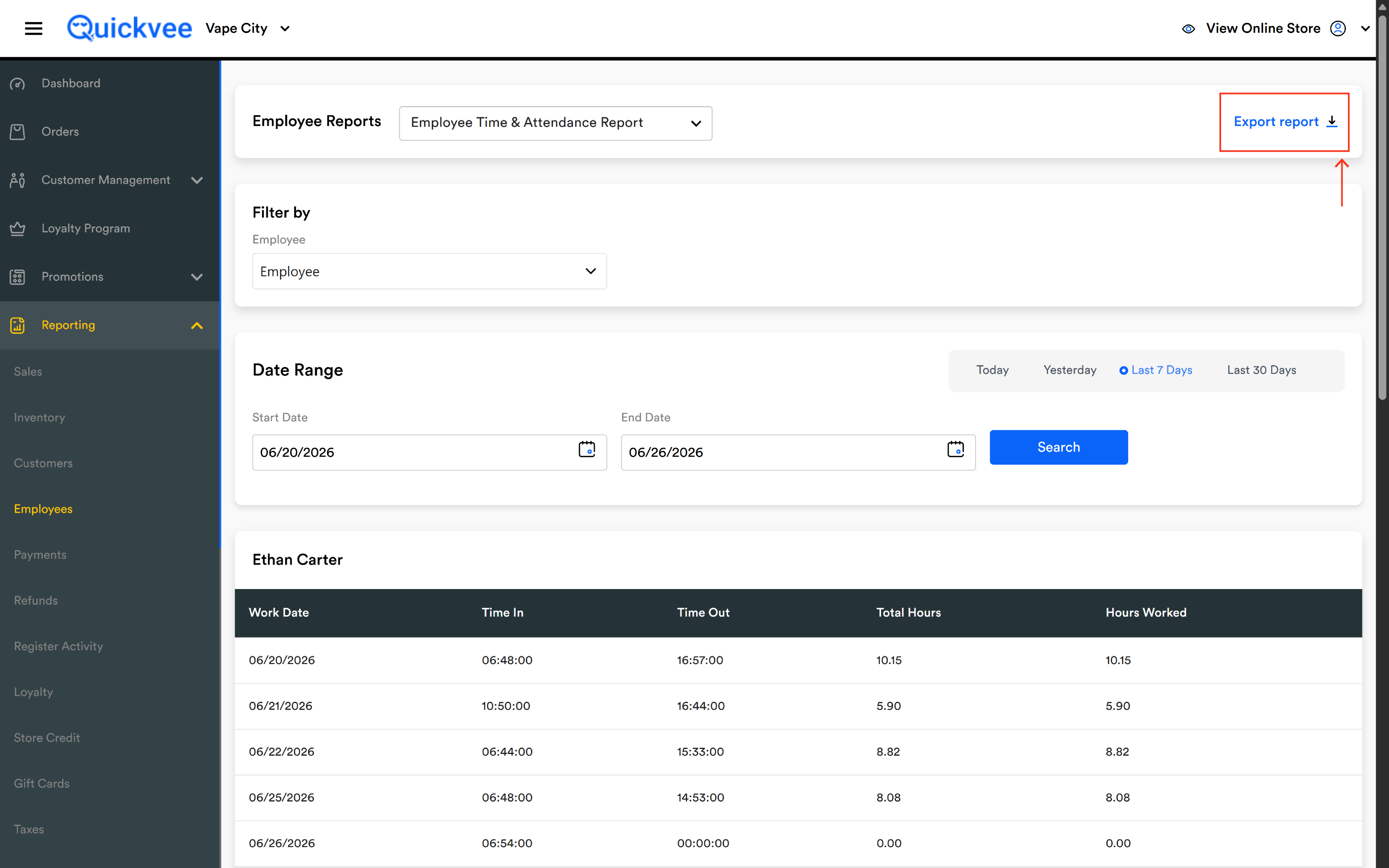
The Export report link at the top-right downloads every employee block, every shift row, and the per-employee totals as a spreadsheet.
Reading the report
The report displays as a series of stacked tables, one per employee. Each block has the employee's name as a header, followed by their shift table and a per-employee Total row.
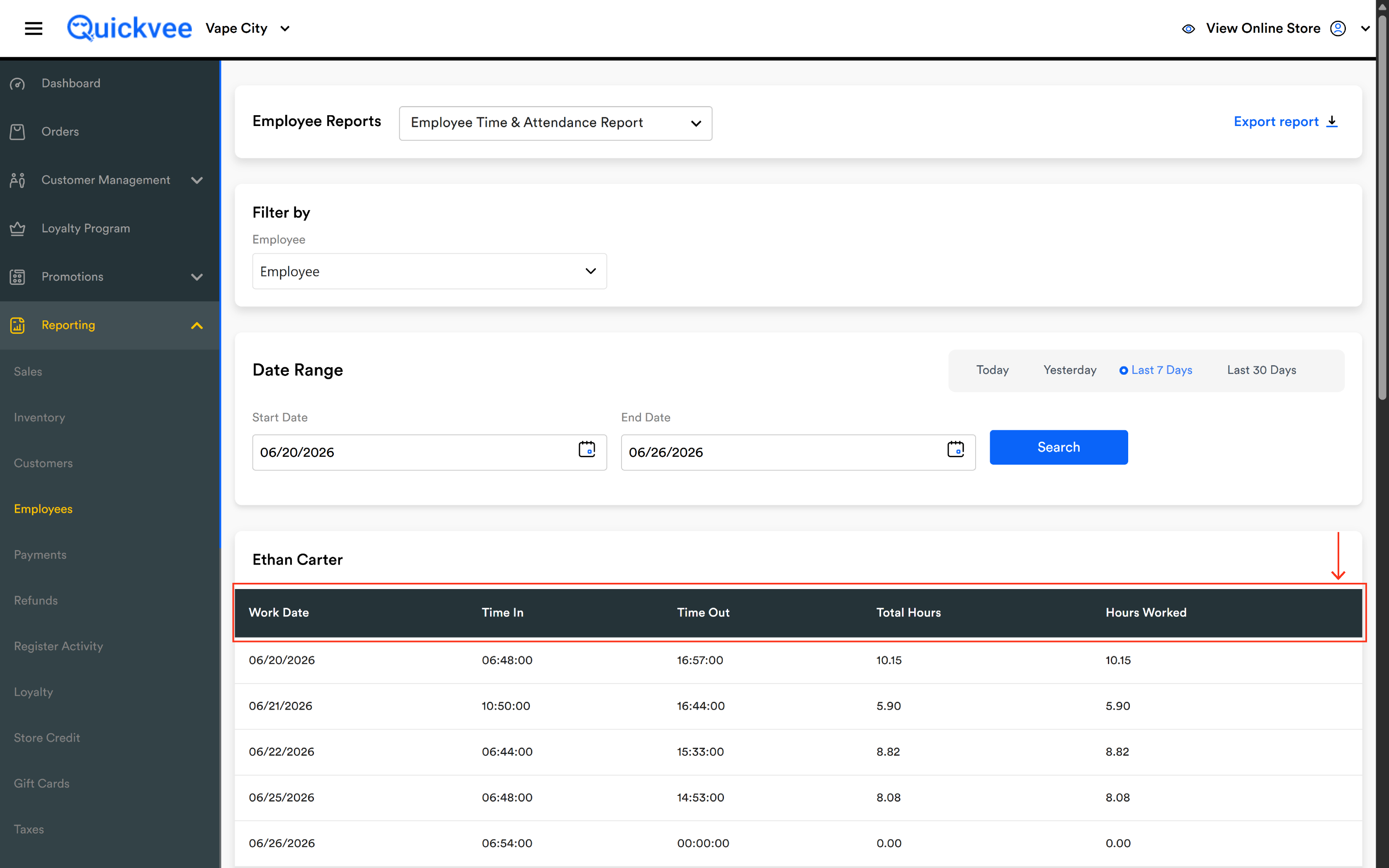
|
Column |
What it shows |
|---|---|
|
Work Date |
The calendar date of the shift, formatted MM/DD/YYYY. |
|
Time In |
The clock-in time recorded on the POS or via the timesheet, formatted HH:MM:SS in 24-hour time. |
|
Time Out |
The clock-out time, formatted HH:MM:SS in 24-hour time. |
|
Total Hours |
The elapsed time between Time In and Time Out, expressed as a decimal (e.g. 12.13 hours = 12 hours, 8 minutes). |
|
Hours Worked |
The net paid hours after any break deductions. If no breaks were logged, this matches Total Hours exactly. When breaks are recorded, Hours Worked equals Total Hours minus the deducted break time. |
Total Hours and Hours Worked diverge when an employee takes an unpaid break. Both columns are shown side-by-side so you can verify quickly whether breaks were properly logged and what the actual payable hours are.
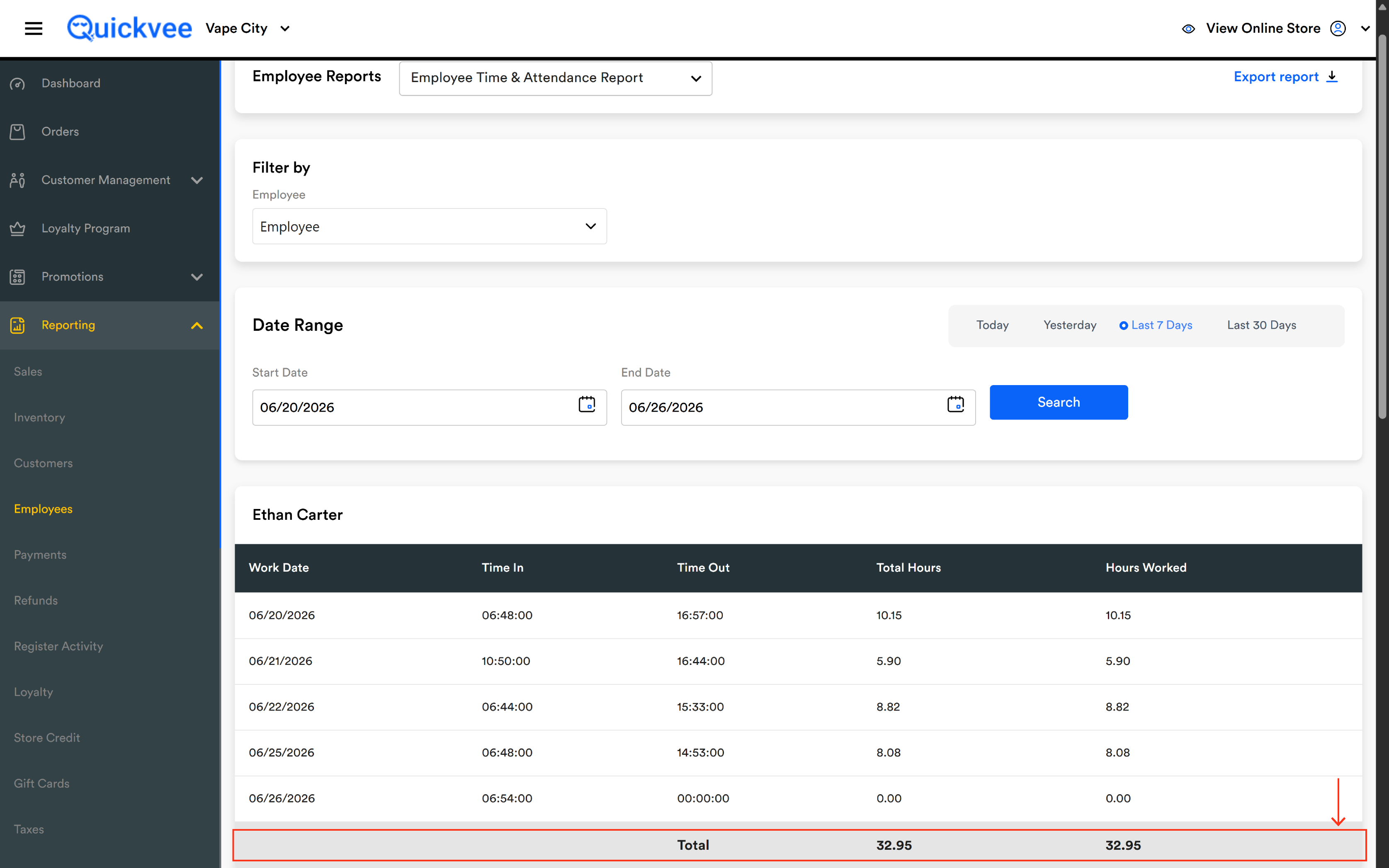
The Total row
The last row of every employee's table is a Total that sums Total Hours and Hours Worked across every shift in the period. There is no team-wide Grand Total on this report — each employee's row totals are the deepest aggregation level. For team-level totals, export and sum the columns in a spreadsheet.
How to read unusual rows
|
Pattern |
What it usually means |
|---|---|
|
Time Out = 00:00:00 and Total Hours = 0.00 |
The employee clocked in but never clocked out on that date. Either they're still on shift (the report was run mid-shift) or they forgot to clock out and the shift needs a manual correction in the Timesheet module before payroll. |
|
Total Hours much larger than expected (e.g. 18+ on a single day) |
Often a missed clock-out from the previous day rolled forward, then clock-in started the next morning. Check the previous day's row for a missing Time Out. |
|
Two shifts on the same Work Date |
The employee clocked out for an unpaid break or a mid-day departure and clocked back in. Each clock-in / clock-out pair appears as its own row, so the same Work Date can show twice. |
|
Hours Worked significantly lower than Total Hours |
The employee took long breaks during the shift. Cross-check against the break log in the Timesheet module. |
|
Empty employee block |
The employee had no shifts in the date range — but they may still appear if you filtered to them explicitly. |
Always reconcile 00:00:00 Time Out rows before running payroll. A missing clock-out reads as zero hours on this report — paying from this number directly would shortchange the employee. Open the affected row in the Timesheet module to add the missing clock-out time, then re-run the report.
What to do with the report
|
Question |
How to answer it |
|---|---|
|
What were everyone's hours last week? |
Quick-range Last 7 Days, leave Employee empty, run. Read each block's Total row. |
|
Did the new hire complete a full shift on their first day? |
Filter Employee = (new hire), set the date range to their first day, run. |
|
Are anyone's shifts running too long? |
Run the period, scan each row's Total Hours — anything over your store's max shift length is worth a conversation. |
|
Who's missing clock-outs from the period? |
Run the period, scan for any Time Out = 00:00:00 row. Each one needs a Timesheet correction before payroll. |
|
What's an employee's payroll total for the pay period? |
Set the date range to the pay period, filter to the employee, run. Read the Hours Worked total. |
|
Did our shift schedule actually match the floor coverage? |
Run the period, compare each day's Time In / Time Out against the published schedule. |
Notes
-
Time displayed is in 24-hour HH:MM:SS format. Times are recorded at the moment of clock-in/clock-out — not rounded to the nearest 15 minutes.
-
All times are shown in the store's local timezone.
-
Total Hours and Hours Worked are decimal hours, not hours-and-minutes — 0.13 means 0.13 of an hour, which is roughly 8 minutes.
-
The report includes shifts from any store location the employee logged time at during the period.
-
Edits made in the Timesheet module (manual clock-in/out corrections, break adjustments, wage rate updates) are reflected here as soon as they're saved.
-
Employees with zero shifts in the period don't appear in the report unless explicitly filtered to.