
Store Preferences controls core operational settings that apply to your whole store — order numbering, clock in/out receipts, employee visibility, and delivery company configuration. Settings saved here apply store-wide.
Overview
Store Preferences is one of the sections inside Store Settings in the Quickvee backend. Use it to decide whether transactions get sequential order numbers, when those numbers reset each day, whether clock in/out events print a receipt, whether inactive employees stay visible in lists, and which delivery company (if any) is tied to the store.
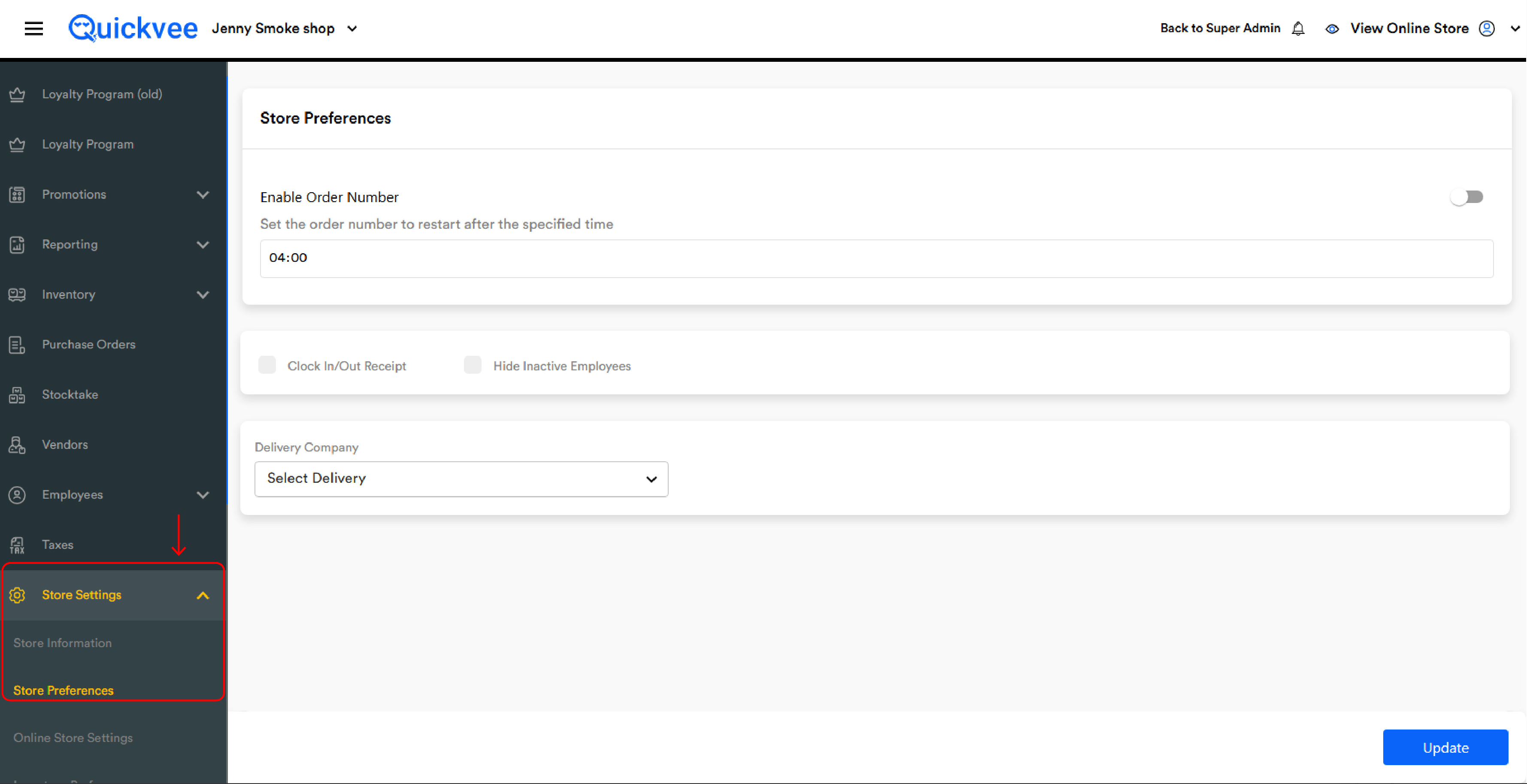
Access path: Quickvee Backend → Store Settings → Store Preferences
Enable order number
|
Setting |
What it does |
|---|---|
|
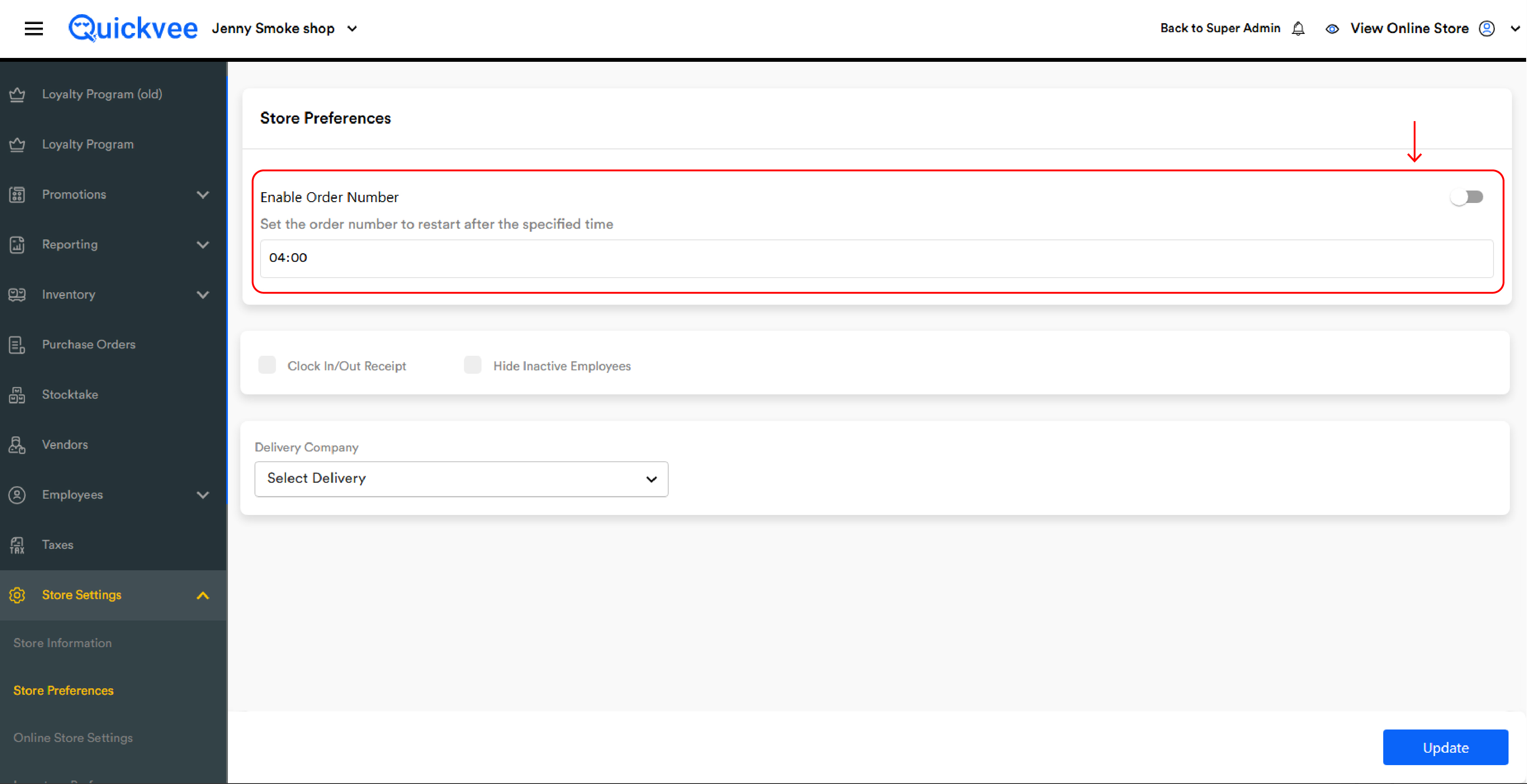
Enable Order Number (toggle) |
When enabled, each transaction is assigned a sequential order number that appears on receipts and in order reports. When disabled, no order number is generated. |
|
Reset Time |
The time of day when the order number sequence restarts from 1 (for example, 09:10 PM). Set this to match your store closing time so order numbers reset fresh each business day. |
Additional settings
|
Setting |
What it does |
|---|---|
|
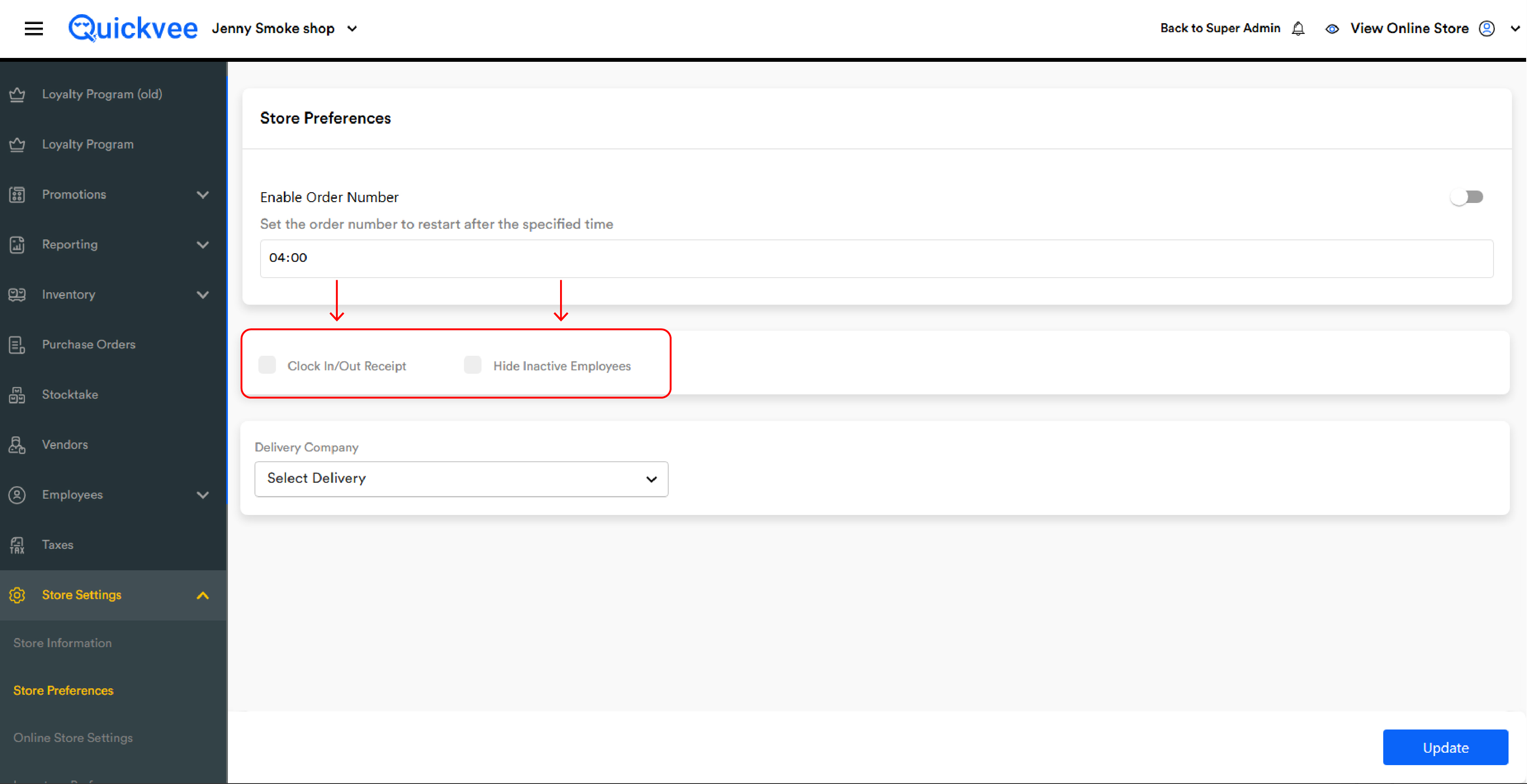
Clock In/Out Receipt (checkbox) |
When checked, a receipt automatically prints each time an employee clocks in or out via the Attendance module. |
|
Hide Inactive Employees (checkbox) |
When checked, employees marked as inactive are hidden from all employee-facing dropdowns and lists throughout the POS and backend. |
Delivery company
|
Field |
What it does |
|---|---|
|
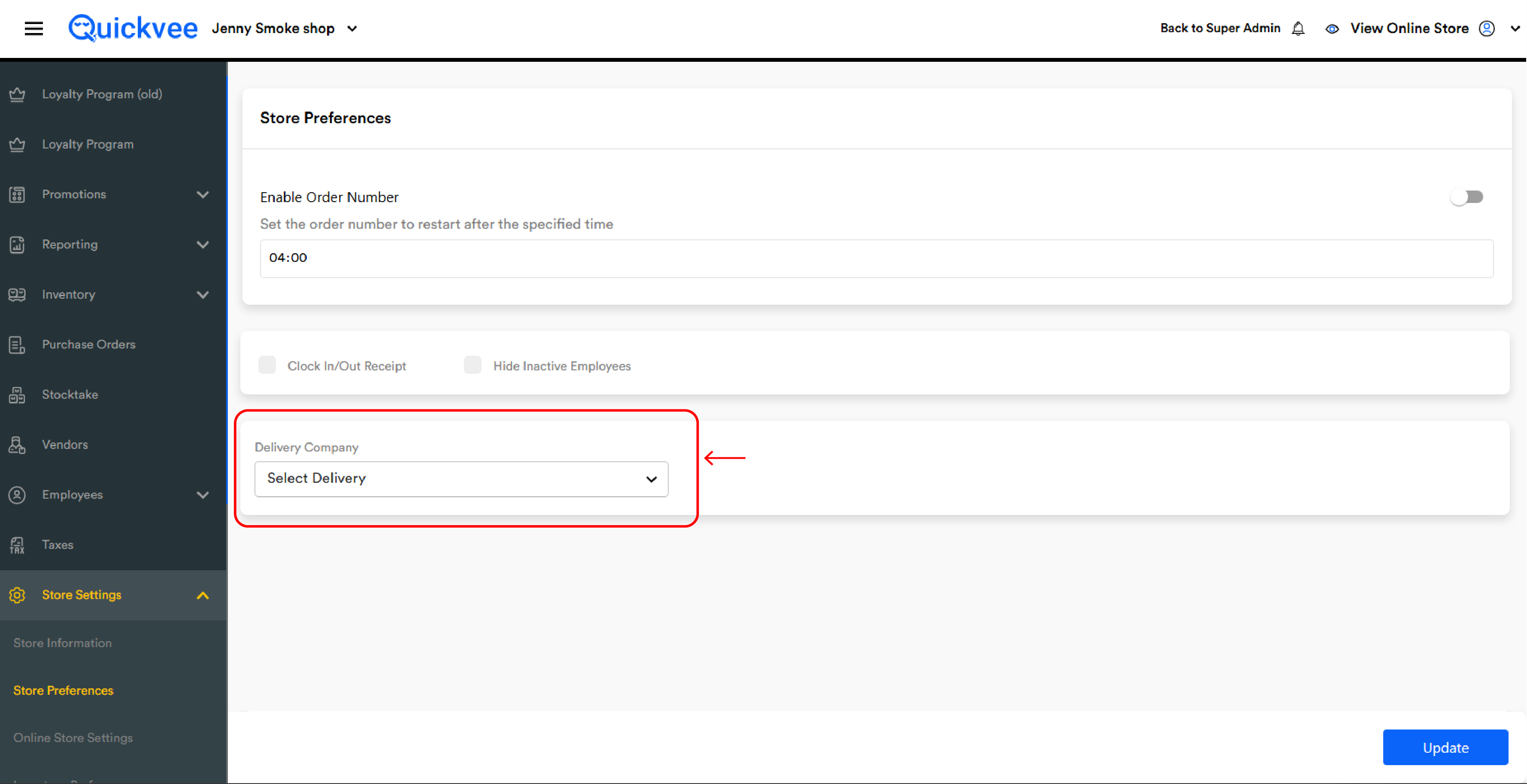
Delivery Company |
Select the third-party delivery provider integrated with this store for order fulfilment. Leave it set to "Select Delivery" if you are not using an external delivery company. |
Saving changes
Tap Update at the bottom-right to save all Store Preferences.
Changes take effect store-wide as soon as you save.
Related articles
-
Configure your store settings — the parent Store Settings area
-
Configure register settings — per-station settings (these apply only to one register)
-
Clock in and clock out on the POS — ties in with the Clock In/Out Receipt setting
-
Manage employees in the web backend — where employees are marked active or inactive