
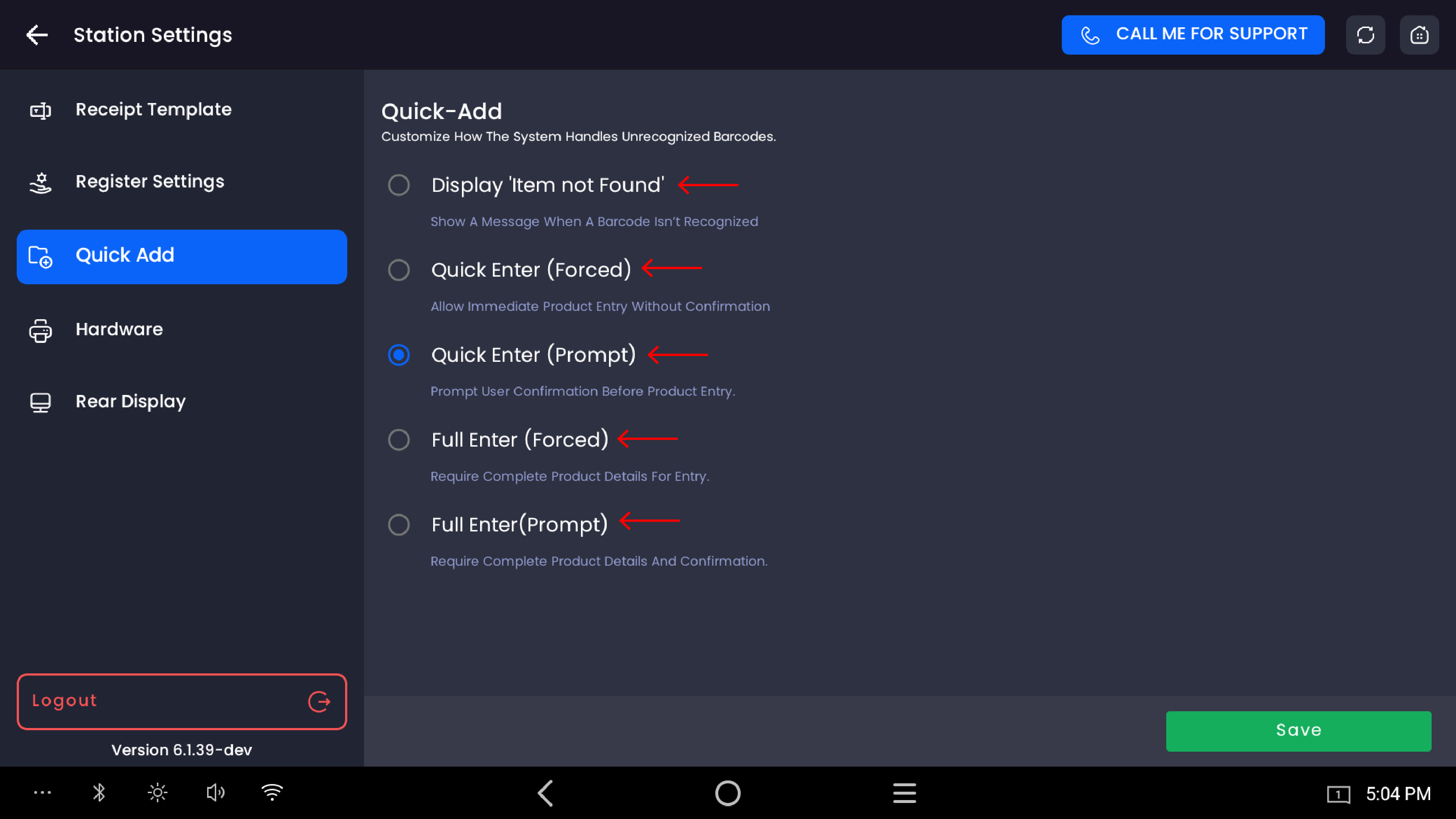
The Quick Add setting controls what happens when a barcode is scanned at the register that does not match any existing product in inventory. Merchants can choose how the system responds — from showing an error, to immediately creating a new product, to prompting the employee for confirmation or full product details before adding. This setting is configured per station.
Overview
Access path: POS Home → Station Settings → Quick Add
-20260526-082129.jpg?cb=72d36ca2a40c985e892fb9b92b97fcec)
What is Quick Add?
When a barcode is scanned on the register and the system does not recognise it, Quick Add determines the next step. The five available options give merchants full control over how unrecognised barcodes are handled — from strict error messaging to fully automated product creation.
Note: Products added through Quick Add are saved to your inventory under the Quickadd category. This is a system-managed category that cannot be deleted or renamed.
Quick Add options
|
Option |
Description |
|---|---|
|
Display 'Item not Found' |
Shows a message on screen when a barcode is not recognised. No product is created. The cashier must manually look up or add the product separately. |
|
Quick Enter (Forced) |
Immediately adds the unrecognised product to the cart without any confirmation. No pop-up or prompt is shown to the employee. |
|
Quick Enter (Prompt) |
Asks the employee to confirm before adding the unrecognised product to the cart. A prompt appears for the employee to approve or cancel the action. |
|
Full Enter (Forced) |
Opens a full product creation form requiring the employee to enter complete product details (name, price, UPC, category, etc.) before the item is added. No confirmation prompt — goes straight to the form. |
|
Full Enter (Prompt) |
Opens a full product creation form and requires the employee to confirm before saving. This is the default selected option. |
Choosing the right option
|
If you want… |
Use this option |
|---|---|
|
No automatic product creation — just flag unknown barcodes |
Display 'Item not Found' |
|
Fast checkout with instant add and no interruption |
Quick Enter (Forced) |
|
Fast checkout but with employee sign-off |
Quick Enter (Prompt) |
|
Full product details captured every time, no confirmation needed |
Full Enter (Forced) |
|
Full product details captured with a confirmation step |
Full Enter (Prompt) |
Saving changes
Tap the Save button at the bottom-right to apply the selected option. The setting takes effect on the register immediately after saving.
Important notes
The Quickadd category is automatically assigned to all products created through Quick Add. It is a protected system category — it cannot be edited, renamed, or deleted. If a category is deleted from inventory, any products that were in that category are automatically moved to the Quickadd category.
Quick Enter options create a minimal product record with the scanned UPC and a basic name. Full product details such as cost price, taxes, and category can be updated later in the Inventory module.
Full Enter options require all mandatory product fields to be completed before the item is saved to inventory and added to the cart. This ensures cleaner inventory records but takes more time at the register.
Employee permissions control whether a cashier can use Quick Add at all. If a cashier does not have the Quick Add permission enabled, the feature will not be available to them regardless of this setting.