
Register Settings in Quickvee POS allows merchants to configure how each individual station behaves at the register — payment methods, security settings, sound preferences, cashback configuration, and station identity. Settings here apply only to the station they are saved on.
Overview
Access path: POS Home → Station Settings → Register Settings
.jpg?cb=30174bc9d1e6d133c4fcd59fd36592e7)
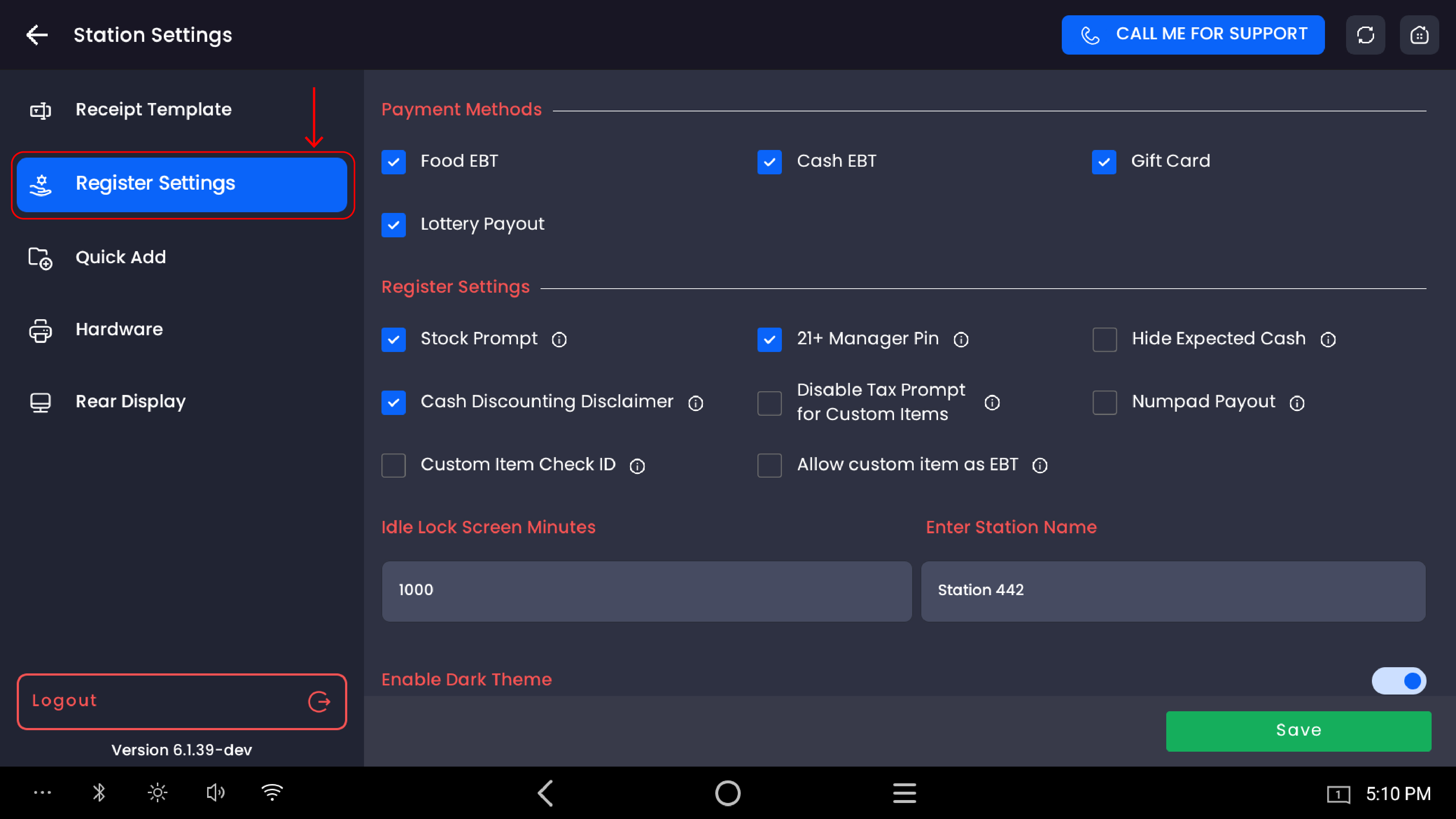
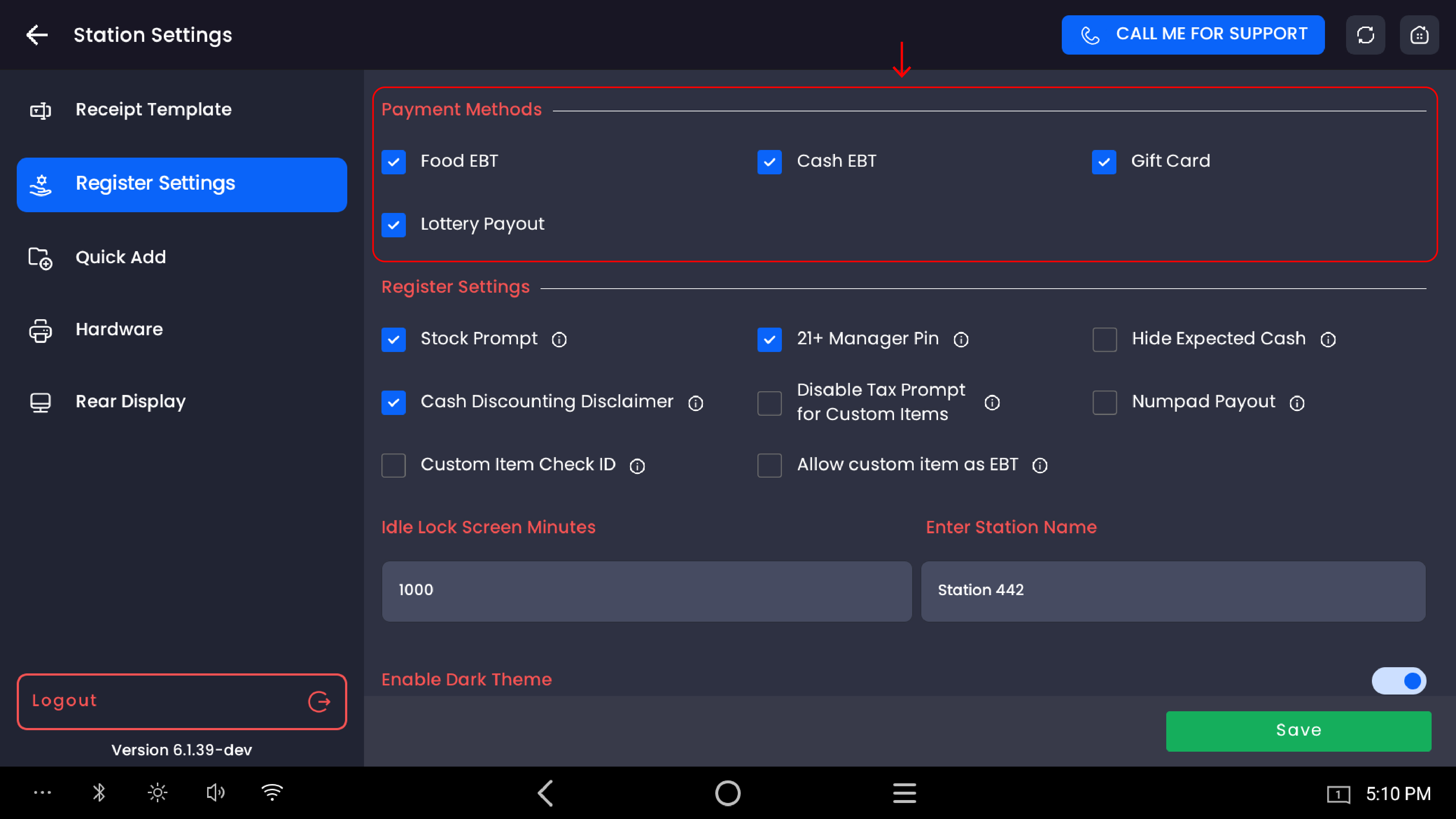
Payment methods
Controls which payment methods are available to cashiers on this station at the register.
|
Payment method |
Description |
|---|---|
|
Food EBT |
Enables Food EBT (SNAP) as a payment option for eligible products |
|
Cash EBT |
Enables Cash EBT as a payment option |
|
Gift Card |
Enables gift card payments at the register |
|
Lottery Payout |
Enables lottery payout processing on this station |
Check the box next to each payment method to enable it. Uncheck to remove it from the register payment options.
Note: Food EBT and Cash EBT require the relevant products and categories to be marked as EBT-eligible in inventory for the payment option to apply correctly.
Register settings (toggles)
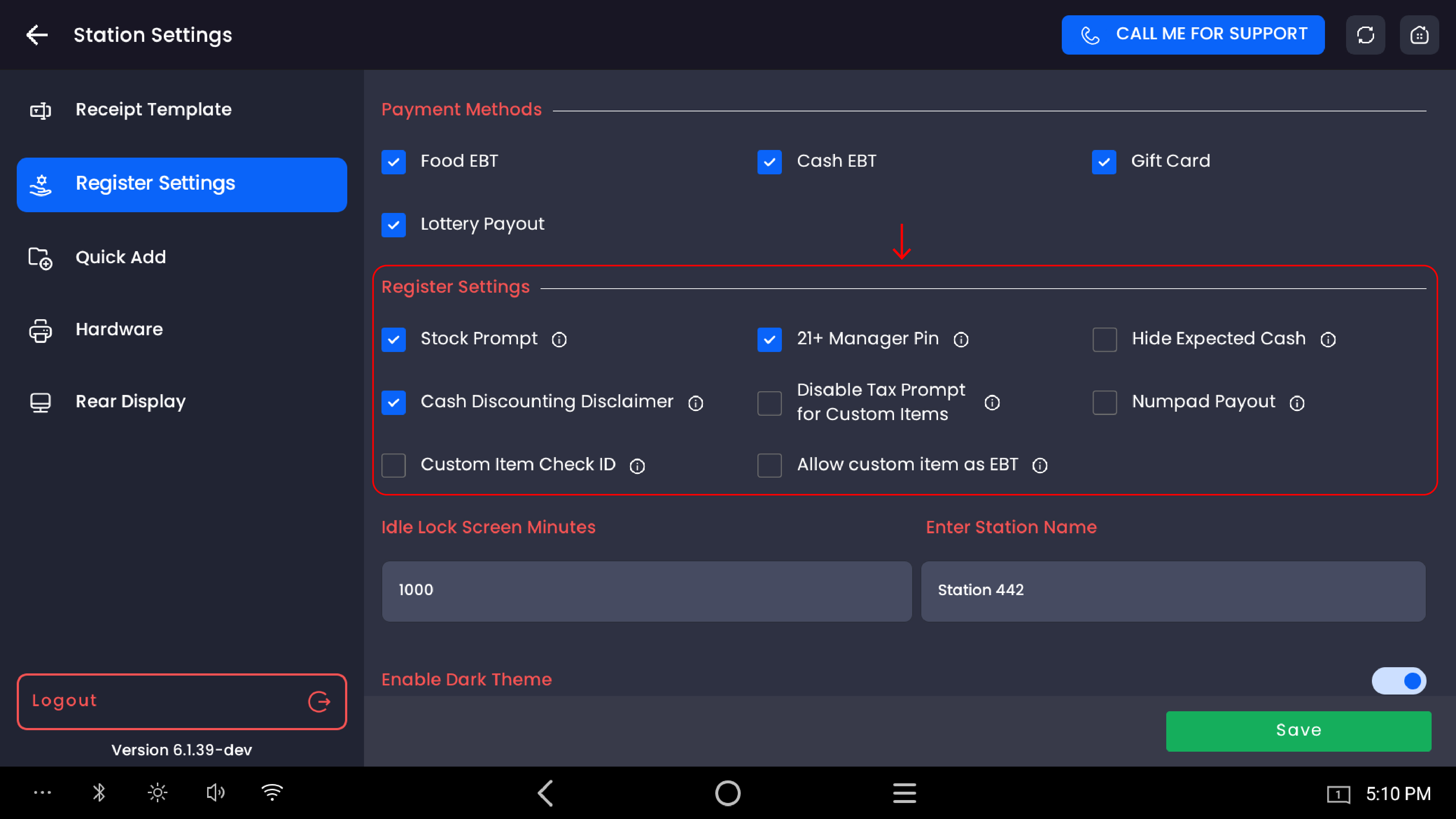
Individual register behaviour toggles for this station.
|
Setting |
Description |
|---|---|
|
Stock Prompt |
Alerts the cashier when a product's stock level reaches zero or goes below the set threshold. Helps prevent selling out-of-stock items. |
|
21+ Manager PIN |
Requires a manager PIN to complete the sale of any age-restricted product. Adds verification beyond the standard Check ID flow. |
|
Hide Expected Cash |
Hides the Expected Cash figure from employees during their shift. Only managers with the right permission can see it. |
|
Cash Discounting Disclaimer |
Displays a cash discounting disclaimer on the rear display and on receipts when a non-cash adjustment fee applies. |
|
Disable Tax Prompt for Custom Items |
Skips the tax selection prompt for custom items. Tax is applied automatically without asking the cashier to choose. |
|
Numpad Payout |
Lets the cashier enter the payout amount via a numeric keypad during the payout process instead of using a predefined value. |
|
Custom Item Check ID |
Prompts the cashier to verify the customer's ID when a custom item is added — treating it like an age-restricted product. |
|
Allow Custom Item as EBT |
Allows custom items to be marked as EBT-eligible and processed using Food EBT payment. |
Idle lock screen minutes
|
Field |
Description |
|---|---|
|
Idle Lock Screen Minutes |
Sets the number of minutes of inactivity before the register automatically locks and requires an employee PIN to unlock. Enter any numeric value. Setting this to a high number (e.g. 99) effectively disables the auto-lock timer. |
Enter station name
|
Field |
Description |
|---|---|
|
Enter Station Name |
Sets the name for this specific POS station (e.g. Station 1, Front Counter, Drive-Through). The station name appears in reports and helps identify which register processed each transaction. |
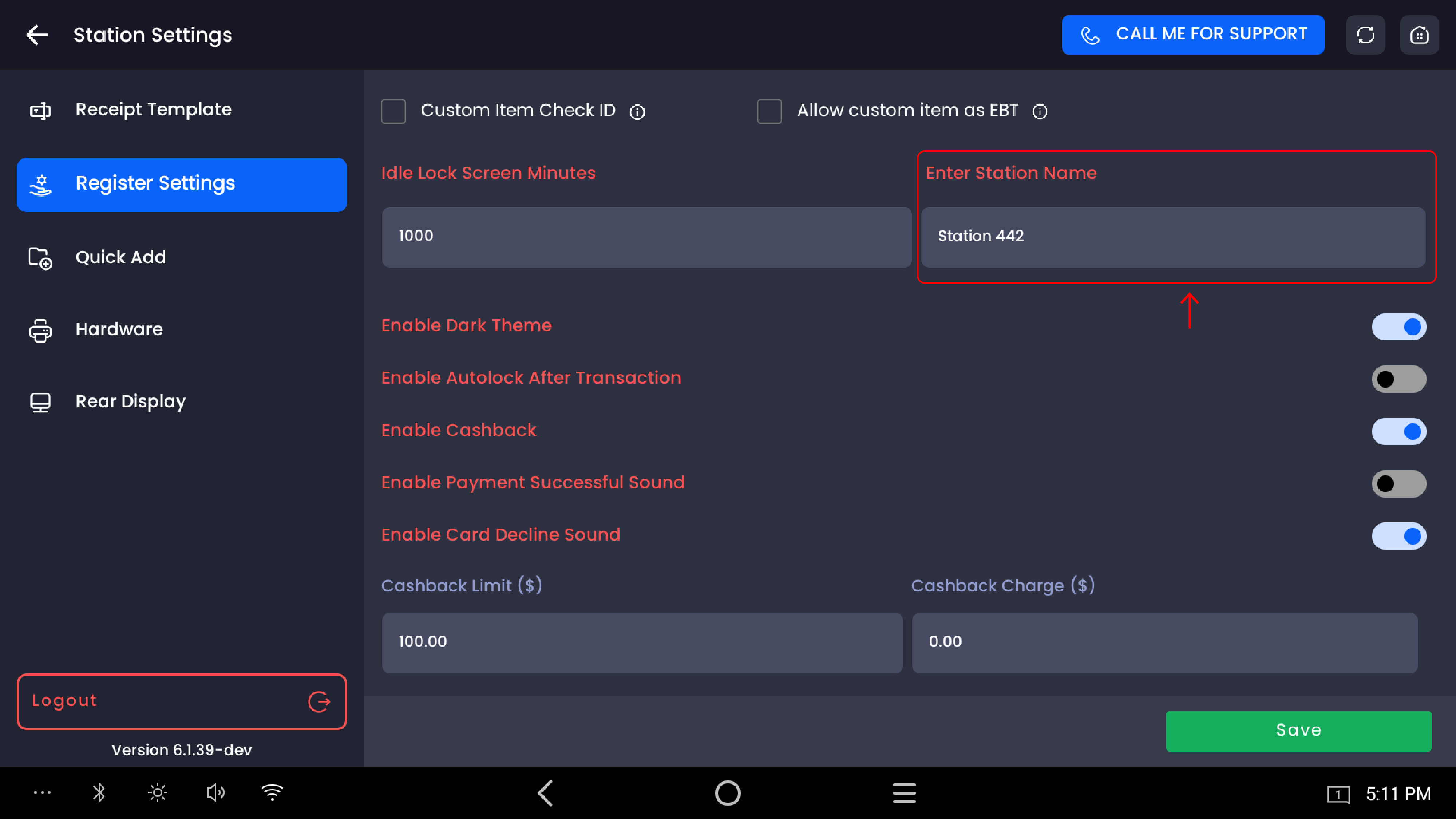
Additional toggles
|
Setting |
Description |
|---|---|
|
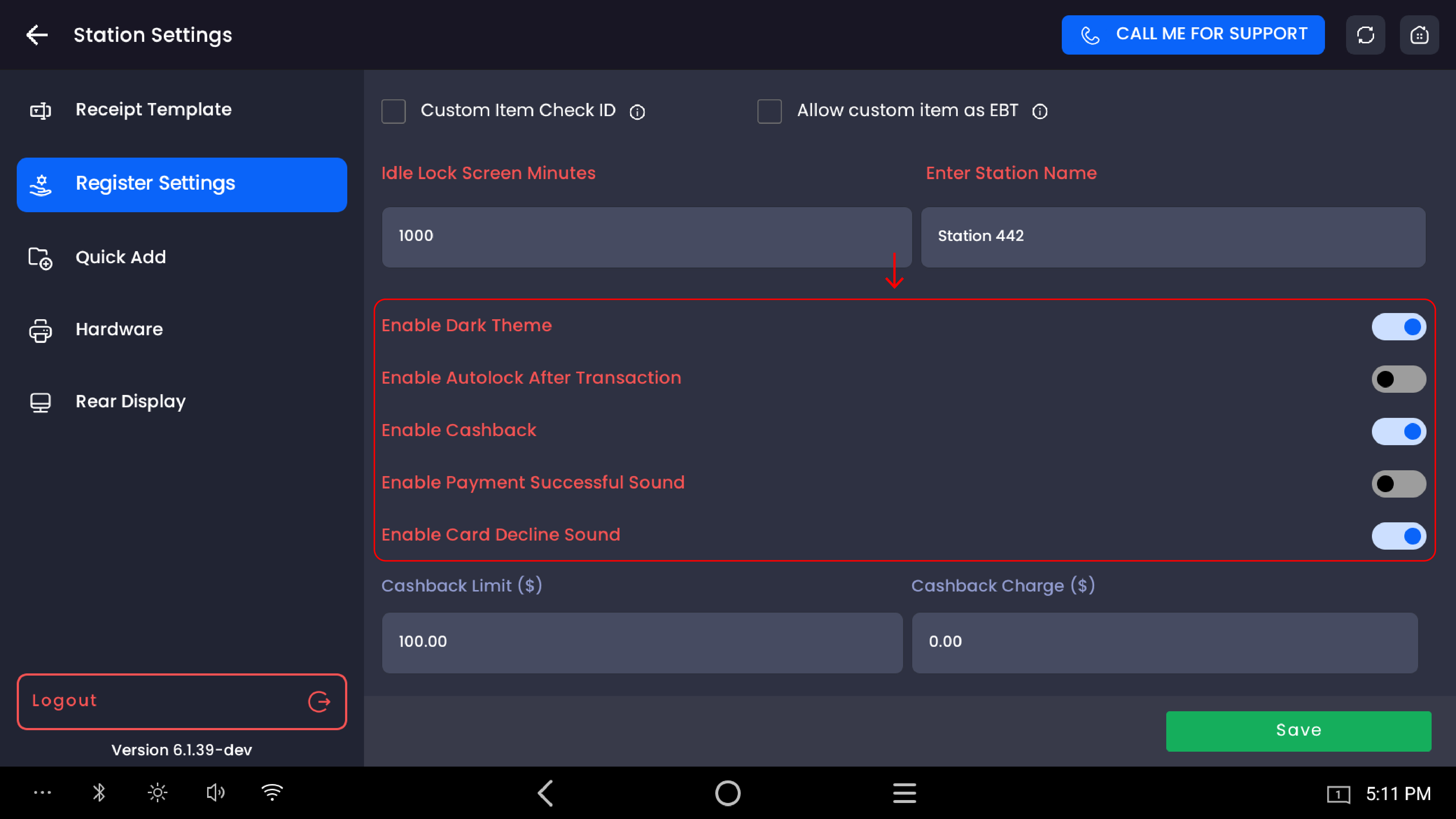
Enable Dark Theme |
Switches the POS interface to dark mode. When off, the interface uses a light theme. |
|
Enable Autolock After Transaction |
Automatically locks the register and returns to the PIN entry screen immediately after each completed transaction. The next employee must enter their PIN to begin a new sale. |
|
Enable Cashback |
Makes the cashback option available to customers paying by debit card. The customer can request cash back as part of their payment. |
|
Enable Payment Successful Sound |
Plays an audible sound when a payment is successfully completed. |
|
Enable Card Decline Sound |
Plays an audible sound when a card payment is declined. |
-20260525-150852.jpg?cb=e48a3fc6b119797f94efcf46cb8358f9)
Cashback configuration
Only visible and applicable when Enable Cashback is turned on.
|
Field |
Description |
|---|---|
|
Cashback Limit ($) |
The maximum cashback amount a customer can request in a single transaction (e.g. $100.00). |
|
Cashback Charge ($) |
The fee charged to the customer for using cashback (e.g. $2.99). This amount is added to the transaction total. |
Saving changes
Tap the Save button at the bottom-right to apply all changes. Settings take effect on this station immediately after saving.
Important notes
Register Settings are per station. Changes made here only apply to the station you are currently configuring. Each station in the store can have different settings.
21+ Manager PIN adds an extra layer of age verification at the register level. Even after an ID is checked, a manager must enter their PIN to approve the sale of any age-restricted item.
Enable Autolock After Transaction is recommended for multi-employee environments where different cashiers share the same terminal throughout the day. It ensures each cashier logs in with their own PIN for every transaction.
Cashback Charge is the fee the merchant charges the customer for requesting cashback — set this according to your store's policy. The Cashback Limit caps the maximum amount any customer can request per transaction.
Idle Lock Screen Minutes and Enable Autolock After Transaction work independently. Idle lock activates after inactivity; autolock activates immediately after every completed transaction.