
Quickvee POS includes a built-in register lock that lets merchants or employees secure the terminal when stepping away — without closing the shift or losing any cart data. The register is unlocked by entering a 4-digit passcode.
Locking the register
-
From the register screen, tap the 🔒 lock icon in the top bar (between the settings and profile icons)
-20261102-092418.png?cb=c1b5a0abc634597e0944813d8f7163bd)
-
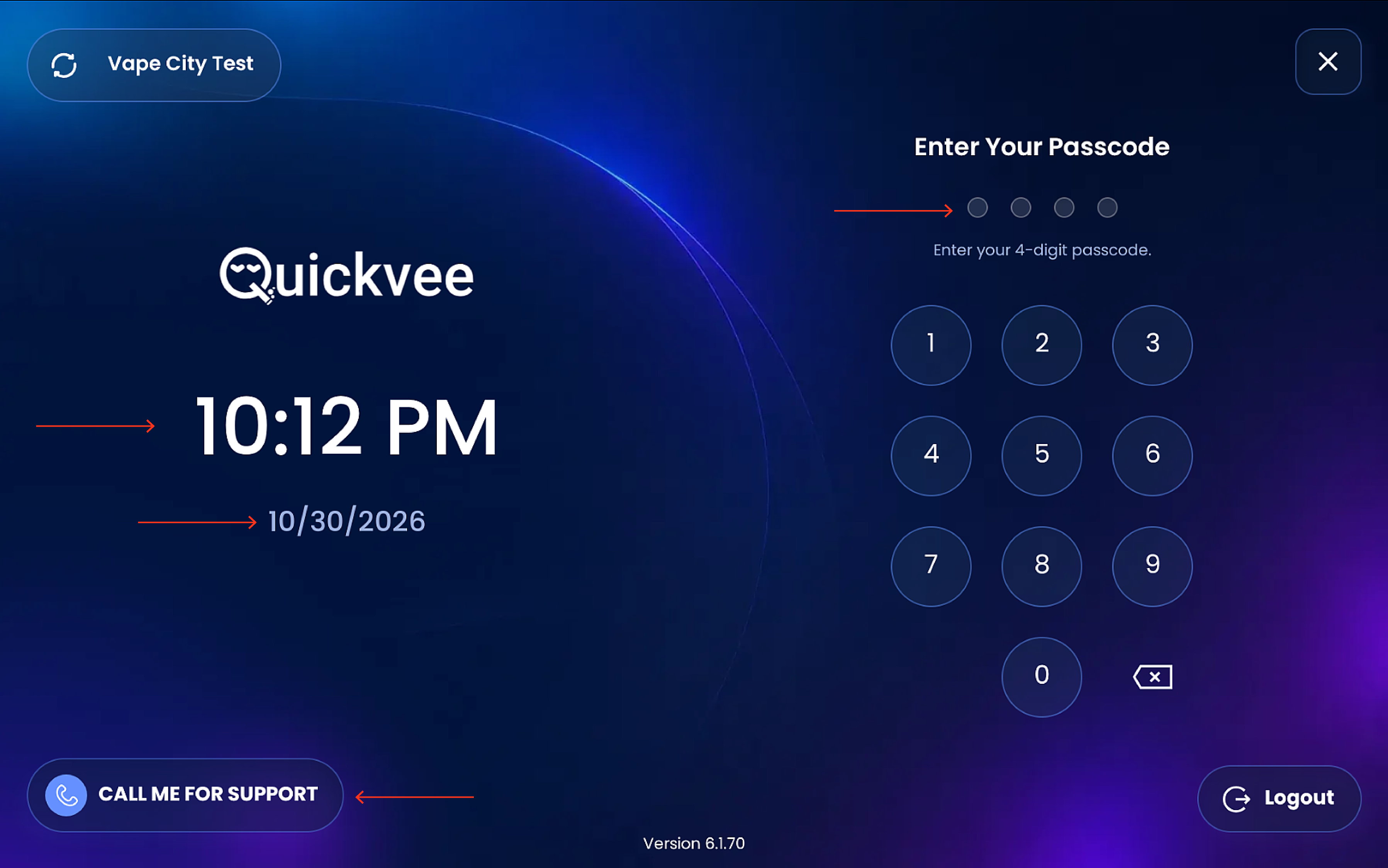
The register immediately locks and displays the Quickvee lock screen
The lock screen displays:
-
The Quickvee logo
-
The current time (e.g. 06:53 PM)
-
The current date (e.g. 04/15/2026)
-
A 4-digit passcode entry pad
-
A Call Me For Support button for immediate assistance if needed
Unlocking the register
-
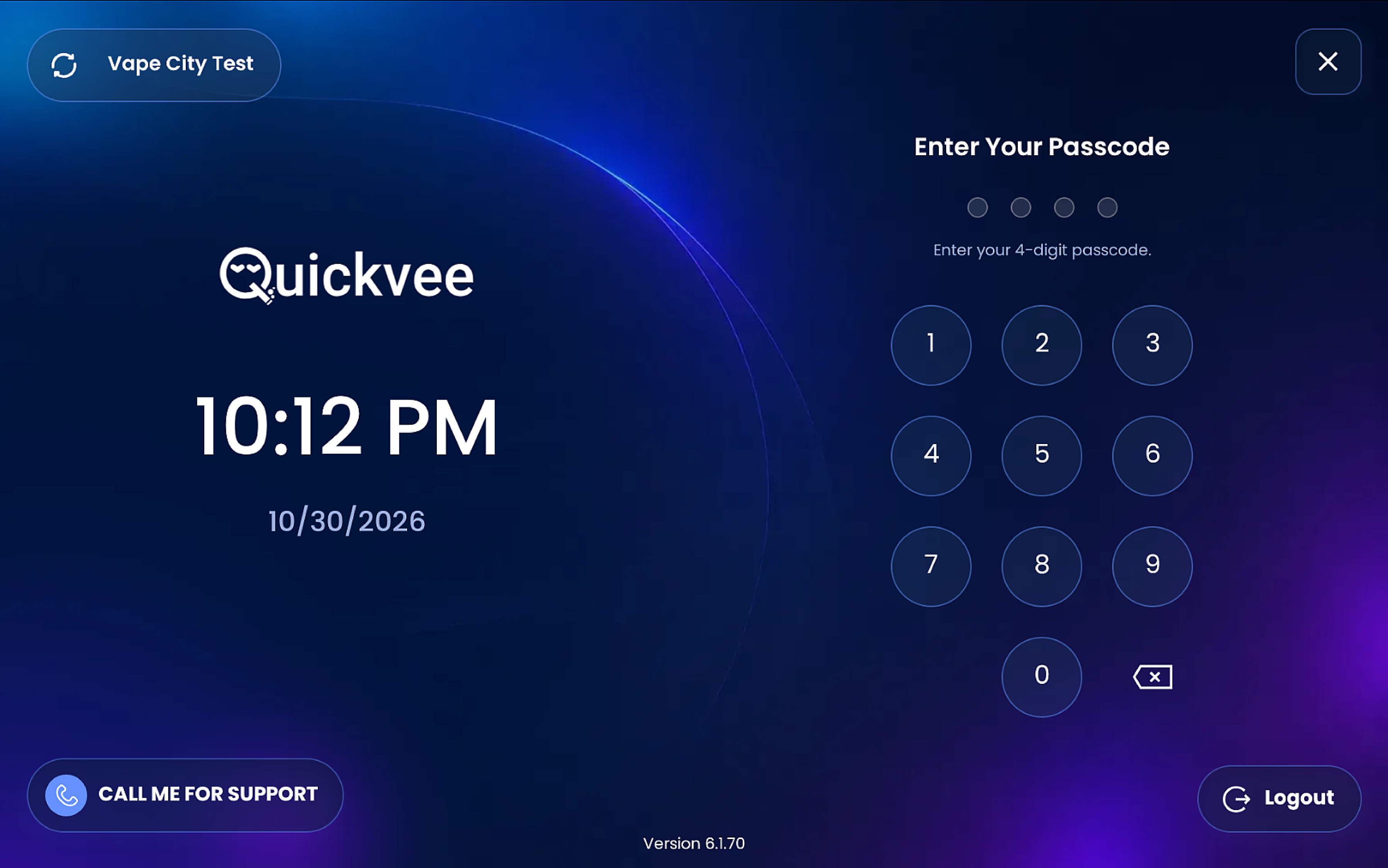
On the lock screen, enter your 4-digit passcode using the on-screen numpad
-
Use the backspace (⌫) key to correct an entry if needed
-
Once the correct passcode is entered, the register unlocks and returns to exactly where it was left — with all cart contents and session data intact
Important notes
Locking the register does not cancel any active cart, held sale, or open transaction — everything is preserved and accessible immediately after unlocking.
The lock is employee-specific — each employee uses their own 4-digit passcode configured in Employee Settings.
The Call Me For Support button on the lock screen connects directly to Quickvee support without requiring the register to be unlocked first.
The refresh icon (↻) in the top-left of the lock screen can be used to reload the application if needed.