
The Taxes section in the Quickvee backend lets merchants create and manage all tax rates applied to products at the register and on online orders. Multiple taxes can be configured — sales tax, service fees, or custom tax types — and assigned to specific products or categories. The order of taxes in the list can be adjusted.
Overview
Access path: Quickvee Backend → Taxes
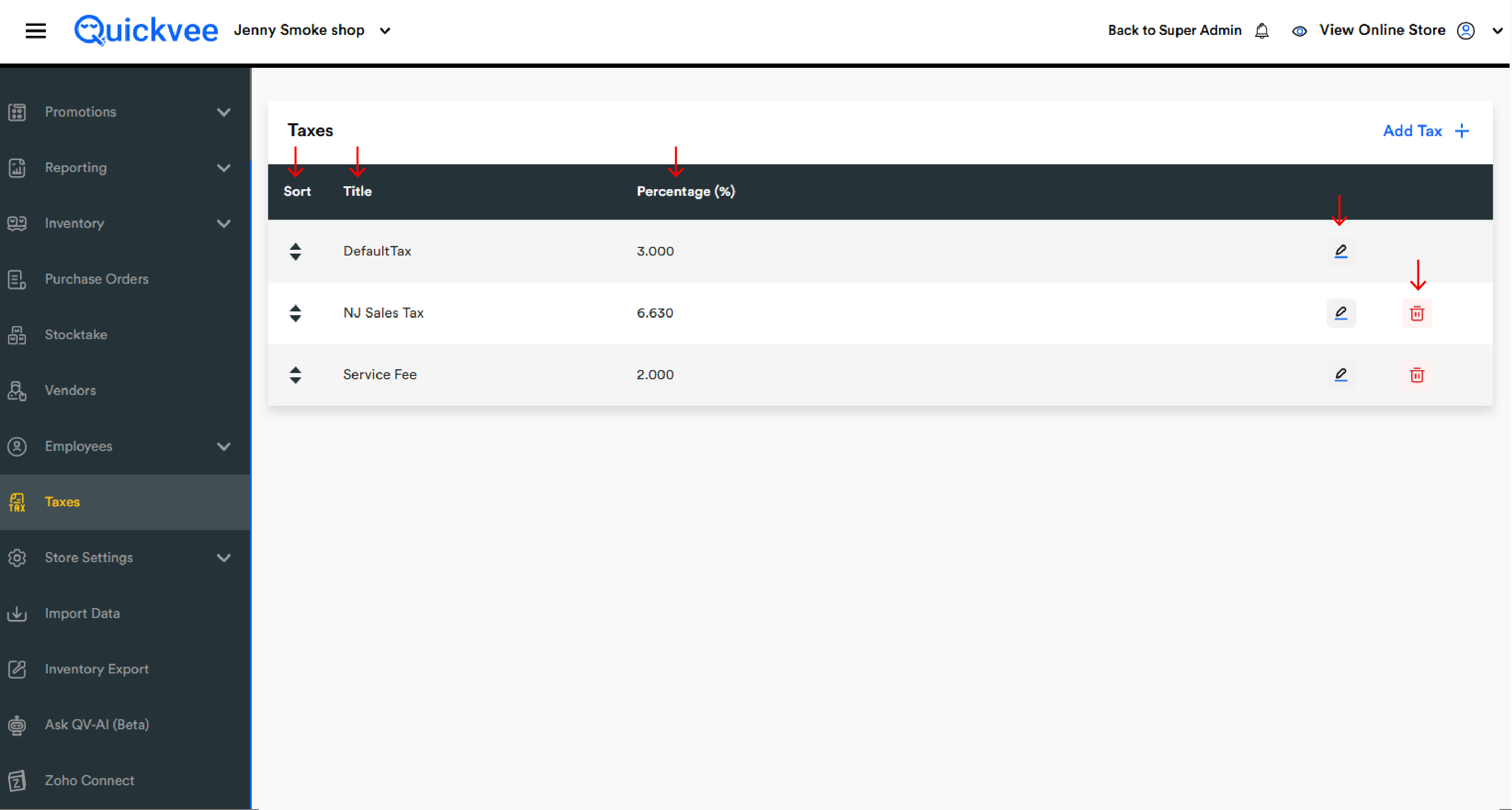
Taxes list
The Taxes page displays all tax rates configured for the store in a table with the following columns:
|
Column |
Description |
|---|---|
|
Sort |
Up/down arrows to reorder the tax in the list |
|
Title |
The name of the tax as it appears on receipts and in reports (e.g. DefaultTax, NJ Sales Tax, Service Fee) |
|
Percentage (%) |
The tax rate applied as a percentage of the taxable amount (e.g. 3.000, 6.630, 8.250) |
|
Edit (✏) |
Opens the tax in edit mode to update its name or rate |
|
Delete (🗑) |
Permanently removes the tax from the store. The DefaultTax cannot be deleted. |
Adding a new tax
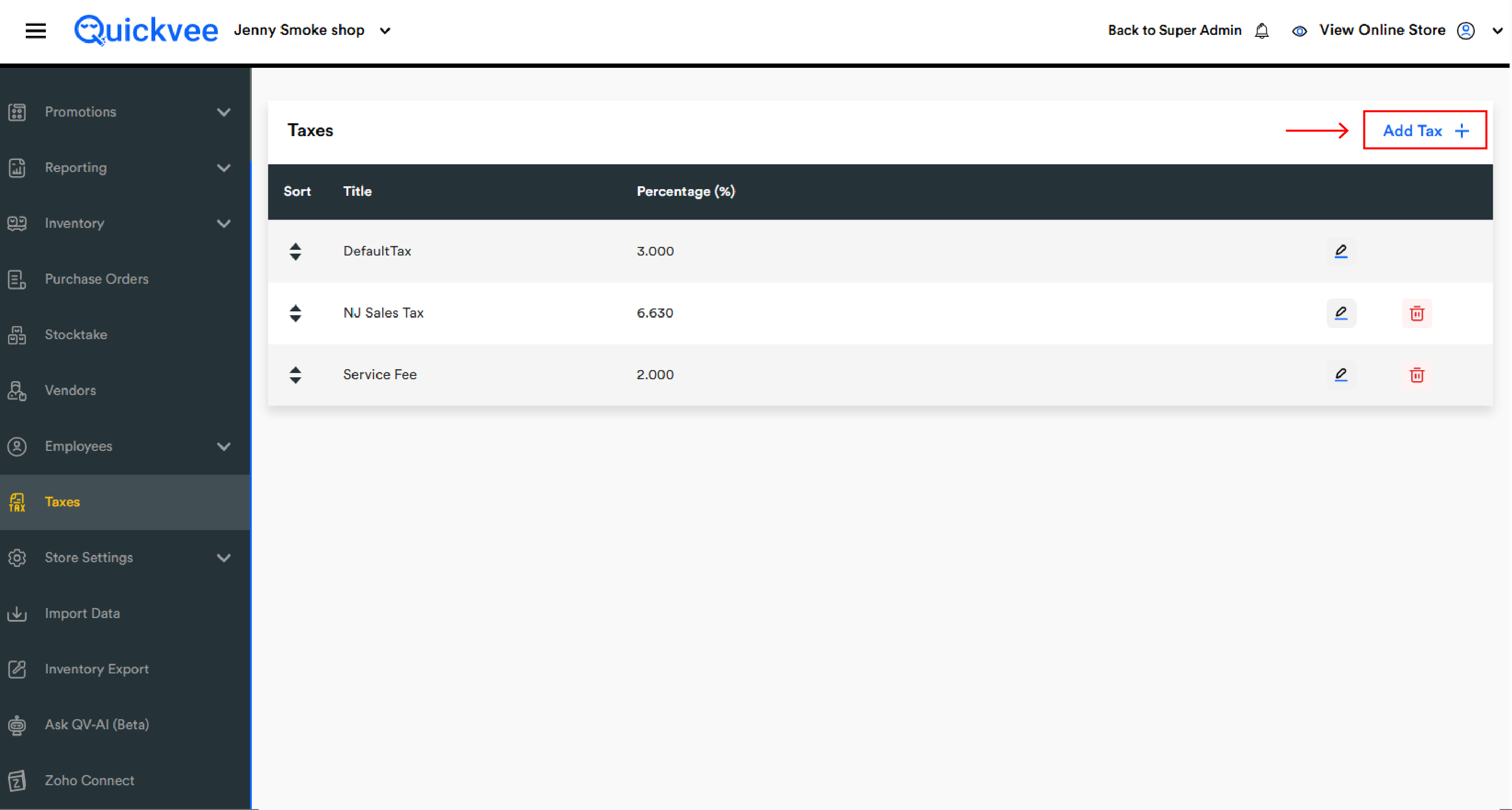
Tap Add Tax + at the top-right of the page to create a new tax rate. Enter the tax name and percentage rate, then save.
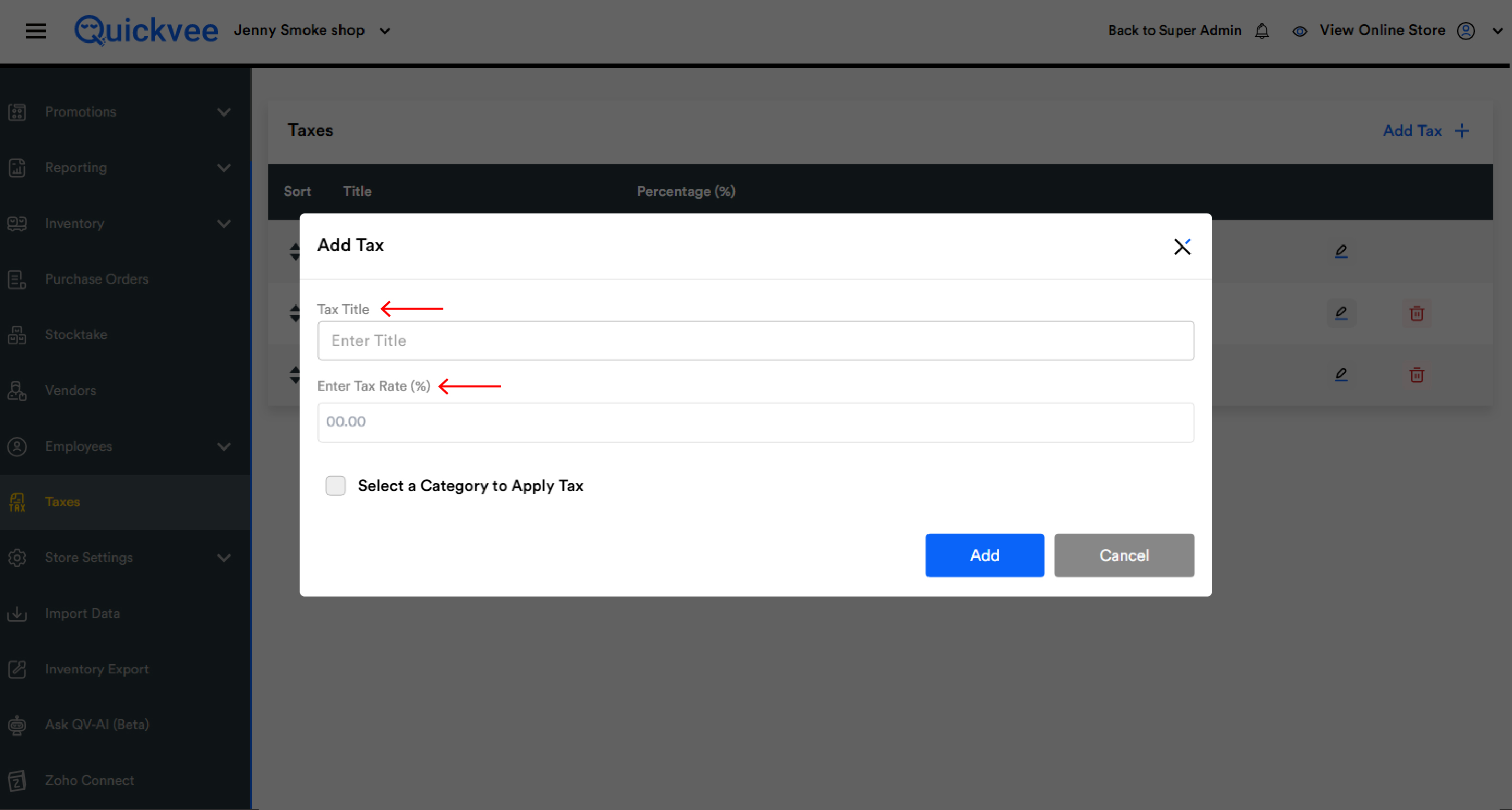
DefaultTax
The DefaultTax is the system default tax applied to all taxable products unless a specific tax has been assigned at the product or category level. It cannot be deleted — only edited to update its rate.
Reordering taxes
Use the Sort arrows on the left of each tax row to change the display order. The order affects how taxes appear in reports and on receipts when multiple taxes are applied to an order.
Important notes
Multiple taxes can be assigned to a single product or category. For example, a product could have both a sales tax and a service fee applied simultaneously. Configure each tax here and then assign them at the product or category level in Inventory.
The DefaultTax applies automatically to any taxable product that does not have a specific tax assigned. Always verify the DefaultTax rate matches your store's primary sales tax rate.
Deleting a tax is permanent. If a tax is deleted that was assigned to products or categories, those products will fall back to the DefaultTax. Review assignments before deleting.