
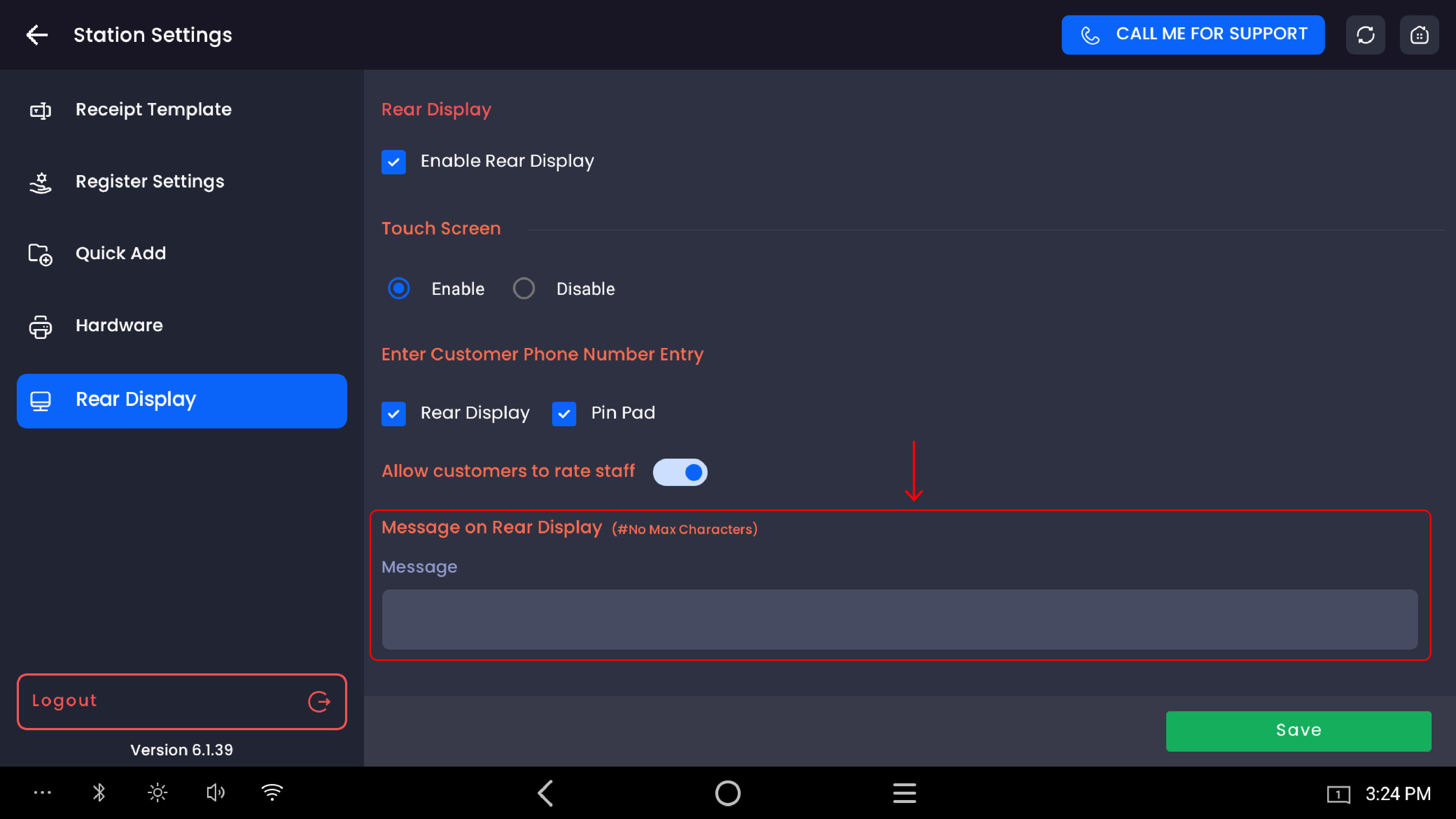
The Rear Display setting controls the customer-facing screen attached to the back of the POS terminal. When enabled, customers can view their cart in real time, enter their phone number to look up loyalty points, apply store credit or rewards, rate the employee after payment, and see a custom message from the store. All rear display settings are configured per station.
Overview
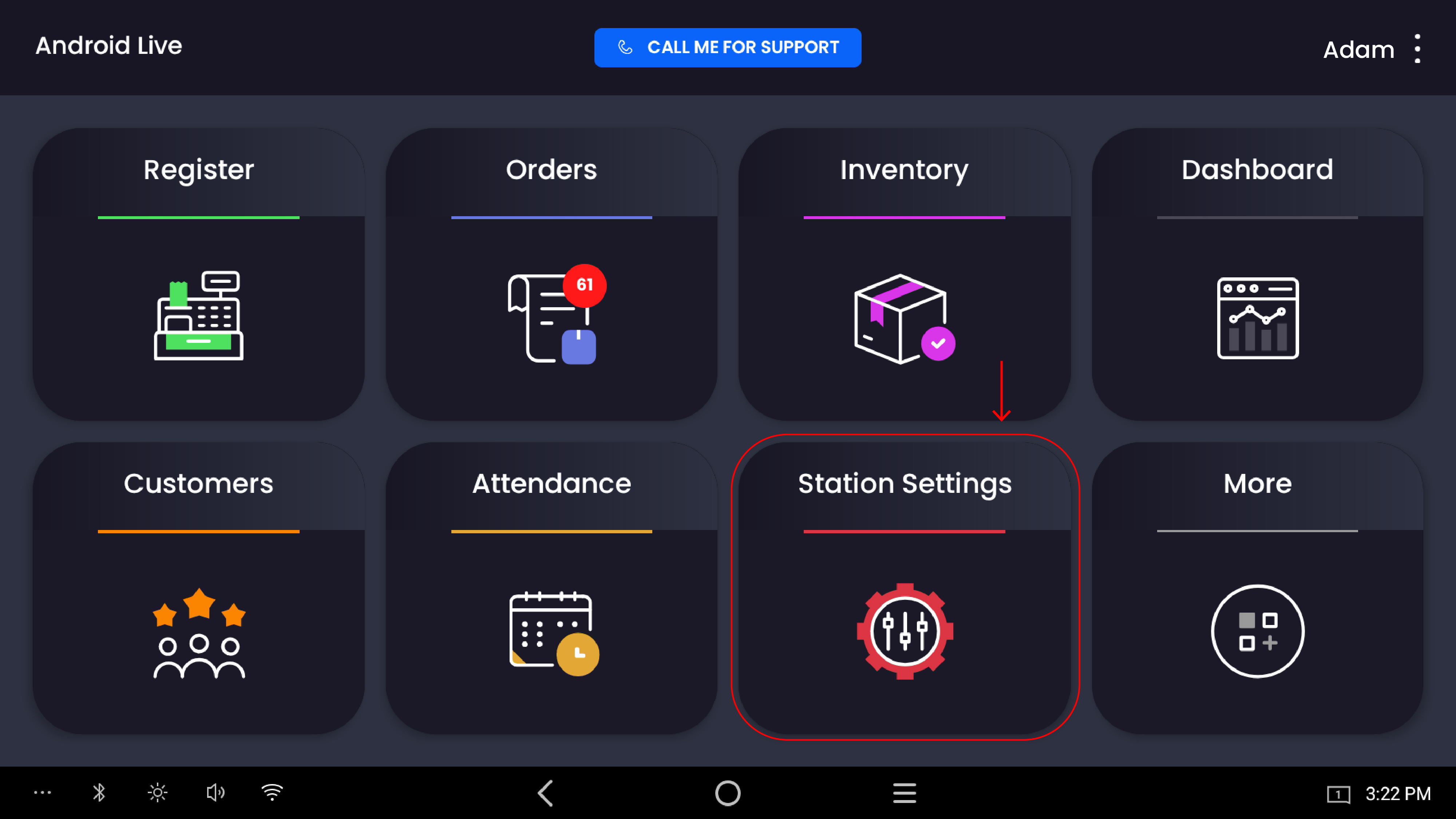
Access path: POS Home → Station Settings → Rear Display
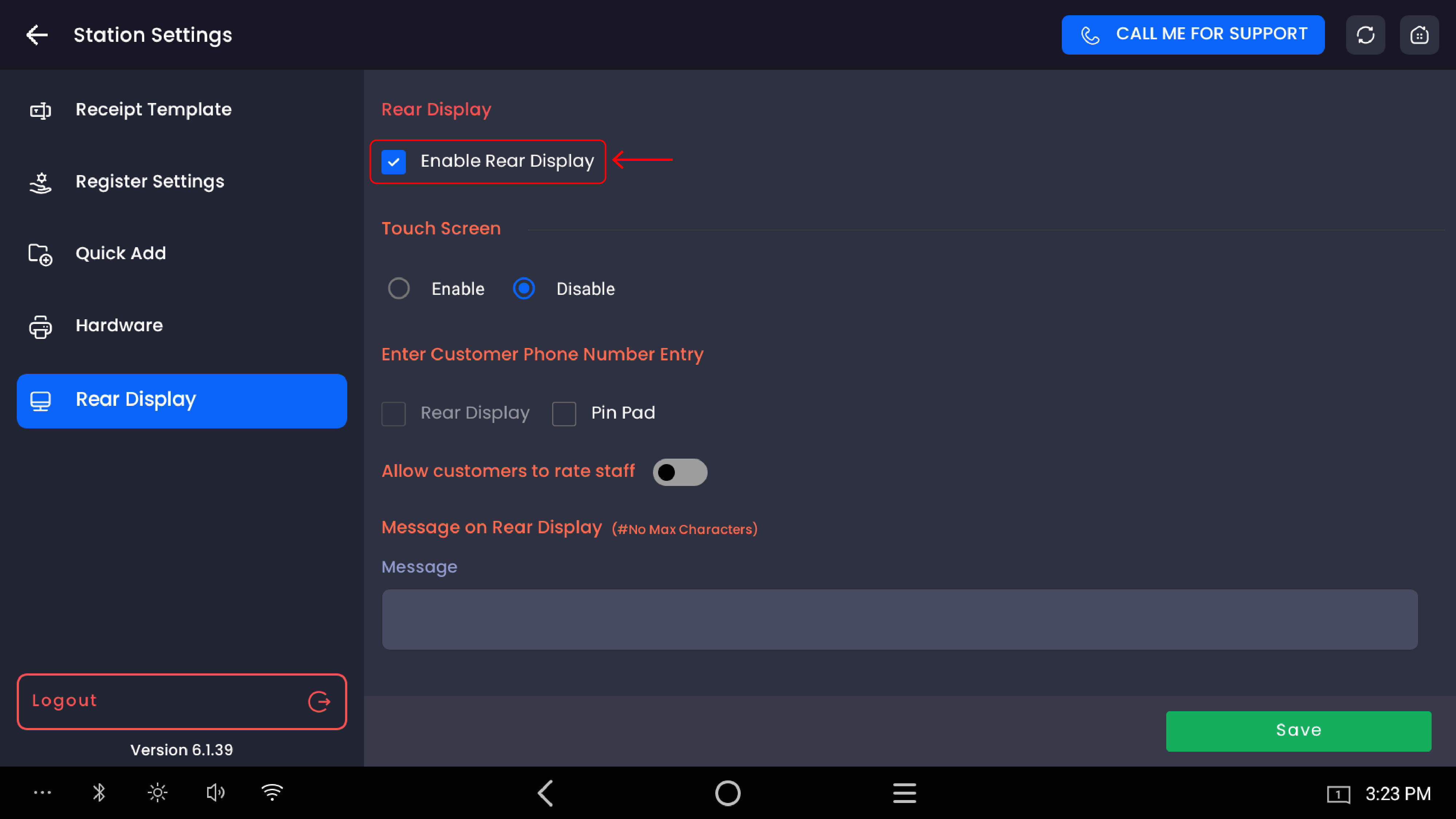
Enable rear display
|
Setting |
Description |
|---|---|
|
Enable Rear Display (checkbox) |
Turns the rear display on or off for this station. When checked, the secondary screen activates and shows the customer-facing interface. When unchecked, the rear screen stays blank and all rear display features are disabled. |
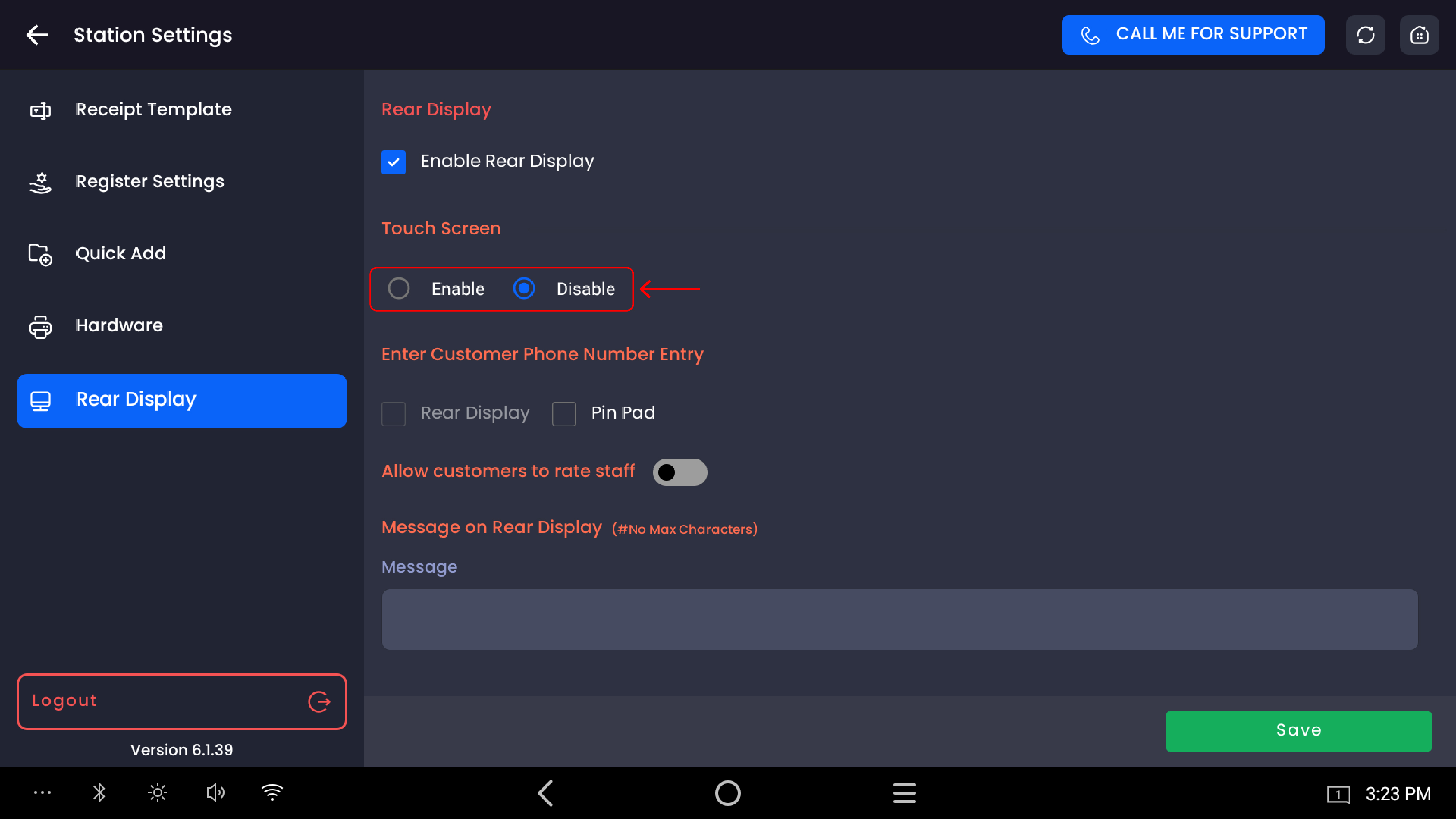
Touch screen
Controls whether the customer can physically interact with the rear display by touching it.
|
Option |
Description |
|---|---|
|
Enable |
Customers can tap the rear display screen directly to enter their phone number, apply loyalty points, apply store credit, and rate staff |
|
Disable |
The rear display is view-only; customers cannot interact with it by touch. Phone number entry and other interactions must happen through the PIN pad instead |
Note: When Touch Screen is set to Disable, ensure the appropriate input method is selected under Enter Customer Phone Number Entry so customers can still look up their loyalty account.
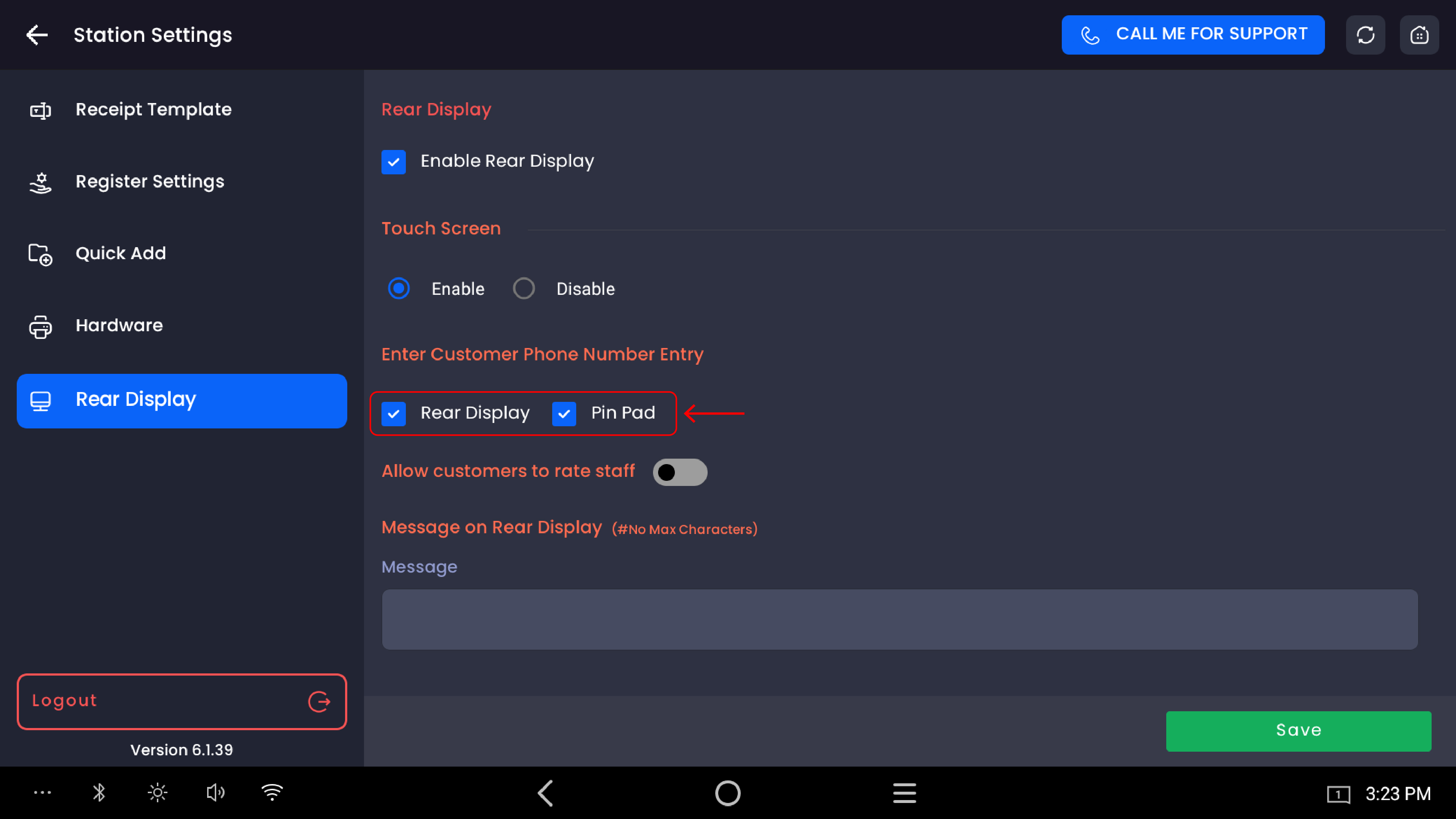
Enter customer phone number entry
Determines where the customer enters their phone number to look up their loyalty account during a transaction.
|
Option |
Description |
|---|---|
|
Rear Display |
Customer types their phone number directly on the rear display touchscreen |
|
Pin Pad |
Customer enters their phone number on the connected PIN pad terminal |
Both options can be enabled at the same time, or only one can be selected depending on the store's hardware setup.
Allow customers to rate staff
|
Setting |
Description |
|---|---|
|
Toggle (On/Off) |
When enabled, a staff rating prompt appears on the rear display after each completed transaction. Customers can rate the employee who served them. When disabled, the rating screen is not shown after payment. |
Note: Staff ratings are recorded and can be viewed in the Employee Rating Report. Each customer can only submit one rating per transaction.
Message on rear display
|
Setting |
Description |
|---|---|
|
Message |
A free-text field for a custom message that displays on the rear screen when no transaction is active — for example, a welcome message, promotion, or store policy. There is no character limit. |
Leave the field blank if no custom message is needed. The message updates on the rear display after tapping Save.
Saving changes
Tap the Save button at the bottom-right to apply all changes. Settings take effect on the rear display immediately after saving — no restart required.
Important notes
Enable Rear Display must be checked for any of the other settings on this screen to have any effect. If the checkbox is unchecked, the rear screen stays blank regardless of other configurations.
Touch Screen and Pin Pad work together. If Touch Screen is set to Disable, make sure Pin Pad is selected under Enter Customer Phone Number Entry — otherwise customers will have no way to look up their loyalty account during checkout.
The custom message appears on the rear display during idle periods when no active transaction is in progress. It resets and reappears automatically after each completed order.
Staff rating only appears after a transaction is fully completed and payment is confirmed. It does not appear during or before payment processing.