
The Coupons module on the Quickvee Merchant Dashboard lets merchants create and manage promotional discount codes that customers can redeem at checkout — both online (storefront) and in-store (POS register). Each coupon can be a flat dollar amount or percentage discount, with optional minimum order thresholds, maximum discount caps, validity dates, and per-customer redemption limits.
Access path: Merchant Backend → Promotions → Coupons
_Merchant%20Dashboard%20%E2%86%92%20Promotions%20%E2%86%92%20Coupons-20260922-091705.jpg?cb=ae831a8373ed6f22db36abf9e38ba139)
Coupons home page
The Coupons page lists all existing coupons for the store as cards. Each card displays:
_Coupons%20Home%20Page-20260922-091553.jpg?cb=18fcf5157ae41b4819f2090a36443bca)
-
Coupon code in a blue pill (e.g.
EMPLYDISCNT,RECHARGE40) -
Discount summary — either
20.00 % OFF on minimum order of $5.00(percentage) or$20.00 OFF on minimum order of $80.00(amount) -
Valid from — start date and expiry date range
-
Max Discount — the maximum dollar amount this coupon can deduct from a single order
-
Edit (pencil icon) — opens the coupon for editing
-
Delete (trash icon) — removes the coupon
The currently selected coupon is highlighted with a blue outline border.
To create a new coupon, click Add New Coupon + in the top-right.
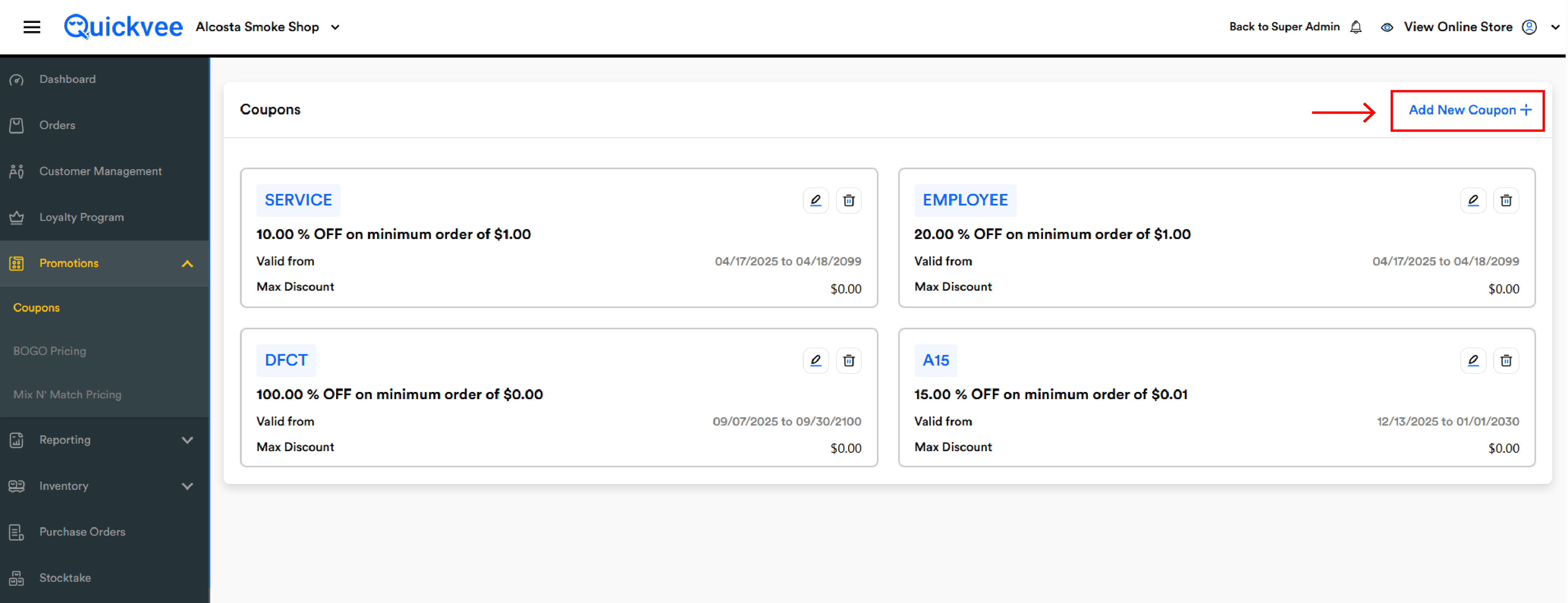
Adding a new coupon
Clicking Add New Coupon + opens the Add Coupons form.
-20260922-092023.jpg?cb=4bcd3cb9cdc94f07f2dc331637cee6ea)
When you create a BOGO, Mix n Match or Coupon with Copy to all stores, the stores you selected are now saved with the promotion. Open the promotion later — to view it or to edit it — and the list of stores it was copied to is shown with the copy option, so you can tell at a glance which locations are running it.
This matters most when you run store-specific offers alongside chain-wide ones: before you edit a copied promotion, you can see exactly which stores received it the first time and select the same set again, instead of guessing and sending the edit to the wrong locations.
List Online toggle
Located at the top-right. When enabled, the coupon is published on the customer-facing online storefront so customers can see and apply it during online checkout. When disabled, the coupon still exists and can be applied manually at the POS register, but is not visible to customers shopping online.
Coupon Code
The redemption code customers enter at checkout (e.g. NEWBIE).
Best practice: Use uppercase, no spaces, and keep it short and memorable. Codes are case-insensitive at checkout but display in uppercase on the storefront.
Description
A short text description used for internal reference and may be displayed alongside the coupon on the storefront. Example: "Only for new customers".
Minimum Order Amount
The minimum cart subtotal required for the coupon to apply. The field is prefixed with a $ sign.
If the customer's cart subtotal is below this amount, the coupon will not apply at checkout.
Discount Type Selector — Amount ($) / Percentage (%)
Two side-by-side buttons that determine how the discount is calculated. The label of the field next to it changes:
|
Selected Type |
Field Label |
Field Behavior |
|---|---|---|
|
Amount ($) |
Discount Amount |
Enter a flat dollar value (e.g. |
|
Percentage (%) |
Discount Percentage |
Enter a percentage (e.g. |
Switching between types is allowed even after the coupon has been created — edit, click the other button, enter the new value, and save.
Maximum Discount Amount (Percentage type only)
This field appears only when the discount type is Percentage (%). It caps the total dollar value the coupon can deduct from a single order.
Example: 20% off with Maximum Discount Amount of $20.00, customer's cart is $200 → discount applied is $20.00 (the cap), not $40.00 (raw 20% calc).
Setting this field is recommended for any percentage coupon to protect against unintended large discounts on high-value orders.
Start Date / Expire Date
Calendar date pickers defining the valid window for the coupon. The coupon will only apply between these two dates (inclusive). Both default to today's date and a far-future expiry.
Enable Redemption Limit? toggle
When enabled, an additional Redemption Limit field appears.
Redemption Limit
The maximum number of times a single customer can use this coupon. Default is 1.
Per-customer limit, not store-wide. Setting this to 1 means each customer can use the coupon once, but multiple different customers can each use it once. If the toggle is disabled, customers can use the coupon unlimited times.
Add / Cancel
-
Add (blue) — saves the coupon and returns to the Coupons list
-
Cancel (grey) — discards changes
Editing a coupon
Click the pencil icon on any coupon card. The same Add Coupons form opens, pre-populated. Make your changes and click Add to save (the button label remains "Add" even when editing).
You can switch a coupon between Amount and Percentage modes during editing — the form updates accordingly.
-20260922-092206.jpg?cb=7231d4f27733d9e573caa7e0c2fbf1b2)
Deleting a coupon
Click the trash icon on any coupon card. The coupon will be permanently removed.
-20260922-092302.jpg?cb=24d7f6bfaf004499f927aa5d3f78a054)
Deleted coupons stop applying immediately at the POS, on the storefront, and in any active customer carts. There is no recovery — re-create the coupon if needed.
How coupons apply
|
Channel |
Behavior |
|---|---|
|
Online Storefront |
Customers see eligible coupons (those with List Online enabled) and can apply during checkout by entering the code |
|
POS Register |
Cashiers apply coupons by tapping the Coupons button on the register. Coupons with List Online disabled are still applicable at the POS |
|
Order details |
The coupon name appears in Order Details and on the Discount per Employee Report |
Coupon stacking is not supported — only one coupon can be applied per order on the POS register today. (Multi-coupon support is being researched.)
Coupon order with other discounts: When both a coupon and an item discount are present, the coupon is applied to the cart subtotal before the item discount is calculated.
Important notes
Maximum Discount Amount is only for Percentage coupons. When you switch to Amount mode, the Maximum Discount Amount field is hidden because the flat dollar amount serves as the cap.
Currency symbols in fields. All dollar amount fields display with a $ prefix. The Discount Percentage field does not display a % — enter the number only (e.g. 10.00 for 10%).
Date format. Dates display as MM/DD/YYYY throughout the Coupons module.
List Online vs Show Online. Older versions had two separate visibility toggles which caused confusion. The interface now uses a single List Online toggle.
Redemption Limit toggle behavior. When OFF, the limit field is hidden — customers can redeem unlimited times. When ON, the limit applies per customer (default 1).
Tax calculation with coupons. Tax is calculated on the original cart subtotal before the coupon discount is applied. The coupon reduces the post-tax total but does not reduce the taxable amount.
Hold/Resume orders. Coupons applied to a held POS sale are preserved when the sale is resumed.
Disabling a coupon mid-day. If you delete a coupon while customers have it in their cart, it stops applying on the next refresh — but already-completed orders that used the coupon remain unaffected.