
Item Coupons are product-level discounts, instead of taking money off the whole order like an Order Coupon, they discount specific items in the cart. The Coupons page in the web backend manages both types side by side: the Order Coupon tab holds your order-total offers, and the Item Coupon tab is where product-level coupons live.
Where to find it
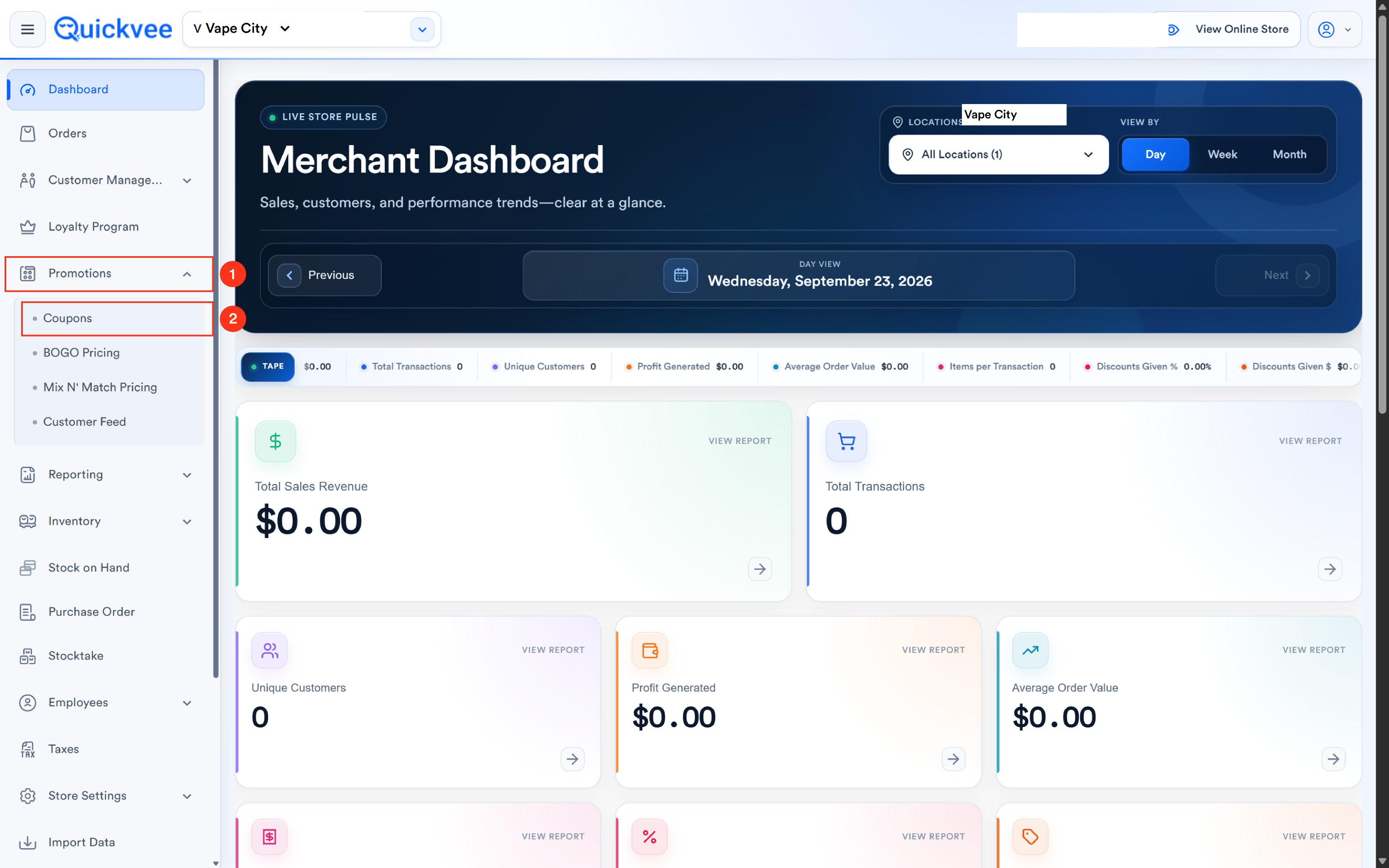
From the web backend, open Promotions → Coupons. Two tabs sit at the top of the page, select Item Coupon, then Add Item Coupon + to create one.
The two kinds of item coupon
The first choice on the form defines what the coupon touches:
|
Type |
What it does |
|---|---|
|
Universal Coupon |
Applies to any item in the cart, across your entire inventory. The customer picks what it discounts by what they buy. |
|
Specific Item Coupon |
Valid only on the item(s) you select. Everything else in the cart is unaffected. |
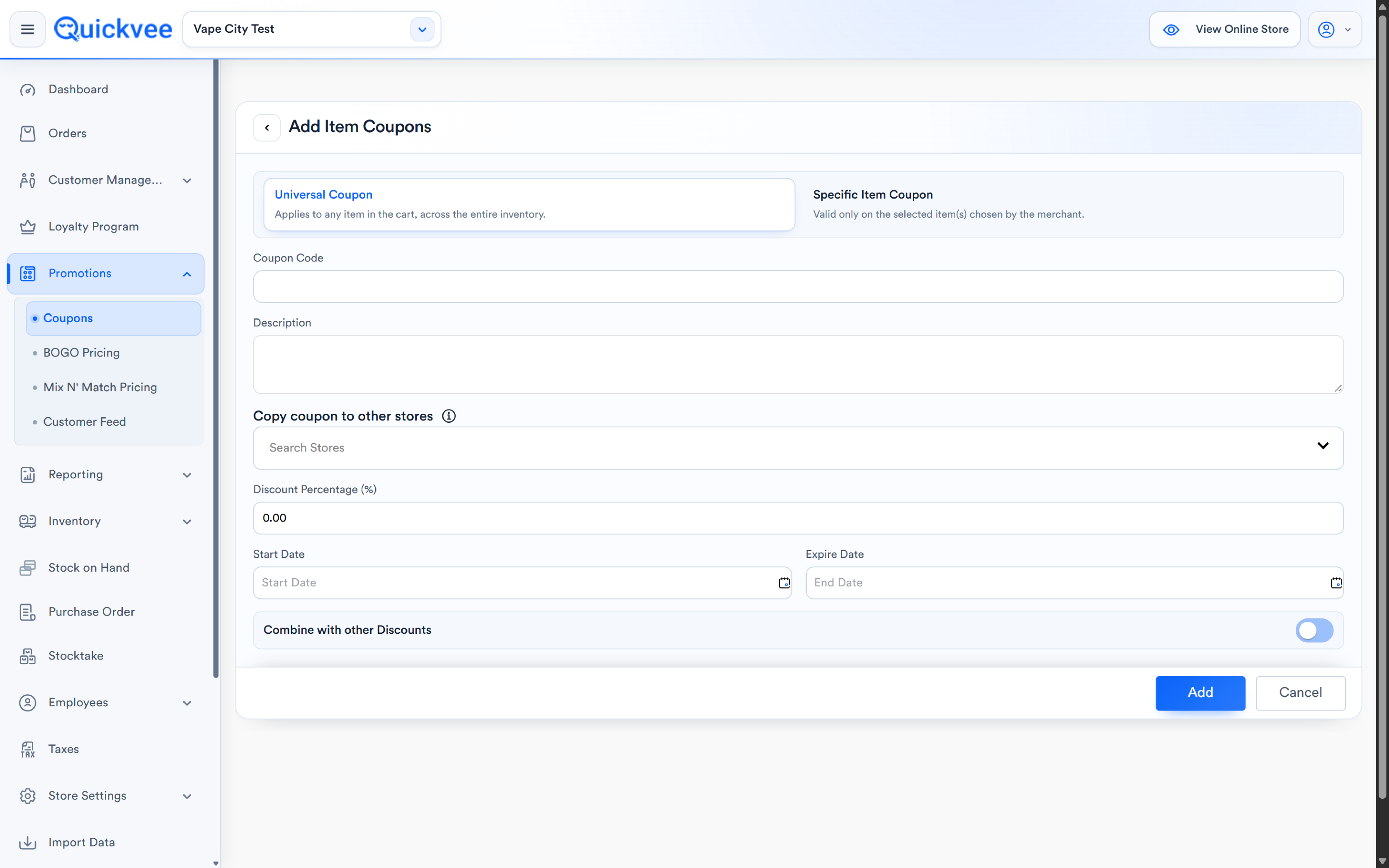
Use Universal for storewide item-level offers ("50% off any one item"), and Specific for targeted promotions, moving a slow SKU, supporting a brand promo, or discounting a product line without touching your margins anywhere else.
Creating an item coupon
-
On the Item Coupon tab, select Add Item Coupon +.
-20260722-070231.png?cb=bf9371175ca17134007fd993f9596603)
-
Pick the coupon type, Universal or Specific Item.
-20260722-070559.png?cb=63c27643aff1610ca0d42ba42e36245e)
-
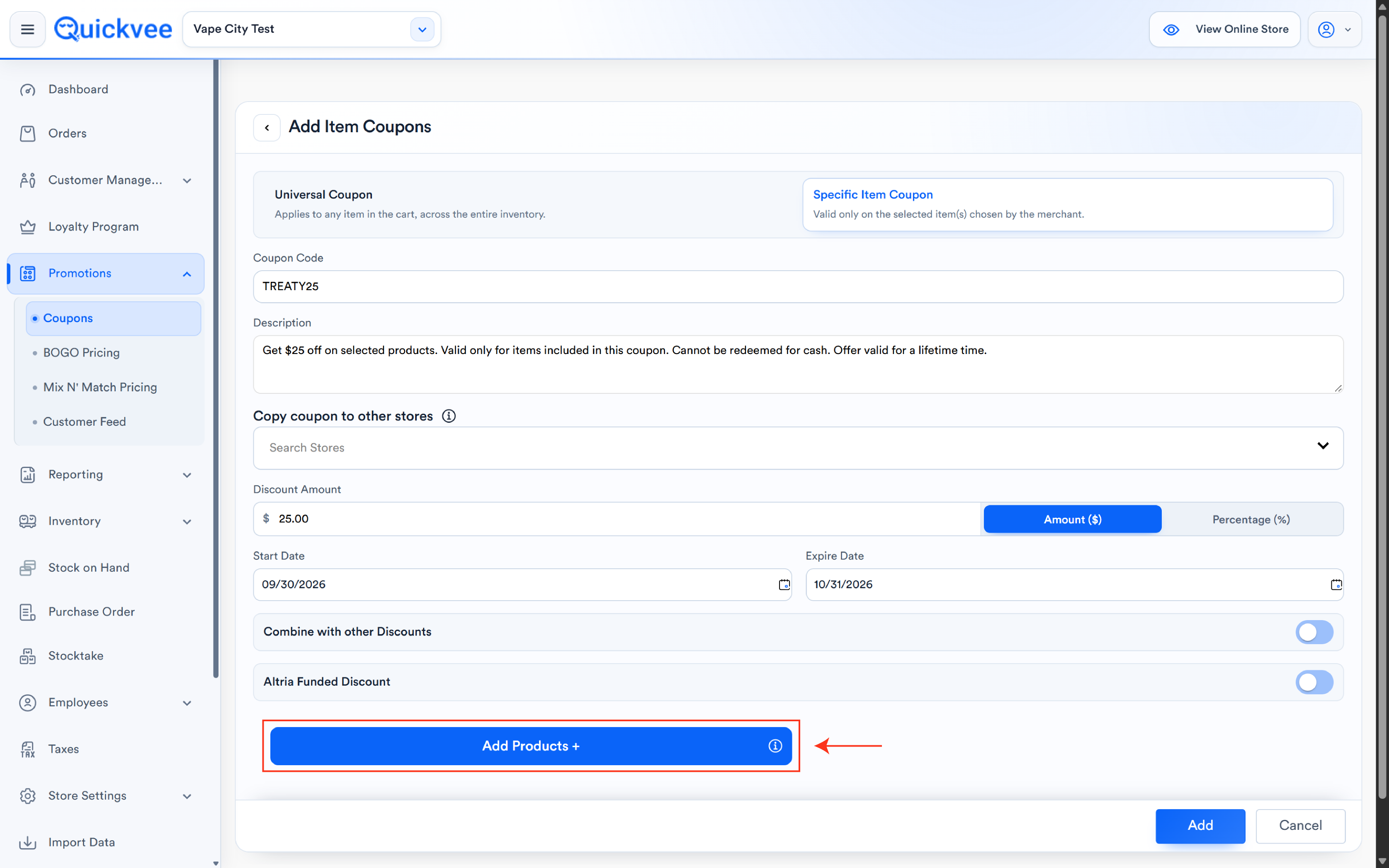
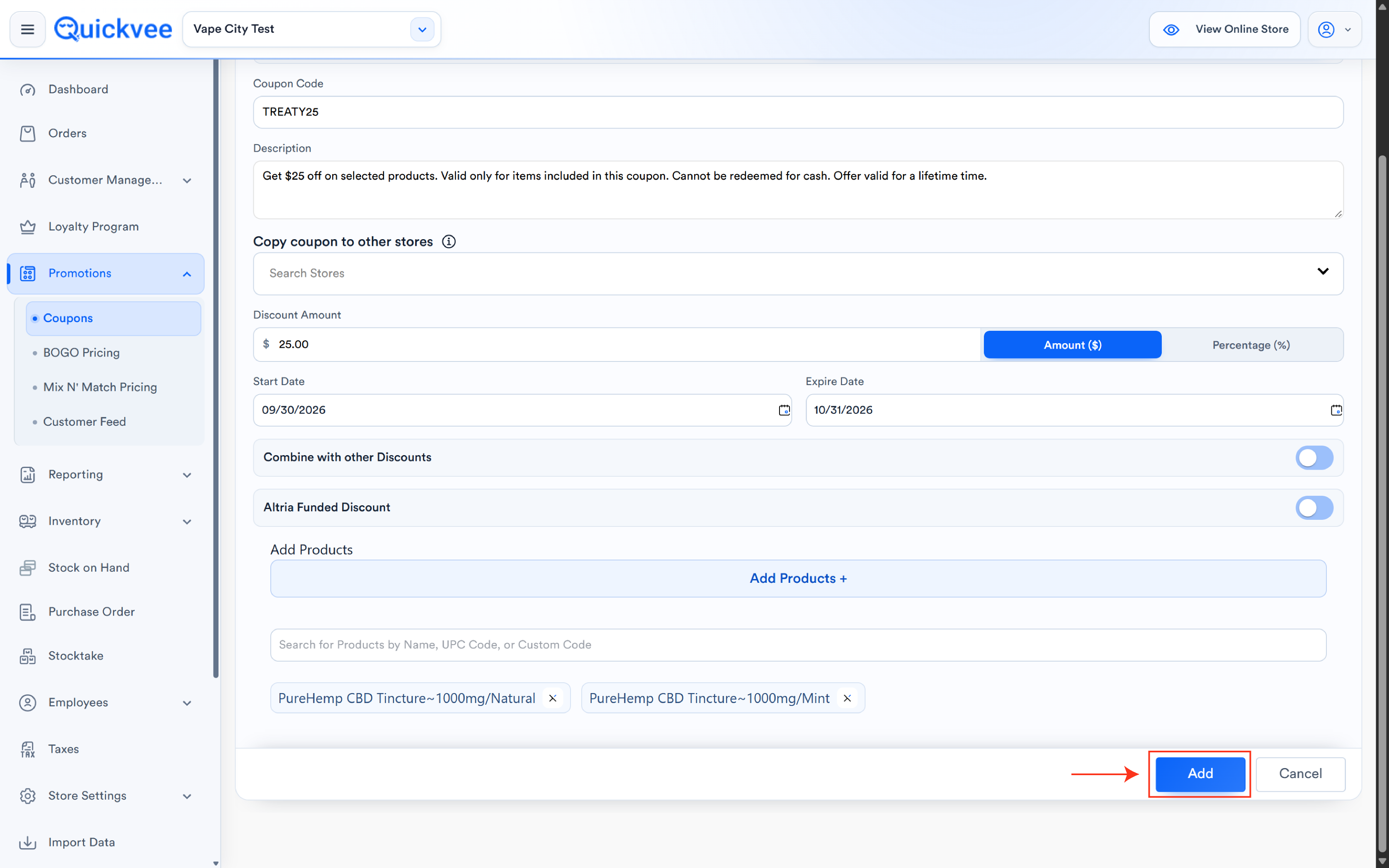
Fill in the details:
|
Field |
Notes |
|---|---|
|
Coupon Code |
The code customers use (e.g. TESTWWW). Locked after creation, the code can't be changed on edit. |
|
Description |
Internal note describing the offer. |
|
Discount |
Toggle between Amount ($) and Percentage (%). Enter the value for the mode you pick. |
|
Maximum Discount Amount |
Appears in Percentage mode, caps the dollar value of the discount. A 50% coupon capped at $100 never gives away more than $100, no matter how big the item. |
|
Start Date / Expire Date |
The coupon's validity window. |
|
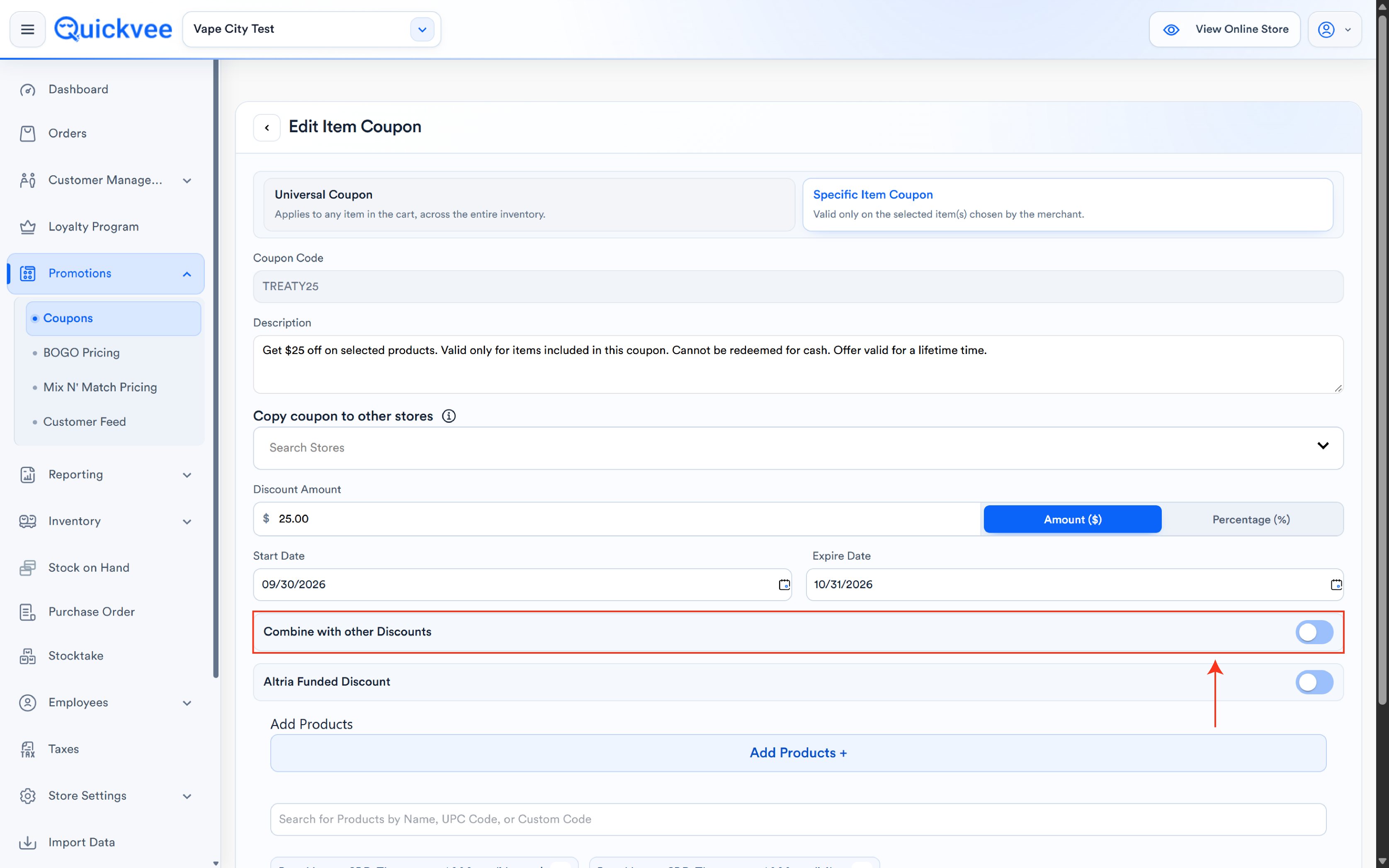
Combine with other Discounts |
Toggle controlling whether this coupon can stack with other active discounts, or must be the only offer applied. |
-
For a Specific Item Coupon, attach the products (next section).
-
Select Add to create the coupon. It appears as a card on the Item Coupon tab with its code, type, and validity dates.
⚠️ Important. Always set a Maximum Discount Amount on percentage coupons. It's the difference between "50% off, up to $100" and an uncapped 50% off a $2,000 basket item. The cap is your safety rail.
Attaching products (Specific Item Coupons)
Two ways to build the product list:
Quick search. Type directly in the Add Products search bar, by product name, UPC code, or custom code. Selected products appear as removable chips; the X on a chip detaches it.
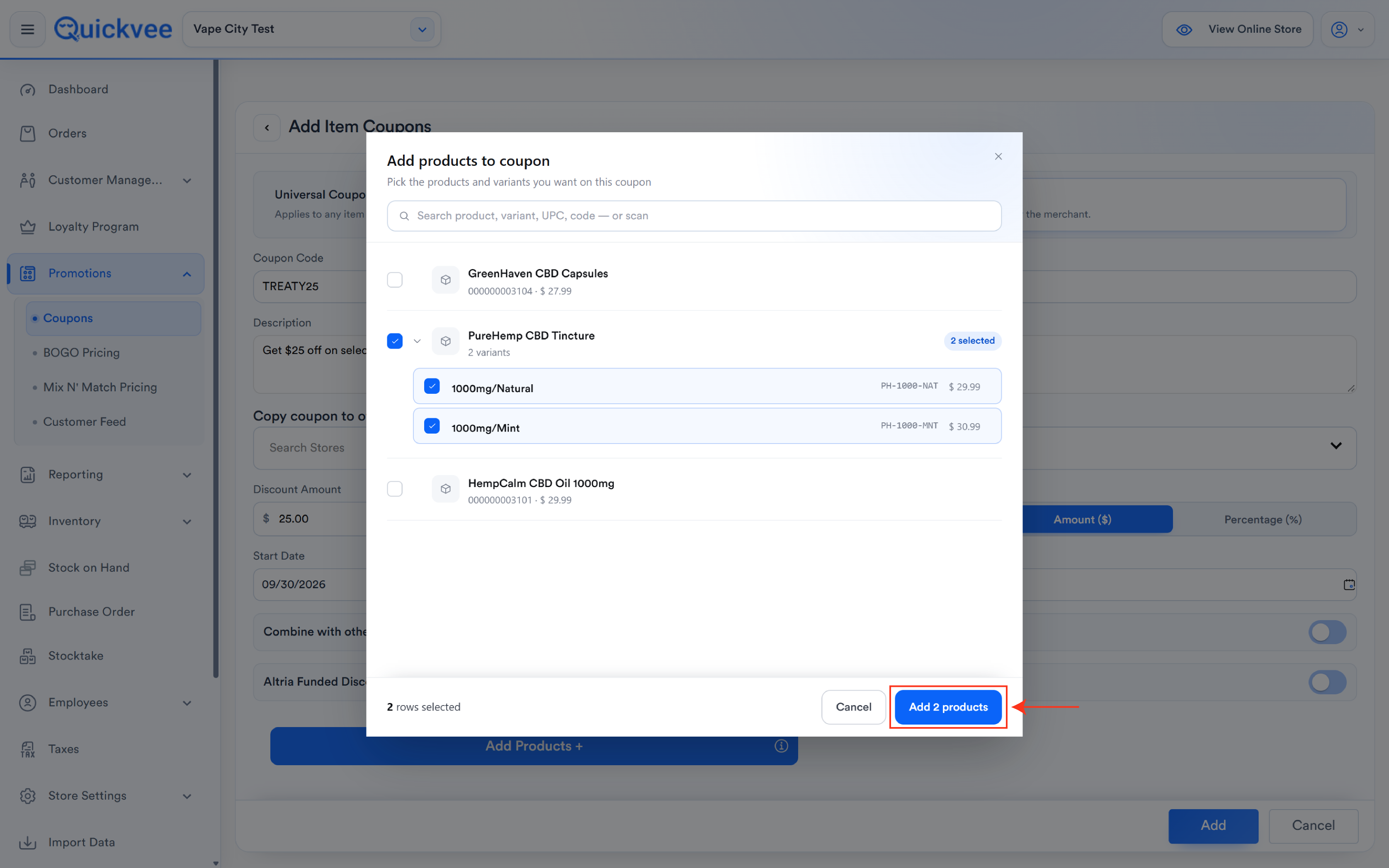
The product picker. Select Add Products + to open the full catalog modal:
-
Search by product, variant, UPC, or code, or scan a barcode.
-
Tick the products you want; each row shows its code and price, and marks selections with a "1 selected" badge.
-
The footer keeps count, how many rows are selected and how many are already attached to the coupon, so you can't double-add.
-
Confirm with the Add products button, which states exactly how many will be attached.
💡 Tip. The picker works at the variant level, you can put a coupon on the Grape 5% variant without discounting the whole product family. Precision here is what keeps a targeted promo from bleeding into full-price stock.
Editing an item coupon
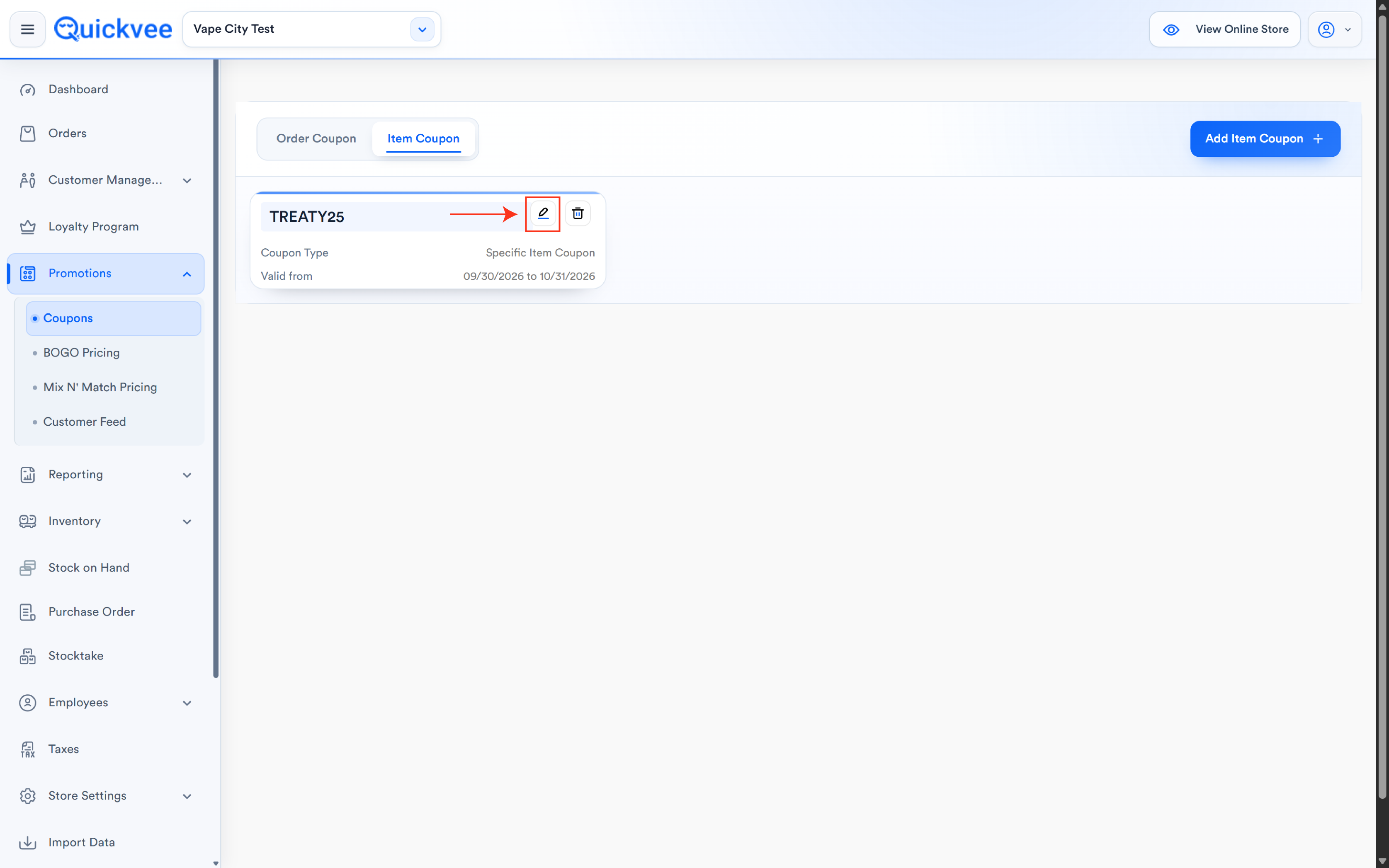
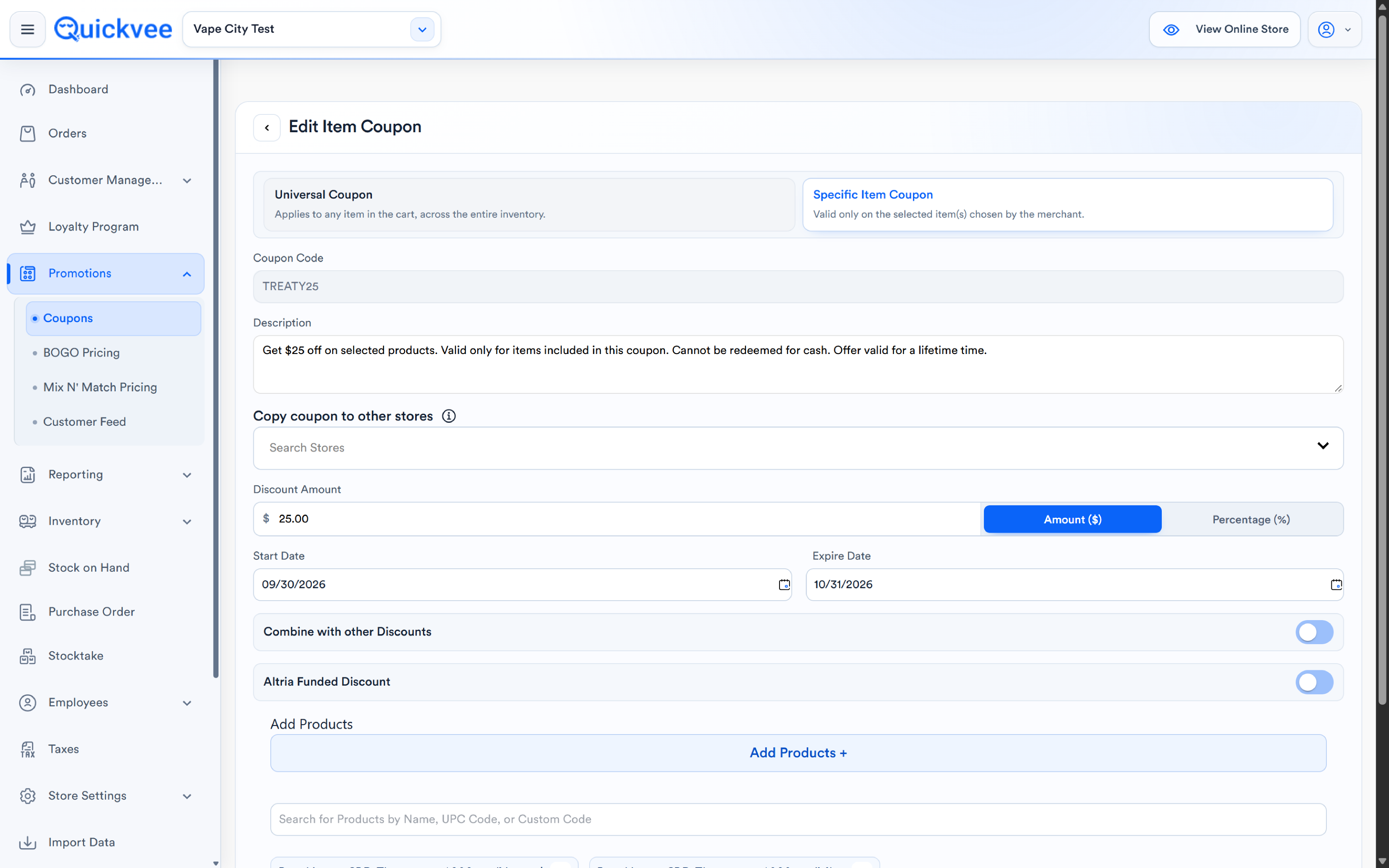
Select the pencil on any coupon card. Everything is editable except the coupon code, which stays locked to protect the code your customers already have, change dates, discount value, the max cap, the combine toggle, or the attached product list, then Save.
Deleting an item coupon
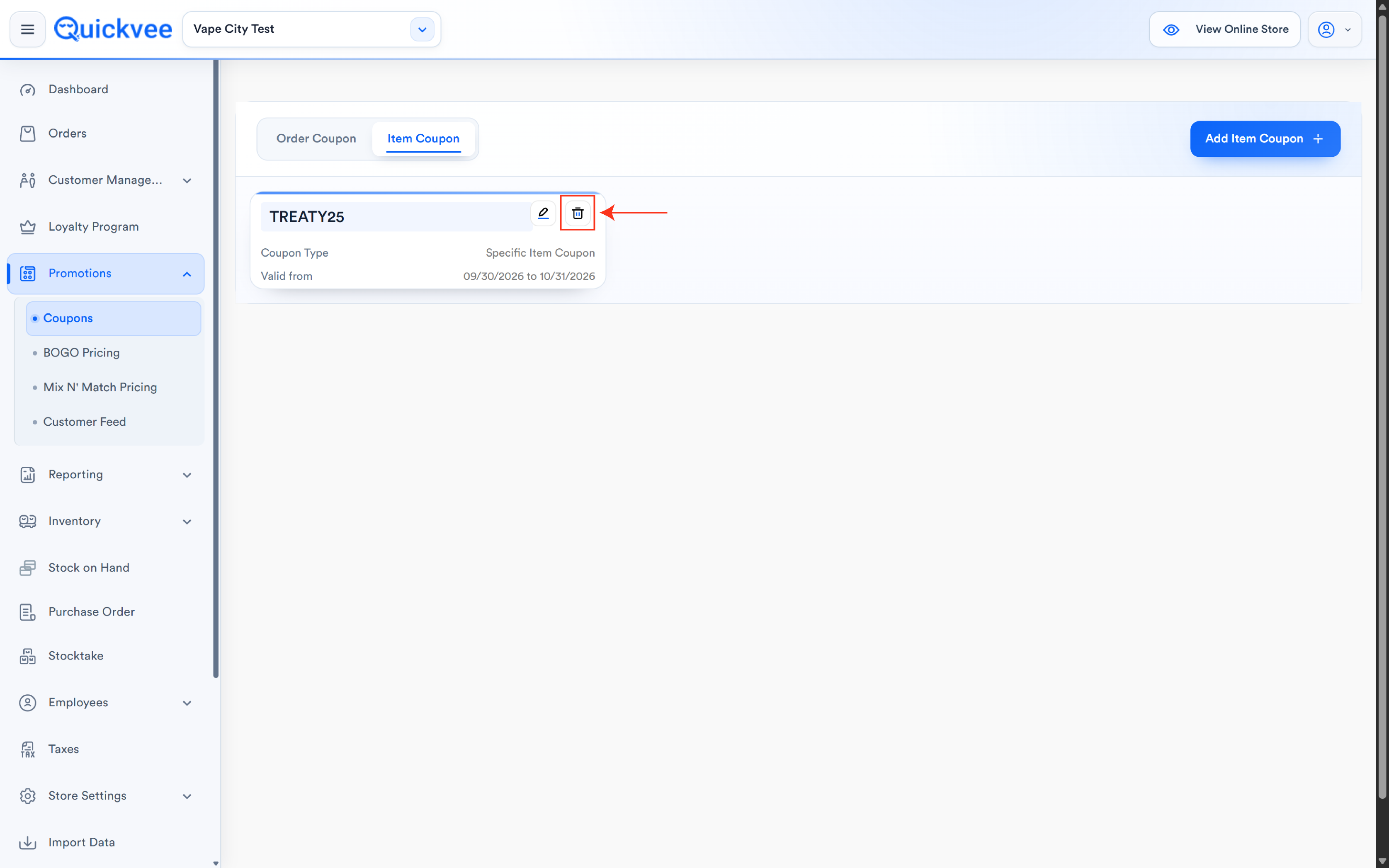
Select the trash icon on the coupon card and confirm. To end an offer early without deleting its history, editing the expiry date to today is the gentler option.
Combine with other discounts, what it means
With the toggle on, this coupon can be applied alongside other active offers (order coupons, automatic deals). With it off, the coupon is exclusive, it won't stack. Default to off for aggressive percentage offers; stacking a 50% item coupon on top of other discounts is how a promo quietly goes underwater.
Order coupons vs. item coupons at a glance
|
|
Order Coupon |
Item Coupon |
|---|---|---|
|
Discounts |
The order total |
Specific item(s) in the cart |
|
Typical shape |
"$10 off a $100 order" |
"50% off any item" / "50% off these products" |
|
Minimum order |
Yes, built around a minimum spend |
No minimum-spend concept |
|
Targeting |
The whole basket |
Universal (any item) or merchant-selected items/variants |
|
Managed from |
Order Coupon tab |
Item Coupon tab |
Common questions
Q. Why can't I change the coupon code when editing?
A. The code is the coupon's identity, customers may already have it on flyers, texts, or receipts. Locking it prevents a silent rename from stranding a live promotion. Need a different code? Create a new coupon and expire the old one.
Q. What happens if the cart has three of the eligible items?
A. The coupon applies per its discount rules against eligible items, pair a percentage discount with a Maximum Discount Amount so multi-quantity carts can't stretch the offer beyond what you intended.
Q. Can a coupon target one variant of a product?
A. Yes, the product picker selects at the variant level, so a single flavor or strength can carry the offer alone.
Q. What's the difference between a Universal Item Coupon and an Order Coupon?
A. A Universal Item Coupon discounts an item, any item, with no minimum order. An Order Coupon discounts the order total and is built around a minimum spend. "$5 off any item" versus "$5 off when you spend $10."
Q. Where do the old coupons live?
A. The legacy coupon module remains available under Old Coupons in the Promotions menu during the transition. New coupons should be created here.
Related
See Coupons (order coupons) for the sibling Order Coupon tab, BOGO offers, Mix n Match, and Manage promotions in the web backend for the rest of the Promotions module.