A split payment allows a customer to pay using multiple payment methods in a single transaction. Quickvee supports Cash, Debit, Credit, Cash EBT, Food EBT, Loyalty Points, and Store Credit, all of which can be combined.
📝 Step-by-Step Guide
1️⃣ Start the Transaction
-
From the Lock Screen, enter your 4-digit PIN access code.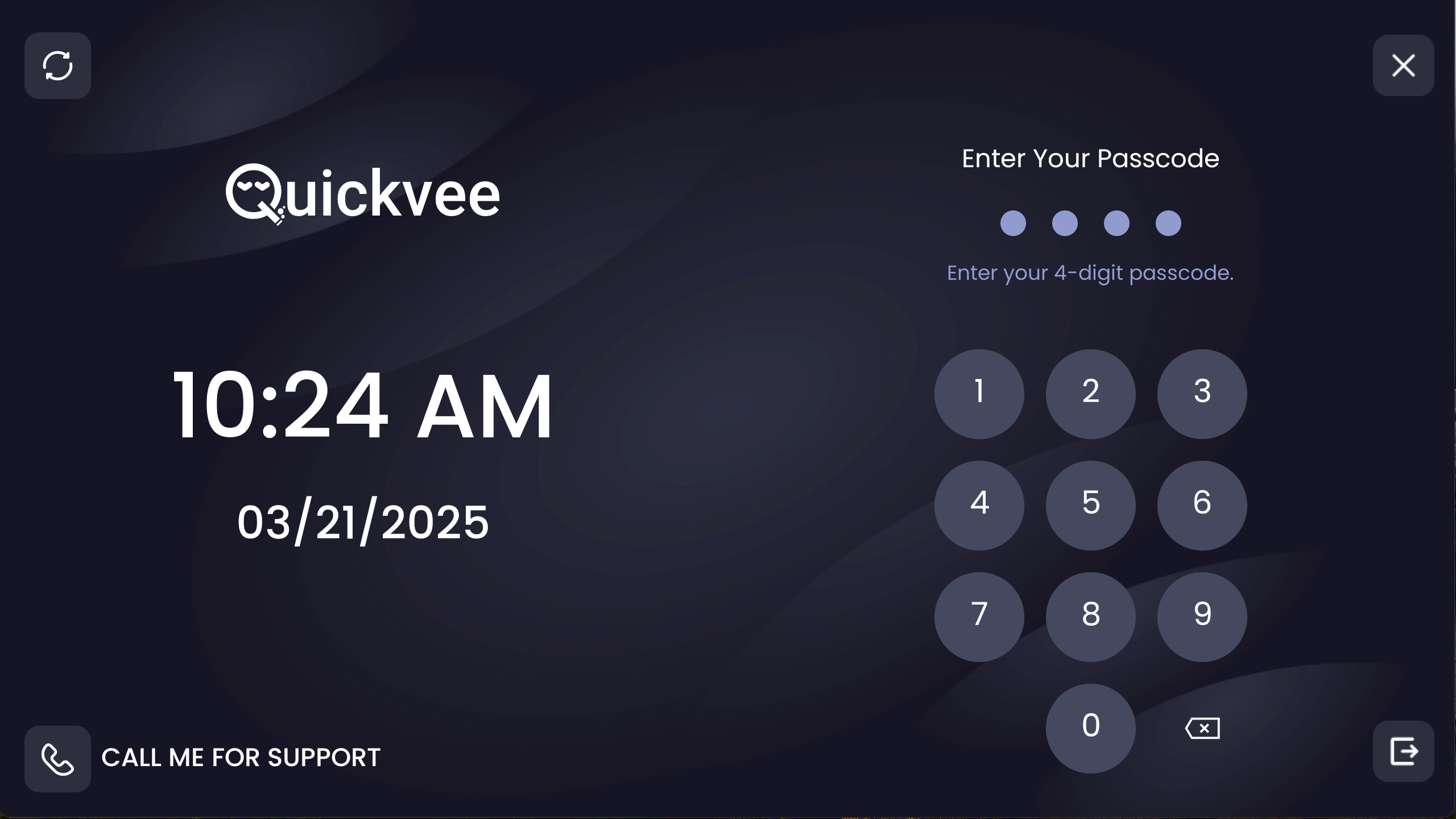
-
Tap Register from the Quickvee Home Screen.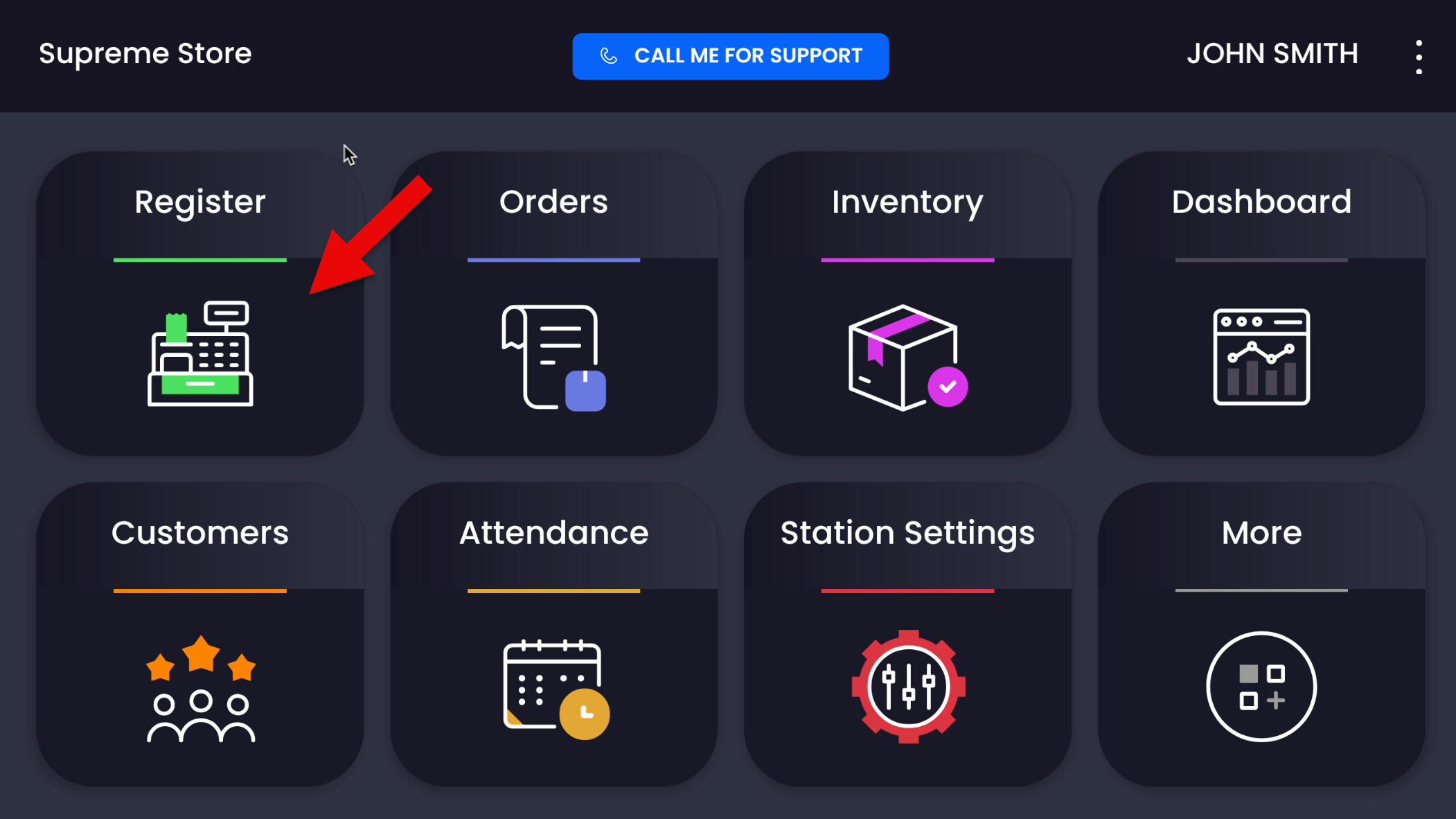
-
Add the customer’s items to the cart.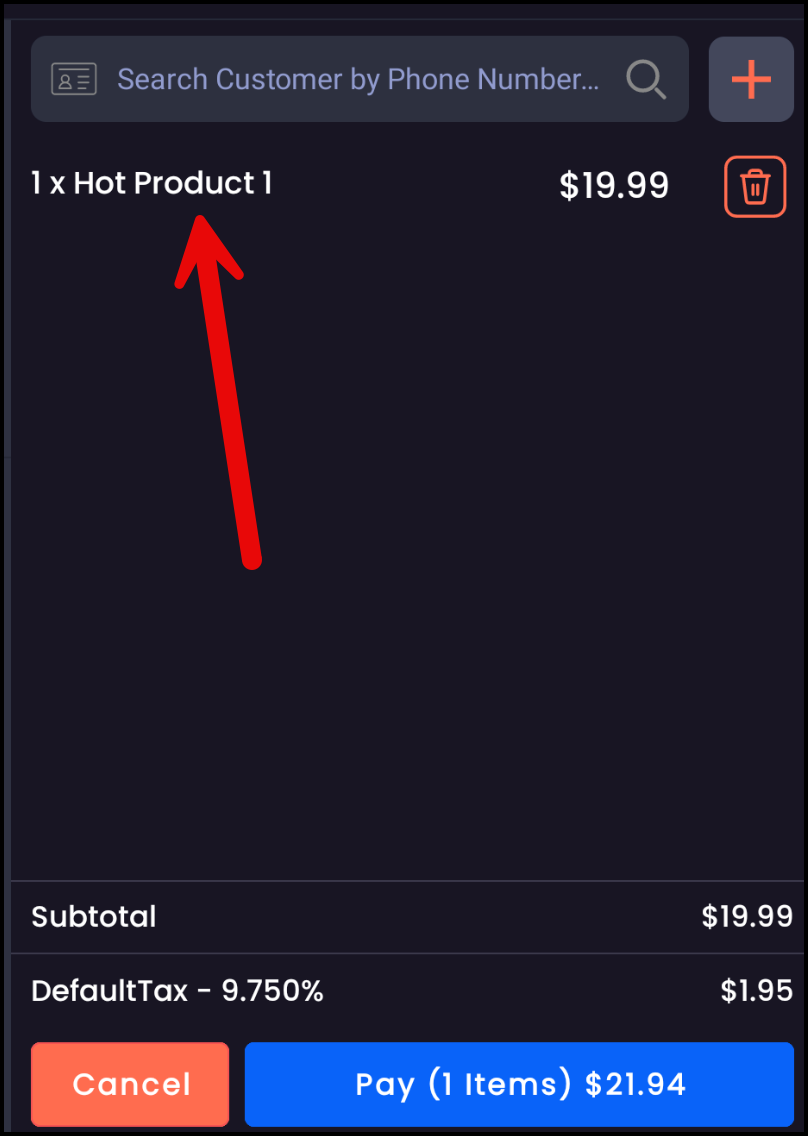
-
Tap Pay to proceed to the payment screen.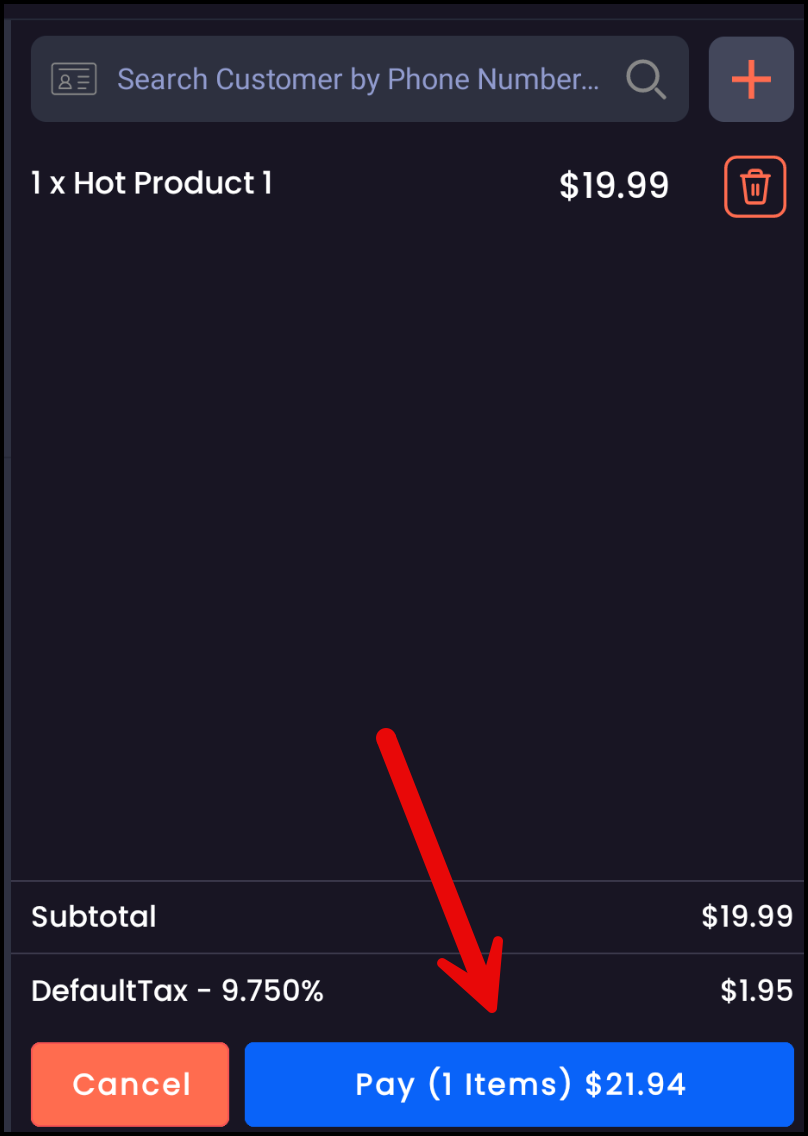
2️⃣ Enter the First Payment Amount
-
Locate the "Tap to adjust and make a partial payment" box.
-
Enter the partial payment amount for the first payment method.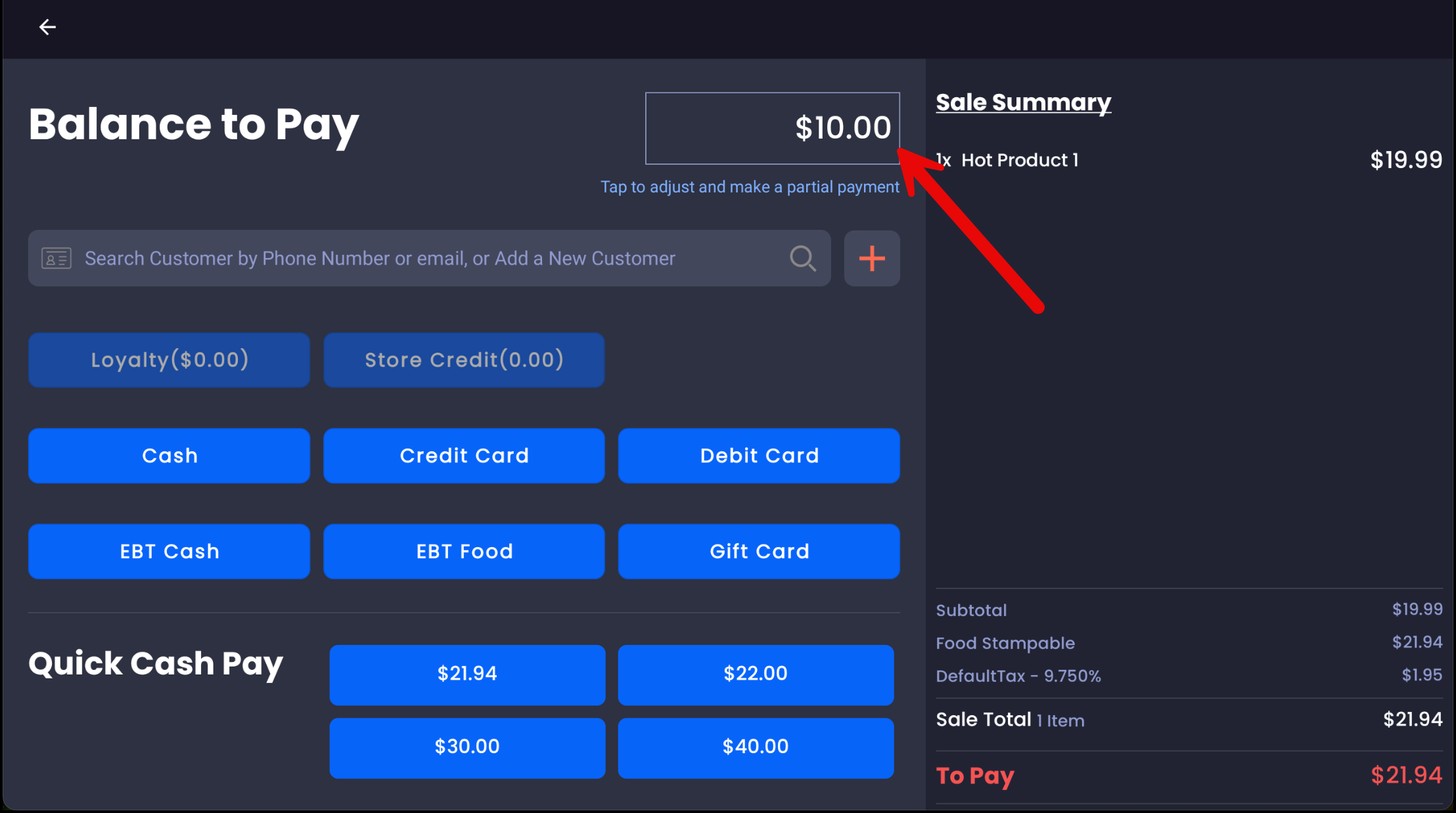
-
Select the first payment method (e.g., Cash) and complete the payment.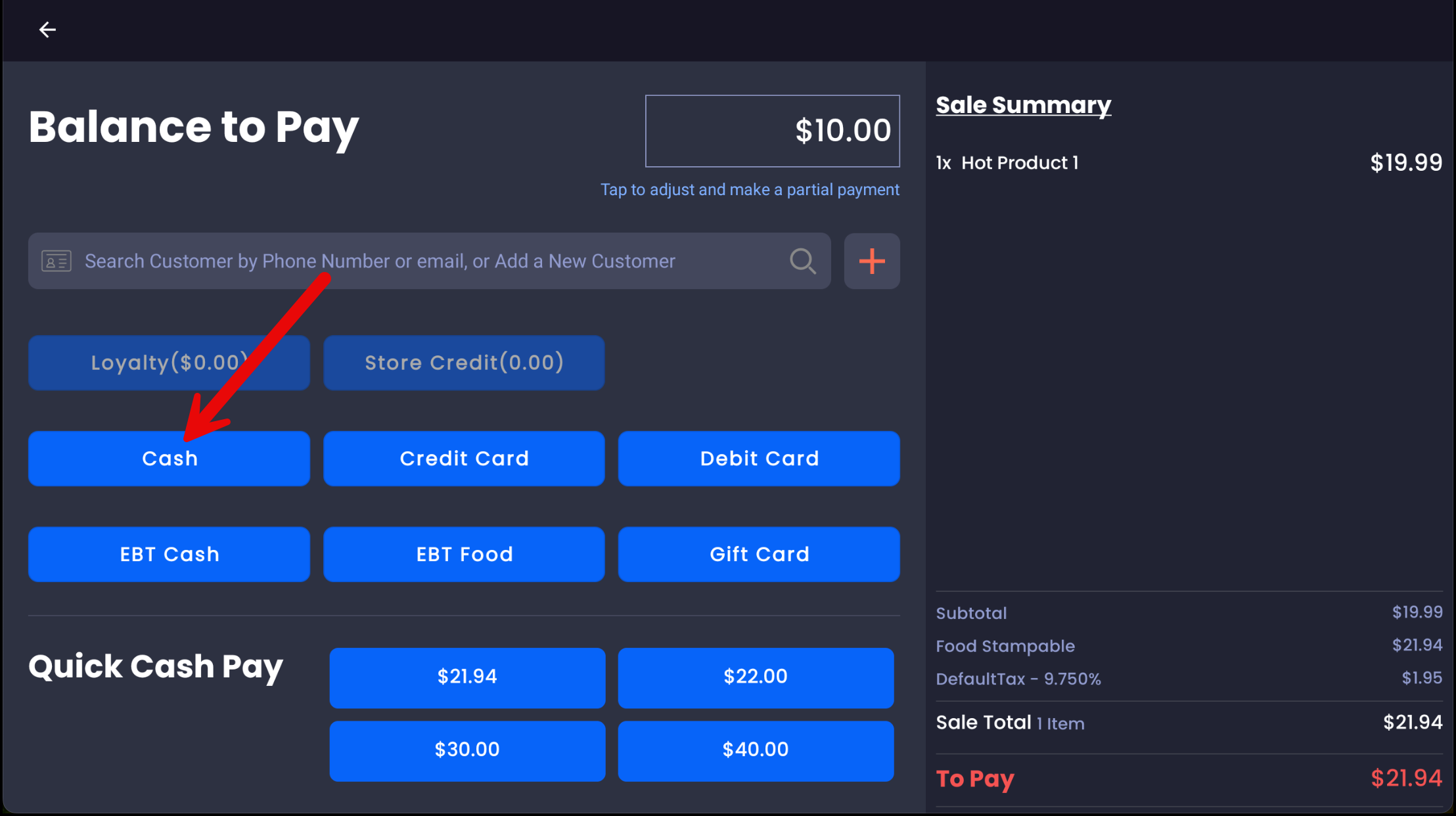
3️⃣ Enter the Second Payment Method
-
Once the first payment is completed, the remaining balance will be displayed.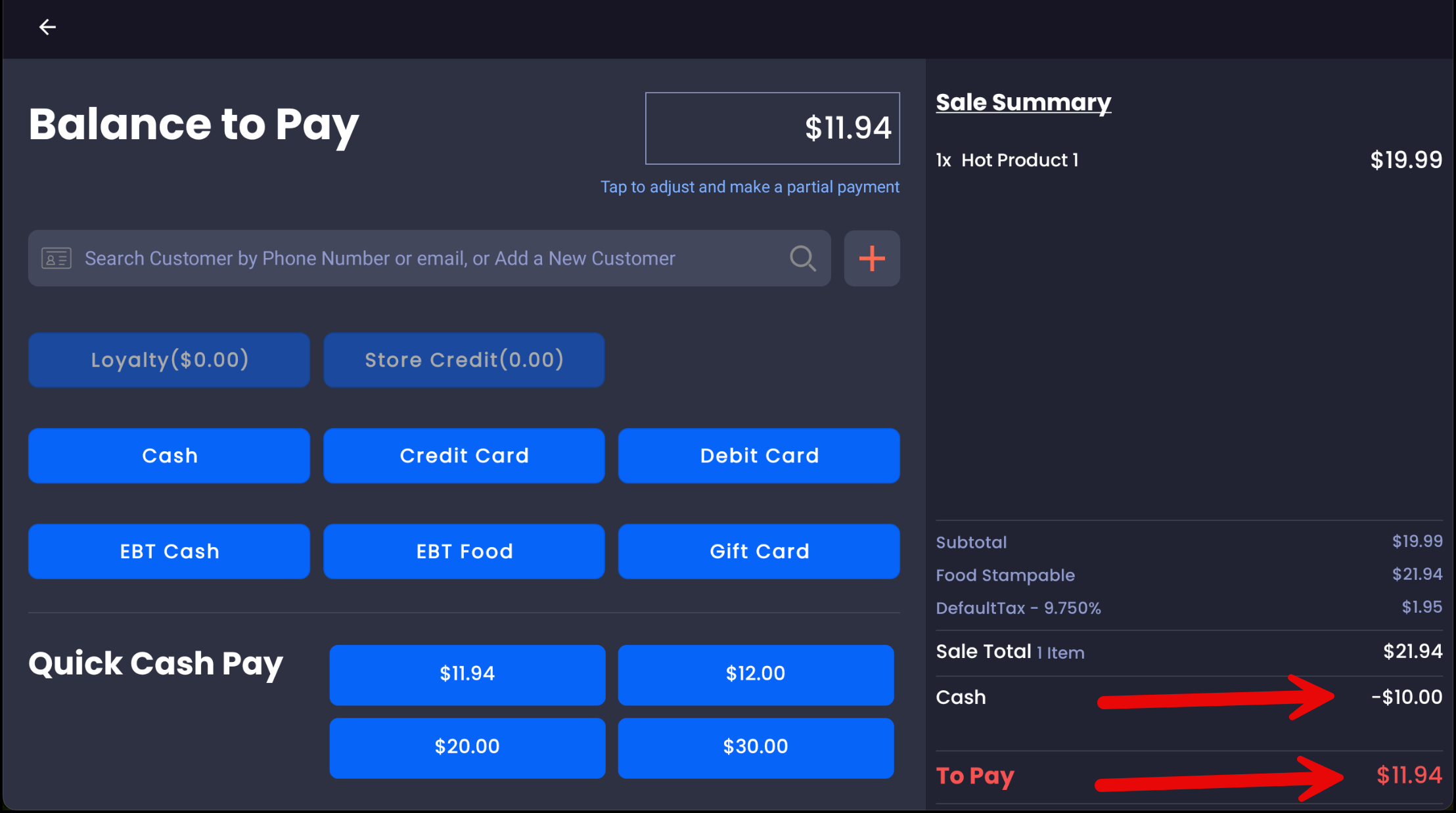
-
The partial payment box will now update to match the remaining balance.
-
Select the second payment method (e.g., Credit Card) and complete the transaction as normal.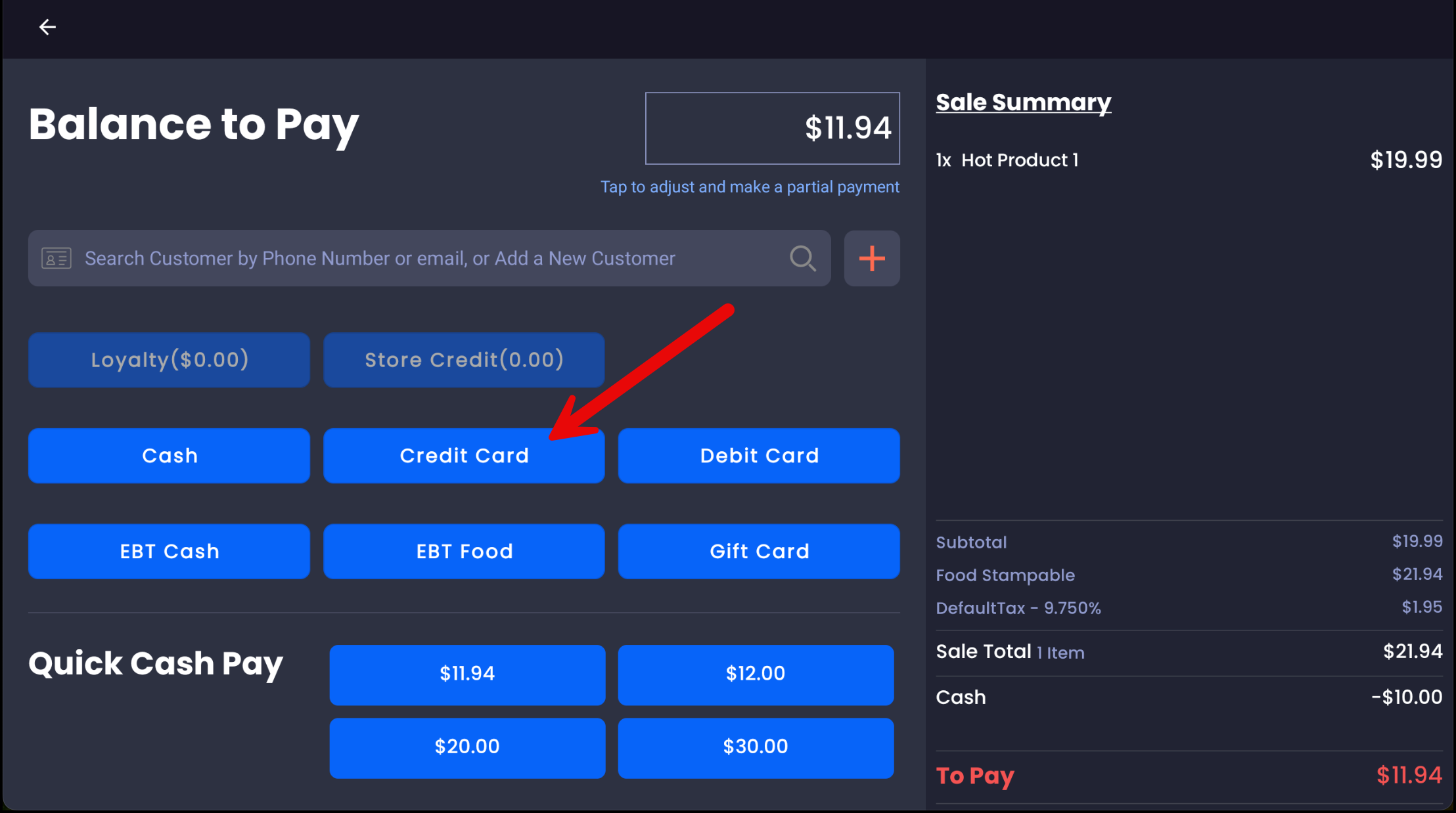
4️⃣ Complete the Transaction
✅ Once the total amount has been fully paid, the system will finalize the sale.
✅ The transaction will be recorded in the POS system with details of each payment method used.
💡 Example Scenario:
-
A customer’s total is $50.
-
They want to pay $30 in Cash and $20 on a Credit Card.
-
Enter $30 in the partial payment box, complete the Cash payment.
-
The remaining $20 will be shown. Select Credit Card, process the transaction, and done!