
Start Shift opens the cash drawer for the day and locks in your starting cash by denomination — how many $100s, $20s, quarters, dimes, and so on. The system adds those counts to a running total, and that total becomes your shift's official starting cash.
Why count by denomination?
-
Accuracy — physically counting and entering each denomination forces you to verify what's actually there, instead of trusting a stored expectation.
-
Audit trail — managers can see how the float was structured, not just what it summed to. A drawer with 4 × $20 + 3 × $10 has a different shape than 2 × $50 even though both come to $110.
-
Reconciliation — when Close Shift compares actual cash to expected cash, the denominational structure makes shortages traceable to specific drawer positions.
Get the start count wrong and every Close Shift number will look wrong, even if every transaction was perfect.
Where to find it: Sign into the POS app and tap any selling action. If no shift is open, the Start Your Shift prompt appears automatically.
Step 1 — Trigger the shift prompt
Sign in. The register screen loads with "Logged in as: [Your Name]" in the top-left.
Tap any selling action — a category, the search bar, the keypad. If no shift is open, the Start Your Shift modal appears with:
-
Calendar/clock icon at the top
-
Your name in green
-
"Are you ready to open your shift?"
-
Cancel and Start Shift buttons
Tap Start Shift.
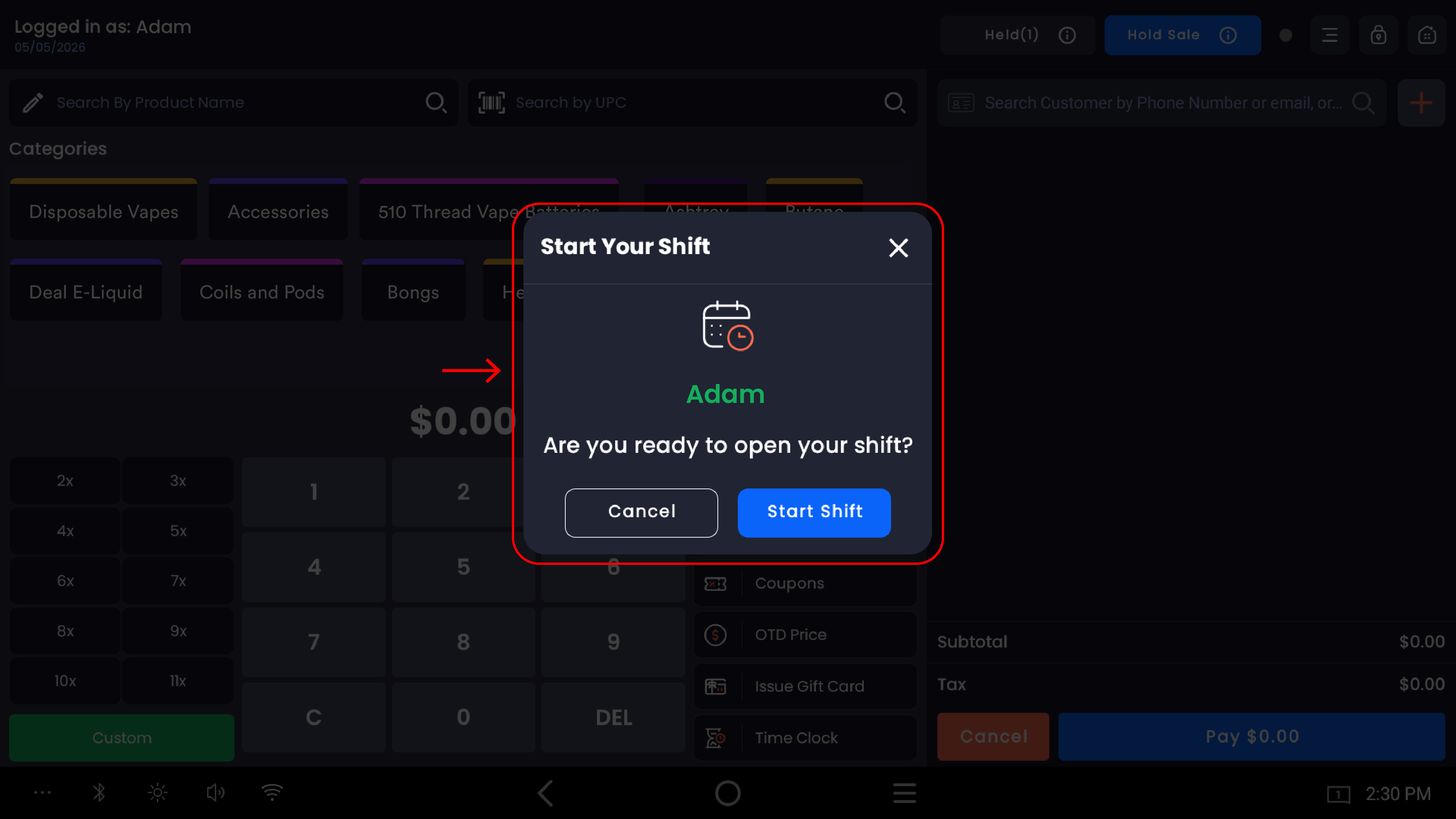
Cancel keeps the register locked. You can browse, but you can't ring up sales until a shift is open. Tap any selling action again to bring the prompt back.
Step 2 — Open the drawer and count
Before you start typing, open the cash drawer physically and lay the money out so you can count it cleanly. The system will trust whatever you enter — counting after you've started typing is how mistakes happen.
For each denomination, count how many of that bill or coin you have. Don't sum and divide; count physical items. Then move to the form on screen.
Step 3 — Enter counts on the Drawer Start modal
The Drawer Start modal opens with the header Drawer Start – [Your Name]. The form is split into two columns.
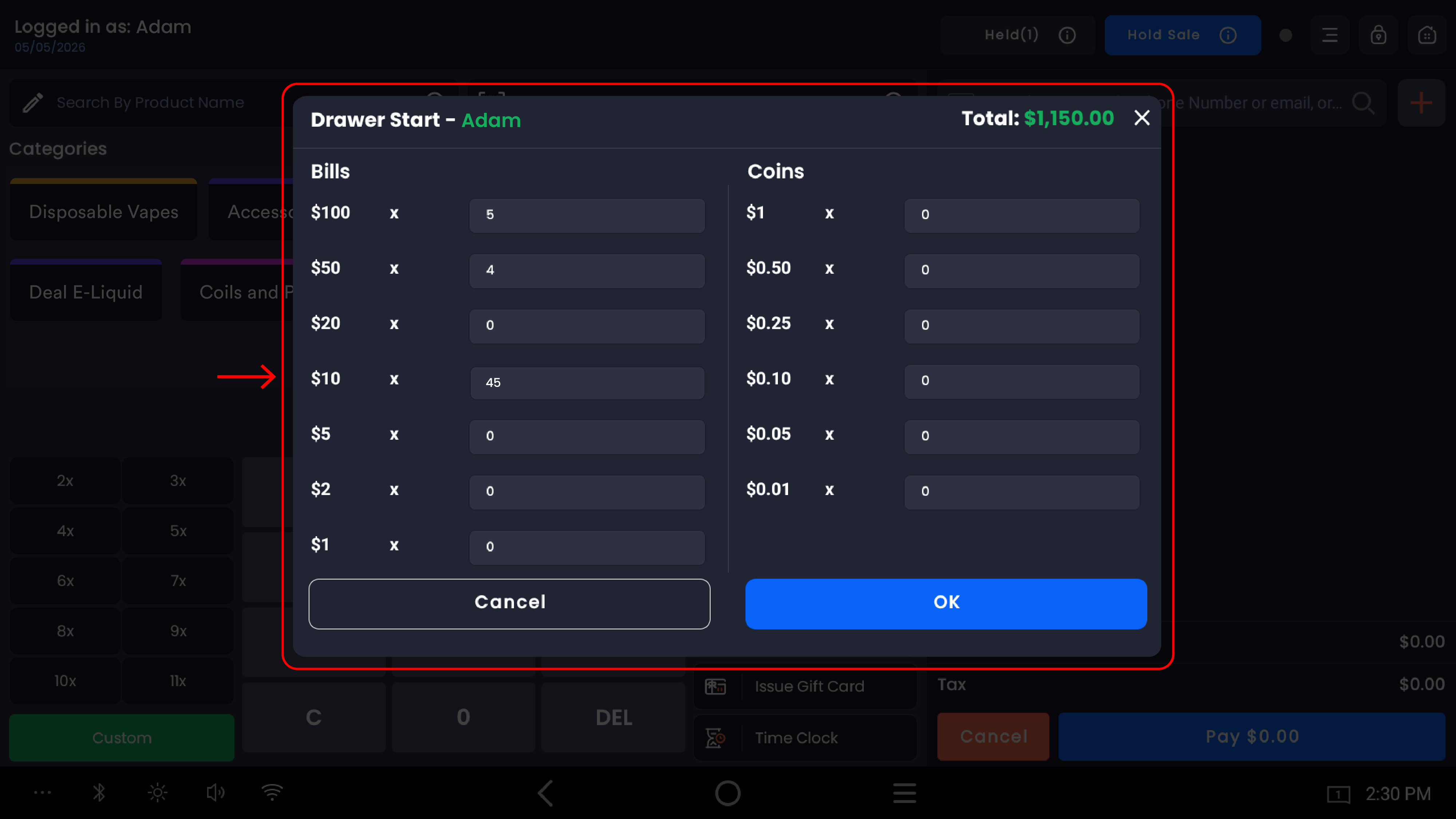
Bills (left column)
|
Denomination |
Field |
|---|---|
|
$100 |
× ___ |
|
$50 |
× ___ |
|
$20 |
× ___ |
|
$10 |
× ___ |
|
$5 |
× ___ |
|
$2 |
× ___ |
|
$1 |
× ___ |
Coins (right column)
|
Denomination |
Field |
|---|---|
|
$1 (dollar coin) |
× ___ |
|
$0.50 (half dollar) |
× ___ |
|
$0.25 (quarter) |
× ___ |
|
$0.10 (dime) |
× ___ |
|
$0.05 (nickel) |
× ___ |
|
$0.01 (penny) |
× ___ |
Tap into each row's count field and type the number. Use 0 for any denomination you don't have.
How the total is calculated
The Total at the top right of the modal updates in real time as you type — quantity × denomination value, summed across all 13 rows.
Example: a drawer with 6 × $100, 4 × $20, 3 × $10 gives:
|
6 × $100 |
= $600.00 |
|
4 × $20 |
= $80.00 |
|
3 × $10 |
= $30.00 |
|
Total |
$710.00 |
If a count looks wrong, just retype the field. The total recalculates instantly.
Tap the field before typing. Numbers typed without a field selected don't bind to anything. If your total stays at $0 after typing, you weren't inside a field.
Use exact counts, not estimates. Cash discrepancies you create at start time become your problem at close time.
Step 4 — Verify the total matches the drawer
Before tapping OK, check three things:
-
Total at the top right — read the number out loud against your physical count
-
Each row — scan down the list and verify no row was skipped (showing
0when it shouldn't) -
The drawer itself — re-glance at the cash to catch anything you might have missed
If the total doesn't match the physical drawer, fix the form — never round, never accept a discrepancy, never start a shift "knowing it's $5 off."
Why this matters: every dollar you misreport at start either gets blamed on you at close, or gets buried into shortage when reconciling. The cleanest start = the cleanest close.
Step 5 — Submit and confirm
Tap OK. (Tap Cancel to abandon and return to the Start Your Shift prompt.)
A confirmation modal appears showing:
-
Calendar/clock icon
-
Your name in green
-
"Your shift has been successfully opened."
-
Shift Open Time: date and time, e.g.
04/27/2026 11:24 AM -
An OK button
Tap OK. The register is fully active. The cash drawer also pops open automatically — verify the count one last time before pushing it shut.
Common patterns
Standard floats
Most stores keep a fixed float — say $200 in a specific denominational mix. A common one:
|
Bills |
Count |
Value |
|---|---|---|
|
$20 |
5 |
$100.00 |
|
$10 |
5 |
$50.00 |
|
$5 |
5 |
$25.00 |
|
$1 |
20 |
$20.00 |
|
Coins |
|
|
|
$0.25 |
16 |
$4.00 |
|
$0.10 |
5 |
$0.50 |
|
$0.05 |
6 |
$0.30 |
|
$0.01 |
20 |
$0.20 |
|
Total |
|
$200.00 |
If your store has a target float, post it next to the register so cashiers can spot when the drawer doesn't match.
Pre-filled defaults
If a default starting cash is configured in the web backend, the modal may pre-populate the fields with the expected counts. Verify them anyway. Pre-fills are a starting point — the cashier is still responsible for what's physically in the drawer.
Empty drawer
A first-of-day shift on a register that closed empty starts with all 0s and a $0.00 total. That's valid — the system accepts it — but it means the cashier is operating with no change to give. Don't start a shift with $0 unless you have a deliberate reason.
Common questions
The total field shows $0 even though I typed numbers. You typed outside a field. Tap one of the count cells next to a denomination to put it in focus, then type.
Can I just type the total and skip the per-denomination breakdown? No. The form requires per-denomination counts. This is intentional — the structured count is what makes Close Shift's variance investigation work.
Does the count need to be filled to all zeros, or can I leave fields blank? You can leave fields blank — they're treated as zero. But it's a good habit to type 0 explicitly because it forces you to look at every row.
What if I have a denomination not on the list (e.g. a $500 bill)? Don't lump it into the closest denomination — that breaks the count. Set it aside for a manager and start the shift with only standard bills and coins.
My count is off by exactly the amount of one denomination — what happened? Almost always you fat-fingered a row. Common mistakes: typing 4 next to $20 when you meant $10 (off by $40), or counting a stack of $5s as $1s.
I tapped OK but realized the count was wrong. Can I redo it? The starting cash locks at OK. To correct: use Pay In to add what was missed, or Drop Cash to remove the excess. Both leave an audit trail. Don't physically adjust the drawer to "match" what you typed.
The drawer didn't open after I tapped OK. Confirm the printer/drawer connection. Most drawers are kicked by the receipt printer's "open drawer" command — if the printer is offline, the drawer won't pop.