
Start Shift (Total Amount) opens the cash drawer for the day and locks in your starting cash. In this flow, you type a single dollar figure for the whole drawer — not a count of each bill and coin. Faster to enter, but less granular than the denomination breakdown.
When to use this flow
-
Your store keeps a fixed daily float that doesn't change (always $200, always $500, etc.) and you trust your morning prep routine.
-
You're running a single-cashier shift and the audit benefit of a full denominational count isn't worth the seconds it adds.
-
The drawer was reconciled clean at last close, so you're confident the float matches.
If you need the per-denomination breakdown (more accurate, more audit-friendly), see Start your shift with denomination count instead. The two flows produce the same shift — they just differ in how much detail gets recorded at the start.
Where to find it: Sign into the POS app and tap any selling action. If no shift is open, the Start Your Shift prompt appears automatically.
Step 1 — Trigger the shift prompt
Sign in. The register screen loads with "Logged in as: [Your Name]" in the top-left.
Tap any selling action — a category, the search bar, the keypad. If no shift is open, the Start Your Shift modal appears with calendar/clock icon, your name in green, and Cancel / Start Shift buttons.
Tap Start Shift.
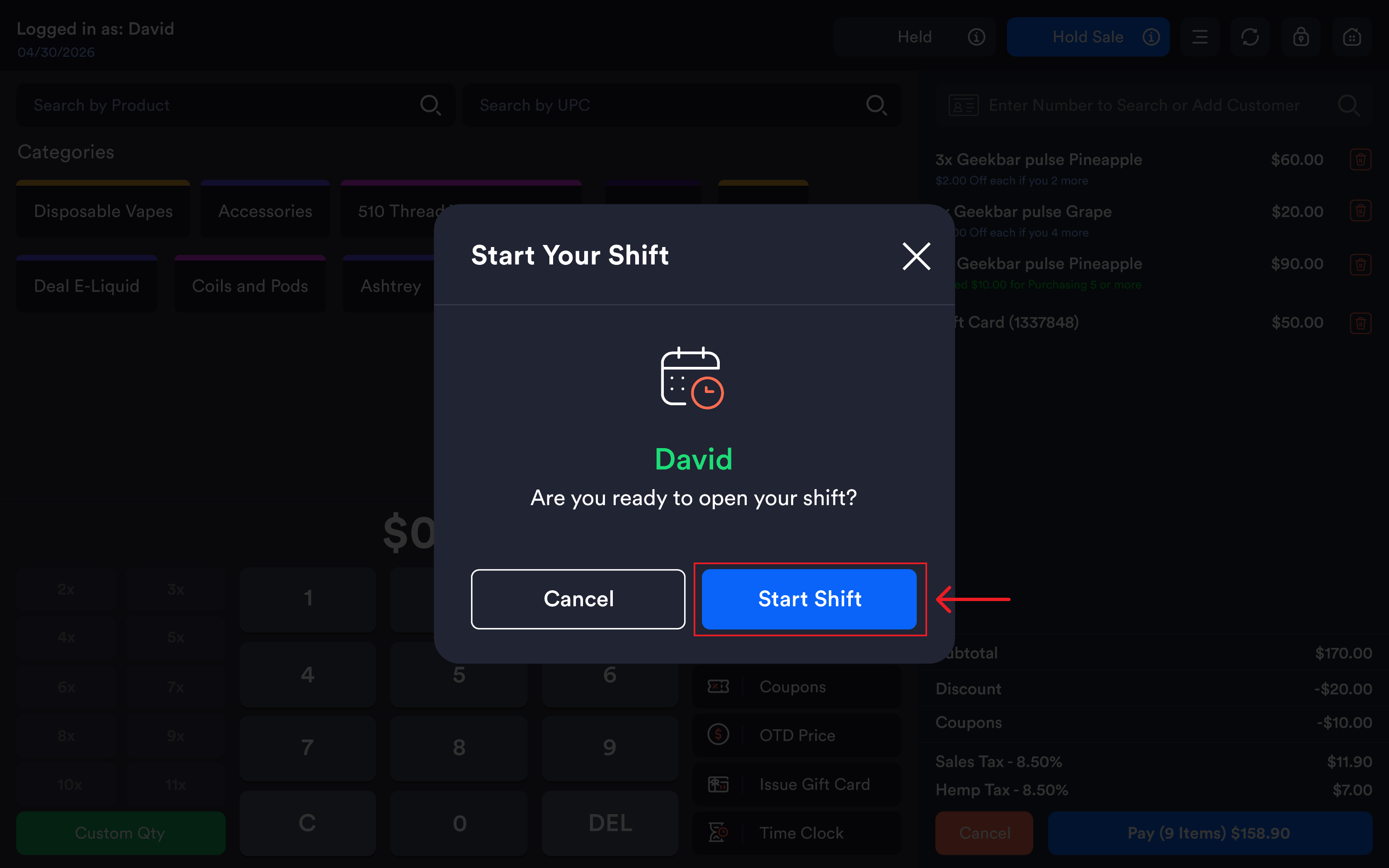
Cancel keeps the register locked. You can browse, but you can't ring up sales until a shift is open.
Step 2 — Open the drawer and verify the float
Open the cash drawer physically. Eyeball the contents to confirm the float is correct — even though you're entering only a total, you still want to know the drawer matches what you're about to type.
If the drawer looks off (extra cash from yesterday, missing change, suspicious gaps), pause here. Either:
-
Switch to the denomination flow if your store config allows it — the breakdown will surface where the discrepancy is.
-
Get a manager before starting the shift — once you tap Next, the number you enter is the official record.
Step 3 — Enter the starting cash amount
The Start Cash Drawer modal opens. The header shows Start Cash Drawer: [Your Name]. The body has:
-
A large dollar amount at the top — defaulting to a pre-configured value if your store has one set, or
$0.00if not. -
The instruction "Enter the Starting Cash Amount for the Drawer."
-
A 0–9 keypad with C (clear all) and DEL (delete last digit) options.
Type the total cash amount in the drawer. The amount displays in real time — for example, tapping 2, 0, 0, 0, 0 shows $200.00.
|
Keypad button |
What it does |
|---|---|
|
0–9 |
Adds a digit to the amount. The number formats as currency live (cents fill from the right). |
|
C |
Clears the entire amount and resets to $0.00. |
|
DEL |
Deletes the last digit you entered. |
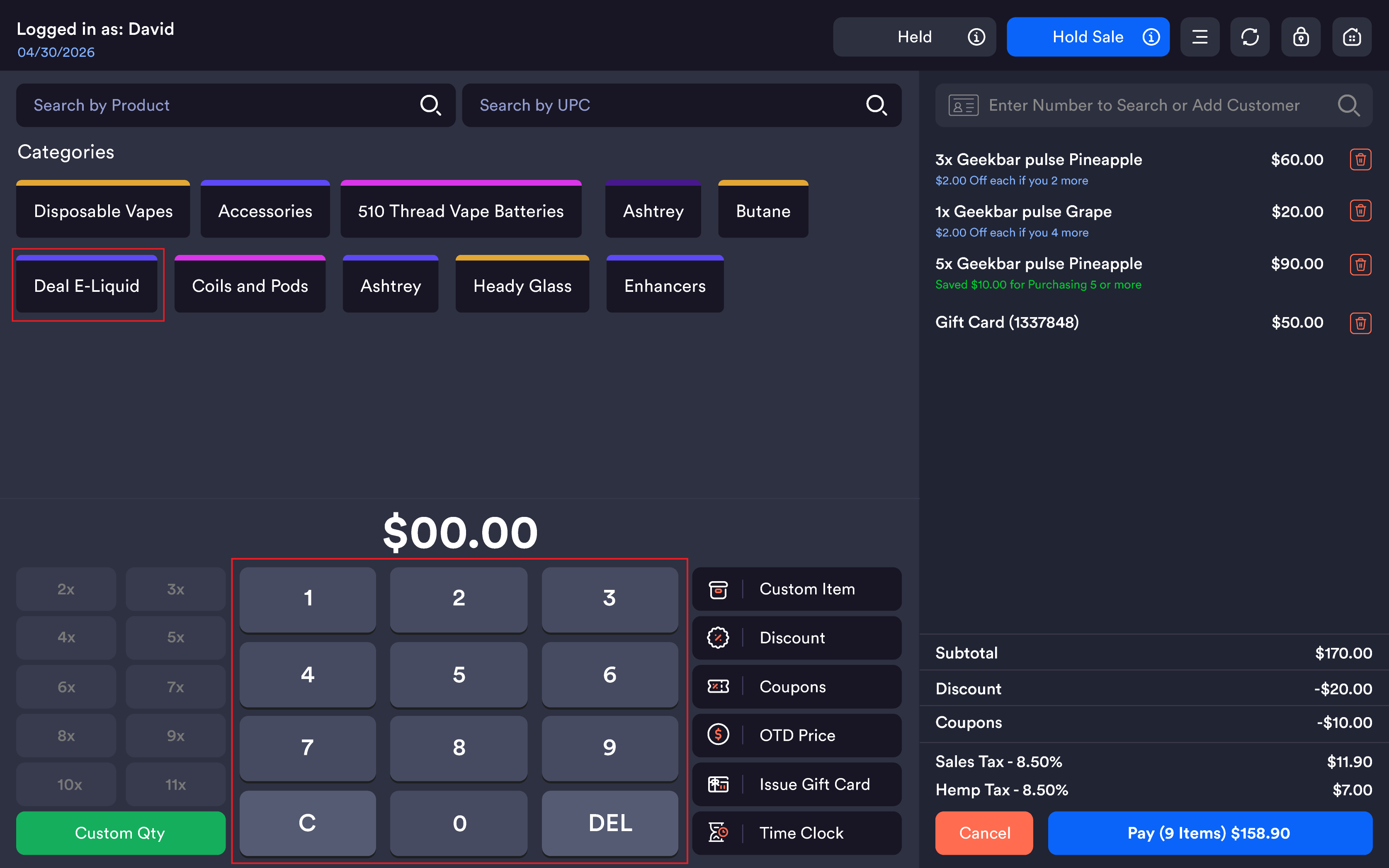
The number formats from right to left in cents. Tapping 2, 0, 0 gives $2.00, not $200.00. To enter $200.00, type 2, 0, 0, 0, 0 (five zeros).
Verify before you tap Next. Once submitted, the amount is locked. Re-read the displayed total and compare it against the physical drawer one more time.
Step 4 — Submit
Tap Next. (Cancel abandons the entry and returns you to the Start Your Shift prompt.)
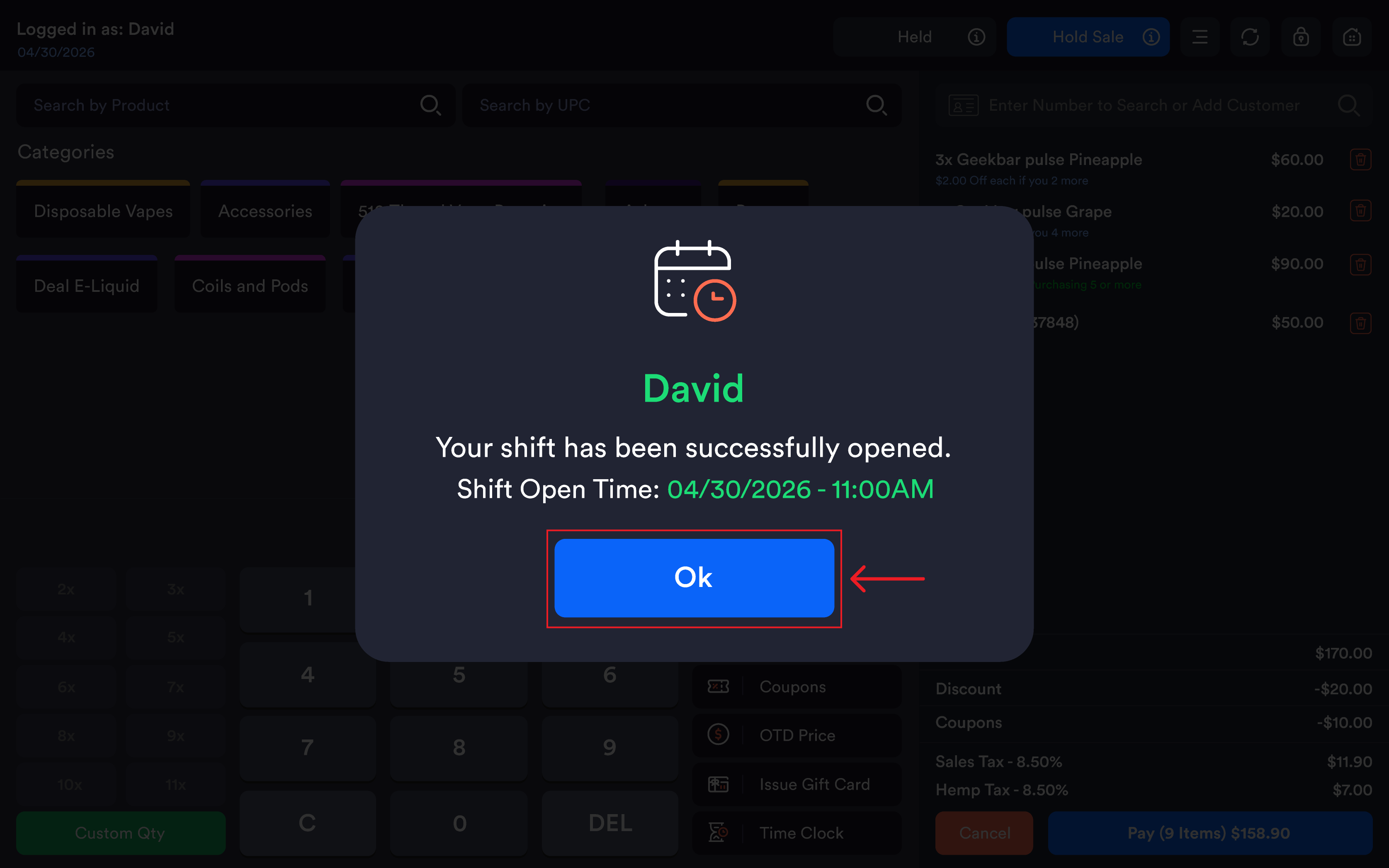
A confirmation modal appears with: calendar/clock icon, your name in green, "Your shift has been successfully opened.", the Shift Open Time (e.g. 04/27/2026 11:55 AM), and an OK button.
Tap OK. The register is fully active — categories, payment buttons, and customer search are all enabled. The cash drawer pops open automatically so you can give the float one last visual check.
-20260716-152536.png?cb=1bc36768bdba04064710fb6481f9b102)
What gets recorded
Even though you only typed a total, the system stores:
-
The starting cash amount you entered.
-
The employee who started the shift.
-
The shift open date and time.
-
The station the shift opened on.
When you close the shift, the system calculates Expected Cash as:
Starting Cash + Cash Sales − Cash Refunds − Cash Payouts (Drop Cash, Vendor Payout, Lottery)
It compares Expected Cash to what you actually count at close, and any difference is the shift's variance.
Total-only vs Denomination Count: which flow are you in?
Your store decides which flow appears. The setting is configured in the web backend under Store Settings → Shift → Drawer Start Mode (exact label may vary). If you see a single dollar field with a numeric keypad, you're in Total Amount mode. If you see a list of denominations, you're in Denomination Count mode.
Switching between modes is a manager-level setting. Cashiers don't switch on the fly.
|
Aspect |
Total Amount |
Denomination Count |
|---|---|---|
|
Time to enter |
~5 seconds |
~30–60 seconds |
|
Audit trail |
Total only |
Full breakdown by bill/coin |
|
Mistake recovery |
Hard — no breakdown to compare against |
Easy — variance traces to a specific denomination |
|
Best for |
Fixed daily floats, single cashier |
Variable floats, multi-cashier, high-cash environments |
Common questions
I typed $200 but it's showing as $2.00. The keypad enters cents from the right. To get $200.00 you need to type 2, 0, 0, 0, 0 (five digits — two for dollars, two for cents, plus the 2). Use DEL to back up, or C to clear and start over.
The amount auto-filled with my store's default. Can I change it? Yes. Use C to clear it, then type the actual amount in your drawer. The default is a starting suggestion — the cashier is still responsible for verifying what's physically there.
Can I use the denomination breakdown if my store is set to total-only mode? No — only one flow is active per store. Ask your manager to change the setting in the web backend if you want to switch.
The drawer didn't physically open after I tapped OK on the confirmation. Most cash drawers are kicked by the receipt printer's "open drawer" command. Confirm the printer is connected and powered. If the printer is offline, the drawer won't pop.
I opened a shift but realized the total was wrong by $50. Don't try to fix it by tampering with the drawer. Use Pay In (to add the missing $50) or Drop Cash (to remove $50 excess). Both leave an audit trail that explains the correction.
Can I skip the Start Cash modal entirely? No. The register stays locked from selling until a shift is opened with a starting cash amount (even if that amount is $0.00).
The Next button is grayed out. The amount field needs a value before you can submit. Tap a number first.