
No Sale opens the cash drawer without ringing up a transaction. Use it when you need to access the drawer for a non-sale reason — making change for a customer, removing a foreign object, or correcting a drawer that didn't auto-open.
Every No Sale is logged against the employee who triggered it, so the action stays accountable even though no money technically changed hands in the POS.
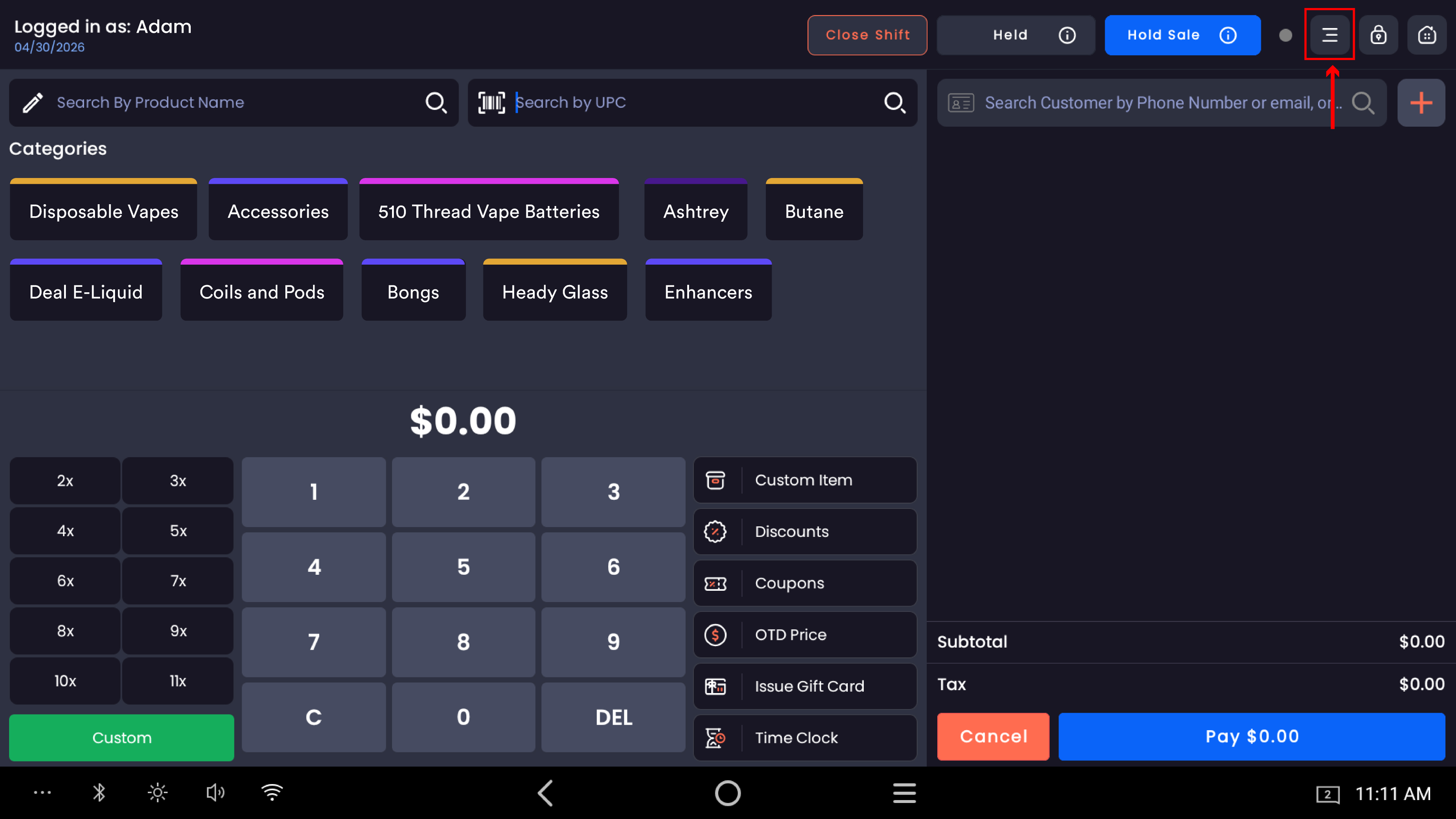
Where to find it: From the POS register, tap the three-dot menu at the top-right → No Sale.
Step 1 — Open the three-dot menu
Tap the three-dot icon at the top-right of the register screen. A dropdown panel appears with options including No Sale.
Step 2 — Tap No Sale
Tap No Sale in the dropdown. The cash drawer opens immediately. No confirmation prompt, no PIN re-entry, no amount to type — it just kicks the drawer.
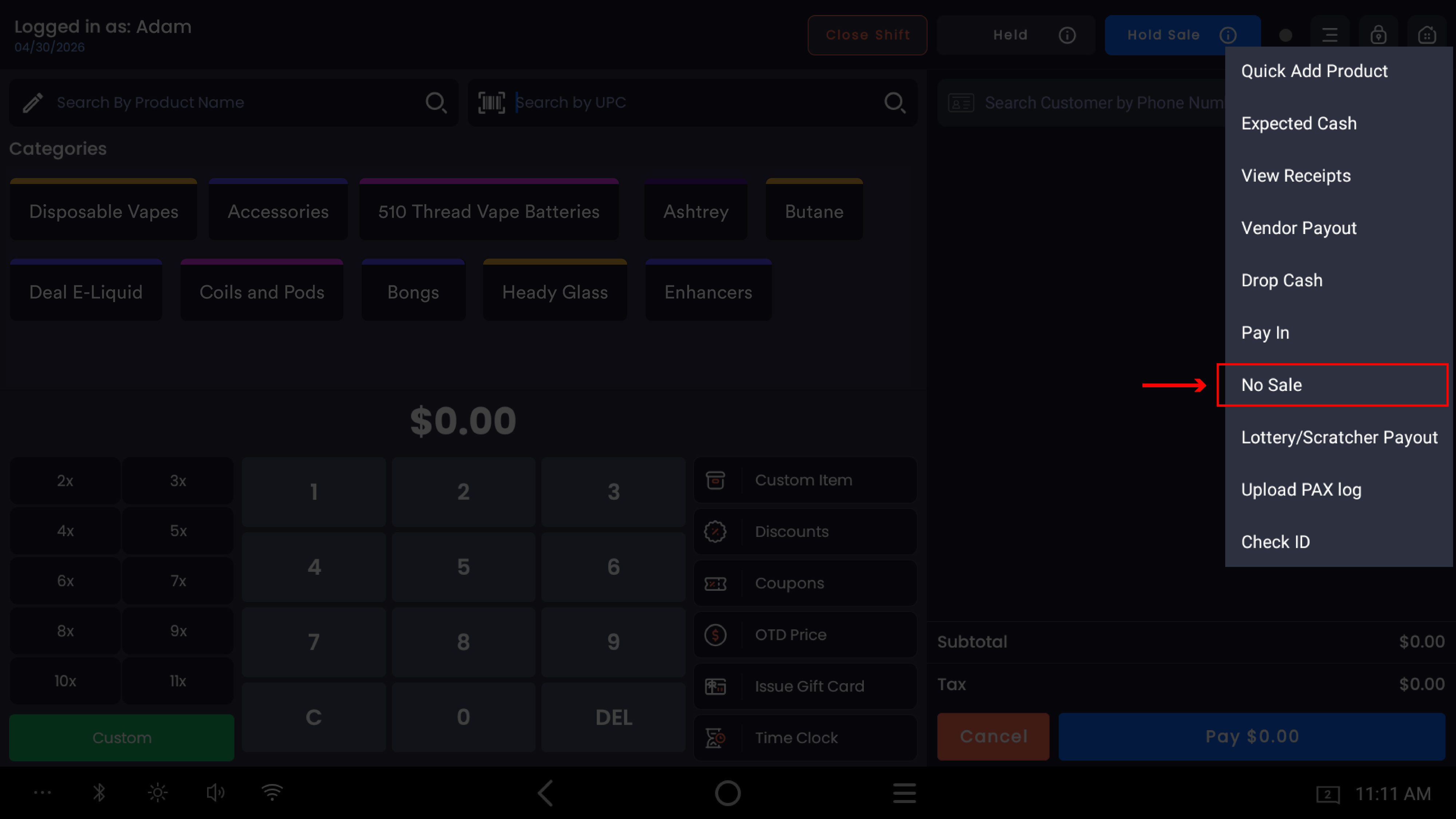
The action is recorded in the Register Activity Report with the employee's name and timestamp. Managers can review No Sale events from the web backend whenever they want.
When the drawer opens automatically
The drawer opens by itself in a few situations — you don't need to use the No Sale option for these:
-
Cash sale completed — drawer opens to put money in
-
Cash refund issued — drawer opens so you can hand cash back. This includes partial cash refunds during a split-payment transaction.
-
Open Shift / Close Shift — drawer opens automatically when you start or end a shift, regardless of the employee's No Sale permission
The manual No Sale button is only for cases that don't fit the patterns above.
Permissions
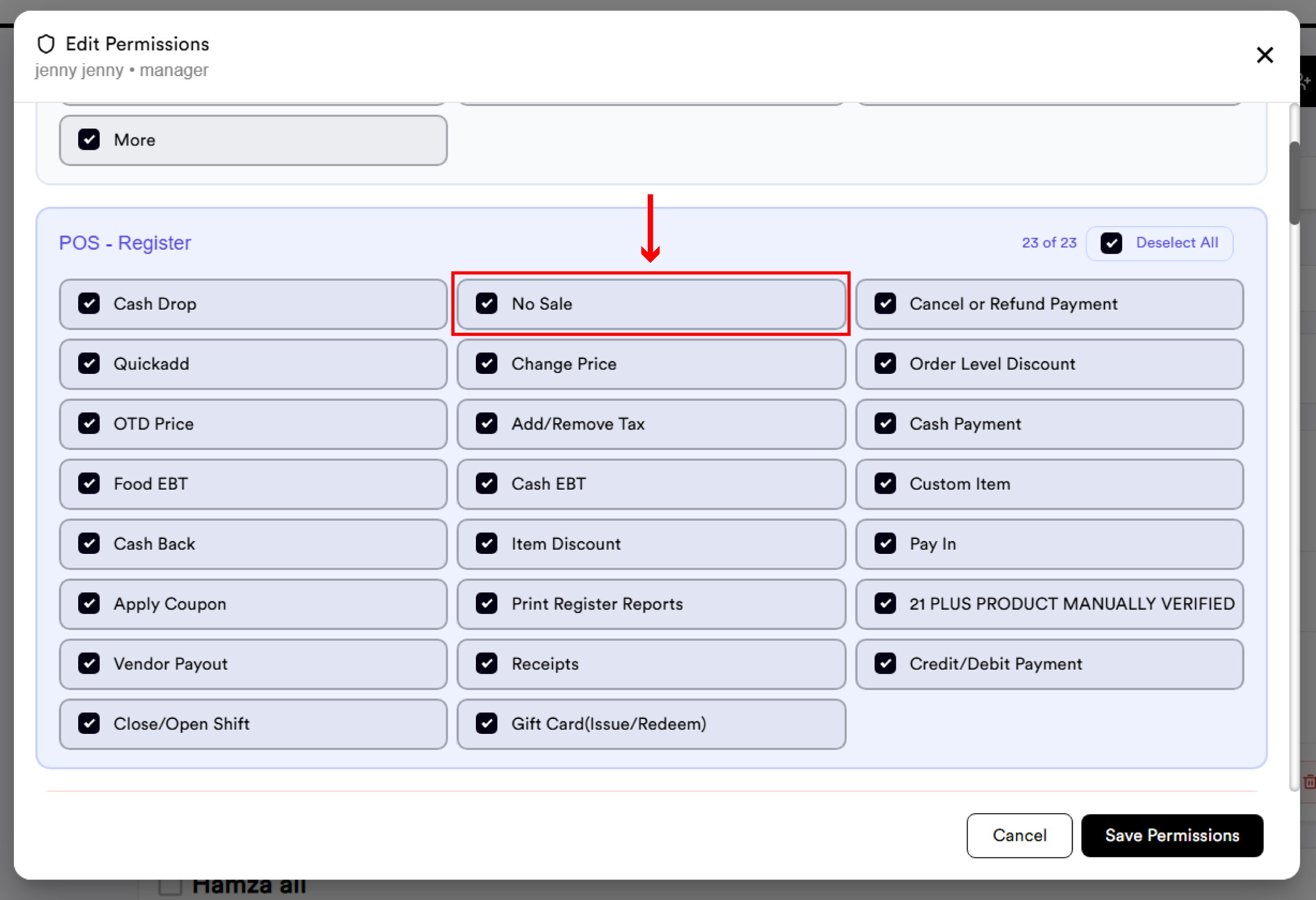
No Sale is permission-gated. In the web backend, under Employees → Permissions, each employee has a No Sale permission that you can turn on or off:
|
Permission state |
What the employee can do |
|---|---|
|
No Sale ON |
Can manually trigger the drawer from the three-dot menu at any time. Drawer also opens automatically on shift open/close and cash sales/refunds. |
|
No Sale OFF |
Cannot manually open the drawer. The three-dot menu's No Sale option is hidden or disabled for them. Drawer still opens automatically during shift open/close and cash sales/refunds — these don't require the No Sale permission. |
Limit the No Sale permission to managers and trusted senior staff. Every drawer-open without a corresponding sale is a potential cash-handling risk, so the audit trail is only as useful as your willingness to keep the permission tight.
Common questions
The drawer didn't open when I tapped No Sale. First, confirm the drawer is connected and powered (loose cable is the most common cause). Then check the employee's permission — if No Sale is unchecked for that employee, the option won't fire. If both look right and the drawer still doesn't open, check the printer/drawer cable connection on the back of the register.
Why does the drawer open when I open or close a shift even though my employees don't have No Sale permission? That's intentional. Shift open and shift close need the drawer to open so you can deposit or remove the start/end float. The system bypasses the No Sale permission for those two events specifically.
Does No Sale require a reason or note? No. The action is one tap and is logged automatically with the employee name and timestamp.
Where can I see who used No Sale and when? In the web backend under Reporting → Register Activity. Every No Sale event appears with the employee, date, and time. Use this when reconciling drawers — frequent No Sale events from a single employee are worth investigating.
The three-dot menu doesn't show a No Sale option for one of my employees. That employee's No Sale permission is turned off. Update it in Employees → Permissions.
Can I disable the auto-open on cash sales? No. Auto-open on cash transactions is a fundamental drawer behavior. If you want the drawer to stay closed for a particular sale, use a non-cash tender (card, store credit, gift).
Does No Sale cost me anything in reporting? It doesn't show up as a sale, return, or financial transaction — it's a drawer event only. Net Sales, Gross Sales, and tax reports are unaffected.