
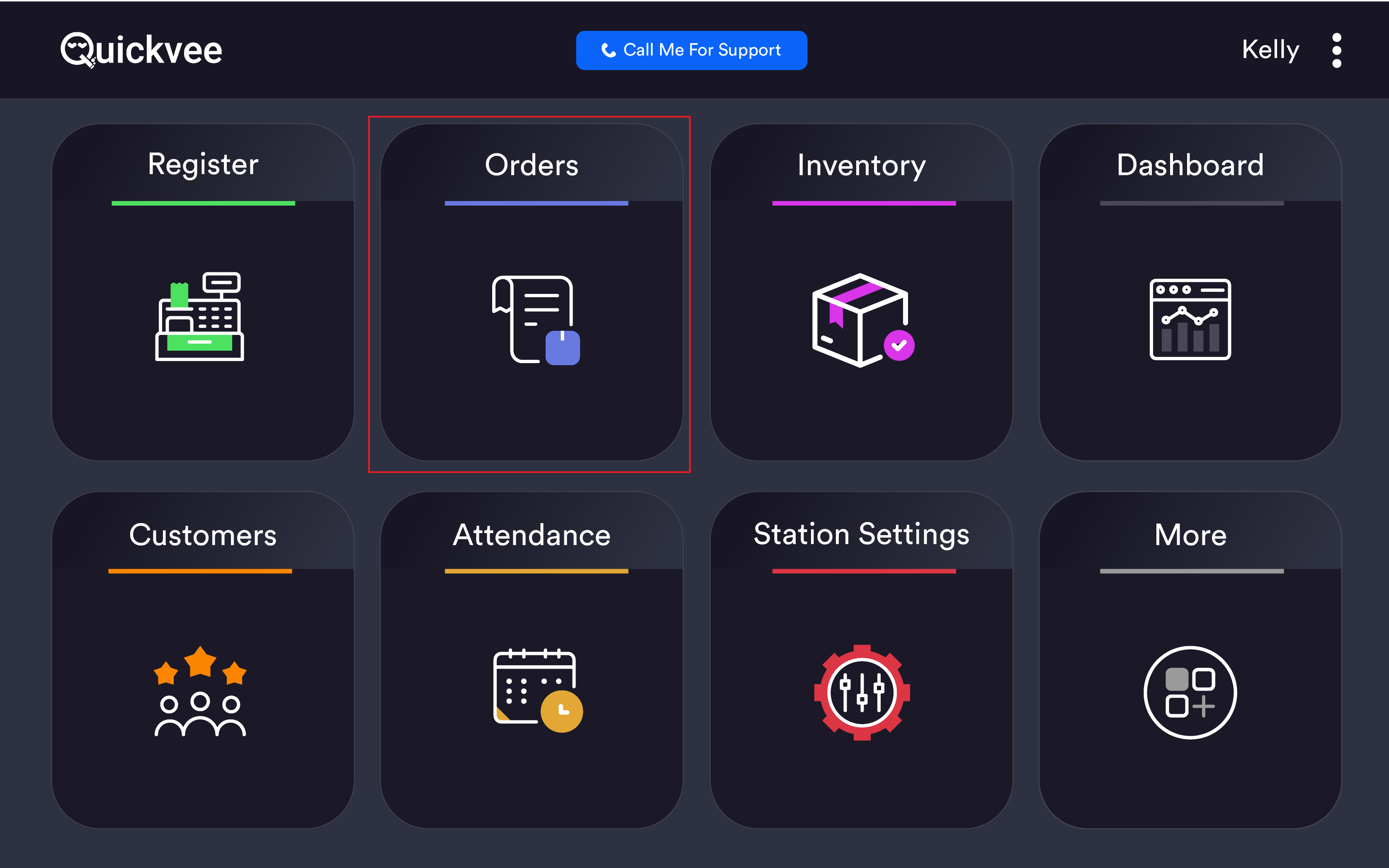
The Online tab in POS Order Management shows all orders placed by customers through the Quickvee online ordering portal. Online orders can be either Pickup or Delivery type. Merchants manage the fulfilment stages of each order directly from the POS — moving orders from accepted through to packed, ready, and completed.
Access path: POS Home → Orders → Online tab
Order status filters
|
Filter |
What it shows |
|---|---|
|
New Orders |
Active orders that are open and awaiting action |
|
Completed Orders |
Orders fully fulfilled and paid |
|
Incomplete Orders |
Orders started but not completed |
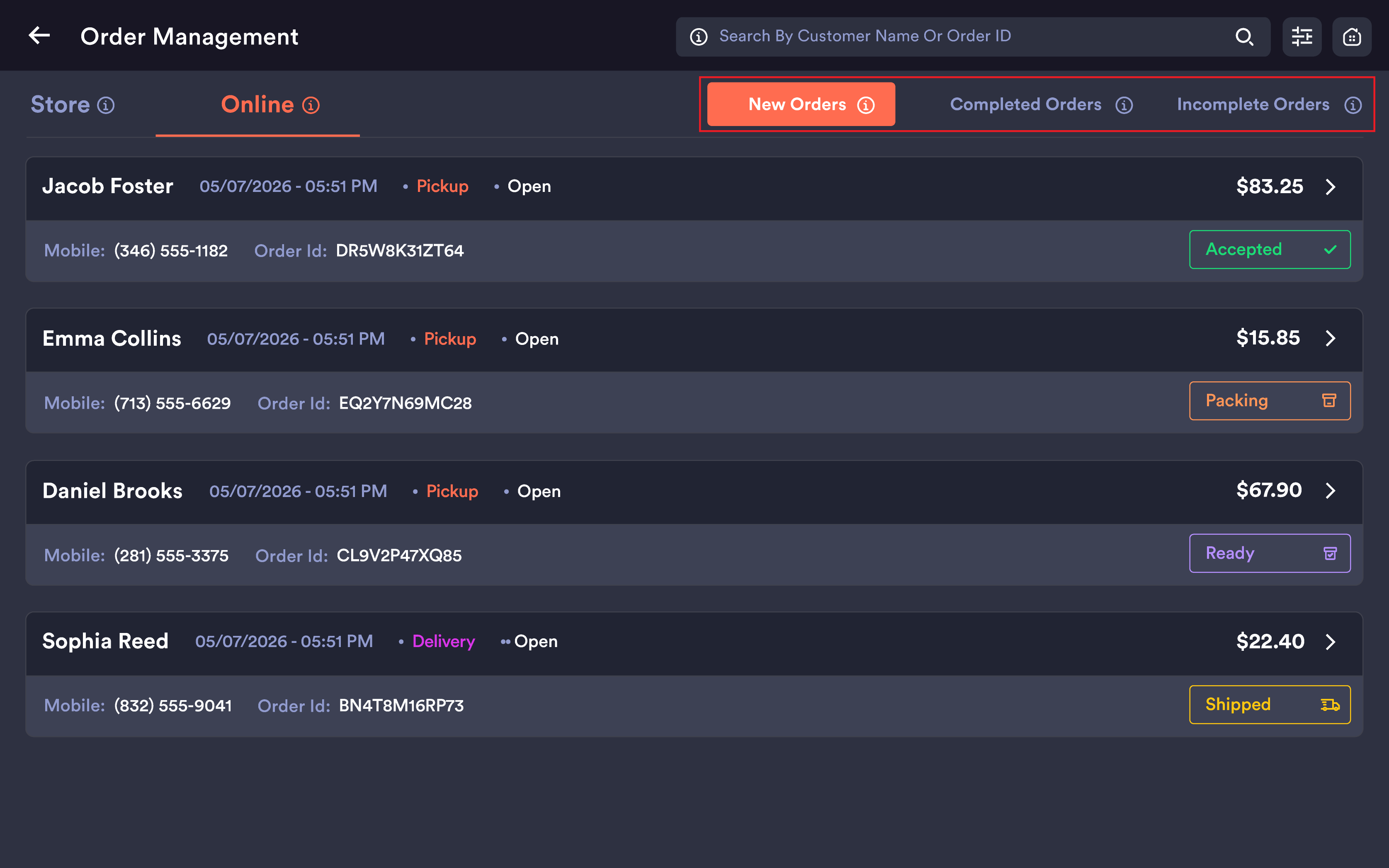
The active filter is highlighted in orange.
Order list — what each card shows
|
Field |
Description |
|---|---|
|
Customer Name |
Full name of the customer who placed the order |
|
Date & Time |
Date and time the order was placed |
|
Order Type |
Pickup (pink badge) or Delivery (purple badge) |
|
Status |
Open for active orders; Paid for completed orders |
|
Mobile |
Customer's phone number |
|
Order ID |
Unique order identifier |
|
Total |
Order total amount |
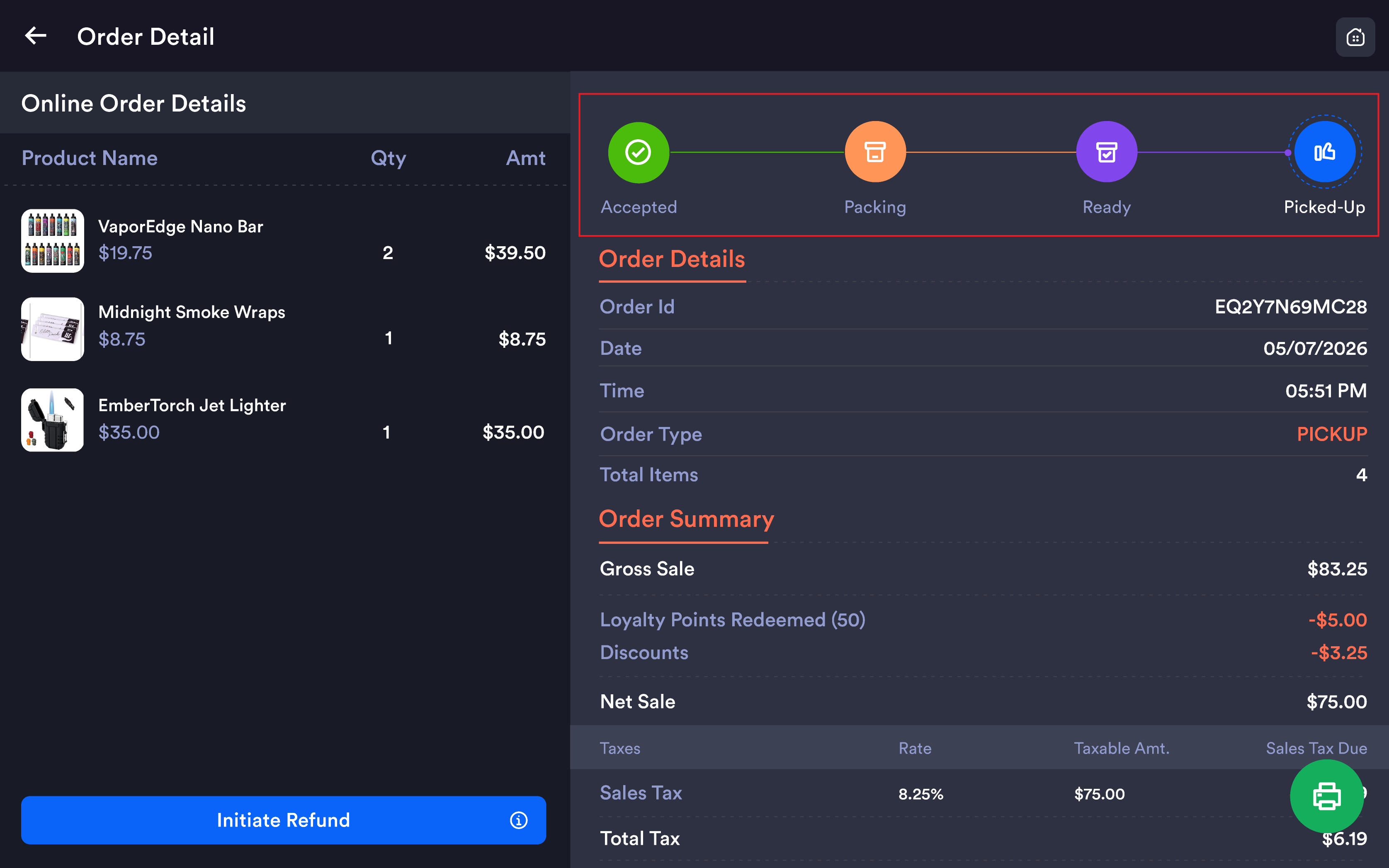
Action buttons appear on the right of each New Order card depending on the order type and stage:
|
Button |
Applies to |
What it means |
|---|---|---|
|
Ready |
Pickup orders |
Order is packed and ready for customer collection |
|
Out for Delivery |
Delivery orders |
Order has been dispatched to the customer. Greyed out when Uber delivery is enabled for the store — see Out for Delivery when Uber handles the delivery below |
Tap any order row to open the full Order Details screen.
Order Details screen
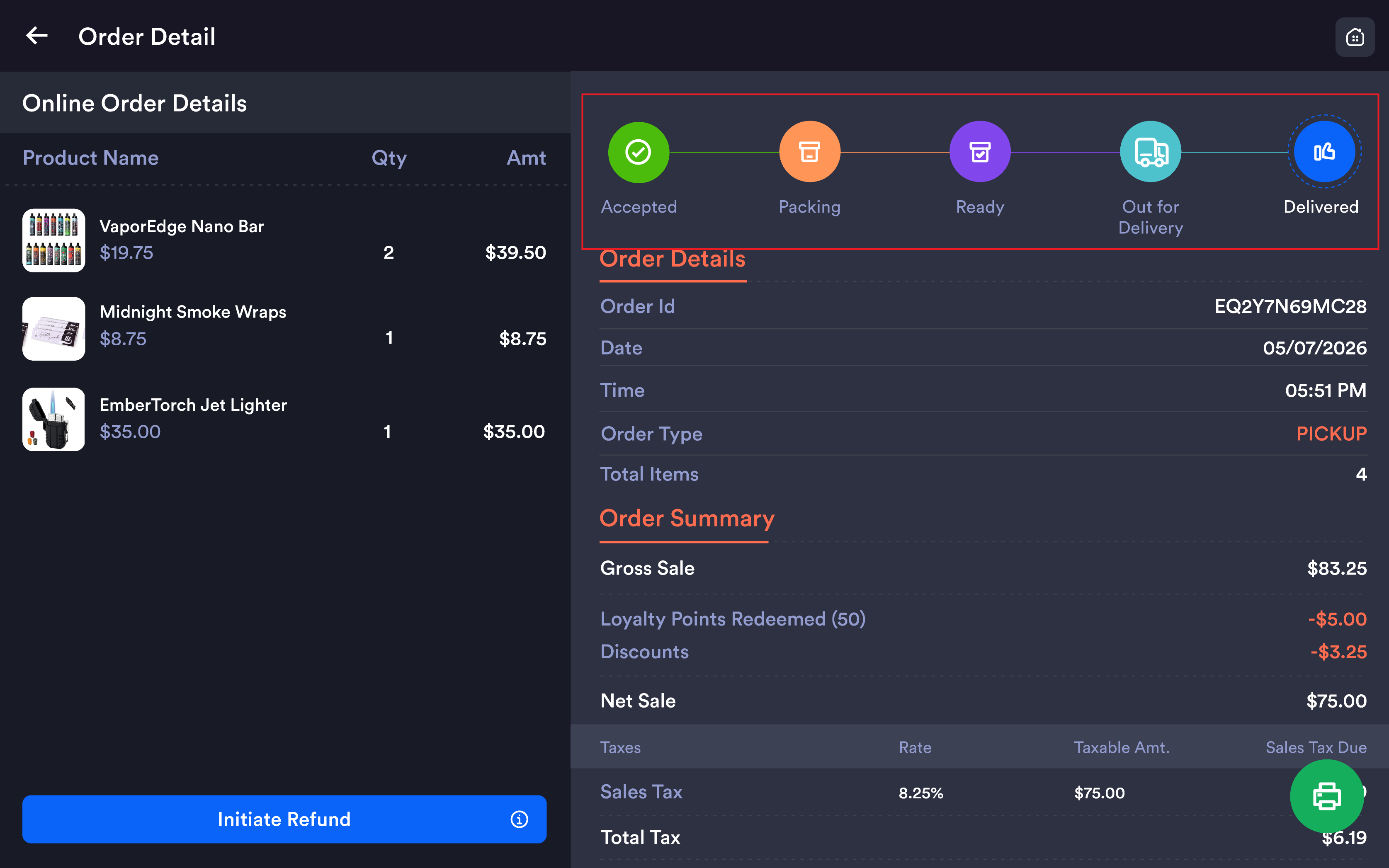
Order Progress Bar
At the top of the right panel, a visual progress tracker shows the current fulfilment stage. Completed stages show as filled coloured circles; the current active stage is highlighted; later stages are grey.
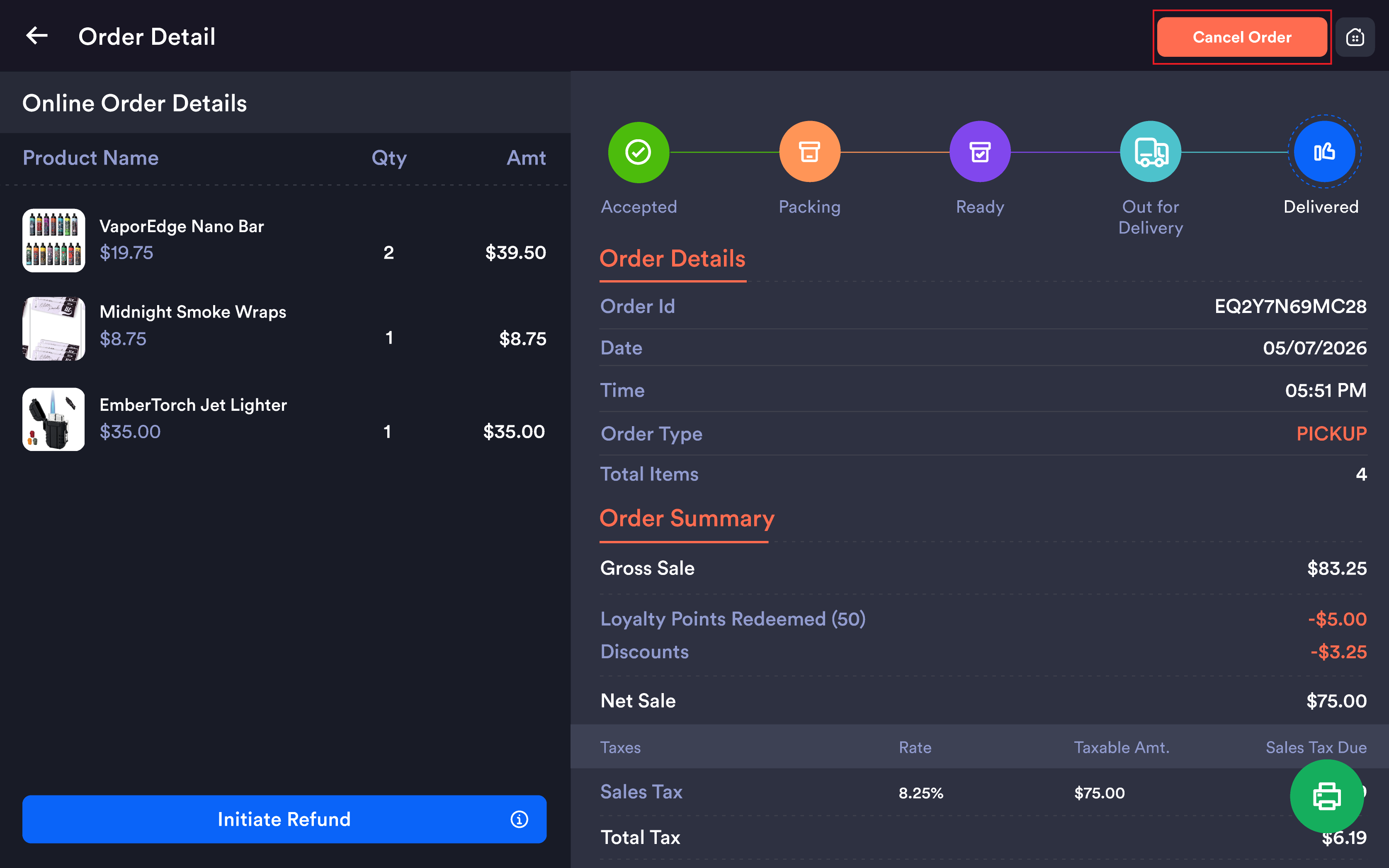
Pickup Order — 4 stages:
|
Stage |
Description |
|---|---|
|
Accepted |
Order received and confirmed by the store |
|
Packing |
Order is being prepared and packed |
|
Ready |
Order is packed and ready for customer collection |
|
Picked Up |
Customer has collected the order — complete |
Delivery Order — 5 stages:
|
Stage |
Description |
|---|---|
|
Accepted |
Order received and confirmed |
|
Packing |
Order is being prepared and packed |
|
Ready |
Order is packed and ready to go out |
|
Out for Delivery |
Order has been dispatched to the customer |
|
Delivered |
Order successfully delivered — complete |
Out for Delivery when Uber handles the delivery
On a delivery order, the Out for Delivery button follows how the order is being delivered:
|
Delivery handled by |
Out for Delivery button |
|---|---|
|
Your own staff (Uber delivery off for the store) |
Enabled — tap it when your driver leaves with the order |
|
Uber (Uber delivery enabled for the store) |
Disabled — Uber's courier updates the delivery, so the status moves on its own |
📝 Note. When the button is disabled, nothing is wrong with the order. The courier pickup and delivery are tracked through Uber, and the order's status reflects it without a tap at the register.
💡 Tip. Statuses move forward only. Once an order is Out for Delivery it can't be set back to Ready, Accepted or Packing — so with your own drivers, tap it when the order actually leaves.
Left panel — Online Order Details
|
Column |
Description |
|---|---|
|
Product Name |
Product name with variant details (Flavor, Size, Style, Color) below |
|
Qty |
Quantity ordered (1x, 2x, etc.) |
|
Amt |
Line total for that product |
Right panel — Order Details & Order Summary
Order Details — Order Id, Date, Time, Order Type (PICKUP or DELIVERY shown in orange), Total Items.
Order Summary:
|
Field |
Description |
|---|---|
|
Gross Sale |
Total product value before deductions |
|
Loyalty Points Redeemed |
Points redeemed shown as a deduction |
|
Discounts |
Any discounts applied as a deduction |
|
Coupon |
Coupon code and discount if applied at checkout |
|
Net Sales |
Gross Sale minus all deductions |
|
Taxes |
Tax Name, Rate %, Taxable Amount, Sales Tax Due |
|
Total Tax |
Sum of all taxes applied |
|
Other Fees |
Any additional fees charged |
|
Total |
Final amount paid by the customer |
Loyalty Points section: Shows points awarded on this order including the date/time earned and total points.
Customer Details section: Shows the customer's full name, mobile number, and email address as submitted at the time of ordering.
ID Verification: If the customer uploaded a government-issued ID photo during checkout for age-restricted products, the ID image is displayed for staff to verify before handing over or dispatching the order.
Cancelling an online order
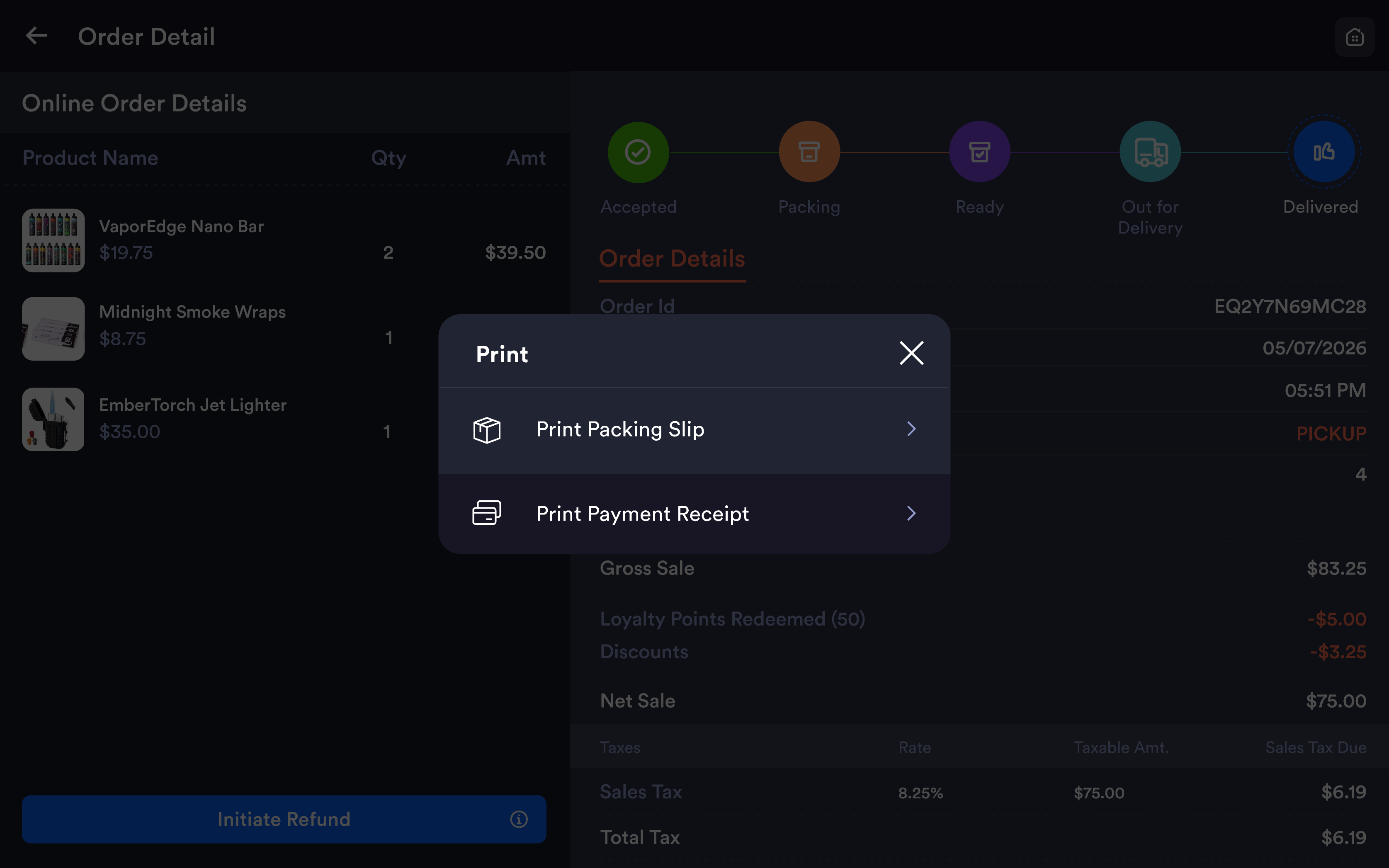
For orders still Open and not yet paid or fulfilled, a Cancel Order button appears in the top-right of the Order Details screen. Tapping it cancels the order and removes it from the active order queue.
Cancel Order is only available on Open orders. Once an order is paid or completed, use Initiate Refund instead.
Reprinting a receipt
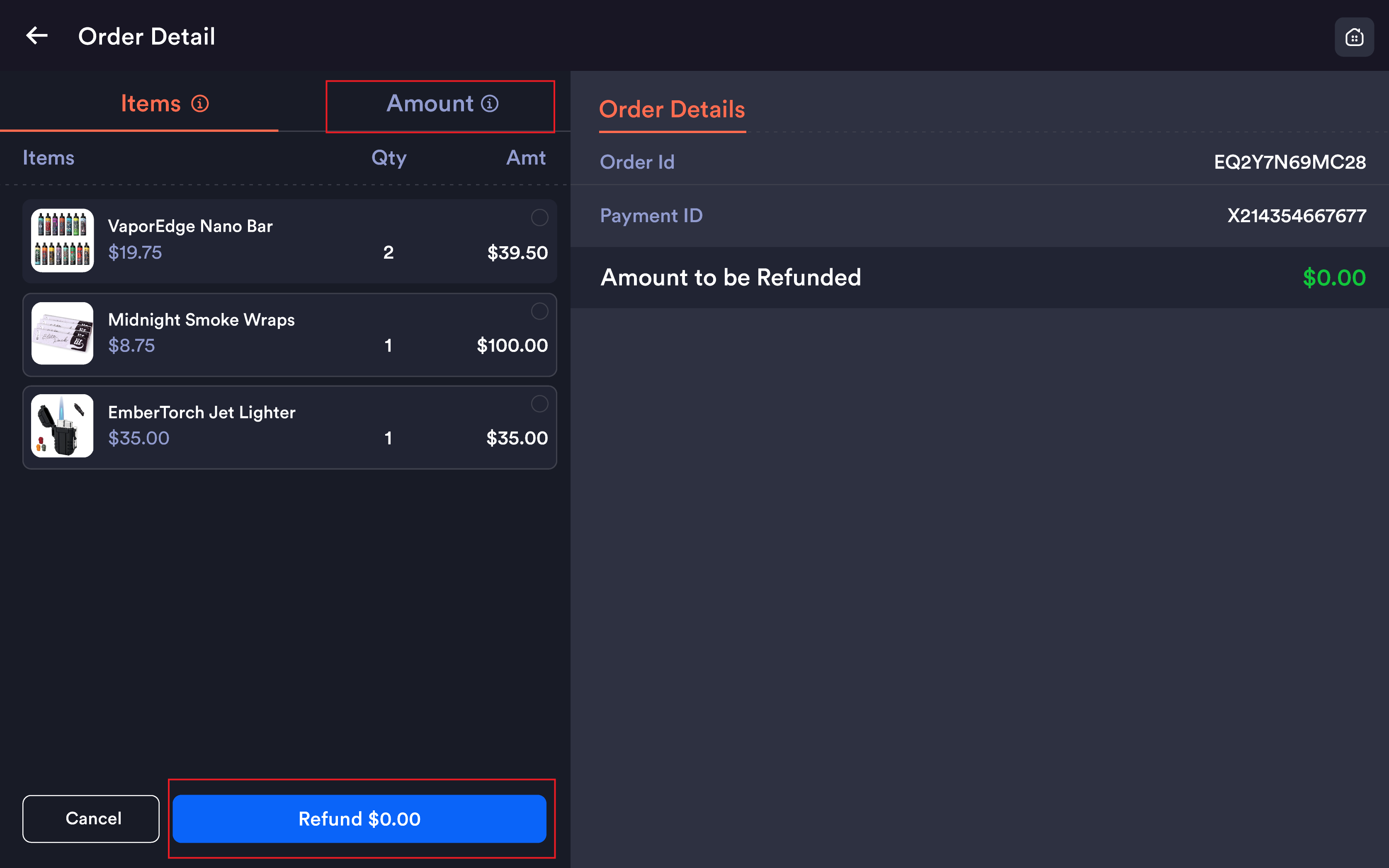
Tap the green print button at the bottom-right corner of Order Details to reprint the receipt.
Initiating a refund
For completed (Paid) online orders, tap Initiate Refund at the bottom-left.
Refundable Amount is displayed at the top in green — the maximum amount eligible.
Refund TIP?
-
Tips — checkbox to include the tip amount in the refund
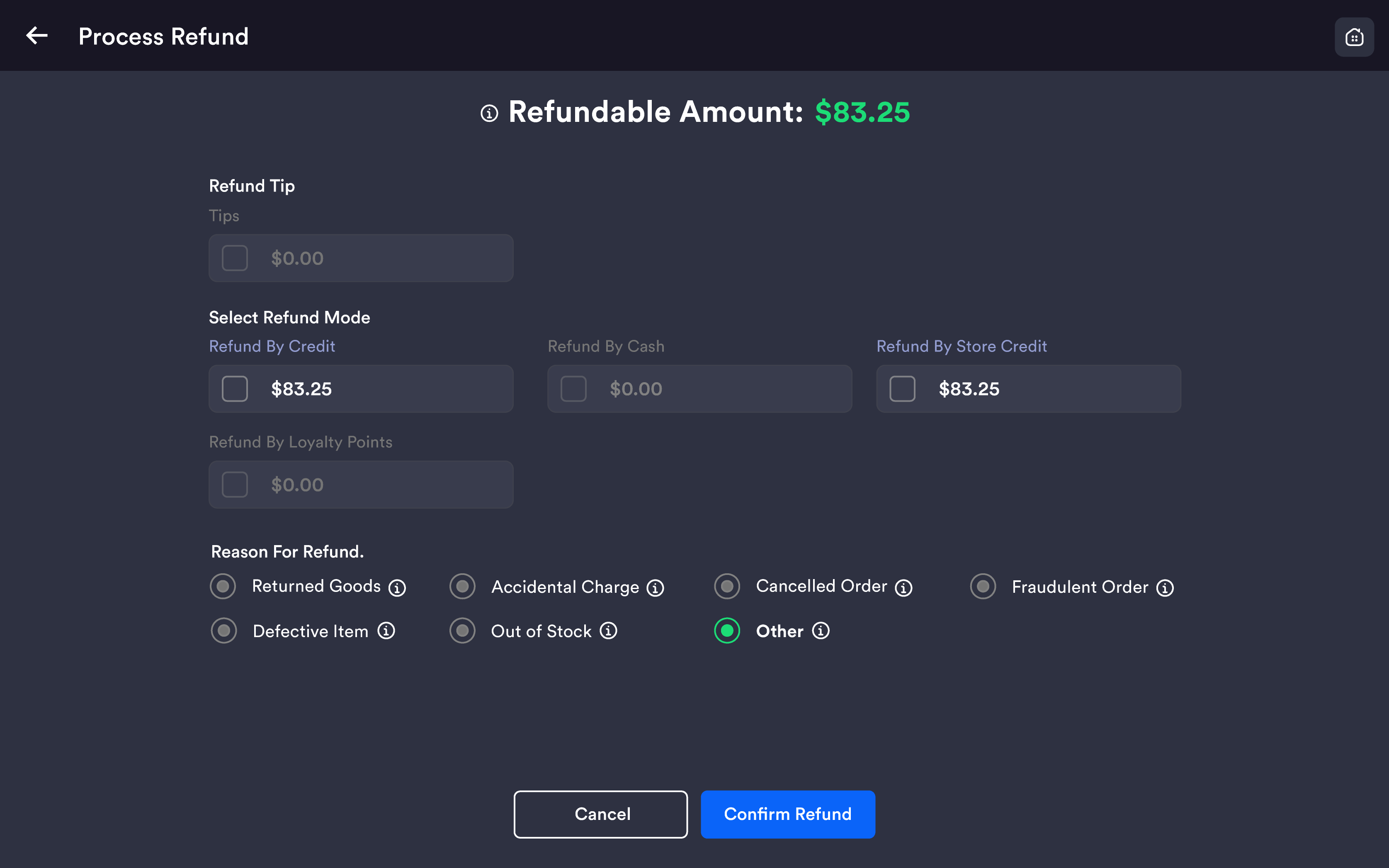
Select Refund Mode:
|
Mode |
Description |
|---|---|
|
Refund by Credit |
Refund back to the original payment card |
|
Refund by Cash |
Refund given as cash |
|
Refund by Store Credit |
Added as store credit to the customer's account |
|
Refund by Loyalty Point |
Converted back to loyalty points |
Reasons of Refund (required): Returned Goods · Accidental Charge · Cancelled Order · Fraudulent Order · Defective Item · Out of Stock · Other
Tap Refund to process, or Cancel to go back.
Common questions
Why is Out for Delivery greyed out on this order?
Uber delivery is enabled for your store, so Uber's courier handles the delivery and the status updates automatically.
Can I move an order back from Out for Delivery?
No. Delivery statuses move forward only.
Important notes
Pickup orders have 4 stages; Delivery orders have 5 stages. Delivery orders include the additional Out for Delivery stage before the final Delivered confirmation — set by your staff at the register, or automatically by Uber when Uber delivery is enabled for the store.
Pickup vs Delivery orders are visually distinguished — Pickup orders show a pink badge and Delivery orders show a purple badge. Always confirm the order type before updating the fulfilment status.
ID verification for age-restricted products — if a customer uploaded a government-issued ID during online checkout, the ID photo is visible inside the order details. Staff must verify the ID before handing over a pickup order or before dispatching a delivery order.
Coupons applied at checkout appear as a separate line item in the Order Summary, showing the coupon code used and the exact discount amount deducted.
Online orders and in-store orders are completely separate. The Online tab only shows orders from the online ordering portal. In-store register transactions appear under the Store tab.
Loyalty points are awarded on online orders and are visible in the Loyalty Points section of the order details showing the exact amount earned and the timestamp.
Related
See Online orders in the web backend, View orders on the POS, and Set up receipt printers for online orders.