
The OTD Price (Out the Door Price) feature lets merchants set a final all-inclusive price that the customer will pay — rather than applying a manual discount calculation. Quickvee POS automatically calculates the difference between the original subtotal and the OTD amount, and applies it as an order-level discount in the cart.
How to apply an OTD price
-
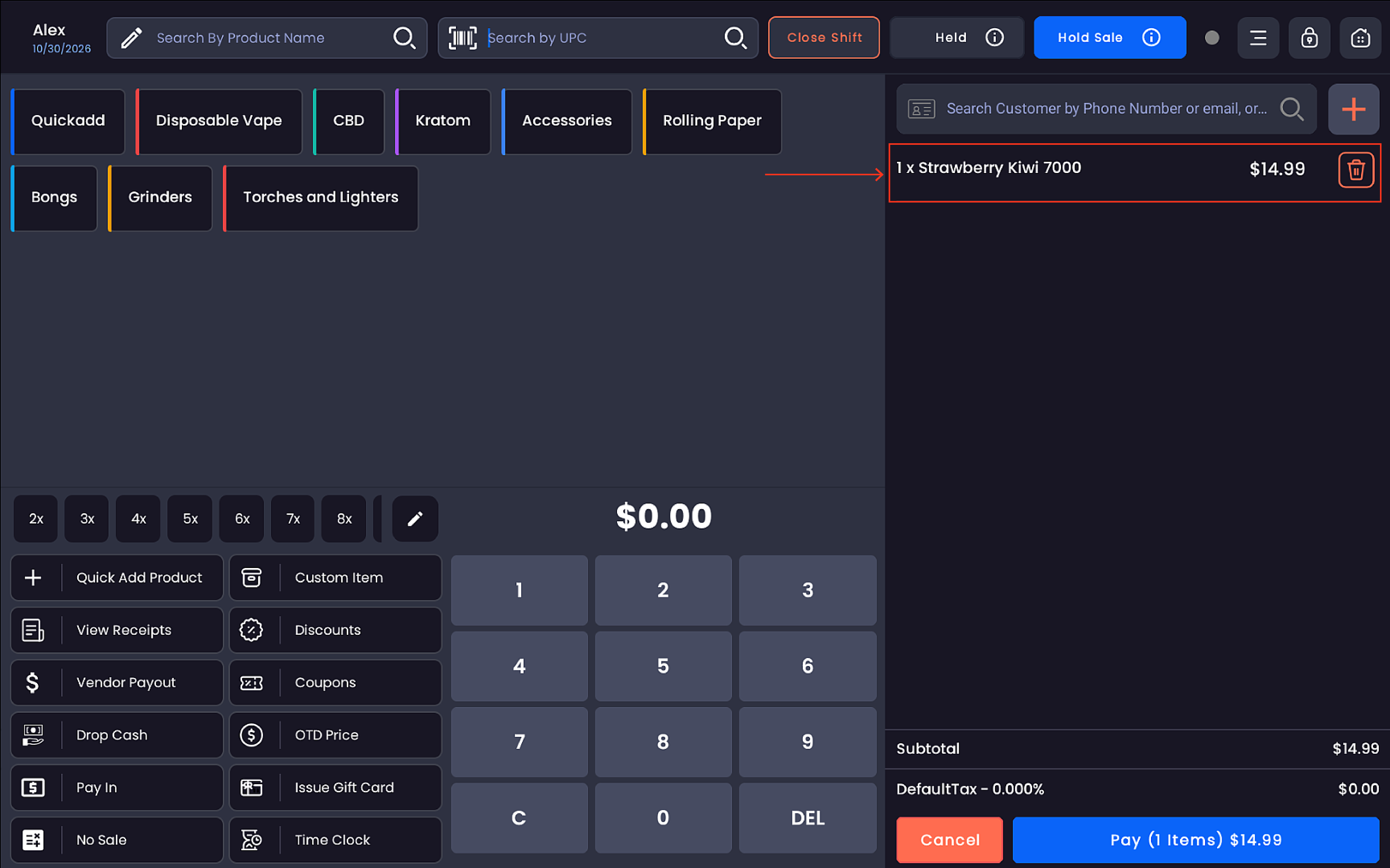
Add one or more products to the cart.
-
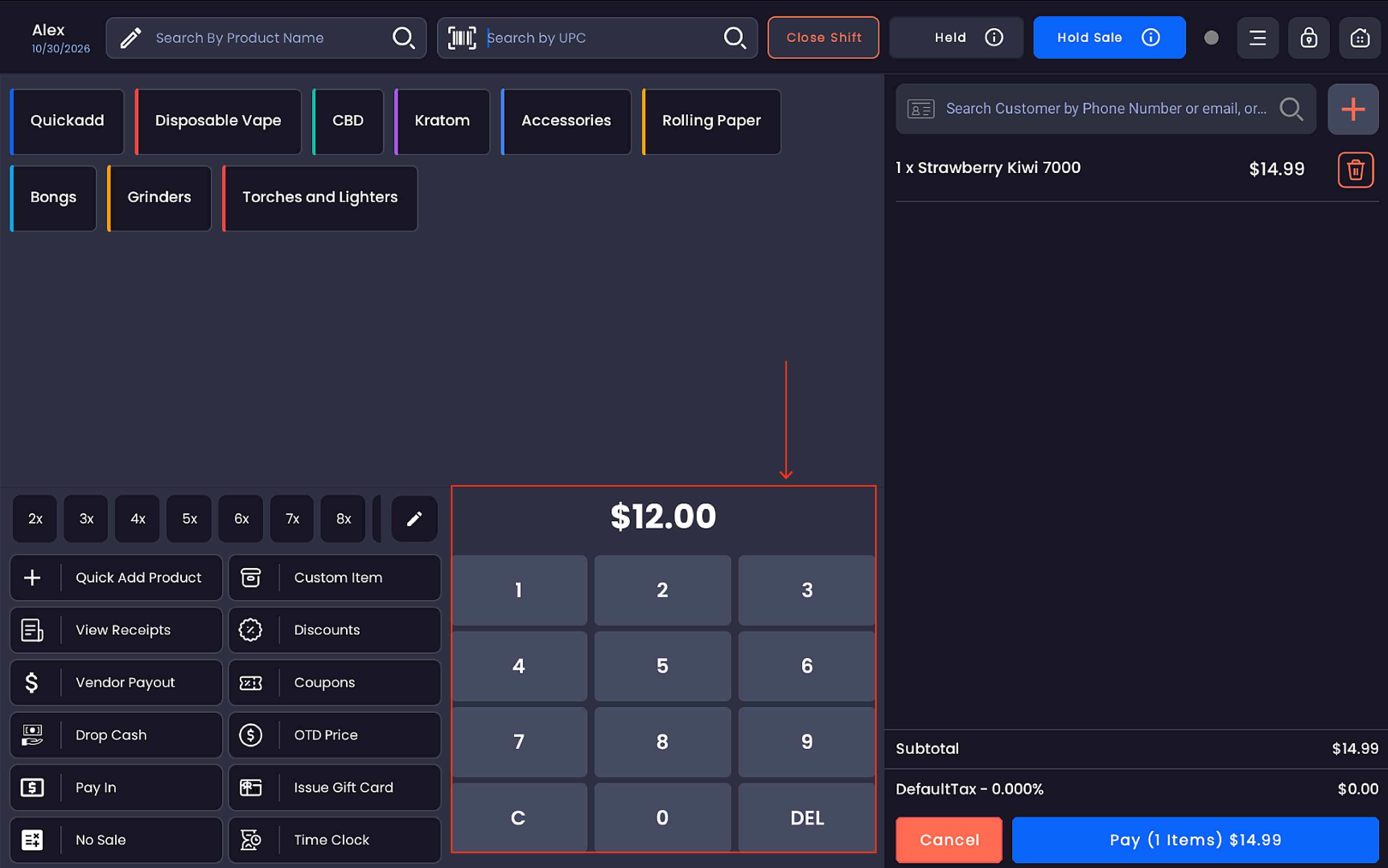
Enter the desired final amount using the on-screen numpad.
-
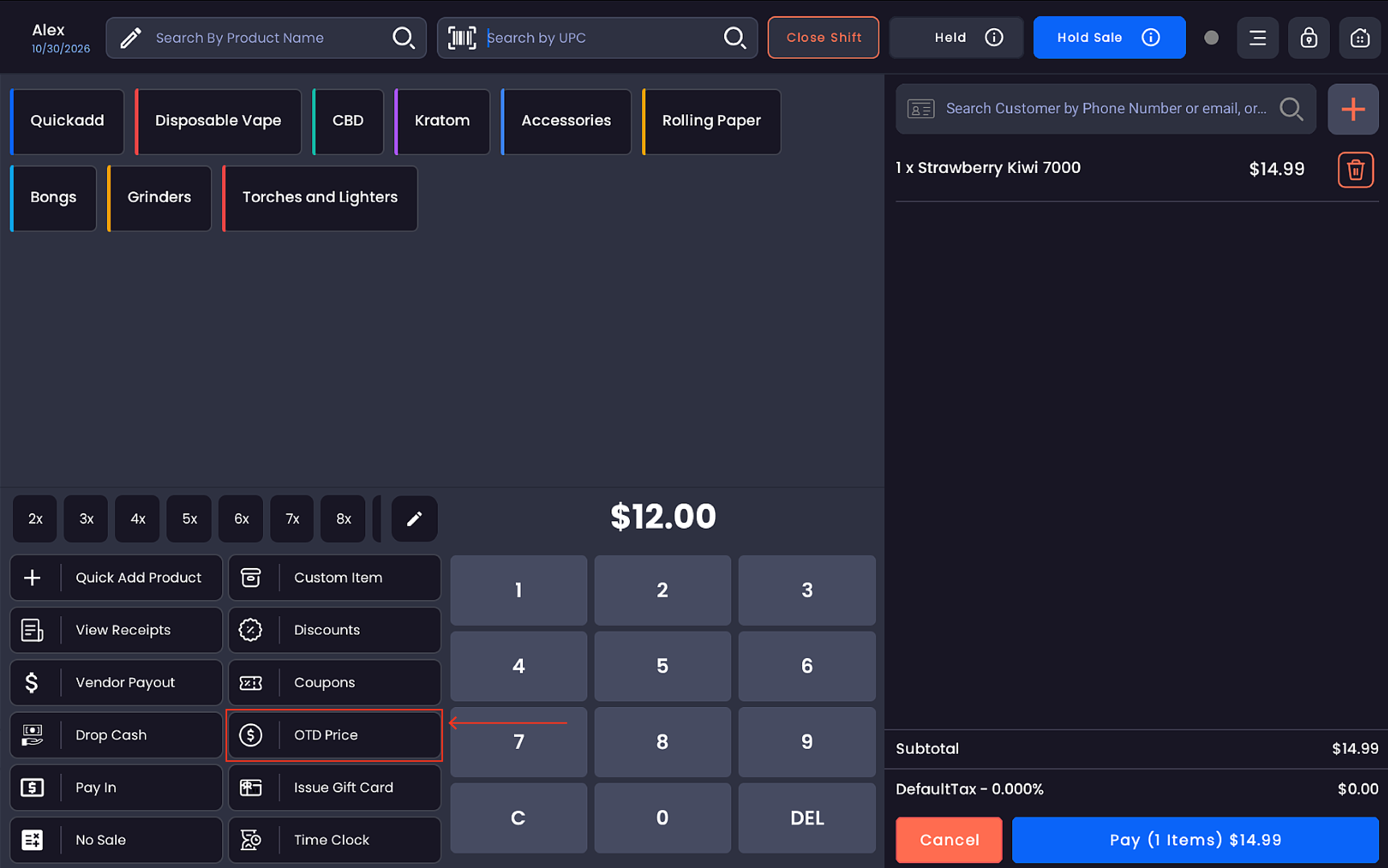
Tap OTD Price on the register.
-
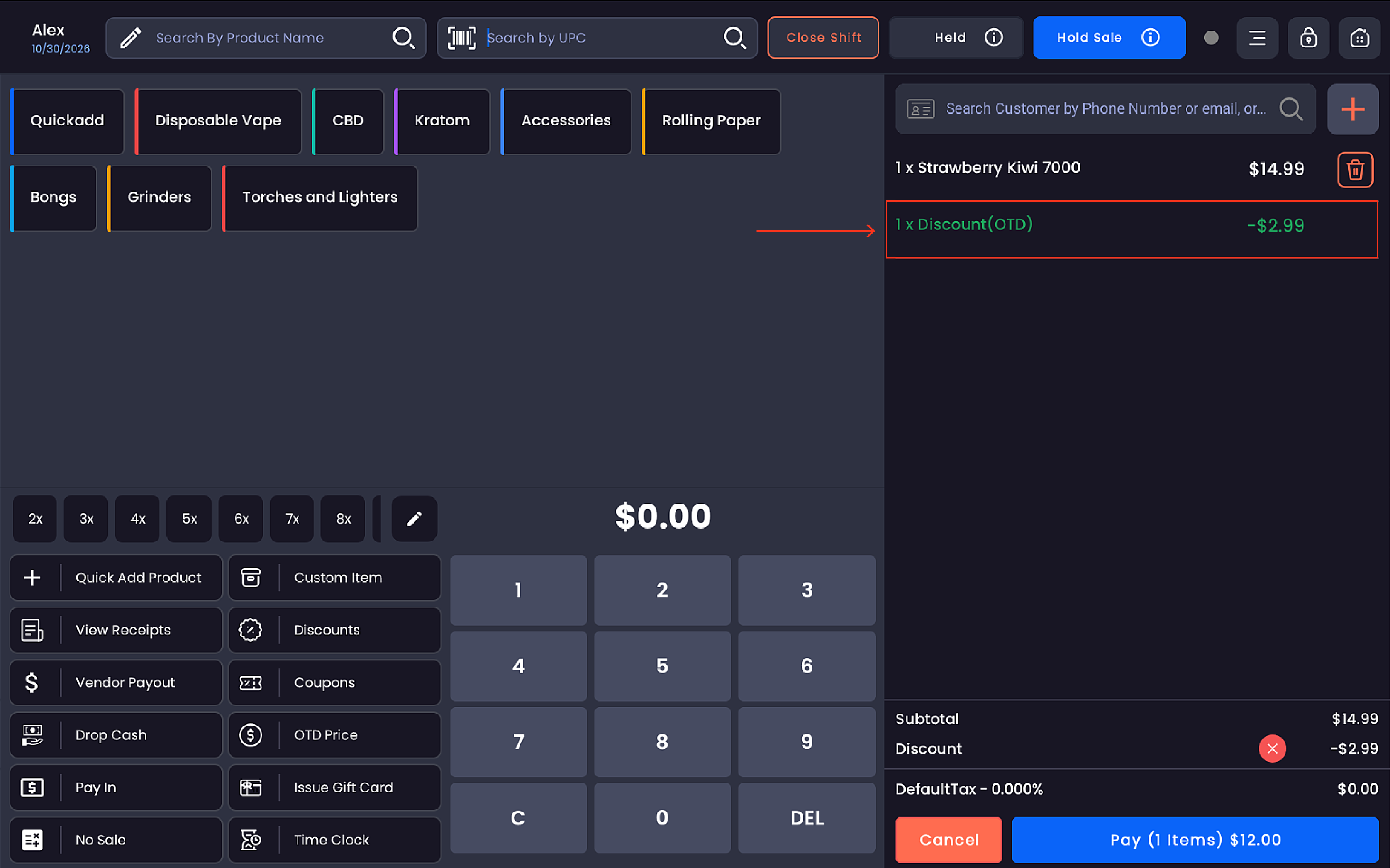
The entered amount is automatically applied to the total cart amount.
-
The system calculates the difference and applies it automatically:
-
-
The cart displays a new line:
1 x Discount(OTD) — -$[amount] -
The Discount row appears in the cart summary with an ✕ to remove it if needed
-
Tax is recalculated based on the new adjusted amount
-
The Pay button updates to reflect the final OTD total
-
How the calculation works
The system works backward from the OTD amount entered:
|
Field |
Example |
|---|---|
|
Original Subtotal |
$49.99 |
|
OTD Price entered |
$2.00 |
|
OTD Discount applied |
-$48.16 |
|
Tax (on adjusted amount) |
$0.17 |
|
Final Total |
$2.00 |
The OTD discount is shown as a separate labeled line item — Discount(OTD) — keeping the transaction transparent and traceable in reports.
Removing an OTD discount
To remove an applied OTD discount before completing the sale:
-
Tap the ✕ button next to the Discount line in the cart summary
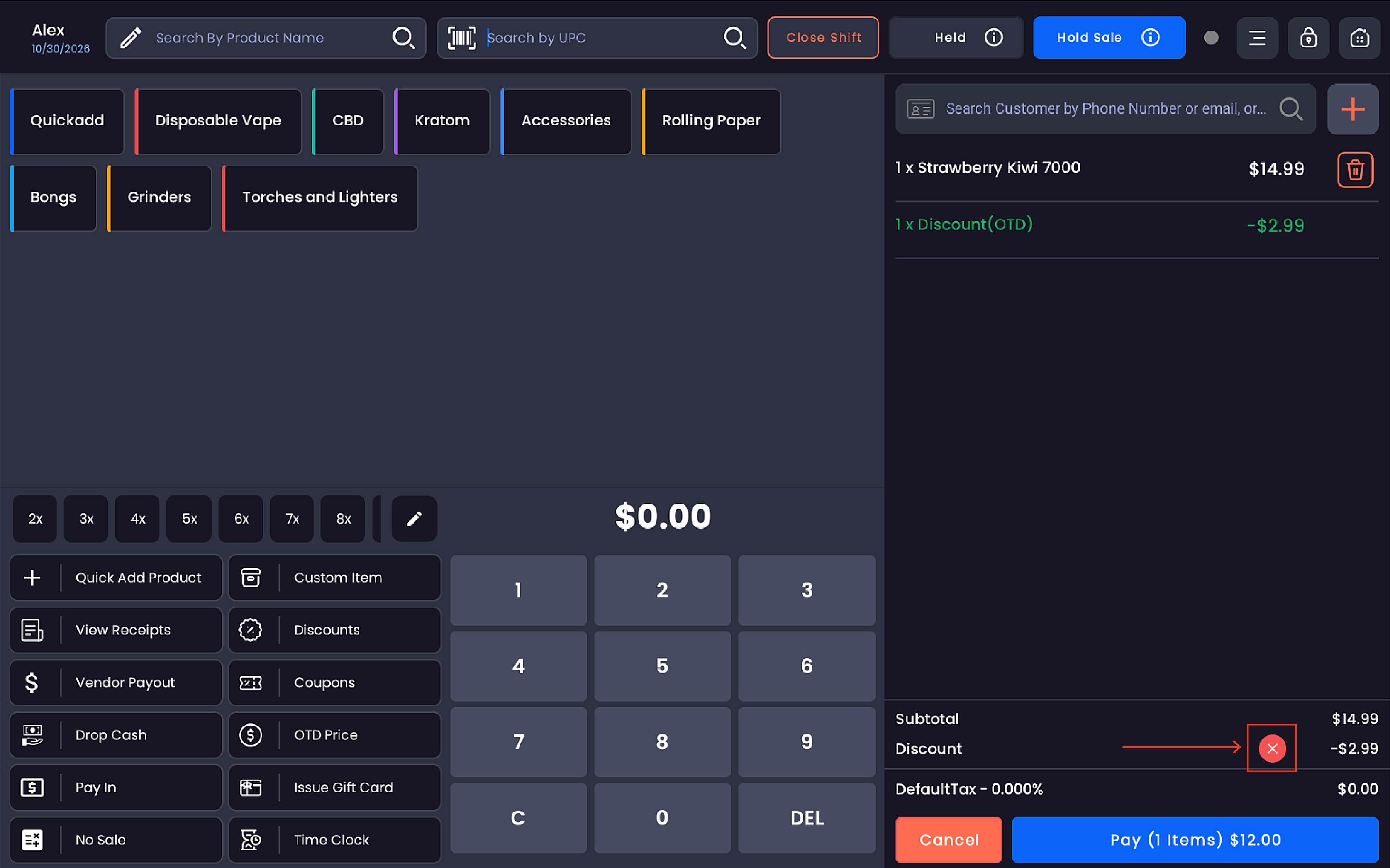
-
The cart reverts to the original subtotal and tax
Important notes
|
Rule |
Detail |
|---|---|
|
Scope |
OTD Price is an order-level discount — it applies to the entire transaction, not to individual line items |
|
Tax recalculation |
Tax is recalculated on the post-OTD adjusted subtotal, not the original subtotal |
|
Price override conflict |
Once OTD is applied, individual item price overrides are restricted to prevent conflicting adjustments |
|
Cart display |
The OTD discount always appears as a named line item — |
|
Reporting |
OTD discounts are tracked separately from item discounts, coupon discounts, and order-level manual discounts |
|
Permission required |
OTD Price button is hidden if the employee's role does not have the OTD Price permission enabled |
Related features
|
Feature |
Difference from OTD Price |
|---|---|
|
Order Level Discount |
Requires entering a percentage or flat discount amount — works forward from the original price |
|
Item Level Discount |
Applied per product line item, not across the full order |
|
Coupon |
Applied via a coupon code or coupon list — rules-based, not manually entered |
|
Price Override |
Changes the unit price of a specific product — does not affect the full order total |