
The Employee Timesheet Management module lets merchants review, approve, and manage all employee time entries from the Quickvee backend. It provides daily review of clock-in/out records, pay period summaries, payroll wage estimates, and the ability to manually add or edit time cards.
Access path: Backend sidebar → Employees → Timesheet
Page subtitle: "Review, approve, and manage employee time entries"
Dashboard overview
|
Card |
Description |
|---|---|
|
Total Hours |
Total hours worked for the selected timesheet entries based on active filters |
|
Incomplete Entries |
Count of entries missing a clock-out time — highlighted in red with "Click to complete entries" |
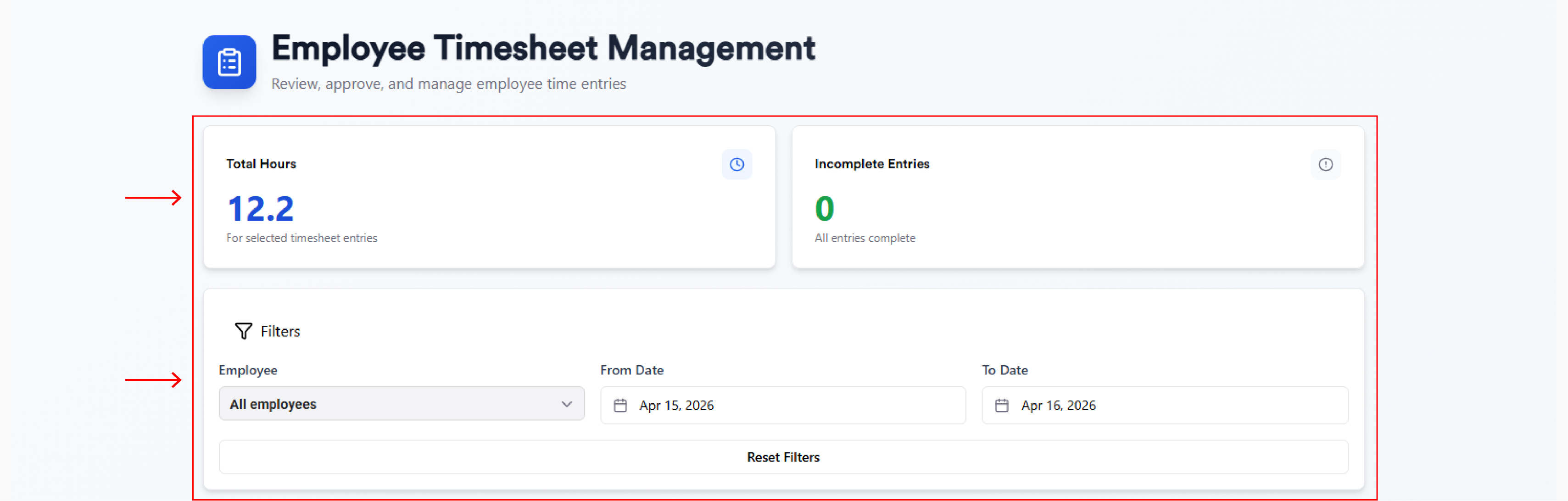
Filters
|
Filter |
Description |
|---|---|
|
Employee |
Filter by specific employee or show "All employees" |
|
From Date |
Start date for the timesheet range |
|
To Date |
End date for the timesheet range |
|
Reset Filters |
Clears all filters and resets to defaults |
Completing incomplete entries
When the Incomplete Entries card shows a count greater than 0, clicking it opens the Complete Timesheet Entries modal. This walks through each incomplete entry one at a time:
-
Shows Entry X of Y with a progress bar
-
Displays: Employee name, Date, and Clocked in at time
-
Requires entry of Clock Out Time (hh:mm aa format)
-
Skip — skips this entry and moves to the next
-
Next — saves the clock-out time and proceeds
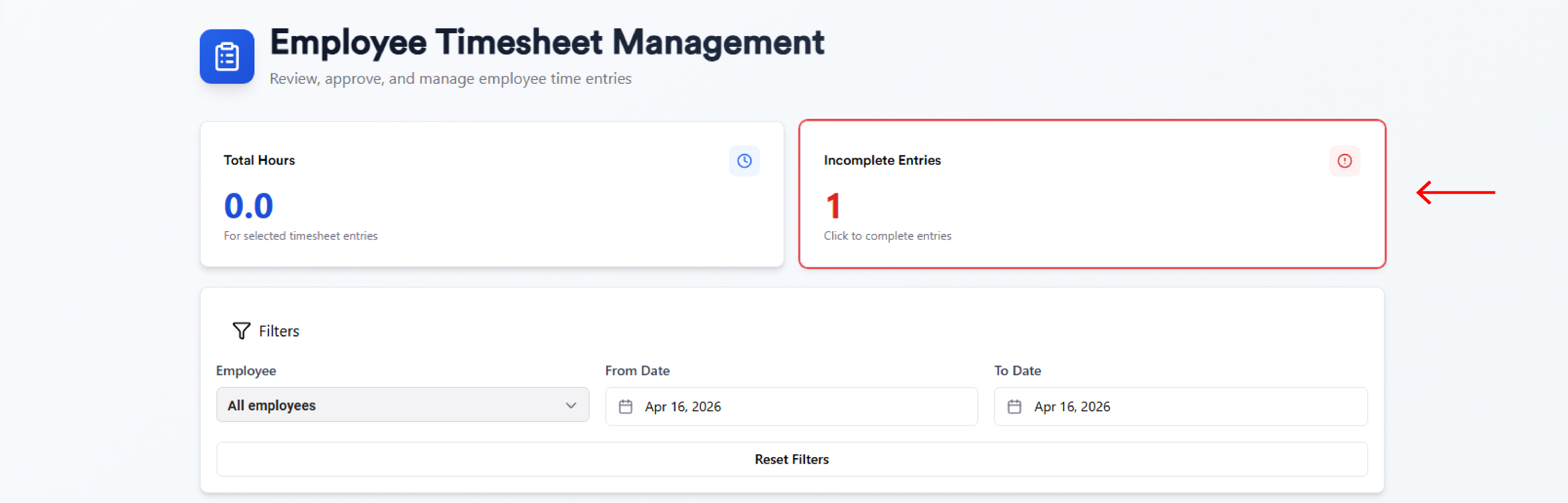
Incomplete entries occur when an employee clocks in but does not clock out. These must be resolved for accurate hour and wage calculations.
Three views
1. Daily Review
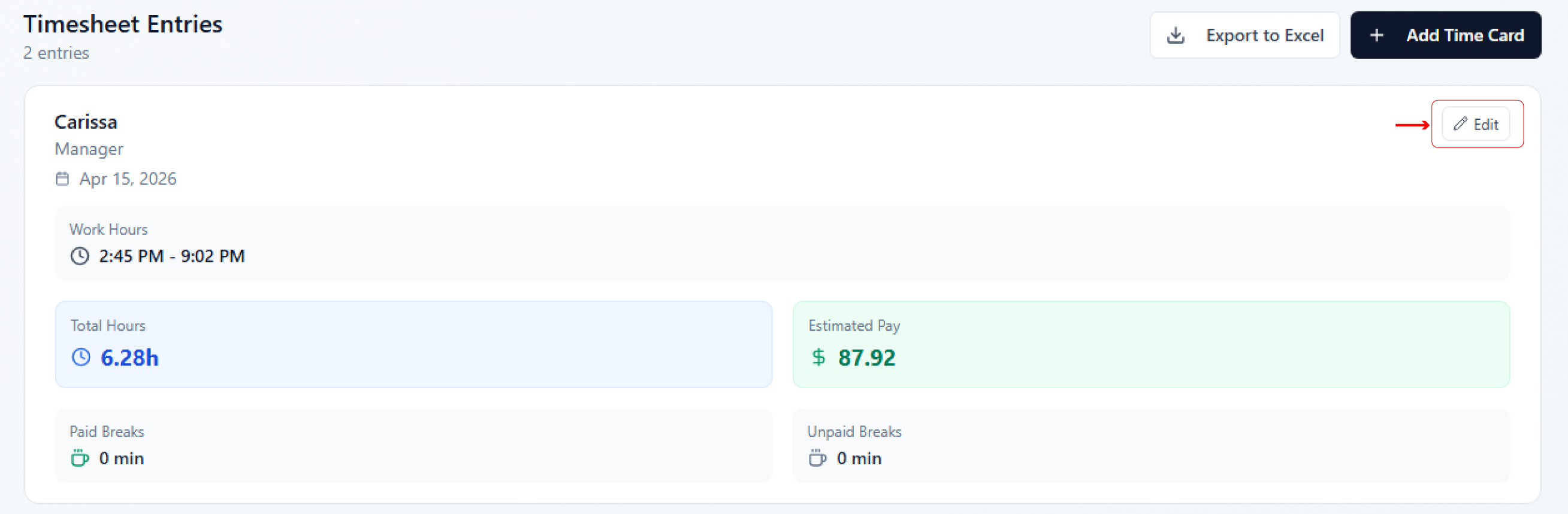
The Daily Review tab shows Timesheet Entries listed by employee and date.
|
Field |
Description |
|---|---|
|
Employee name and role |
e.g. Brian G — Cashier |
|
Date |
The date of the time entry |
|
Work Hours |
Clock-in to clock-out time range |
|
Total Hours |
Total hours calculated (e.g. 19.50h) |
|
Estimated Pay |
Calculated from total hours × wage rate |
|
Paid Breaks / Unpaid Breaks |
Total break time in minutes |
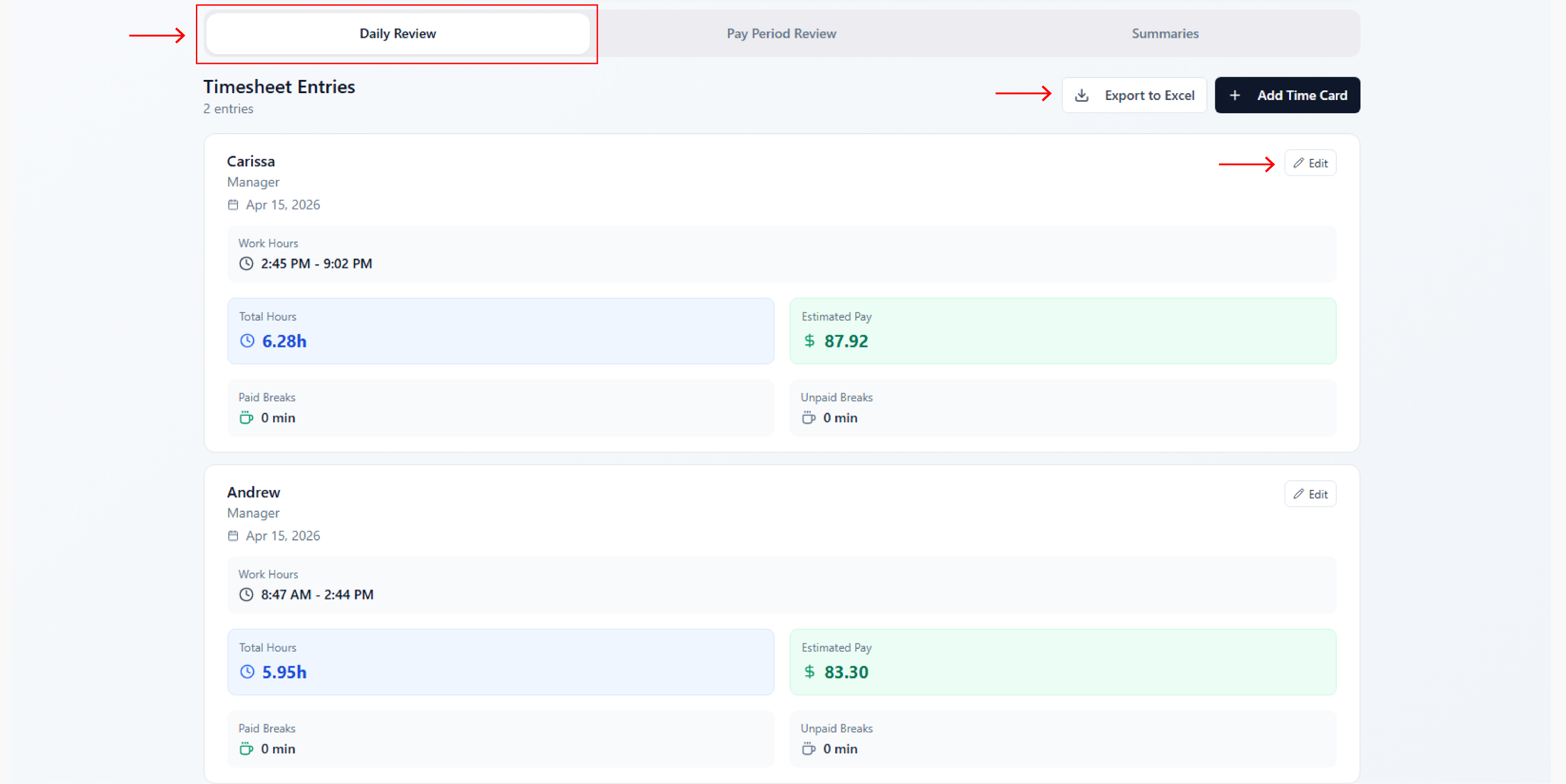
Incomplete entries are flagged with a red "⚠ Incomplete entry — missing clock out" label and an Add Clock Out action button.
Actions: Export to Excel, + Add Time Card, ✏ Edit

2. Pay Period Review
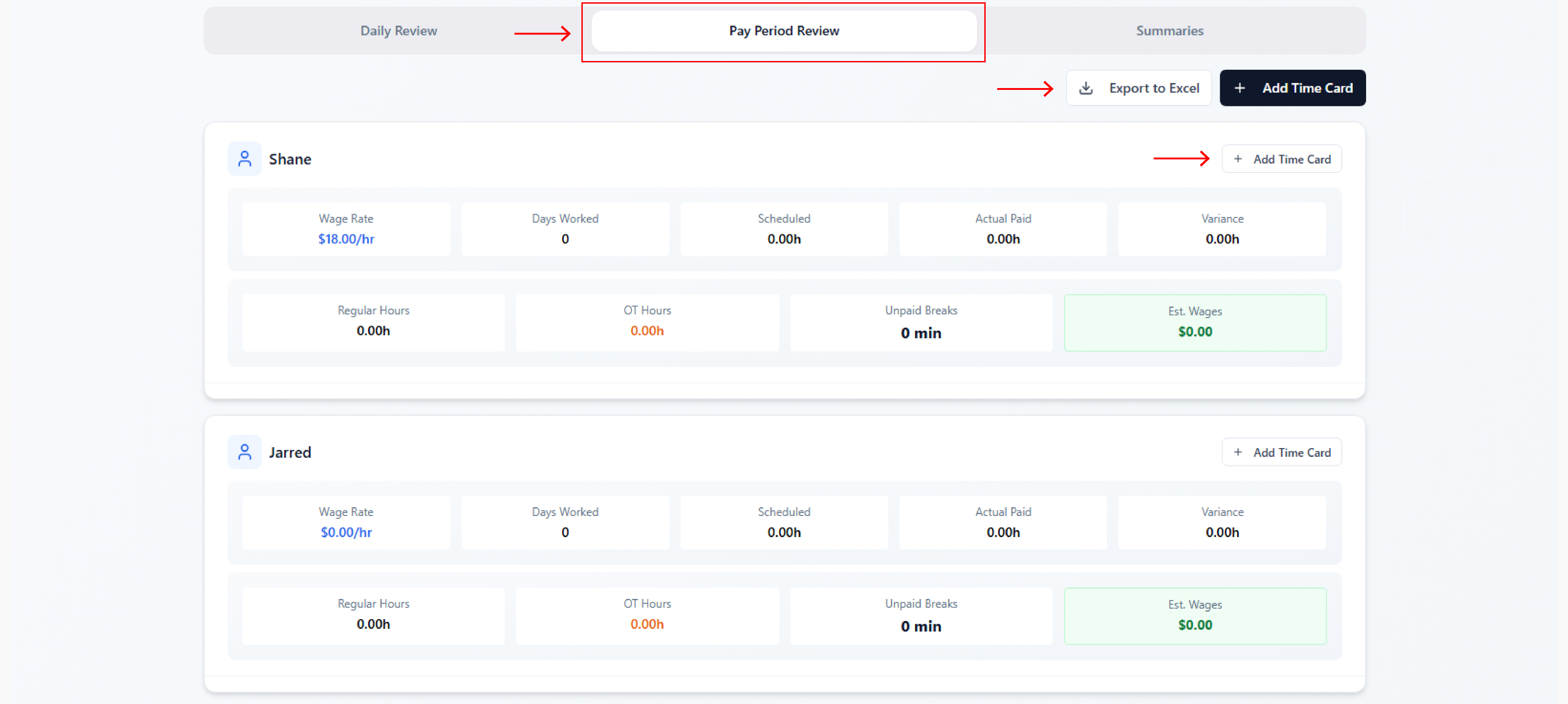
Consolidated view per employee across the selected pay period.
|
Field |
Description |
|---|---|
|
Wage Rate |
Employee's hourly wage |
|
Days Worked |
Number of days with recorded entries |
|
Scheduled |
Scheduled hours for the period |
|
Actual Paid |
Actual hours worked and paid |
|
Variance |
Difference between actual and scheduled (shown in orange if over) |
|
Regular Hours |
Standard hours worked |
|
OT Hours |
Overtime hours worked (shown in orange) |
|
Unpaid Breaks |
Total unpaid break time |
|
Est. Wages |
Estimated total wages for the period |
Actions: Export to Excel, + Add Time Card, ✏ Edit
3. Summaries
The Summaries tab shows Payroll summaries — "Instantly convert your timesheets into hours and wages."
Summaries are organized by pay period (week by week):
|
Column |
Description |
|---|---|
|
Pay period |
Date range (e.g. Mon Mar 30 – Sun Apr 5) |
|
Time cards |
Total time cards in that period (shown in blue) |
|
Regular hours |
Total regular hours worked |
|
OT hours |
Total overtime hours (shown in orange) |
|
Estimated wages |
Total estimated wages (shown in green) |
Use the ← → arrows to navigate between months. Click Export to Excel to download.
Adding a time card entry
Click + Add Time Card from either Daily Review or Pay Period Review.
|
Field |
Required |
Description |
|---|---|---|
|
Employee |
✅ Required |
Select from employee dropdown |
|
Date |
✅ Required |
Date of the time entry (defaults to today) |
|
Worked for |
Auto-calc |
Shows total time based on clock-in/out |
|
Clock In Time |
✅ Required |
Enter in hh:mm aa format |
|
Clock Out Time |
Optional |
Can be left blank for ongoing shifts |
|
Paid Breaks |
Optional |
Click + Add Paid Break to add one or more |
Click Add Entry to save or Cancel to close.
Overnight shifts (clock-out on the following day) are supported — the system correctly calculates hours across midnight.
Editing a time card entry
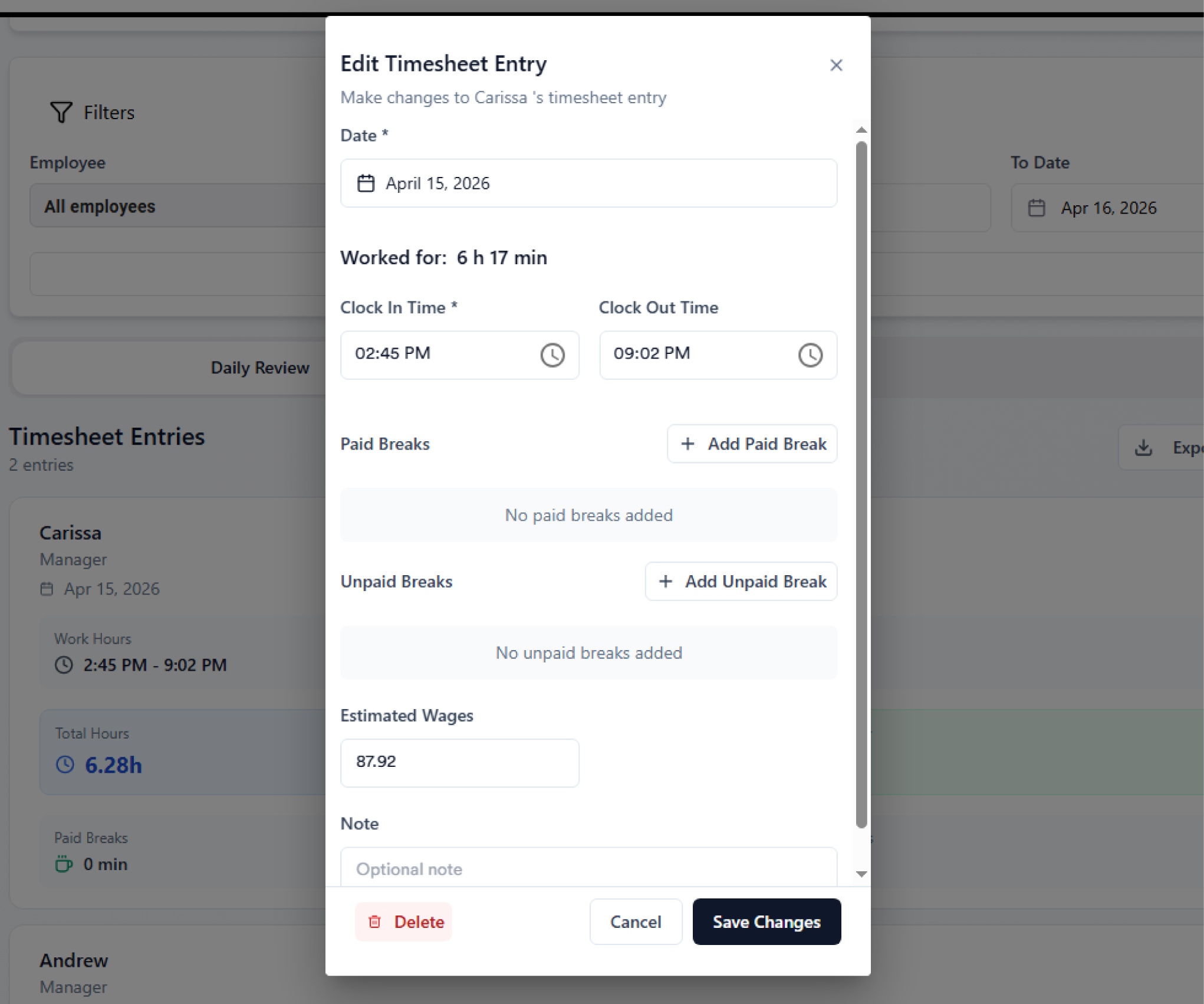
Click ✏ Edit on any time card entry. The Edit Timesheet Entry popup opens.
|
Field |
Description |
|---|---|
|
Date |
Date of the entry |
|
Worked for |
Auto-calculated total (e.g. 19 h 30 min) |
|
Clock In Time |
Edit the clock-in time |
|
Clock Out Time |
Edit the clock-out time |
|
Paid Breaks |
Add or remove paid breaks using + Add Paid Break |
|
Unpaid Breaks |
Add or remove unpaid breaks using + Add Unpaid Break |
Actions: Save Changes, Cancel, Delete (permanently removes the entry).
Breaks & Compliance
Break rules that appear on the POS Attendance clock-in screen are configured in Store Settings → Breaks & Compliance.
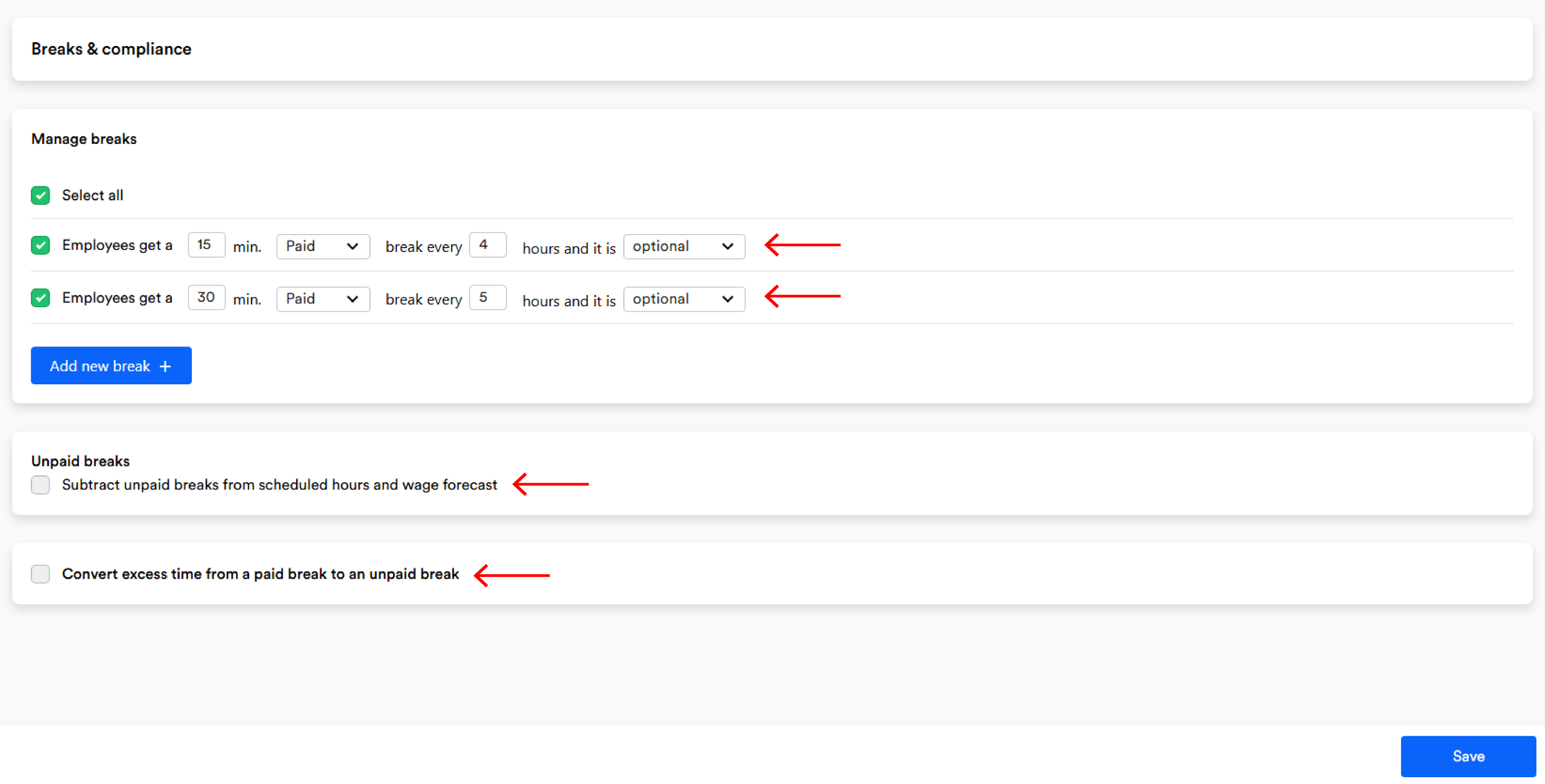
Managing breaks
|
Setting |
Options |
|---|---|
|
Duration |
Number of minutes (e.g. 15 min, 30 min) |
|
Type |
Paid or Unpaid |
|
Frequency |
Every X hours (e.g. every 4 hours, every 5 hours) |
|
Requirement |
Optional or Required |
Click Add new break + to create additional rules. Example configuration:
-
15 min Paid break every 4 hours — Optional
-
30 min Paid break every 5 hours — Optional
Additional break settings
|
Option |
Description |
|---|---|
|
Subtract unpaid breaks from scheduled hours and wage forecast |
Unpaid break time is deducted from the hours used for wage calculations |
|
Convert excess time from a paid break to an unpaid break |
Any paid break time that exceeds the configured duration is auto-reclassified as unpaid |
Only active break rules appear as options when employees take a break from the POS Attendance module.
Important notes
-
Incomplete entries (missing clock-out) must be resolved for accurate payroll calculations
-
Wage rates are assigned per employee in Employee Management
-
Timesheet data syncs between the POS Attendance clock-in/out and the web Timesheet module in real time
-
Overnight shifts are fully supported
-
All timesheet views support Export to Excel for payroll processing