
The Quick Add Product feature lets merchants create and add a new product to the register directly from the cart. As soon as a product is created using Quick Add — whether it is sold in that transaction or not — it is immediately saved to the store's inventory and available for future use.
Step 1 — Open the menu
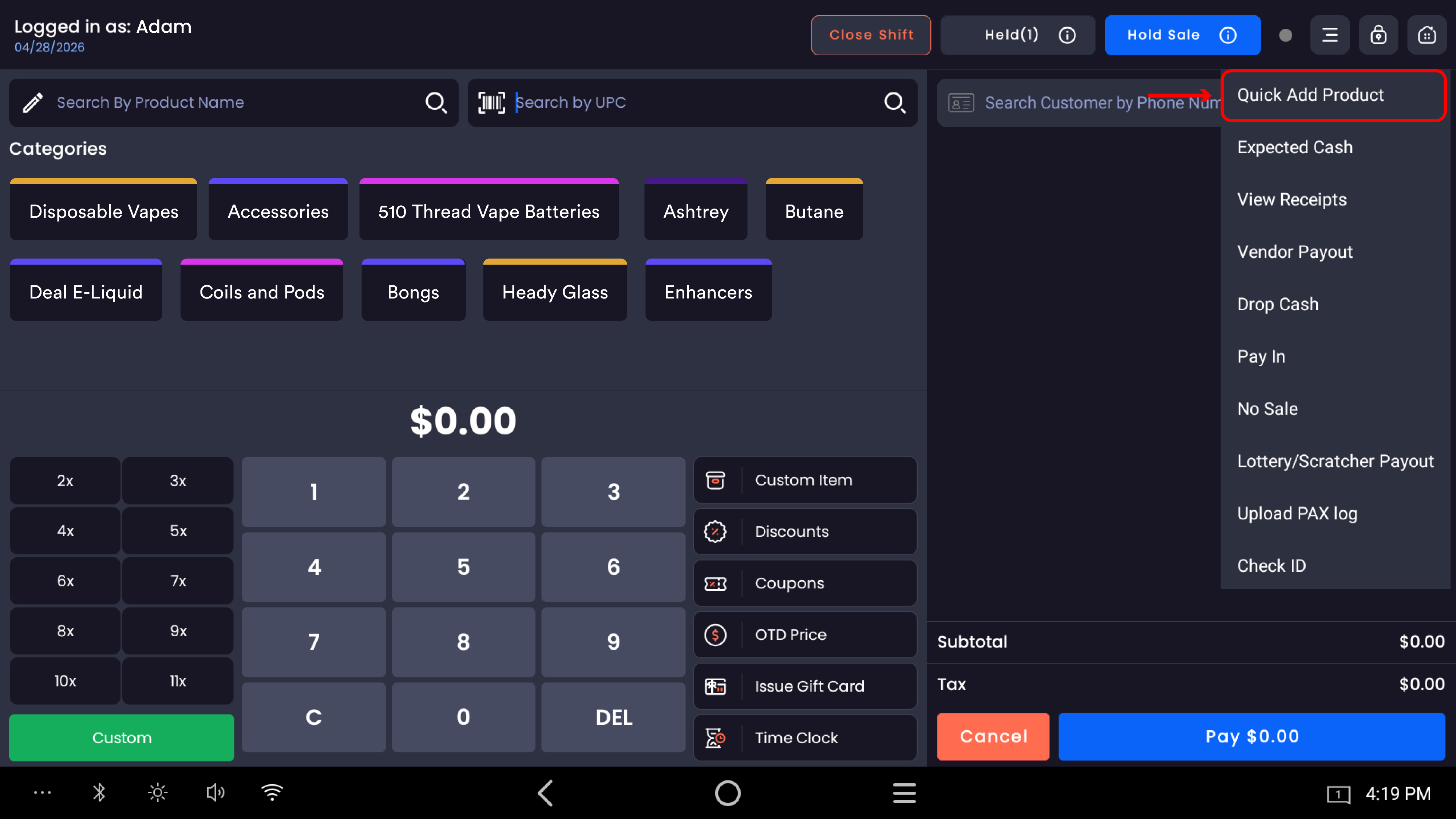
Tap the ≡ menu icon in the top bar of the register screen.
-20260526-104751.jpg?cb=b133589d7a9092d59b7ab95b1628bb75)
Step 2 — Select Quick Add Product
From the dropdown menu, tap Quick Add Product.
Step 3 — Fill in the product details
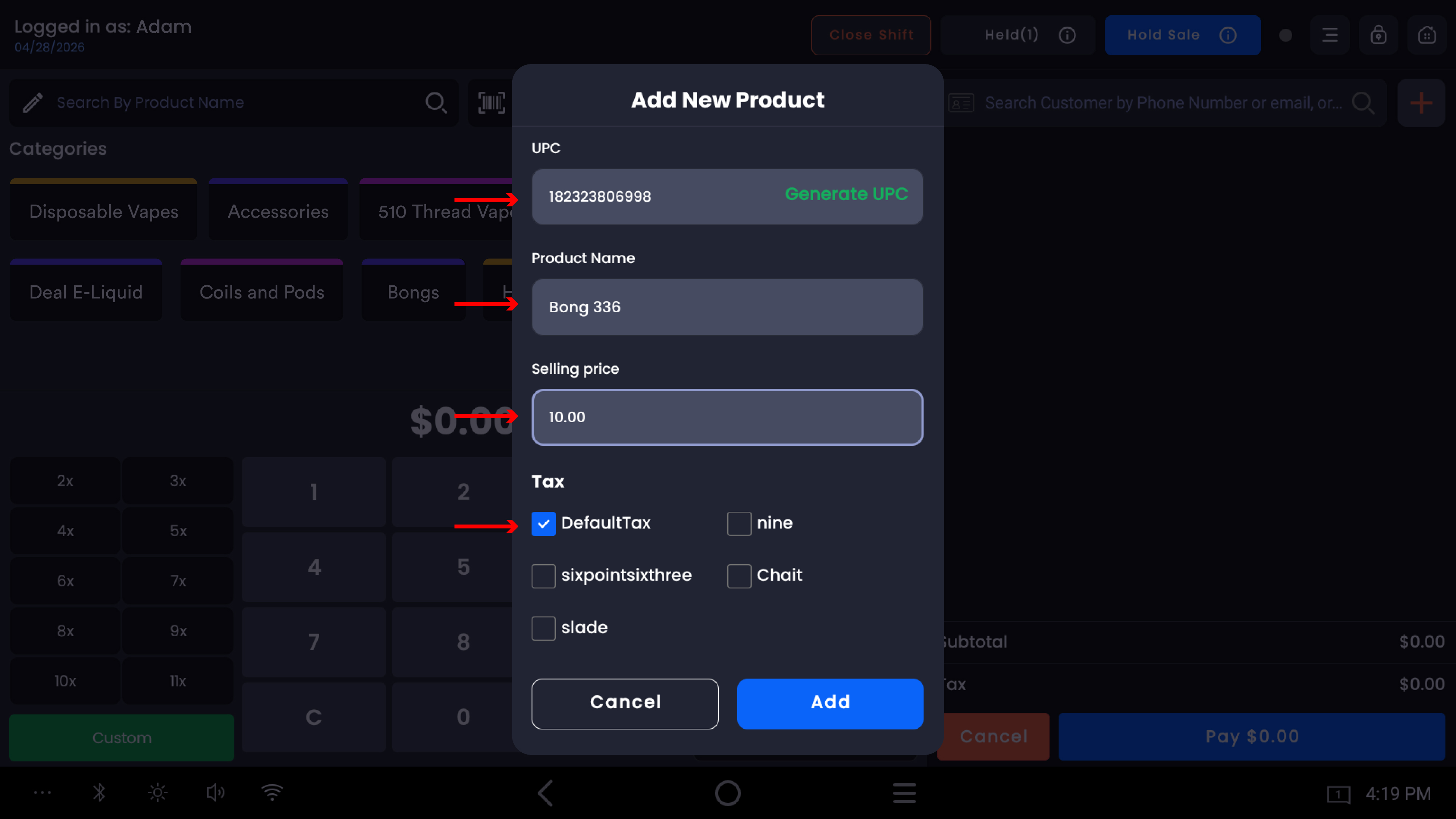
The Add New Product popup appears with the following fields:
|
Field |
Description |
|---|---|
|
UPC |
Enter the product barcode manually, or tap Generate UPC to auto-generate one |
|
Product Name |
Enter the name of the product (e.g. Bong 336) |
|
Selling Price |
Enter the selling price (e.g. 10.00) |
|
Tax |
Check DefaultTax to apply the store's default tax to this product |
Step 4 — Add the product
Tap Add to confirm. The product is immediately:
-
Saved to the store's inventory — available for future transactions from the moment it is created, regardless of whether it is sold in the current transaction
-
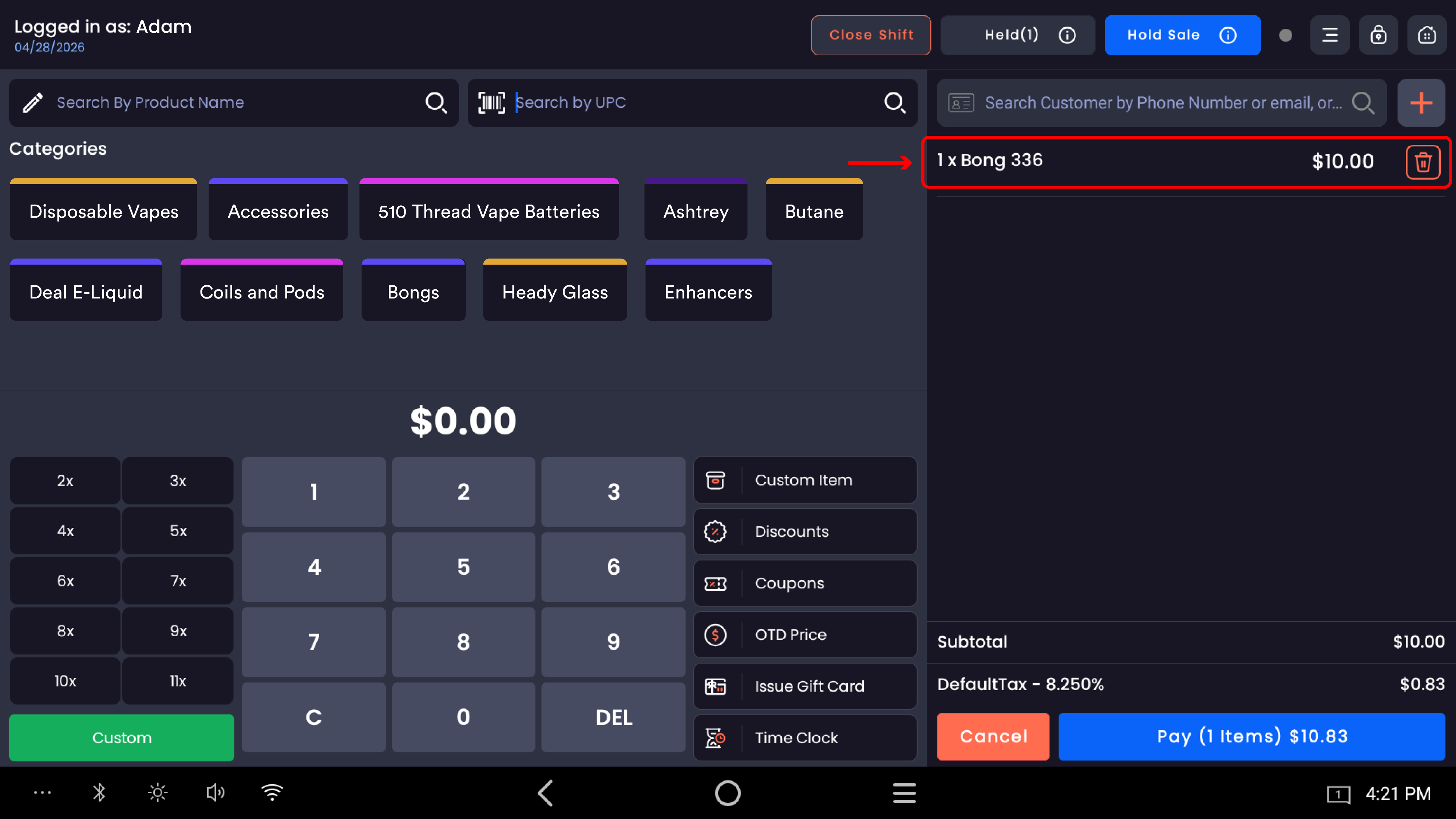
Added to the current cart as a line item (e.g.
1 x Bong 336 — $10.00)
The cart total updates with the applicable tax. Tap Cancel to close the popup without creating the product.
Notes
The product is added to inventory at the point of creation — not at the point of sale. Even if the transaction is cancelled after adding the product, it remains in inventory.
The Generate UPC option creates a unique barcode automatically if the product does not have one.
DefaultTax is applied based on the store's configured tax rate (e.g. 9.500%).
For more advanced product setup (cost price, categories, images, variants), the product can be edited in the back office after creation.